

Ever notice your high-end PC lag during your favorite game? It might seem odd, but even a top machine can slow down if one part, like the CPU (the computer's brain) or the GPU (the graphics engine), falls behind. Think of it like a sports team where one tired player holds back the whole squad.
When your computer reaches its limit, you get stutters and lag that make the game feel clunky. In this post, we explain what a PC bottleneck is and share real tips to fix it. With a few tweaks, you can balance your system and see your games run smoother and faster.
Defining a PC Bottleneck: Impact on Performance and Throughput
A PC bottleneck happens when one part of your computer, be it the CPU, GPU, RAM, storage, or display, hits its limit first. When this occurs, it slows down the whole system. Even top machines with an Intel Core i9-12900H (14 cores, 20 threads, up to 5.0 GHz, and 24 MB L3 cache) teamed up with GPUs like the NVIDIA GeForce RTX 4060 or RTX 3080M (with 16 GB GDDR6) can lag if the parts aren't well-matched.
You might notice this in different ways. Games can stutter during busy scenes, large files might load slowly, and juggling several tasks can feel clunky. For instance, if you're running a high-res game and see your GPU at 100% while the CPU does very little, it's a sign that the GPU is holding back the rest of your system.
Think of it like a sports team where one player is overworked while the rest are not fully utilized. Even if most of your parts are strong, the whole system is only as good as its slowest link.
To keep your setup running smoothly, it's important to balance your parts. Tools like Task Manager can help you spot when a component is always maxed out. Once you see that, it may be time to think about an upgrade or rebalancing your setup. Understanding how and why bottlenecks occur is key to boosting your system's performance.
Common Causes and Signs of PC Bottlenecks
A PC bottleneck occurs when one part of your system holds back the overall speed. It might be a weak CPU (the computer's brain) that struggles with heavy multi-threading or gaming tasks. Even if you have a strong graphics card, a slow CPU can hamper game physics and AI when pushed too far. Likewise, a stressed GPU (graphics processor) may fall short when handling high resolutions or tough settings, leading to stutters and dropped frames during intense play.
Not having enough RAM (short-term memory) can push these problems further. When memory runs low, your system breaks tasks into smaller chunks, which slows down frame buffering and makes opening windows or launching apps laggy. A sluggish storage drive, be it an HDD (traditional hard drive), SSD, or NVMe, can also slow down large programs and affect both gaming and work. Changing your resolution may hide or highlight these bottlenecks; higher resolutions force the GPU to work harder, sometimes lessening the load on the CPU.
Watch for these bottleneck clues:
- CPU or GPU running at 90-100% during regular tasks
- Choppy frame rates or stutters in games and benchmarks
- Long load times for large applications or video projects
- Slow window switching and app launches despite available resources
- Alerts for thermal throttling when the CPU or GPU nears maximum temperature
- Sudden FPS drops when multitasking, like streaming while gaming
Diagnosing and Measuring Your PC Bottleneck
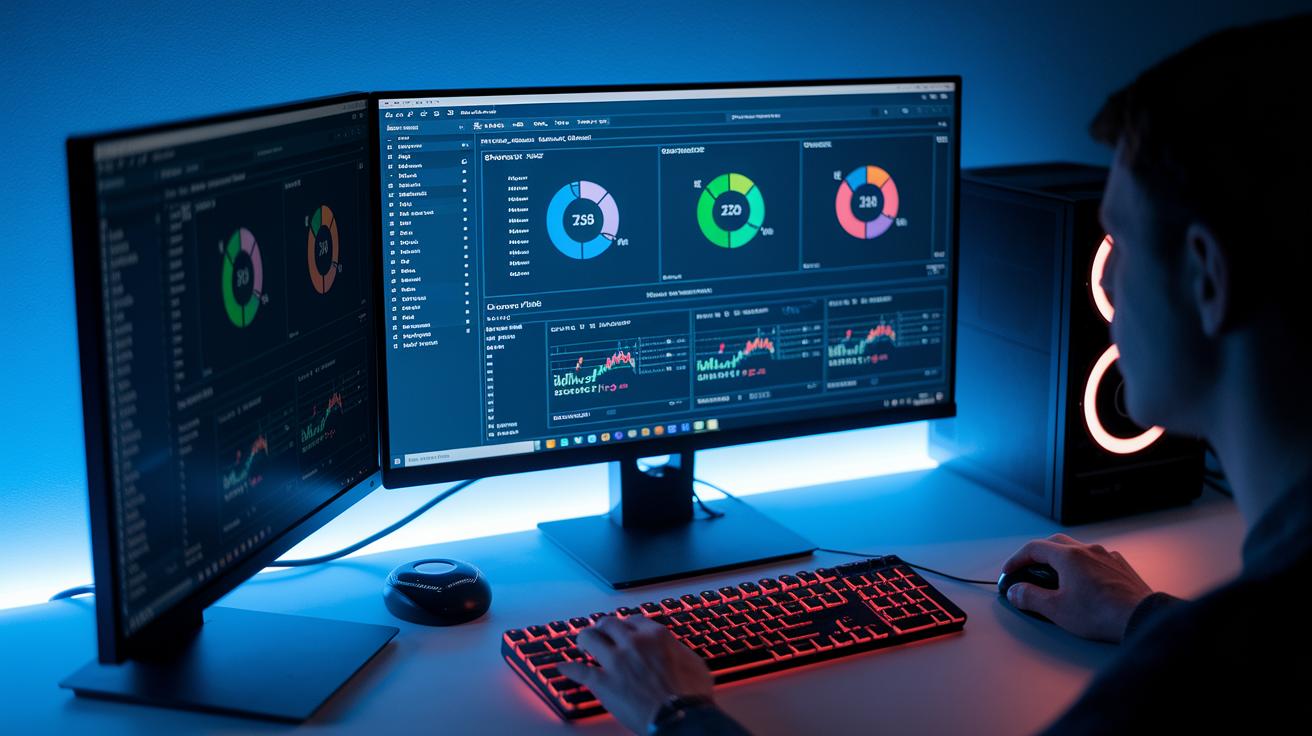
Start by using the tools built into your Windows computer to find out which part is working too hard. Open Task Manager quickly by pressing Ctrl+Shift+Esc. Then click the Performance tab to see real-time stats for your CPU, GPU, and RAM. Watch these numbers for about 5–10 minutes while you game or edit. If one part stays close to 90–100% usage, like a CPU that is maxed out, it might be the bottleneck.
Using Task Manager Metrics
Look closely at the graphs in Task Manager. Check both the CPU and GPU sections for their activity. For example, if you see the GPU hitting 100% during a high-resolution game and the CPU staying around 40-50%, your graphics card may be the limiting factor. It helps to monitor over a longer session to catch any spikes. This way, you can tell which part might need an upgrade.
Leveraging online Bottleneck Calculators
You can also use online bottleneck calculators for a more interactive check. Just enter your CPU model, GPU model, and current screen resolution. These tools use data from many games (about 100 popular titles) to give you a percentage that shows how much one part might slow down your system. This result can help you decide if your system is held back by the CPU or GPU.
| Scenario | CPU Usage | GPU Usage | Interpretation |
|---|---|---|---|
| Low CPU/Low GPU | 10-30% | 10-30% | Idle or light tasks |
| Low CPU/High GPU | <50% | 90-100% | GPU-bound performance |
| High CPU/Low GPU | 90-100% | <50% | CPU-bound performance |
| High CPU/High GPU | 90-100% | 90-100% | Fully utilized system, check cooling and power |
CPU vs GPU Bottlenecks: Identifying the Limiting Component
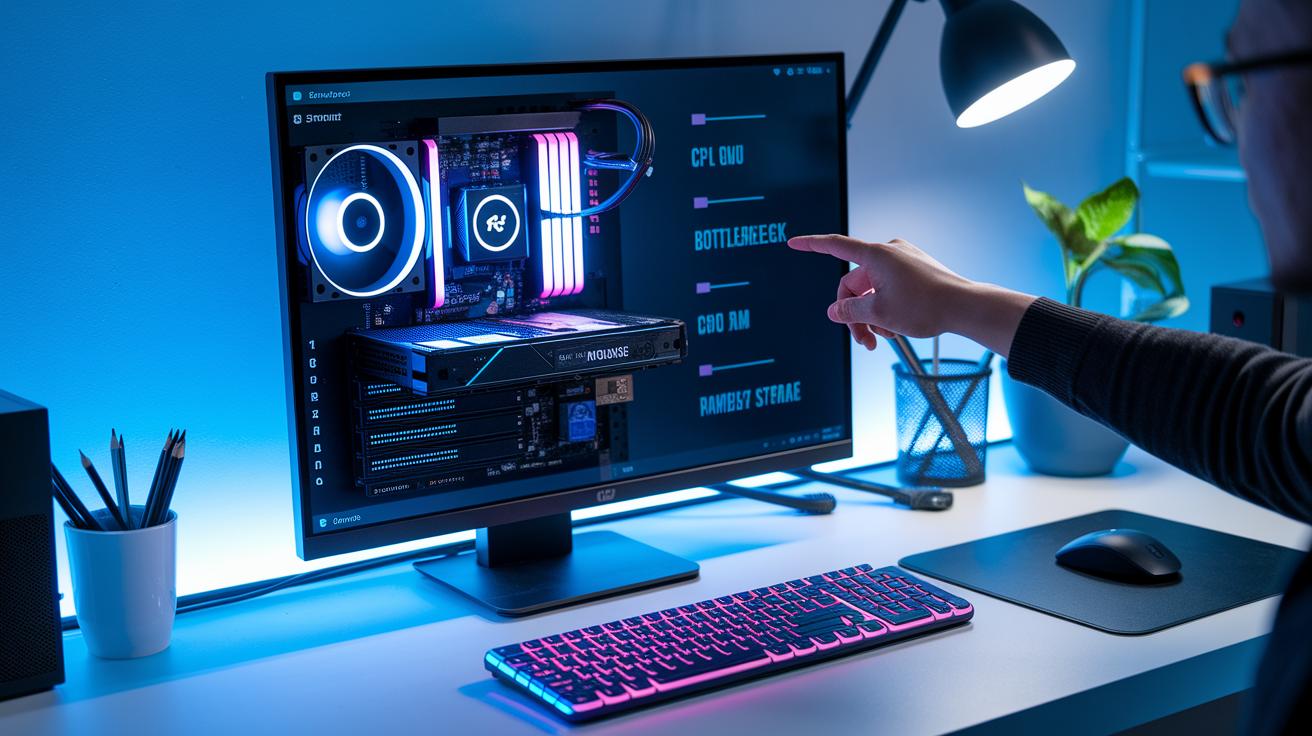
We combined this discussion with the topics "Defining a PC Bottleneck" and "Common Causes and Signs of PC Bottlenecks." This way, you'll get one clear explanation about what slows your system down without any repeated details.
Resolving PC Bottlenecks with Upgrades and Optimization
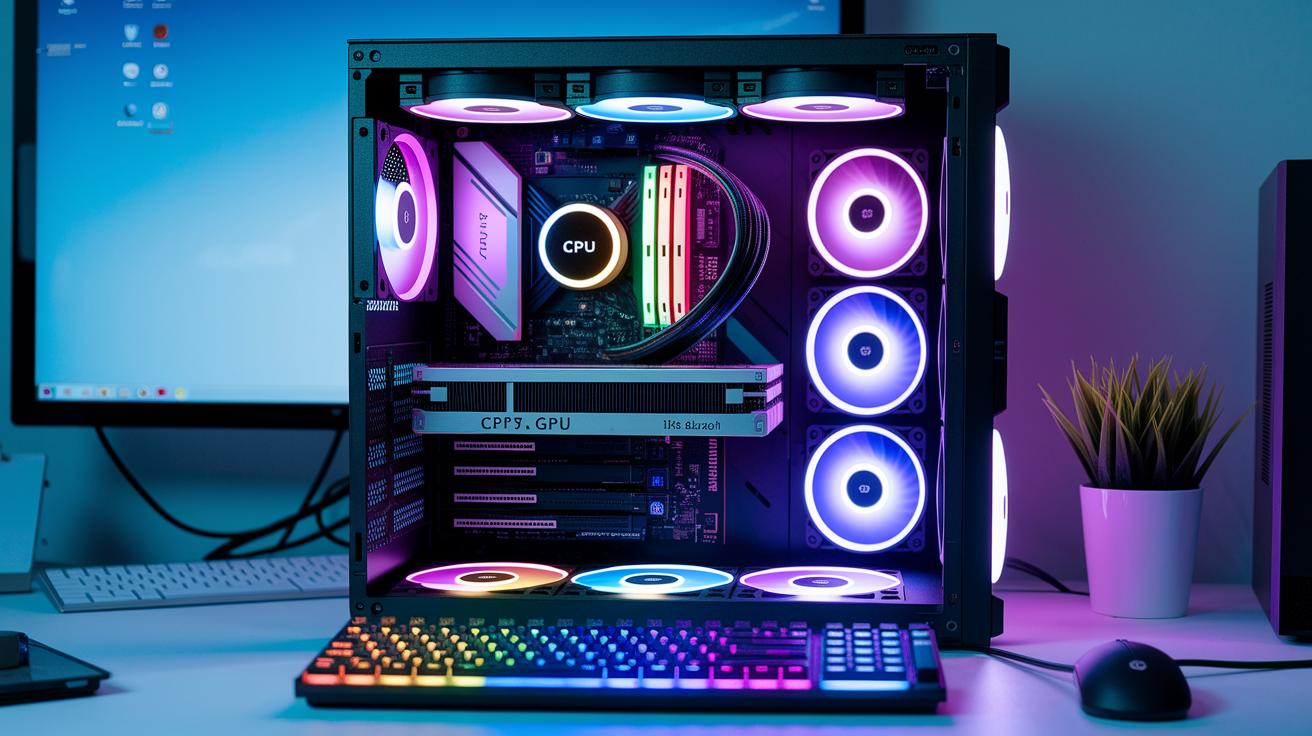
If one part of your PC is holding everything back, start by figuring out which one it is. Check if it's the CPU (the brain of your computer), GPU (the part that handles visuals), RAM (temporary memory), or your storage drive. Once you spot the slow element, upgrade it so your whole system works in balance. For example, swapping an old HDD (a slower hard drive) with an SSD or NVMe drive can cut down load times. Adding more RAM helps too, especially when you run several apps at once.
You can also consider overclocking your CPU or GPU. This means pushing them to run a bit faster and can boost performance by 5% to 15% when done carefully with proper cooling and power settings. Lowering game settings or screen resolution may also reduce the load on the slow component. Sometimes, a fresh upgrade, like pairing a newer Ryzen CPU with a modern RTX GPU, makes a big difference in smoothing out your PC's performance.
Don't forget about software tweaks. Reducing graphics settings in demanding games or cutting back on unnecessary background tasks frees up valuable CPU and GPU power. These changes help your system run more efficiently without major hardware swaps. For hardware upgrades, you can check out our guide on upgrade pc components to find options that work well together.
By combining careful hardware upgrades with smart software adjustments, you can ease performance lags and create a smoother, faster system. Each upgrade should fit well with your current setup, ensuring balanced performance for smoother multitasking and faster response times. Regular tests with trusted tools keep your PC tuned and ready for whatever you throw at it.
PC Bottleneck: Boost System Performance
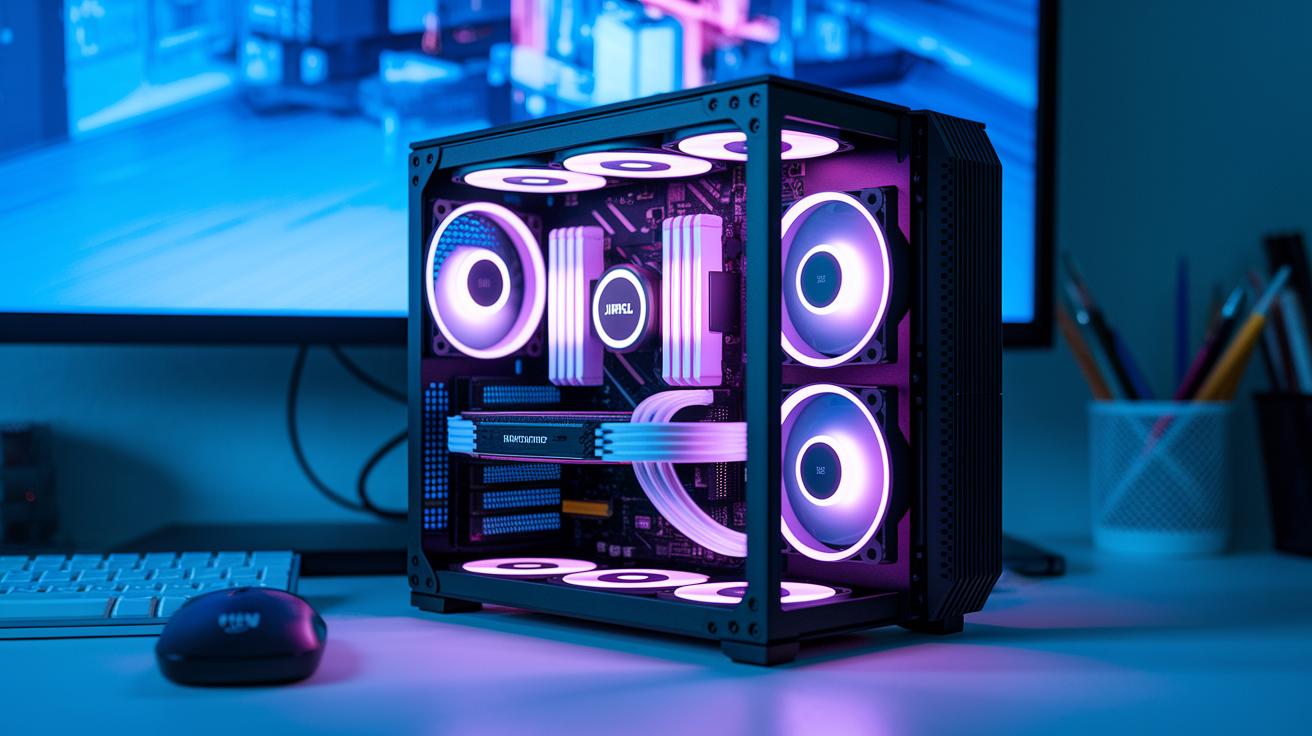
Mini PCs are small but run into the same speed limits as full-sized desktops. Even with the latest parts, mixing a strong CPU with a weaker GPU or cooling system can slow you down. For instance, a setup with an RTX 5070 and a Ryzen 7 9800X3D usually runs smoother than one with an RTX 3060 and Ryzen 5 5500. This proves that balancing your components is key.
Our tests show that even compact mini PCs can handle heavy work if you plan your CPU and GPU pairing well. A bottleneck calculator (a tool that tells you which part might be holding back performance) updated with current game data can really help. We suggest running these checks every 6 to 12 months, especially after new games or driver updates drop.
When you notice slowdowns, check how each component is working. If one part is always pushed to its limit while another barely notices, that’s a clear sign for an upgrade.
Key considerations:
- Mini PC limits compared to full desktops.
- Examples of CPU/GPU pairs that show clear performance differences.
- Regular checks using updated bottleneck tools.
Balancing your parts keeps any speed issues in check, helping your system perform better under heavy loads.
Final Words
in the action, we broke down what a pc bottleneck is and why it affects performance. We covered how to spot signs like choppy frame rates and slow load times. You saw ways to use tools like Task Manager and online calculators to pinpoint the source. We also offered upgrade options and optimization tips to bring your setup back in balance. Stay informed and test your system regularly to keep your build running smoothly. Happy upgrading!
FAQ
Q: What is a bottleneck in a PC?
A: The term bottleneck means a single component like the CPU, GPU, RAM, or storage limits overall performance by not keeping up with faster parts.
Q: How does a PC bottleneck calculator work?
A: The PC bottleneck calculator compares CPU and GPU models using benchmark data while factoring in RAM and resolution. It helps identify imbalances in your build, especially during gaming, as seen on forums like Reddit.
Q: Is 80% CPU usage a bottleneck?
A: High CPU usage around 80% may indicate a bottleneck if the processor constantly maxes out during demanding tasks, restricting system responsiveness and overall performance.
Q: Is it better to be CPU or GPU bottlenecked?
A: Being CPU bottlenecked means the processor is fully loaded, delaying the GPU, while a GPU bottleneck limits graphics output. A balanced system with both under 90% usage offers smoother performance.
Q: How do PC builds face bottlenecks?
A: PC builds face bottlenecks when one component underperforms relative to others. This can result in slow load times, choppy gameplay, or lag during multitasking, highlighting the need for balanced hardware.
Q: How do I fix bottlenecking on a PC?
A: To fix a bottleneck, first identify the problematic component using benchmark tools. Then upgrade or optimize that part, adjust game settings, or safely overclock to achieve a more balanced workload and better performance.