

Does your computer lag right when you need it most? Our test finds what’s slowing it down and gives you a simple plan to boost speed.
We check your CPU (the part that does the work), RAM (the short-term memory), and disk (where files are kept) to spot hidden issues, like too many apps running or a nearly full drive.
With clear numbers in hand, you'll know exactly what to clean up or upgrade. Follow along as we explain each step to help your computer run faster every day.
pc performance test: Experience Stellar Speed
Testing your PC helps you spot what slows it down. It finds issues like too many background programs, low free disk space (keep at least 10% free), outdated hardware, or even malware. Tools such as PassMark PerformanceTest or Windows 10’s built-in tests show you the health of your CPU, RAM, and disk.
- Pre-check your system: Make sure your hardware is in good shape and close any apps you don't need (check our PC components list if you need help).
- Pick your tool: Choose a benchmarking program that meets your needs.
- Get your environment ready: Shut down nonessential processes and use a clean desktop for testing.
- Capture a baseline: Record your initial performance numbers before starting the test.
- Run the full test: Measure your CPU speed, RAM capacity, and disk read/write speeds.
- Save your logs: Keep the results for comparison or future checks.
Once you finish the test, the numbers will reveal your system’s strengths and limits. For example, low RAM may slow down multi-tasking, while a nearly full disk can reduce read/write speeds. With clear data, you can plan targeted upgrades or cleanups to boost your PC’s speed.
Essential Metrics in a PC Performance Test
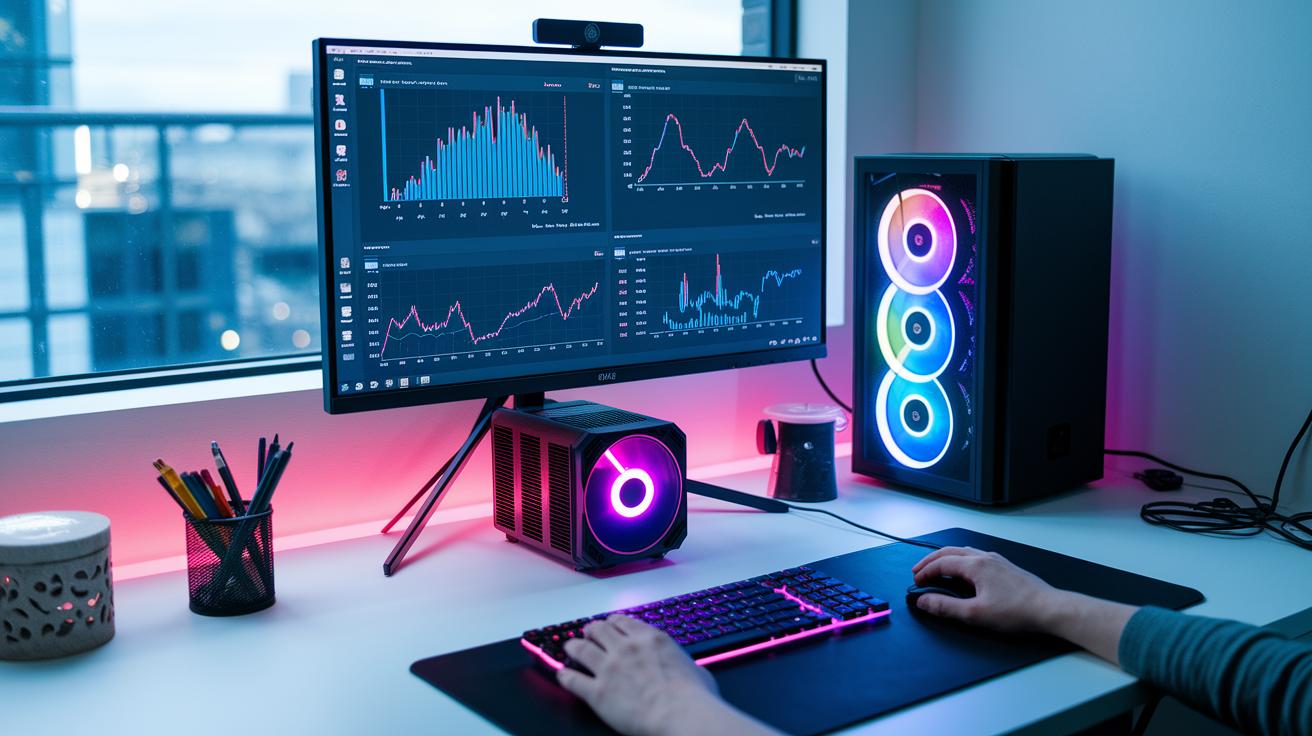
Metrics help you see what's really happening inside your computer. They show if your system can handle tasks like gaming, video editing, or running several programs at once.
When putting your system through a test, start with the CPU. The CPU clock speed, measured in gigahertz (GHz), tells you how many cycles the processor can finish each second. The core count and multi-thread score explain how many jobs it can work on at the same time. For checking your graphics card, the frame rate (frames per second, or FPS) reveals how smooth your game or video looks. Render time measures how long the GPU takes to process a frame, giving you a clue about its overall speed. These tests make it clear if your PC can handle heavy loads without slowing down.
Memory and disk speed round out the test. Memory bandwidth, given in gigabytes per second (GB/s), shows how fast your RAM carries data. Disk I/O rates, noted in megabytes per second (MB/s), indicate how quickly your storage reads and writes files. An FPS calculator can also help set your expectations for gaming smoothness.
Top Benchmark Software for PC Performance Test
Picking the right tool is important. It helps you see how well your PC works and if it can handle heavy use. These tools check key parts like the CPU (central processing unit), RAM (memory), and storage. They also help confirm that your system stays stable even when it works hard.
- PassMark PerformanceTest looks at the CPU, RAM, and storage. It gives clear numbers to show how fast each part runs.
- OCCT tests stability by putting a 3D load on your system. It uses Hwinfo (a tool that shows real-time data) to keep an eye on system health.
- Windows 10 Performance Monitor uses built-in checks to follow your PC's performance right from the operating system.
- gpu benchmark focuses on your graphics card. It measures frame rates and render times so you know if it can handle gaming and video tasks.
Tools like OCCT stand out if you care about long-term reliability. They stress the parts with constant and changing loads to see how they perform over time. Other tools push the system to its limits to show peak numbers. This blend of tests gives a clear picture of your hardware. It helps you decide if your PC is ready for everyday work or if it needs an upgrade for tougher tasks.
Preparing Your PC for a Performance Test
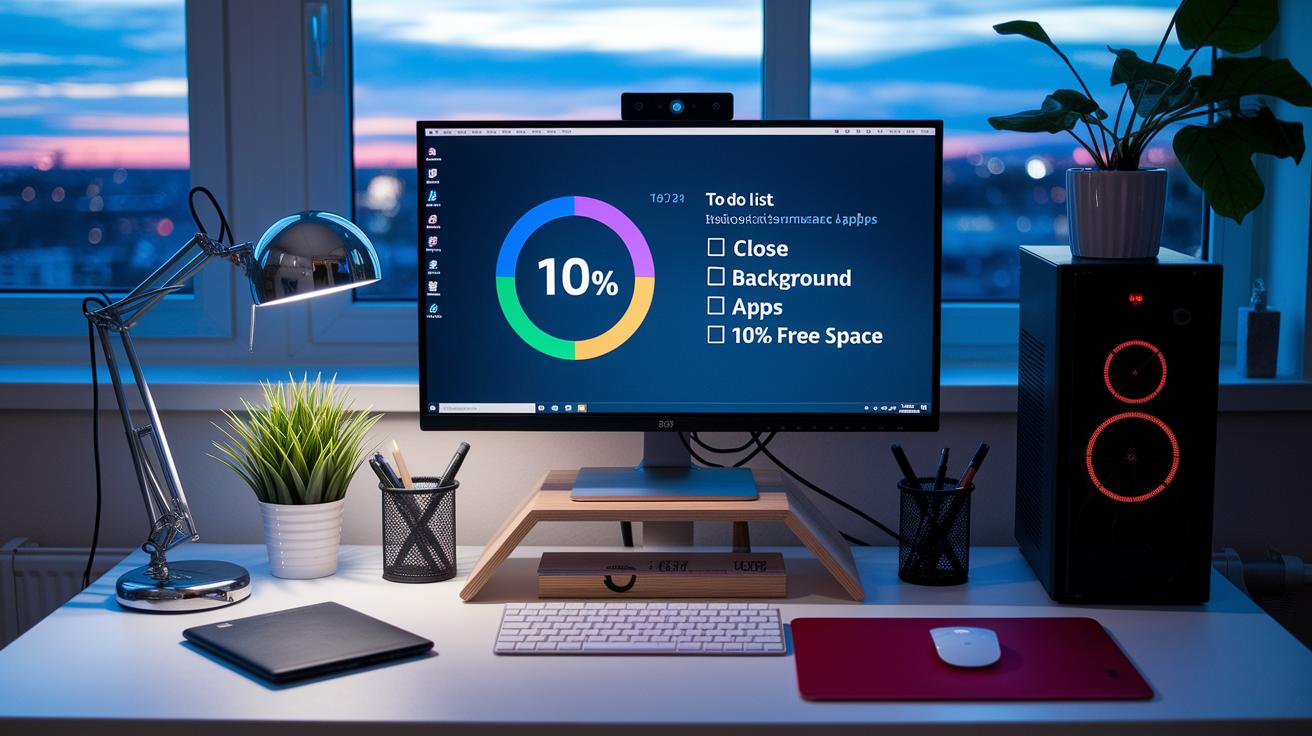
Getting your PC ready makes all the difference in getting clear test results. A clean setup helps you see how fast your computer truly works. First, shut down any extra apps that might use up your memory. Make sure your hard drive has at least 10% empty space so your system can run smoothly. It also helps to run an antivirus scan and defragment your old hard drive (if you have one). Updating your operating system, drivers, and firmware keeps old software from messing with your test.
- Close any background apps
- Keep at least 10% of your disk space free
- Run a malware scan with up-to-date antivirus software
- Update your drivers and firmware
- Set your power mode to High Performance
Also, take a moment to check your CPU and GPU coolers. Good cooling helps prevent overheating when the system is under heavy load, letting your test show your PC's true strength.
Running CPU and GPU Tests in a PC Performance Test
- Open PassMark or OCCT and choose the CPU test option.
- Set the test to put load on all cores by using a multi-thread mode.
- Run the CPU test for 15 minutes and write down the score.
- Switch on the GPU 3D test by enabling adaptive mode in OCCT or by using an FPS calculator tool.
- Use a scene that mirrors everyday work tasks during the test.
- Record the average FPS and note the frame times to judge performance.
Keep an eye on real-time data during these tests. Using a tool like Hwinfo to track temperatures is practical. Watch the CPU core heat and GPU warmth to catch possible issues like thermal throttling. This immediate feedback helps you see if any part of your system struggles under stress.
When the tests finish, save and export your results. Exporting in a common file format lets you compare different test sessions and check improvements over time. Keeping a detailed log helps you see if any upgrades or tweaks really boost your performance score.
Interpreting PC Performance Test Results
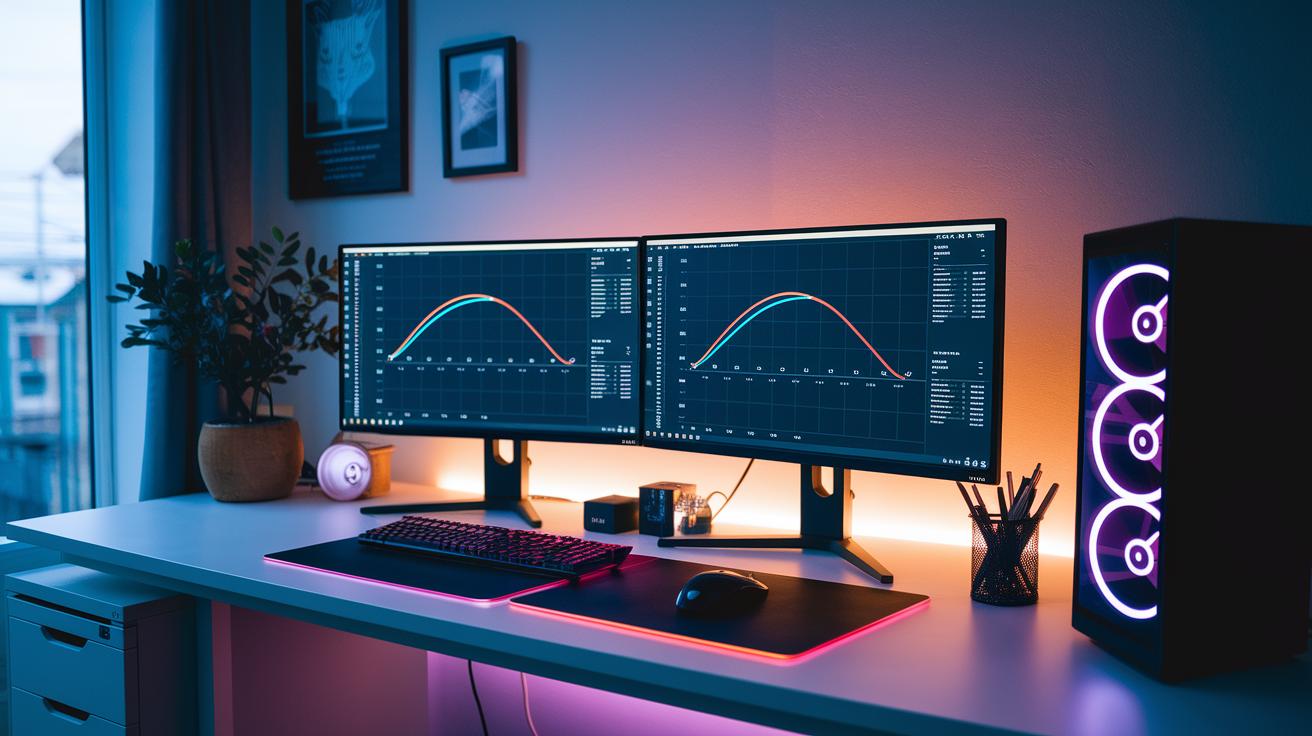
Benchmark tests show how your PC measures up against common performance standards. They compare your system's raw numbers with a large pool of test results, so you can see if your PC is ready for heavy games or work tasks. This clear data helps you decide if you need to upgrade or adjust your setup.
| Metric | Your Score | Percentile | Our take |
|---|---|---|---|
| CPU Score | — | — | Try a faster processor if you’re below the 50th percentile. |
| GPU FPS | — | — | Consider upgrading your graphics card for smoother gameplay. |
| Memory Bandwidth | — | — | Boost your RAM speed or increase capacity if scores are low. |
| Disk I/O | — | — | Switch to an SSD or free up space if read/write speeds are lagging. |
The table shows key numbers. For example, if your CPU score is below average, it might be time to look for a faster one. Low GPU FPS could mean your graphics card is a bottleneck. Using an FPS calculator can help you understand how well your system handles real tasks like video editing or gaming. Similarly, if memory bandwidth or disk I/O results fall short, you may face slowdowns when multitasking or managing large files. By comparing these test figures with what you need your system to do, you can make better decisions about potential upgrades.
Troubleshooting After a PC Performance Test
If your PC lags, it might be due to a few common issues. Overheating can slow things down when the temperature goes above 85 °C. Running too many programs or having low RAM (less than 8 GB) can also hurt performance. These problems drain your PC's power and slow down heavy tasks.
Try these steps:
- Clean your fans and replace thermal paste if needed to improve cooling.
- Install more RAM to help with multitasking.
- Clear some disk space so at least 10% remains free.
- Update your drivers to keep all parts working well.
- Turn off extra startup programs that use up resources.
- Uninstall apps you no longer need to cut down on software clutter.
After making these changes, run your performance test again. This re-test helps check if the fixes reduce heat, boost responsiveness, and stop background apps from hogging resources. Keep an eye on the new numbers to see how your PC handles demanding tasks over time.
Advanced Stress Testing in a PC Performance Test
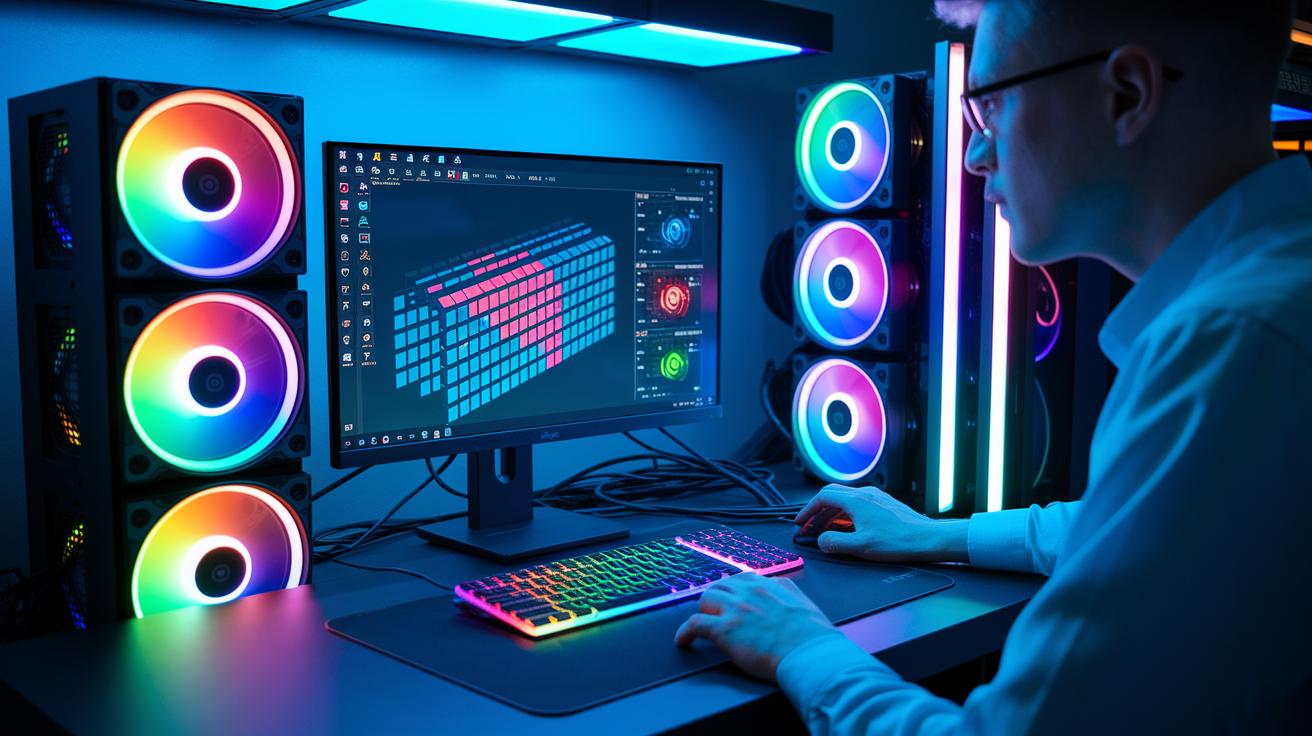
Adaptive stress testing shows you how your PC handles changing loads. Using OCCT’s 3D adaptive mode, the load shifts in real time to reveal performance details that fixed tests might miss. This method pushes your computer to its limits while tracking important numbers, making it easy to spot hidden issues. It works well for gaming rigs, overclocked systems, RMA technician setups, and even Linux systems found in data centers or embedded environments.
- 3D adaptive: Continuously adjusts the load to mimic real-world use
- GPU Compute AI load: Puts your graphics chip to work with AI-driven tasks
- Certificate validation: Issues certificates when your system passes strict stability checks
Comparing stress test reports over time helps you see performance changes. By checking these reports, you can spot shifts in performance and discover where upgrades or maintenance might be needed. This method gives a clear look at both immediate behavior and long-term system improvements.
Final Words
In the action from setting up your pc performance test to analyzing results, you’ve seen how step-by-step checks, clear metrics, and solid tools help pinpoint and solve issues. We looked at preparing your system, running CPU and GPU tests, and troubleshooting common slowdowns. Simple steps guide smart upgrade choices, while clear logs keep surprises at bay. This approach ensures you know what to expect and how to boost your PC’s speed. Enjoy smoother performance and less worry with every test.
FAQ
What is an online PC performance test and are free versions available?
An online PC performance test is a web tool that benchmarks your computer’s speed and responsiveness. Free versions check CPU, RAM, and disk speed without requiring downloads.
What PC performance test software is popular among users?
Popular PC performance test software includes tools many users discuss on Reddit. They cover everything from CPU to GPU and storage benchmarks using programs like PassMark and Windows Performance Monitor.
How do I check my PC performance and determine underperformance?
Checking your PC performance means running benchmark tests to gauge speed and responsiveness. Low scores or lag while multitasking can indicate underperformance due to outdated hardware, software bloat, or overheating.
How many fps can a $700 PC run?
A $700 PC might run games around 60 FPS on average, depending on settings and hardware. Benchmark tests provide specific numbers to see if it meets the performance needed for your favorite games.
How do I test CPU performance?
Testing CPU performance involves running benchmarks that stress your processor’s cores and clock speeds. Tools like PassMark help record scores to compare performance against other systems.
Is there a command-based PC performance test available?
Some PC performance tests offer command-line options that let you run benchmarks from a terminal. This approach suits users aiming for automated tests and continuous system monitoring.