

Does your computer slow you down? Small habits can sneakily clog your system. This guide shows you how to clear clutter, close extra apps, and free up space.
We learned from testing that regular restarts, simple disk cleanups, and keeping your software updated really boost speed. With these quick steps, your PC can run smoother every day.
Quick PC Performance Boost: Core Steps to Make Your Machine Run Faster
Restart your computer once a week. This simple reset clears away temporary files and restarts processes so your PC feels refreshed. I usually reboot on Sunday night, and my system runs noticeably smoother by Monday morning.
Close any apps and browser tabs you aren’t using. Heavy programs like video editors or game launchers can hog your memory. Shutting them down and clearing your browsing history, cookies, and cache helps free up space and speed up web browsing. I find that closing extra tabs and quickly clearing my cache makes a big difference in page load times.
Keep at least 15% of your hard drive free by deleting large or unused files. Run Disk Cleanup every month to get rid of temporary files and empty the recycle bin. If you still use a traditional hard drive (HDD), defragment it often. Windows ReadyBoost can even help boost virtual memory if needed.
Make sure your drivers and operating system are always up to date. Outdated software can slow you down and cause issues. Sometimes upgrading your hardware is the best move: 8 GB of RAM is enough for basic tasks, but 16–32 GB works better for gaming or editing. Upgrading from an HDD to a solid-state drive (SSD) will dramatically cut boot times and speed up your apps.
These quick steps can help you tune up your system and make your computer run faster.
Software Cleanup and Optimization for Enhanced PC Performance
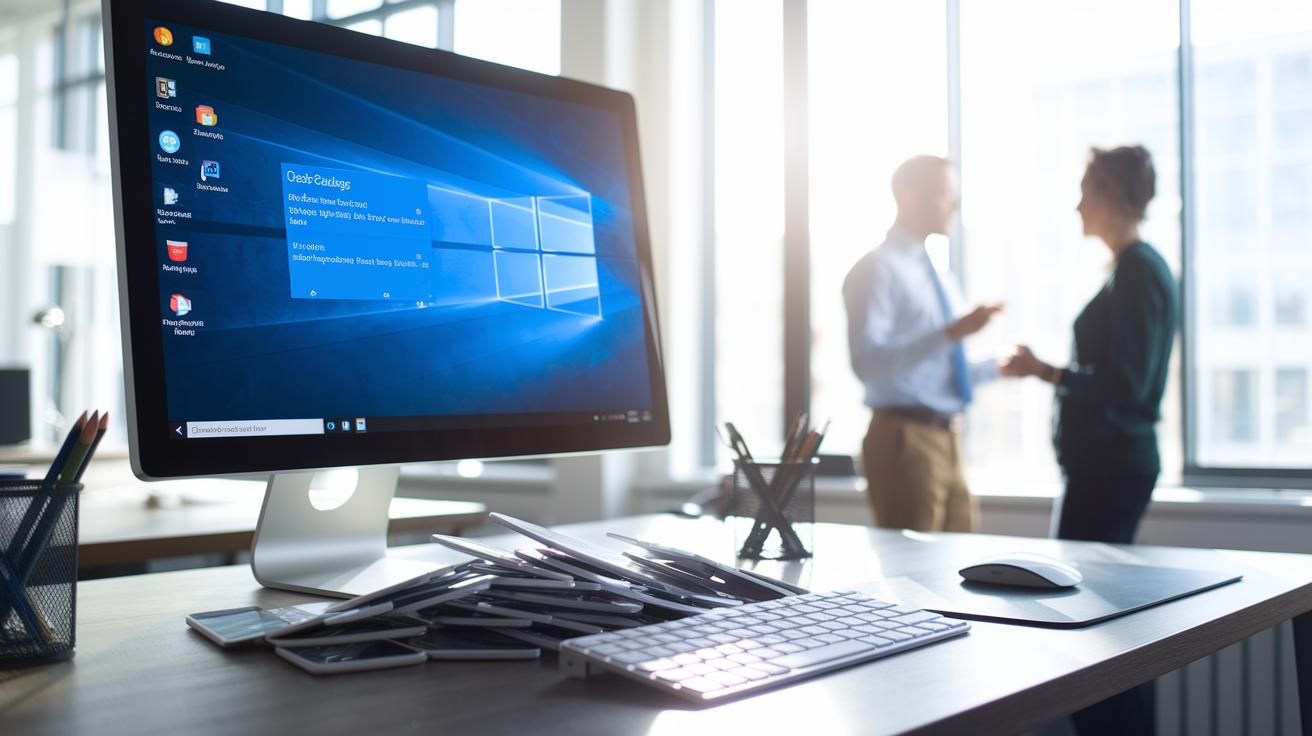
Use Disk Cleanup to get rid of temporary files, empty your recycle bin, and remove system files you no longer need. This handy, built-in tool helps speed up your PC for free. I ran it last month and cleared out 2 GB of junk, which made my computer boot about 20% faster!
Remove apps you no longer use to stop unnecessary background services and free up space. Each time you uninstall an app, your PC has fewer tasks during startup. Also, consider pausing cloud-sync services like OneDrive or Dropbox when you need better performance. This stops extra processes that can slow you down, especially when working on heavy projects.
Clear your browser cache and history to improve web speed. A clean cache helps websites load faster. You might also try free tools like CCleaner to remove junk and clean your registry.
Run CHKDSK to fix any file-system errors that could be slowing you down. If your PC is low on SDRAM (a type of memory), try using Windows ReadyBoost to give your virtual memory a quick boost.
- Delete temporary files
- Uninstall unused apps
- Pause cloud syncing
- Clear browser history
- Run system checks
Tweak Windows Settings to Boost Computer Speed
Changing your computer's settings can really boost its speed. First, switch your power plan from "Power Saver" or "Balanced" to "High Performance" or "Ultimate Performance" right in Windows Settings. This change frees up extra resources and can help cut down lag during heavy tasks.
Next, enable Fast Startup by going to Control Panel > Power Options. This feature speeds up your boot time by skipping some routine hardware checks. You can also improve performance by turning off visual effects. Simply go to System > Advanced system settings > Performance and disable features like animations, shadows, and transparency. It might seem minor, but every bit of saved processing power helps.
Don't forget to check your system files. Running tools like sfc /scannow (which checks for file issues) and DISM (which repairs Windows images) can fix problems you might not see. Also, run CHKDSK to resolve disk errors. Adjusting the page file size by hand can also make a difference when you run several apps at once.
Finally, consider disabling non-essential Windows services using Services.msc. This stops background processes that drain your computer’s resources. Try these tweaks today and enjoy a faster, more efficient PC.
Hardware Upgrades and Gaming PC Optimization
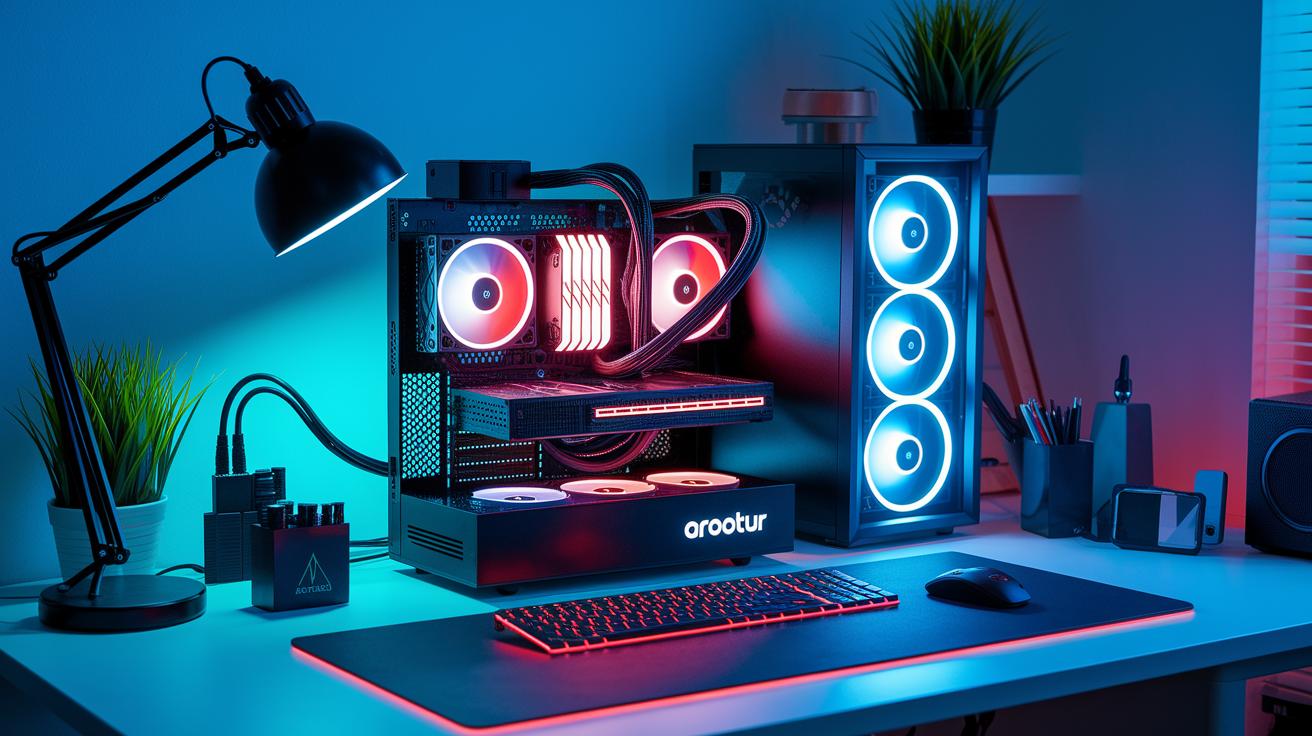
Upgrading from an old HDD (hard disk drive) to an SSD (solid state drive) can drop your boot time by about 75% and load apps nearly 4 times faster. If your games or editing apps feel slow, switching to an SSD might be the fix. I saw my game levels go from minutes to seconds after making the swap.
Boosting your RAM is another simple way to improve speed. For basic tasks, you’ll need at least 8 GB. If you game or work with big files, 16 to 32 GB is better to keep things running smoothly. Always check that your memory sticks are compatible and securely in place, a loose module can cause issues.
A quicker processor also adds speed to your system. A CPU running at 3.5 GHz or above noticeably improves gameplay and video encoding. Some even overclock (run the CPU faster than its base speed) for extra performance, but keep an eye on temperatures, as too much heat can slow you down.
Don’t forget to update your GPU (graphics processing unit) drivers. This helps you keep those frame rates high during graphic-heavy tasks. Plus, cleaning dust from fans and heatsinks regularly stops thermal throttling, which can cause lag during long gaming sessions.
For a step-by-step guide on updating your RAM, SSD, and CPU, check out our guide at upgrade pc components.
Taking these steps can boost your system’s speed and give you a smoother, lag-free gaming experience.
Troubleshooting Common PC Bottlenecks and Maintenance
Slow PC problems start with checking your cables and parts. If you plug your monitor cable into the wrong port, like the one on the motherboard instead of the graphics card, the GPU (the chip that renders visuals) might not work properly. Use hardware tools to check your CPU temperature. If it goes over 90°C, the processor may slow down (throttle) to protect itself. And if your system shows less RAM than you installed, try taking out and reinserting the memory sticks so they connect properly.
- Make sure your monitor cable is securely plugged into the graphics card port.
- Reseat the memory sticks if your PC shows fewer gigabytes than expected.
- Check your network speed by testing for a ping under 100 ms.
- Run SMART tests on your SSD or HDD to catch any early signs of failure.
- Open Task Manager to spot any processes that are spiking CPU, RAM, or disk usage.
- Run a full malware scan to rule out infections slowing your system down.
Next, review your system settings and do regular upkeep. Running CHKDSK (a tool that checks for and fixes disk errors) can repair file issues that slow down boot times or performance. Keep your drivers and operating system up to date to avoid software conflicts. If the problems persist after trying these steps, you might need to do a factory reset to clear out any lingering issues.
This step-by-step guide helps you check both hardware and software components. It gives you a clear checklist to pinpoint and fix the most common causes of a slow PC.
Final Words
In the action, we covered steps that simplify your routine and boost your system speed. We shared how routine restarts, cleaning up files, and adjusting Windows settings can clear the clutter. You also learned which hardware upgrades make a major impact. Following these tips shows clear paths on how to make pc performance faster. Each small step adds up, leaving your machine ready for everyday tasks with improved speed and fewer delays. Enjoy a smoother computing experience ahead.
FAQ
How to improve PC performance on Windows 10/11?
Improving PC performance involves cleaning temporary files, closing unused apps, and updating drivers. Regular restarts and basic hardware upgrades also help boost system speed.
How does boosting PC performance for gaming work?
Boosting gaming performance involves upgrading key parts such as RAM, SSD, and GPU, along with updating drivers and adjusting power settings. This reduces lag and delivers smoother gameplay.
How can I clean up my computer to run faster on Windows 10?
Cleaning your computer means running Disk Cleanup to remove junk files, uninstalling unnecessary programs, and clearing cached data. These steps free up storage and lighten system load.
How do one-command solutions speed up Windows 10/11 or my PC for free?
Using one-command tools like “sfc /scannow” or “DISM” in Command Prompt fixes system file issues. These built-in commands help resolve glitches and improve performance without extra cost.
How many fps can a 700 dollar PC run?
A $700 PC can typically run modern games at around 60 to 100 fps. Actual performance depends on game requirements and the specific configuration of components.
How can I optimize a laggy PC?
Optimizing a laggy PC involves checking for high-resource background processes, cleaning up temporary files, and managing startup programs. These steps help pinpoint and eliminate the sources of lag.