

Ever been on the verge of a win and then your screen freezes? It feels awful, and we get it. Here, we share simple steps to keep your PC smooth while playing Valorant. First, check your system specs (the details that tell you how strong your PC is), update your drivers (the small programs that let your PC talk to its parts), and close any extra programs running in the background. With these easy fixes, you can avoid crashes and keep your game steady. Ready to enjoy smoother matches and fewer interruptions?
valorant crashes pc: Embrace Smooth Gameplay
Quick fixes can save your match by stopping crashes before they ruin your game. We’ve put together a few simple steps to help you tackle startup hiccups and in-game freezes so you can enjoy smoother play.
-
Check your specs
Make sure your PC meets the basic requirements for Valorant. Use a compatibility guide to confirm that your hardware is up to the challenge. Low specs might lead to crashes or lag during those intense game moments. -
Run as administrator
Right-click the Valorant shortcut and choose “Run as administrator.” This gives the game full access to your PC, which can fix permission problems that sometimes cause crashes. -
Update graphics drivers
Head to your GPU maker's website or use an update tool to refresh your graphics drivers. Outdated or faulty drivers can trigger crashes, so keeping them current is key to steady gameplay. -
Close background apps
Before launching the game, close any programs that might use up your system’s resources. Open Task Manager and end unneeded tasks to lighten the load on your CPU and memory. -
Lower in-game graphics
Try reducing settings like shadows, anti-aliasing, and texture quality. Lower graphics settings put less strain on your GPU, which can help prevent crashes on systems that just barely meet the game’s requirements. -
Temporarily disable antivirus/firewall
If you use third-party antivirus or firewall software, turn them off briefly while playing. These programs can sometimes interfere with Valorant, even though Windows Defender usually runs smoothly.
Following these steps will help optimize your system, clear up resource conflicts, and give you a more stable gaming experience.
Analyzing Valorant Crash Error Codes on PC
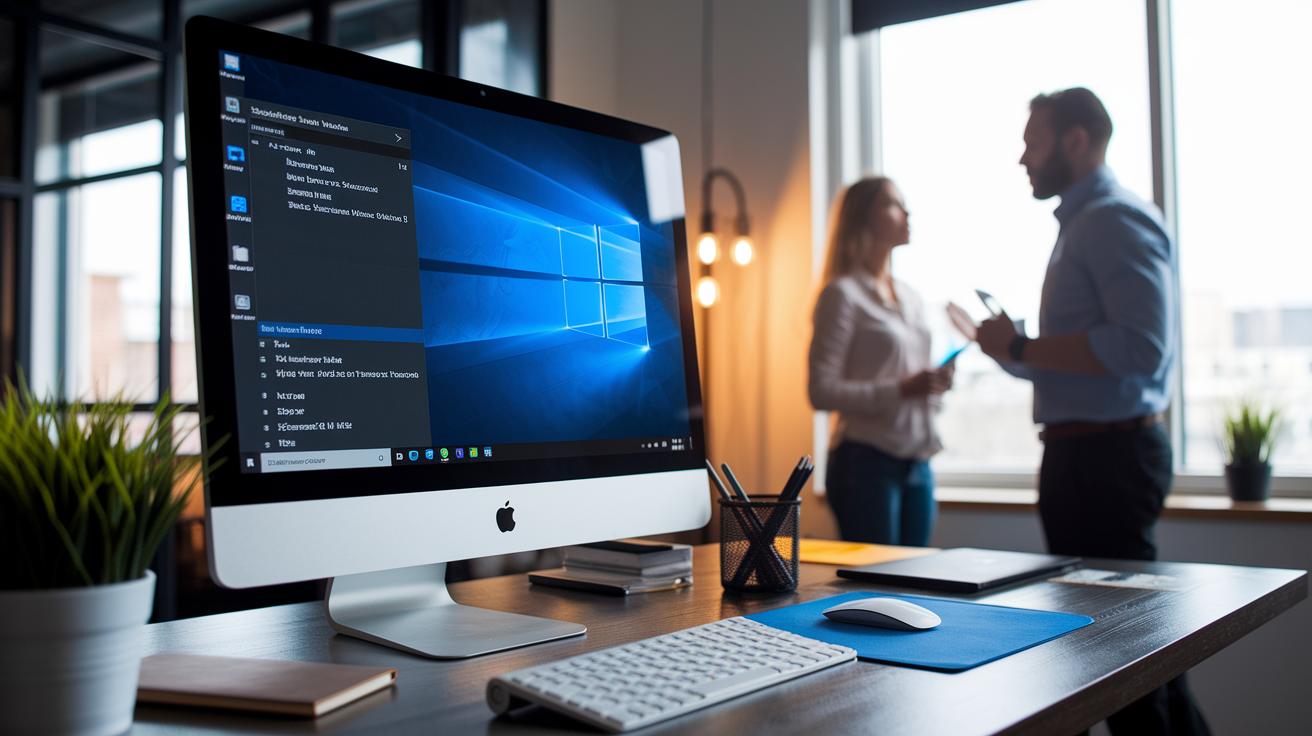
When Valorant crashes, error codes can help point out the problem. We use Windows Event Viewer to check both Application and System logs. These logs show error codes that hint at issues like driver problems, bad system files, or clashes with anti-cheat software. Codes like 0x7F, 0x8Mod, and 0xE003 are key clues that guide us to the right fix.
| Error Code | Symptom | Recommended Fix |
|---|---|---|
| 0x7F | Crash at startup | Update GPU drivers and run as administrator |
| 0x8Mod | Game freeze mid-session | Check for overheating and close resource-hungry apps |
| 0xE003 | Failure during anti-cheat check | Review Vanguard logs and reinstall Vanguard if needed |
| 0xAB12 | Missing or corrupted game files | Use the repair tool to verify and restore files |
| 0xC9F0 | Sudden network disconnect | Review network settings and adjust firewall exceptions |
| 0xD3E1 | Unexpected in-match exit | Run sfc /scannow and update Windows |
By comparing the error codes from your logs with the table above, you can find the problem faster. For example, if you see a 0x7F error, updating your drivers and running the game as administrator might do the trick. It also helps to watch for recurring messages, which could mean deeper issues with anti-cheat checks or system integrity. This clear, step-by-step approach lets you tackle the root cause and get back to game time with fewer hassles.
Resolving Graphics Driver Conflicts Causing Valorant Crashes
A smooth gaming experience starts with the right GPU driver. Outdated or faulty drivers can make your game freeze, stutter, or even fail to start. This happens because your graphics card isn’t talking properly with the game if the driver isn’t up to date.
If you’re using an older Nvidia or AMD driver, you might see crashes that show up as random freezes or sudden shutoffs. We recommend updating your drivers directly from the manufacturer’s website or by using an automatic update tool that scans your PC. Manual updates let you pick the exact version you need, while automatic tools keep everything current with little fuss.
Noticing more crashes after an update? It might help to roll back to a previous, stable driver version. New updates sometimes don’t gel well with Valorant’s code, leading to issues. Also, if you use overclocking tools like MSI Afterburner, disable them. Overclocking can push your GPU beyond its safe limits and cause more problems.
Finally, always check for driver updates and keep an eye out for any error messages when you play. This way, you can enjoy your game without unexpected interruptions.
Addressing Secure Boot and UEFI Issues in Valorant PC Crashes
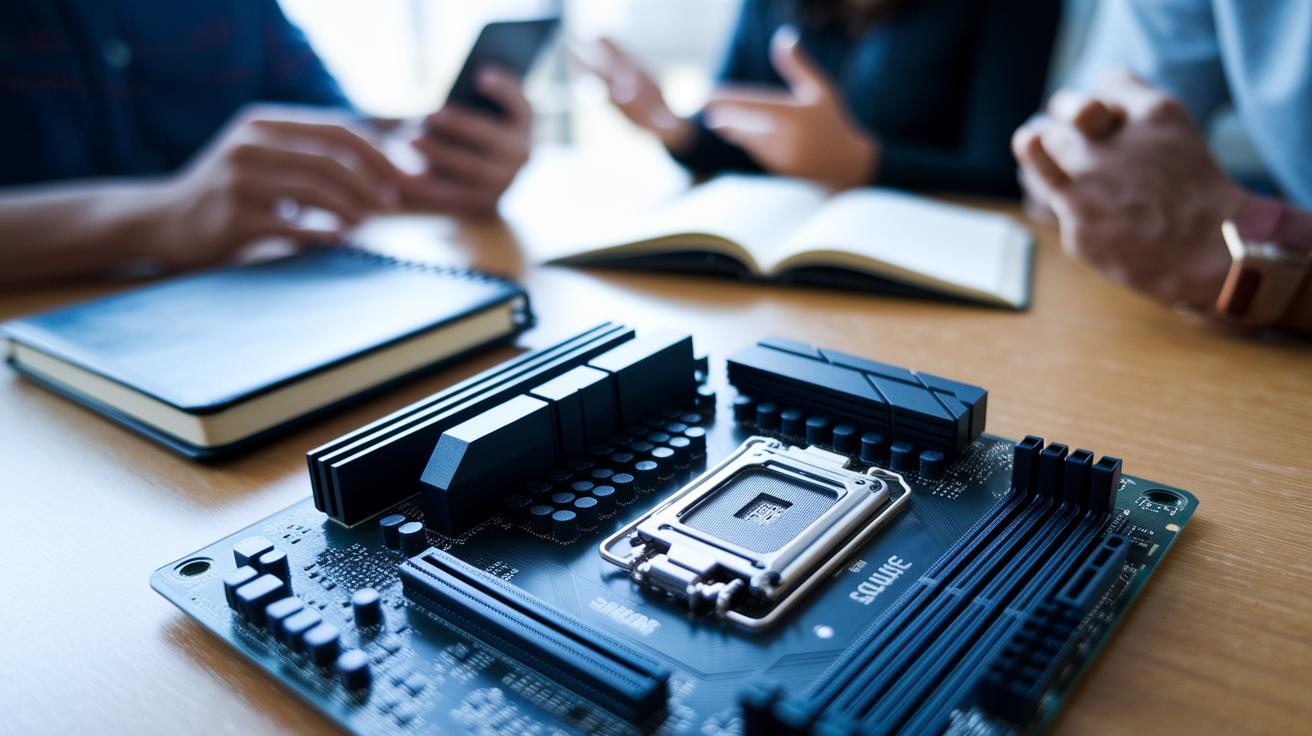
Secure Boot makes sure your computer starts with trusted software. If it isn’t set to UEFI-only mode, Vanguard (Valorant’s anti-cheat program) may not launch properly. This often causes crashes and prevents Valorant from starting. Check your BIOS or UEFI settings and ensure Secure Boot is enabled in UEFI mode. If you see it set to "Legacy," switch it to UEFI-only to help fix the issue.
On many newer systems, especially with Windows 11, UEFI and Compatibility Support Module (CSM) settings are crucial. Some computers enable CSM by default, which can interfere with Secure Boot and cause issues with anti-cheat drivers. To solve this, enter your BIOS/UEFI settings and disable CSM if it conflicts with your Secure Boot setup. This simple change helps both Windows and Vanguard run together with fewer crashes during gameplay.
Stopping Background App Conflicts to Prevent Valorant Crashes
Start your game with a clean boot to clear away troublemakers. Restart your computer so only Windows essentials load. Then, use Task Manager to close any heavy apps you don’t need. Apps like streaming services, VPNs, or overlays can hog resources and even cause freezes or disconnections during play.
Next, open a tool like Resource Monitor. It shows which processes use the most power in real time. If you see spikes or hidden programs in Task Manager, consider disabling or removing them. This simple, focused approach helps ensure that only necessary apps run, cutting back on crashes and unexpected disconnections during your matches.
Tuning In-Game Settings and Temperature to Halt Valorant Crashes
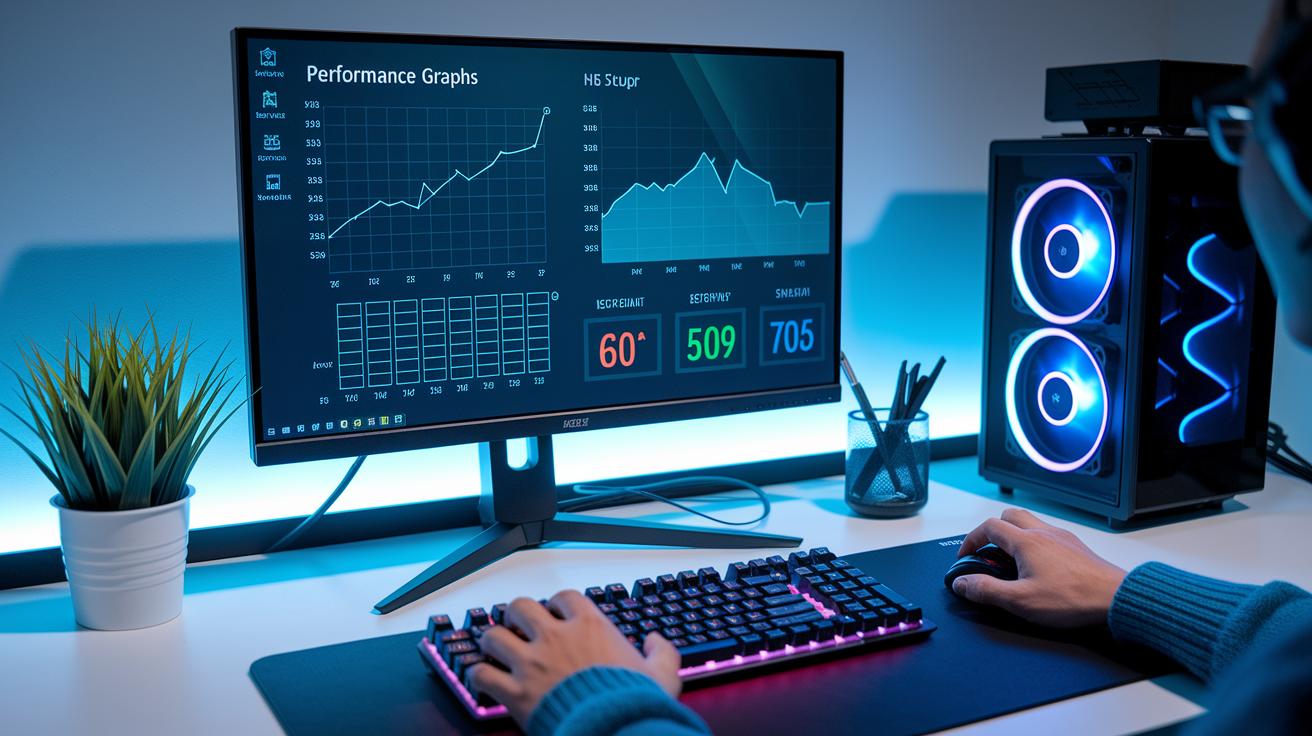
Lowering your game’s graphics settings can really help stop crashes. Try cutting back on shadows, anti-aliasing (a way to smooth edges), and texture quality so your GPU (the part handling graphics) isn’t overloaded. For instance, I dropped the shadows and saw fewer lags during firefights. Simple tweaks like these ease the load and boost stability.
Keeping an eye on your system’s temperature is just as crucial. Use tools like HWMonitor or similar software to watch your CPU and GPU temps. Regular checks can tell you if your system is too warm, which might lead to thermal throttling (when your hardware slows down due to heat) or even crashes during long sessions.
Make sure your cooling system works well. Try to keep your CPU below 80°C and your GPU under 85°C while playing. Cleaning dust from fans, using a cooling pad, or adjusting your PC’s airflow are good ways to manage heat. These steps help keep things running smooth during your matches.
Repair and Reinstall Valorant and Vanguard to End PC Crashes
Open the Valorant client and run Riot’s built-in repair tool to fix any broken game files. This tool checks your game and repairs corrupted files, which might be causing errors. At the same time, open Command Prompt and type "sfc /scannow" to scan your system files. This step helps fix any issues in your operating system that may trigger crashes.
Next, restart your computer in Safe Mode and completely uninstall both Valorant and Vanguard. Safe Mode stops extra programs from running, ensuring that all leftover files and settings are removed. This clean removal lowers the chance that old configurations will cause problems when you install the game again.
Finally, perform a fresh reinstall of both Valorant and its anti-cheat system, Vanguard. Once the installation is complete, launch the game to check that everything is working well. This first-run test will confirm that the reinstall fixed the crashes and that your system is ready for smooth gameplay.
Leveraging Official Patches to Keep Valorant from Crashing on PC
Riot puts out regular updates to fix bugs and keep the game running smoothly. They share patch notes that explain fixes like stopping memory leaks (where the game loses track of data), making the anti-cheat system more steady, and smoothing out network connections. This work has led to fewer crashes at startup and less mid-game shutdowns. It's clear that Riot is focused on fixing the problems that cause crashes so you can enjoy a better gaming experience.
Here are some patch highlights:
- Patch Highlight 1: Fixing memory leaks has helped cut down on crashes during long play sessions.
- Patch Highlight 2: Better anti-cheat stability now stops sudden game stops during intense moments.
- Patch Highlight 3: Improvements in network code reduce lag-related crashes by keeping connections strong.
Make sure you check the patch notes before you play. Subscribing to Valorant's official update channels can help you stay on top of new fixes and enjoy a smoother game every time you log in.
Final Words
In the action, we guided you through fast fixes and detailed checks to stop crashes. We covered crucial steps like verifying system specs, updating drivers, closing heavy apps, and tweaking in-game settings. You learned how to approach error codes and disable conflicts from background apps. These steps help reduce issues when valorant crashes pc.
Each fix builds a more stable experience during your matches. Stick to these solutions, and you’ll enjoy smoother gameplay while making smart, step-by-step improvements.
FAQ
Why does my PC crash when I play Valorant?
The PC crashes during Valorant typically stem from outdated drivers, insufficient resources, or conflicts from background apps. Upgrading drivers and closing unnecessary programs often resolves these issues.
Why is Valorant crashing on Reddit?
The reports on Reddit indicate that Valorant crashes often arise from compatibility issues or mismanaged system resources. Many users have resolved these problems by updating drivers and performing a clean boot.
Why does Valorant crash on startup?
The crash on startup usually results from corrupted game files, outdated drivers, or conflicting background apps. Running Valorant as an administrator and verifying system integrity can help fix these errors.
Why does Valorant crash on Windows 10 or Windows 11?
Crashes on Windows 10 or Windows 11 can be linked to operating system updates, incompatible drivers, or Secure Boot conflicts. Checking that your PC meets system requirements and updating drivers can improve stability.
How to fix Valorant crashing in 2025?
Fixing Valorant crashes in 2025 involves verifying system specs, running the game as administrator, updating graphics drivers, closing background apps, lowering in-game settings, and applying the latest patches to enhance stability.
Does uninstalling or closing Valorant cause PC crashes?
The idea that uninstalling or closing Valorant causes crashes usually points to underlying software or driver conflicts. A proper uninstall process and regular system maintenance help avoid these issues.