

Ever notice your ultrabook slowing down when you need it most? A few quick upkeep tips can help it run smoother and save you money. Simple actions like cleaning it regularly, looking after the battery, and keeping it updated can stop problems like overheating and lag. In this guide, we share easy steps to protect your device and boost its speed so it stays reliable for work, school, or fun. A little care really goes a long way.
Ultrabook Maintenance Essentials for Peak Performance
Taking a few minutes to care for your ultrabook keeps it running fast and saves you money over time. A little routine upkeep helps catch small problems before they turn into big, expensive repairs. This means you can rely on your laptop for work, school, or leisure without any nasty surprises.
Regular care is the key to steady performance. When you clean and update your device, you avoid issues like overheating, lag, and unexpected hardware failures. With less downtime, you also face lower repair costs. A simple maintenance plan, like the one in our laptop maintenance checklist, ensures you stay on top of everything.
Here are some practical tips:
- Physical cleaning: Wipe away dust and debris to keep vents and fans clear.
- Battery care: Watch your charge cycles and use good charging habits to make your battery last longer.
- Software updates: Keep your operating system, drivers, and BIOS updated to fix bugs and improve performance.
- Cooling management: Use cooling pads when needed and check that your thermal paste is working right to manage heat.
- Data backup: Save your important files to an external drive or cloud storage to protect against data loss.
Follow these steps to boost your ultrabook’s performance and extend its lifespan. By doing regular cleaning, managing your battery wisely, updating software on time, and ensuring proper cooling and backups, you take care of your investment and can focus on what matters most.
Cleaning and Dust Elimination Techniques for Ultrabook Upkeep

Dust can make your ultrabook work harder and cause it to run hotter. When vents and fans fill up with dust, the heat inside rises and can hurt the hardware. Keeping your device clean not only helps it run cool but also avoids long-term problems like dried-out thermal paste (the sticky substance that helps keep your CPU and GPU cool).
First, make sure you turn off your ultrabook for safety. Next, wipe the outer parts with a lint-free microfiber cloth and an alcohol-free cleaner to get rid of surface dirt. Then, use a can of compressed air along with a soft brush to blow dust out of the vents and fans. This step helps keep the air flowing and the fans working right.
Also, take a look at the thermal paste on your CPU and GPU. The paste that comes with the device can dry out after about 12 to 24 months, which makes it less effective at cooling. When cleaning, carefully wipe the keyboard and screen with gentle cleaning solutions that won’t damage sensitive parts. Once everything is clean, put your ultrabook back together and double-check that no dust is hiding in any tight spot.
It’s a good idea to follow this routine every 3 to 6 months. Using a proper cleaning kit with items like a soft brush, compressed air, and microfiber cloths will keep your ultrabook in top shape, saving you from expensive repairs later on.
Battery Health Preservation & Optimal Charging Practices
Lithium-ion batteries in ultrabooks normally run for about 300 to 500 full cycles before you see a drop in capacity. Keeping the charge between 20% and 80% eases stress and slows battery wear. Avoid letting your battery hit zero or charging it to 100% overnight every time.
Every few months, recalibrate your battery. Here's a simple method: charge your ultrabook to 100%, then let it run until it shuts off on its own. Once it powers down, recharge it completely. This helps the battery’s internal meter give more accurate readings.
Key tips include:
- Keep your ultrabook away from extreme temperatures.
- Use the original charger to get the right voltage and current.
- Enable energy-saving modes to reduce battery strain during normal use.
Software Optimization & System Diagnostics for Smooth Ultrabook Operation

Keep your operating system, BIOS, and drivers up-to-date so your ultrabook runs smoothly. Updates clear bugs, improve how parts work together, and boost overall speed. They also manage startup apps to keep your device cool and speedy, reducing slowdowns and unexpected glitches.
Diagnostic Tools and Their Uses
- MSI Afterburner tracks CPU and GPU temperatures, clock speeds, and total system load in real time.
- HWiNFO monitors detailed sensor data like fan speed, voltage, and component temperatures.
- Task Manager helps spot heavy startup apps and background processes that can delay your boot time.
- Windows Reliability Monitor logs events that point out recurring hardware or software issues.
Try these steps to keep your ultrabook in shape:
- Turn off unused services to free up resources.
- Use built-in tools to clean your disk from unnecessary files.
- Defragment your hard drive (if you use one) so data is found faster.
- Adjust virtual memory settings to handle heavy tasks better.
- Set an automated backup schedule to save your system and important files regularly.
A weekly malware scan helps keep your ultrabook secure. This stops bad software from sneaking in and prevents slowdowns from hidden background tasks. Combine these scans with a monthly full backup to an external drive or cloud storage. Together, these steps build a strong defense against performance hiccups and protect your data for the long haul.
Cooling Management Routine & Thermal Solutions for Ultrabooks
Heat can hurt your ultrabook's performance. When it gets too warm, the CPU (central processing unit) and GPU (graphics processing unit) work harder, which slows things down and wears out the parts faster. Keeping the heat in check is key to smooth operation and helps you avoid sudden slowdowns during heavy use.
Undervolting for Cooler Performance
Lowering the voltage can cut down on heat without making your system unstable. Using tools like ThrottleStop, you can drop the CPU or GPU voltage by 0.1 to 0.15 volts, which may lower temperatures by around 5 to 10 °C. This small change helps your ultrabook stay cool even under tough loads.
- Start by shutting down your laptop and opening the BIOS to reset any custom voltage settings.
- Then, boot into your operating system and run ThrottleStop (or a similar tool) to lower the voltage little by little.
- Finally, stress your CPU/GPU and watch the temperature. Make further tweaks if needed to keep things stable.
Another smart move is to use a quality cooling pad. A good pad can lower your laptop’s chassis temperature by 3 to 5 °C under heavy use. It boosts airflow around the ultrabook, helping prevent overheating during long sessions. This is a practical choice if you value long-lasting, uninterrupted performance.
Preventive Care & Troubleshooting Procedures for Ultrabook Longevity
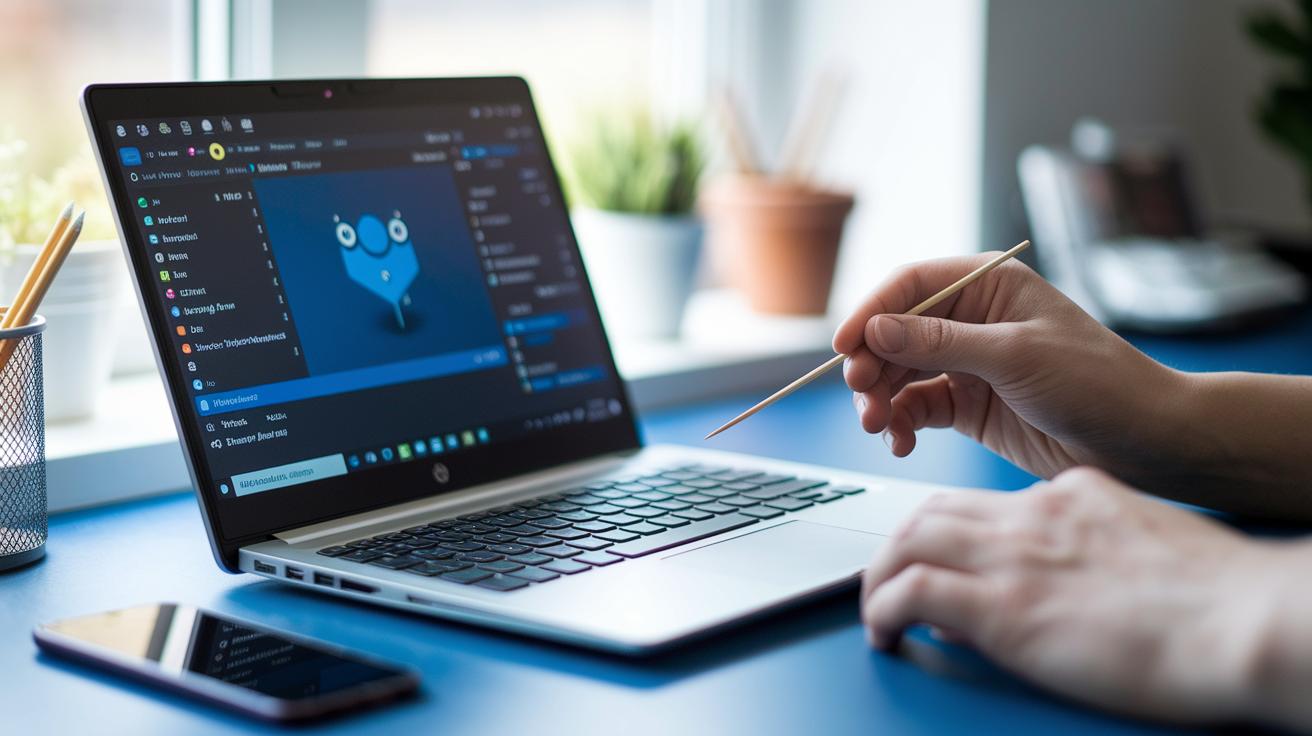
Finding small problems early can save you from big repairs later. When you spot an issue, you can fix it before it slows down your device or risks your data. Many ultrabook issues, like a trackpad that stops working or Wi-Fi that keeps cutting out, are easy to troubleshoot. Run a memory test and check Device Manager for driver errors to find hidden issues. It also helps to check your ports with a toothpick and an isopropyl wipe so USB-C, HDMI, and headphone jacks stay clean.
| Issue | Diagnostic Step | Resolution |
|---|---|---|
| Trackpad not responding | Clean contacts and update the driver | Wipe with an alcohol swab and reinstall the driver |
| Wi-Fi dropouts | Run the network troubleshooter | Update the wireless driver and reset the adapter |
| Loose power jack | Inspect the port pins | Gently realign the pins or get a professional resolder |
| Failed boot | Run BIOS diagnostics | Reset BIOS defaults or reinstall the OS |
If a problem keeps coming back or gets too complicated, it’s a good idea to get help from a professional. Always back up your data to an external drive or cloud storage before sending your ultrabook for repairs. When your device shows repeated errors or if tests reveal deeper issues, professional help is the best way to go. Regular checks and a clear troubleshooting routine can make your ultrabook last longer and keep repair costs low.
Final Words
In the action, we explored ways to keep your ultrabook efficient. We touched on cost savings and enhanced performance through regular cleaning, battery care, software updates, cooling management, and early troubleshooting.
Following these ultrabook maintenance tips can help you avoid repair bills and keep your device running smoothly. Stick to these practical steps, and your ultrabook will continue to handle work and play without slowing you down. Enjoy a worry-free tech experience.
FAQ
What are some essential gaming ultrabook maintenance tips?
The gaming ultrabook maintenance tips involve cleaning the fans and vents, updating software, managing battery health, and ensuring proper cooling. These steps help prevent overheating and keep gaming performance steady.
What should be on a laptop and PC maintenance checklist?
The laptop and PC maintenance checklist covers physical cleaning, timely software updates, battery care, cooling management, and regular data backups. Following this plan helps extend device lifespan and maintain peak performance.
How can I clean my Dell laptop internally to help it run faster?
The cleaning process for a Dell laptop to run faster includes powering down the laptop, wiping external surfaces, using compressed air to clear internal dust, checking thermal paste, and updating software.
How can I clean laptop software for smoother performance?
The laptop software cleaning process means uninstalling unnecessary applications, updating drivers and the operating system, deleting temporary files, and running antivirus scans, which frees up system resources and improves speed.
What types of computer maintenance guides are available in PDF format?
The computer maintenance guides in PDF format offer practical steps for hardware cleaning, system diagnostics, battery care, and software updates. They provide ready-to-use, detailed instructions for effective self-maintenance.