

Ever notice your internet slowing down just when you need it most? Your router might need a little care. Just like your car benefits from a quick check-up, your router does too. A few simple tasks, cleaning vents, updating its firmware (the software that runs it), and checking the cables, can keep your network running fast and secure. Follow along, and you'll see how small steps can give your router a fresh start.
Comprehensive Guide to Router Maintenance Tasks
Keep your router in top notch shape and secure with a few easy steps. Regular care stops overheating, avoids sudden downtime, and keeps your network fast and steady.
- Dust the vents and fans with a can of compressed air or a soft brush.
- Update the firmware often to add new security fixes and improve stability.
- Reboot your router once a week to clear memory leaks and refresh its performance.
- Change your admin passwords regularly to block unauthorized access.
- Watch network metrics like signal strength and throughput (how much data flows each second) to catch issues early.
- Check your cables for any wear or damage to prevent drops in connection.
These small tasks are like a health check-up for your router. Spending a few minutes now can save you hours of troubleshooting later. Regular cleaning, smart updates, and simple inspections help maintain speed, reliability, and extend your device’s life.
Cleaning, Dust Removal, and Cooling System Checks
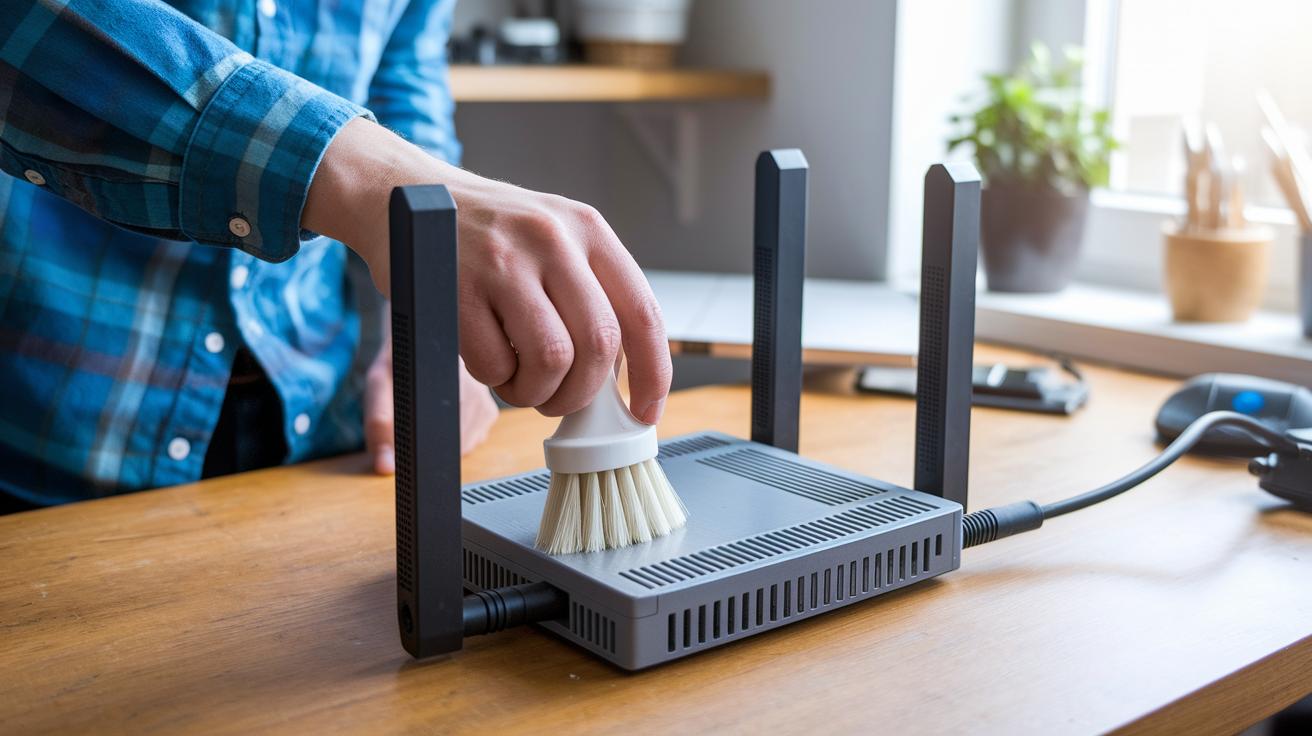
Start by getting your router ready for a good clean-up. Turn it off, unplug it, and wait until any leftover power fades away. This simple step is key before you use compressed air to knock loose dust from vents, heat sinks (parts that help cool the router), and other surfaces. Think of it like clearing off your desk before you dig into a hands-on project.
Next, grab a soft brush and carefully dust off delicate areas like the printed circuit boards (PCBs, which are the main boards inside) and connectors. Don’t scrub hard, rough handling can hurt the internal parts. Pay special attention to the heat sink fins; dust buildup there can block heat from escaping, which may cause the router to run too hot. A quick look with the brush or compressed air over the internal fans can help keep them spinning quietly and effectively.
Finally, set up a cleaning schedule that fits your environment. In most cases, a monthly dusting will do the trick. If you’re in a high-dust area, you might want to dust every two weeks instead. Always remember the safety steps: power off, unplug, and let any residual charge disappear before you clean. This simple routine helps to keep the airflow smooth and your router running at its best.
Firmware Update Guide for Router Security and Stability
Firmware updates are a must to keep your router safe and running smoothly. They close off security gaps and fine-tune performance. With regular updates, your router can better guard against attacks and handle evolving network needs. Before you dive in, check your current firmware version and review any recent notes from the manufacturer.
To update, log into your router's admin interface (usually found at 192.168.1.1) and navigate to System > Firmware Update. Start by backing up your settings to create a .cfg file that saves your SSIDs, custom passwords, and other rules. If your router offers an automated update feature, enable it so you get alerts when a new patch is available. Also, read the vendor release notes to ensure the update matches your setup. This careful, step-by-step process helps prevent issues from outdated firmware and cuts down on downtime.
It’s a smart move to schedule a manual firmware check each month, even if you’re receiving automated alerts. Keeping up with these updates not only keeps your connection steady, but it also protects you from vulnerabilities before they can be exploited.
Wireless Troubleshooting Manual for Common Router Issues

Fixing router problems is easier when you take it one step at a time. Look at the router’s lights for clues. A steady power light means things are running smoothly, while a blinking WAN light could mean the internet link is down.
Check the system logs (found under Admin > Logs) to see if there are repeated DHCP lease failures. Also, keep an eye on the WAN status in the dashboard to help spot any issues. If your router feels too hot or starts to reboot randomly, overheating might be the problem. Error codes like 0x80072EFE point to specific fixes you can try.
| Issue | Possible Cause | Resolution |
|---|---|---|
| No internet connection | Blinking WAN light or ISP outage | Check WAN status and reboot the router |
| Frequent disconnections | Overheating or firmware glitches | Check cooling and update firmware |
| DHCP lease failures | Wrong settings or loose cables | Review logs and secure cable connections |
| Error code 0x80072EFE | Network interruption or router issue | Reboot router and check settings |
If these steps don’t do the trick, it’s a good idea to call your ISP. Repeated log errors, constant overheating, or ongoing disconnects mean the problem could be deeper than a simple fix. Taking note of patterns in the LED behavior and error messages can tell you when it’s time to ask for help. Working with your provider will help you find out if the issue is with the router or the network, so you get the support you need to restore a smooth connection.
Router Maintenance Tips Elevate Your Connection
Place your router in the center of your home and mount it high. This helps break up walls and lets the signal spread evenly. If your router has omni-directional antennas (ones that send signals in all directions), keep them vertical for the 2.4 GHz network. It’s like putting a spotlight in the middle of a stage, light reaches all areas without blockages.
Check your signal strength using measurements like dBm (for example, -30 dBm). This shows if your setup is strong enough. Run a channel scan to pick channels with less traffic. This simple test helps you find spots where your Wi-Fi may be weak. In fact, a central router placement can boost signal quality by as much as 40% compared to a poorly placed one.
For larger homes, consider using repeaters or a mesh network to boost your signal. Also, keep metal objects, microwaves, and neighboring Wi-Fi in mind because they can weaken your connection. By reducing interference, you can keep your network steady and strong throughout your space.
Configuration Backup and Factory Reset Procedures

Begin by saving your router's current settings. Go to Admin > Backup Settings to create a .cfg file that holds your SSIDs, passwords, QoS rules, and custom DHCP allocations. This file is key if you need to quickly bring your network back to life. It only takes a few minutes and helps cut downtime.
Next, try a soft reset to clear temporary data while keeping all your custom settings. Use your router's system interface or the reset option if you see one. This step refreshes performance and fixes small glitches without wiping out your setup.
If you need a fresh start, use the factory reset method. Hold down the RESET button for 10 seconds to erase all your custom settings and restore the defaults. Then power up the router, keep the reset button pressed until the LED lights flash, and set up your network again. Finally, upload your backup file to restore your design securely.
Advanced Monitoring and QoS Setup for Peak Performance
Real-time dashboards in your router (Admin > Traffic Monitor) let you watch each device's data speed (throughput) and delay (latency) as they happen. Tools like SNMP (a way to gather network data) and apps such as PRTG log performance over time. This regular monitoring shows you daily traffic patterns and helps spot heavy users or slowdowns early, so you can fix them before they hurt your connection.
Setting up Quality of Service (QoS) under Application Priority shifts extra bandwidth to tasks like voice calls and gaming. This means your video calls stay clear, and your online games remain lag-free, even when lots of devices are active. By separating critical tasks from non-essential traffic, your network stays smooth when many devices compete for data.
Running speed tests at different times helps find peak-hour slowdowns. For example, if you measure 500 Mbps down and 50 Mbps up, you can compare these numbers to your ISP’s promised speeds. Regular tests like this let you check that your network meets expectations and show if any device is using too much bandwidth. This way, you can adjust settings to make sure your network stays at its best.
Final Words
In the action, we covered a clear path to keep your router running smoothly. We broke down tasks from cleaning vents to firmware updates, troubleshooting wireless errors, and optimizing placement and signal strength. We also stressed backing up settings and detailed how to monitor performance with real-world techniques. Following these router maintenance tips will help you avoid unexpected network issues and enjoy steady, reliable performance. Stay proactive, and you'll see fewer disruptions every day.
FAQ
Woodworking router maintenance tips
Woodworking router maintenance tips include cleaning dust and debris after each use, lubricating moving parts as needed, and checking blade integrity to keep the tool running safely and smoothly.
Router maintenance tips harbor freight
Router maintenance tips from Harbor Freight recommend keeping the router clean, checking cables, and updating firmware for reliable performance. Regular cleaning and minor lubrication help maintain optimal operation.
Router maintenance tips 2022
Router maintenance tips in 2022 suggest cleaning vents and fans, rebooting weekly to clear memory, updating firmware for security patches, and inspecting cables for damage to ensure continued performance.
What maintenance is required for a router?
A router needs routine cleaning of dust from vents, regular firmware updates, periodic reboots, and cable inspections. Backing up configurations and refreshing admin passwords further help maintain secure, reliable function.
How to maintain your router?
Maintaining your router involves cleaning dust from vents and fans, checking for firmware updates, monitoring performance indicators like signal strength, and rebooting weekly to keep the network stable and secure.
How to lubricate a router?
Lubricating a router involves checking the manual first, as not all models require it. For those that do, apply a small amount of manufacturer-approved lubricant to moving parts once the unit is powered off and cooled down.
What is the lifespan of a router?
The lifespan of a router typically ranges between three and five years under normal conditions. Regular maintenance can help extend its performance and reliability throughout its service life.