

Is your laptop lagging when you need it most? It might not be old, it might just need a little routine care. Running daily antivirus scans and using compressed air on your vents can give it a boost. This guide shows you simple steps to keep your machine in shape. Think of it as a workout plan for your laptop, helping it stay fast and reliable every day.
Laptop Maintenance Checklist: Boost Your Performance
Keeping your laptop in tip-top shape is all about routine care. We break tasks into daily, weekly, monthly, and occasional jobs so you always know what to do.
Every day, make sure your antivirus is running and keep an eye on system speeds. Simple checks like these help catch any problems early.
Each week, give your laptop a restart. This clears out memory buildup that can slow things down. Also, spend a few minutes cleaning out temporary files and using update tools to keep your apps current.
Once a month, take a deeper look. Use compressed air to blow out dust from vents and fans, and remove old files that might be taking up space. This small work can make a big difference.
Every few months, run antivirus and malware scans to stay safe from new threats. And once a year, open things up to dust off the internal parts. These steps help prevent overheating and keep your laptop running nicely for a long time.
Daily Laptop Maintenance Checklist for Optimal Performance

- Make sure your antivirus is on and updated so it can catch the latest threats.
- Run a malware scan using your laptop's built-in tool to check for any hidden risks.
- Back up your important files by saving them to an external drive or the cloud.
- Keep an eye on your laptop's performance by checking CPU and GPU temperatures and memory use through Task Manager or Activity Monitor.
- Clean the air vents and keyboard with a microfiber cloth or canned air to keep dust at bay.
- Restart your laptop at the end of the day to clear temporary files and refresh its performance.
Weekly Laptop Maintenance Checklist: Hardware Inspections & Software Updates
Every week, set aside a little time to check your laptop. Start by cleaning out temporary files, browser caches, and system error logs with the built-in Disk Cleanup tool. This simple step frees up space and keeps your system running quickly.
Try to run your updates on a quiet Sunday evening. Update your operating system patches and app updates to get small new features, fix glitches, and patch security holes. I’ve noticed that even one quick update session on a Sunday can help your laptop feel faster.
Next, take a look at the programs installed on your laptop and remove any you no longer need. Getting rid of unused apps stops extra background tasks that can slow things down.
Then, open Task Manager (press Ctrl+Shift+Esc on Windows) or Activity Monitor on a Mac to turn off apps that launch at startup. Fewer programs at boot mean a faster startup and less strain on your system. Imagine booting up without all those unwanted apps, the laptop feels instantly more responsive.
Don’t forget to inspect your hardware. Check USB, HDMI, and power ports for any debris or bent pins. A soft brush works well to clear dust, ensuring your connections stay solid.
Finally, open Resource Monitor (Windows) or Activity Monitor (Mac) to take a quick look at your CPU, memory, and disk usage. This helps you catch any performance bottlenecks before they turn into bigger problems.
- Clean temporary files, browser caches, and logs.
- Schedule regular system updates.
- Remove unused applications.
- Disable extra startup programs.
- Check all ports for debris or damage.
- Monitor CPU, memory, and disk usage.
Monthly Laptop Maintenance Checklist: Deep Cleaning & Performance Optimization
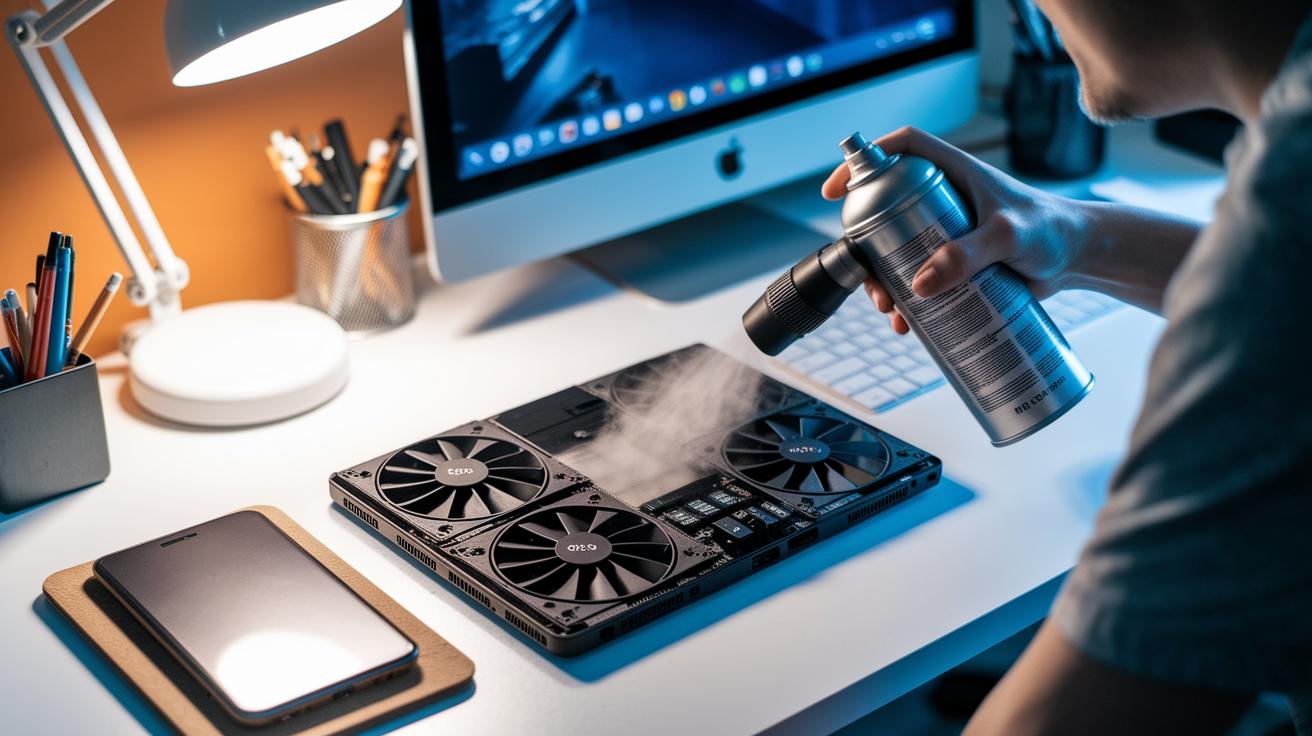
Every month, shut down your laptop and open its bottom panel so you can work on its core parts. Use a can of compressed air to remove dust from the fans, heat sinks, and vents. Dust buildup makes your laptop run hotter and lowers the cooling system’s efficiency. We check the CPU and GPU temperatures (how hot they are when idle and under load) to catch problems early. If the load temperature rises above 80°C, it’s a good idea to clean off the old thermal paste and apply a high-quality compound to boost heat transfer.
For storage upkeep, run Disk Defragmenter on HDDs (hard disk drives) to help files line up better. If your laptop uses an SSD (solid state drive), check that TRIM is enabled, which helps maintain its speed. Use a registry cleaner or your computer’s built-in tool to remove bad entries that can cause startup errors. Clearing browser caches, log files, and temporary folders can free up several gigabytes, making your laptop run smoother.
Also, test a backup restore every month. This step confirms that your backup process works well and that your files are safe in case of system issues. Have you ever seen how a quick restore can save you time when things go wrong?
- Shut down your laptop and remove its bottom panel.
- Use compressed air on fans, heat sinks, and vents.
- Check CPU and GPU temperatures; if load exceeds 80°C, reapply thermal paste.
- Run Disk Defragmenter on HDDs or ensure TRIM is enabled for SSDs.
- Clean the registry and delete temporary files.
- Test a backup restore to ensure data safety.
Periodic Laptop Maintenance Checklist: Quarterly & Annual Upkeep
Every three months, set aside some time to give your laptop a good checkup. Start by running a full antivirus and malware scan. Then, review the scan reports to catch any hidden issues.
Next, update your BIOS/UEFI firmware following the manufacturer’s directions. Keeping this updated helps your laptop run smoothly and stay secure.
Check your battery's health using the built-in tools or trusted third-party apps. If your battery's cycle count is over 500, it might be time to recalibrate or even replace it. A healthy battery can mean a faster startup and smoother performance.
Take a close look at your power supply. Inspect the charger cable and DC jack for any signs of wear or a loose fit. Use isopropyl alcohol swabs to clean the connector pins and remove dirt that may hinder charging.
Clear out dust from the internal fans and vents by giving them a gentle burst of air. If you can access the fan bearings, adding a drop of lubricant can help them run quieter and more efficiently. Keeping your laptop dust-free is key to preventing overheating.
Once a year, perform a complete system audit. Check the event logs for recurring errors and recalibrate your thermal sensors to ensure accurate temperature readings. This full review helps your laptop stay in top shape over time.
Key steps:
- Run complete antivirus scans and review the logs.
- Update BIOS/UEFI firmware.
- Evaluate battery health and check power components.
- Clean internal fans and vents.
- Conduct a yearly full system audit for optimal performance.
Final Words
In the action, we covered daily cleaning, weekly updates, monthly deep cleaning, and quarterly to annual system checks. This laptop maintenance checklist breaks tasks into clear time frames. It maps out cleaning, software updates, hardware checks, and data backups so you can keep your device running smoothly. Small, routine checks add up to long-lasting performance. Enjoy the ease of knowing your laptop gets the care it needs, keeping things reliable and responsive every day.
FAQ
Where can I find a laptop or PC maintenance checklist PDF?
The laptop or PC maintenance checklist PDF offers a free guide that splits tasks into daily, weekly, monthly, and periodic steps. You can often find free versions for Dell and other computer brands online.
What maintenance tasks should I perform on my laptop?
The maintenance tasks for your laptop include daily cleaning, backing up files, updating antivirus software, weekly software and hardware checks, monthly deep cleans, and periodic tasks like firmware updates and battery evaluations.
What are the 10 essential computer maintenance tips?
The 10 essential tips include checking antivirus updates, running malware scans, cleaning dust from vents, updating software, managing startup programs, deleting unnecessary files, defragmenting disks or confirming TRIM on SSDs, and backing up data regularly.
How do I check my laptop’s maintenance?
You check your laptop’s maintenance by reviewing daily tasks like file backups and dust cleaning, performing weekly software updates and port inspections, and scheduling monthly deep cleans and quarterly scans to ensure optimal performance.
Is a 5-year-old laptop still good?
A 5-year-old laptop can still work well if it has been maintained with regular cleaning, software updates, and hardware checks. Its performance depends on your needs and any upgrades it may have received over time.