

Have you ever wondered why your computer slows down just when it matters most? A small glitch or a cluttered disk can quickly sap your system's speed, leaving you frustrated during key tasks.
Simple fixes like installing the latest Windows updates and cleaning out old files can work wonders. I once saw a stubborn slowdown vanish after just one simple tweak.
In this guide, we walk you through step-by-step solutions that clear digital clutter and boost performance. With these changes, your computer will run smoothly and keep up with your busy day.
pc performance issues: Enjoy Optimal Speed Now
Start by checking for Windows updates using Start > Settings. This small step often clears up glitches by installing the latest patches and drivers. I once solved a nagging slow-down issue just by applying an overlooked update.
Next, run Disk Cleanup to free up at least 2 GB of space. If you can, aim for about 5 GB. Remove any apps you no longer use. It’s a lot like clearing out a messy room so your computer can move freely.
Be sure to save your work and restart your PC a few times while you work through these steps. A fresh boot wipes away temporary files and old errors. Open Task Manager to check your RAM use. If your memory is nearly full, consider boosting your paging file (extra virtual memory for heavy tasks).
If your PC still feels slow, try a safe System Restore. Plug in any battery-powered devices so you don’t risk corrupting system files mid-restore. Use DISM (a tool that fixes the Windows image) with an active internet connection so it can download necessary fixes. Also, adjust Visual Effects for the best performance to ease the load on your system.
Finally, think about resetting Windows 10 while keeping your personal files. This reset can often clear persistent issues. For more tips, check out our guide on upgrading PC components.
Hardware Bottlenecks That Cause pc Performance Issues

PC slowdowns often hide in one weak spot in your setup. When your computer lags, it might be because it’s overheating, has bad memory, or even a shaky network. I’ve seen a small flaw in one part drag the whole system down. Checking each component can help you decide if you need to clean it, upgrade it, or replace it entirely.
- CPU overheating: When your processor gets too hot, it slows itself down (thermal throttling). Try cleaning dust from the fans, as even a little heat can hurt performance.
- Insufficient or improperly seated RAM: If your memory is low or not firmly in place, your computer might stutter under heavy multitasking.
- Unstable internet connection: High ping, over 100 ms, can make online tasks, especially gaming, feel slow and choppy.
- Defective SSD: A faulty solid-state drive might boot up Windows but struggle with demanding apps.
- Faulty GPU or power-delivery issues: A bad graphics card or weak power delivery can drag down performance in tasks that rely on solid visuals.
By checking these five common issues, you can quickly figure out if you need a simple fix or a bigger upgrade to bring your PC back to full speed.
Software and System Setting Tweaks for pc Performance Issues
Tweaking your PC can cut down on background tasks and make everything run smoother. Run Disk Cleanup to get rid of temporary files and free up space. If you use a hard drive (HDD), defragment it to line up your data for faster access. Keeping Windows and your drivers updated also helps your system run well. And if you're choosing a power plan, remember that the High-Performance plan speeds things up, while the Balanced plan saves energy with a bit of speed.
Disk and Storage Optimization
Use Disk Cleanup to clear out old files and gain back space. If you have an HDD, run defragmentation to merge scattered data so files load faster. Remove programs you no longer need to reduce clutter. When your disk is almost full, these steps can make your PC feel quicker.
Startup and Background Process Management
Open Task Manager to see which programs start with Windows. Turn off unneeded startup items and background services. This cuts down on extra load and leaves more resources for your everyday tasks.
Advanced Troubleshooting Techniques for pc Performance Issues
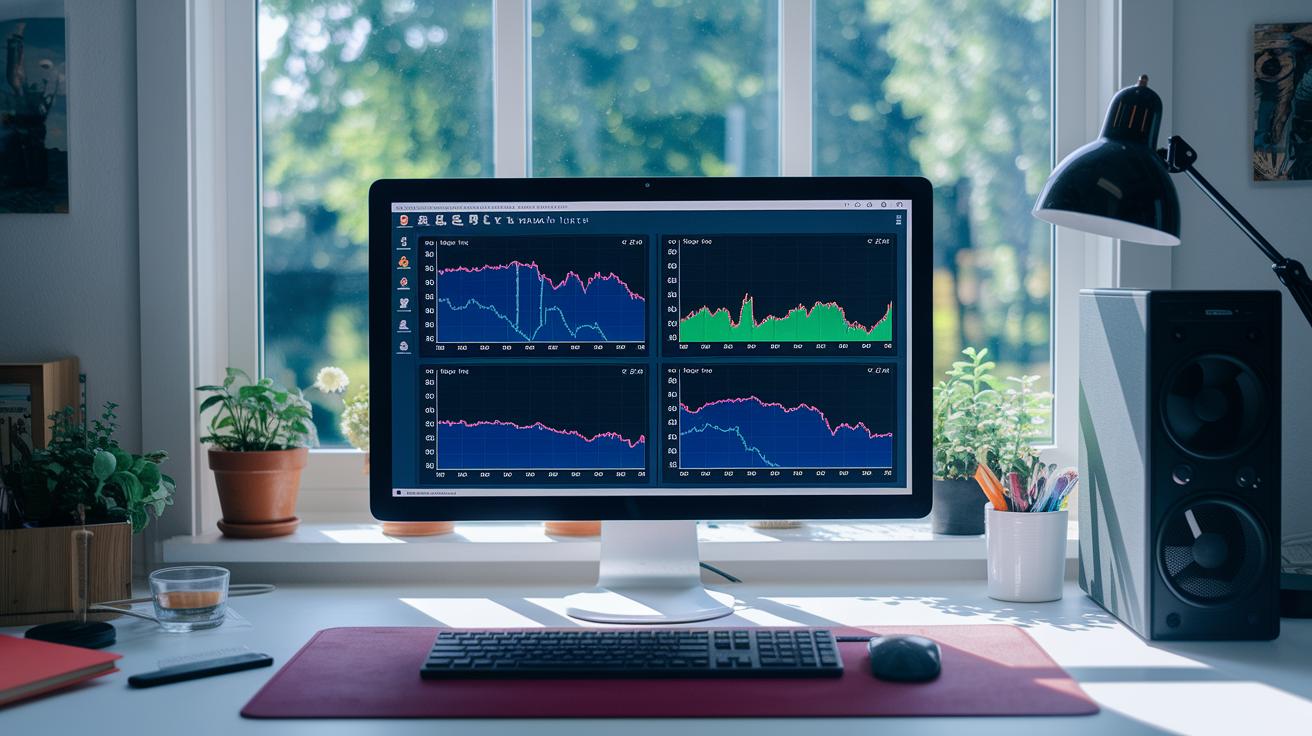
Advanced troubleshooting digs into the problems that slow down your PC. Start by using Performance Monitor and Resource Monitor. These tools give you real-time data on CPU, memory, and disk activity. You might even see an app using too much CPU when your PC is idle.
Next, try a clean boot to spot software conflicts. This step turns off extra drivers and startup programs so you can see if a background service is the issue. Test your system after the clean boot and compare the results with before.
Then, run the Windows Memory Diagnostic to check for RAM issues. Also, use chkdsk to scan for disk errors. These tools work like a mechanic checking every part of a car, finding problems that are not obvious.
Don't forget to check the Task Manager. Open it and see how your resources are used. If you notice regular spikes in CPU, RAM, or disk activity, it might be time for some tweaks. Try adjusting registry settings or switching your power plan. These small fixes can boost your PC's speed when software conflicts are the cause.
Preventive Maintenance Strategies to Avoid pc Performance Issues
To keep your PC running well, you need to check both its hardware and software regularly. Each month, run a Disk Cleanup and update Windows to clear out temporary files and fix small bugs. These steps help keep your drivers and apps up-to-date, stopping pesky compatibility issues and lags. Also, spend a bit of time every month to back up important files and set a restore point, just in case you need to roll back any changes. I remember one time my PC took forever to boot up, and updating my drivers on my scheduled maintenance day fixed it.
Another tip is to physically clean dust off your fans and heatsinks. Dust build-up can raise your PC's temperature and shorten its life. It helps to use tools that measure temperature (like a CPU thermometer) to check if your processor (CPU) or graphics card (GPU) is heating up too much. Knowing these numbers can help you catch problems while they're still small.
It might seem like a lot of work, but these simple, scheduled tasks keep your PC running at its best. Follow these easy steps to help your PC run smoothly every day.
When to Upgrade Hardware to Fix pc Performance Issues
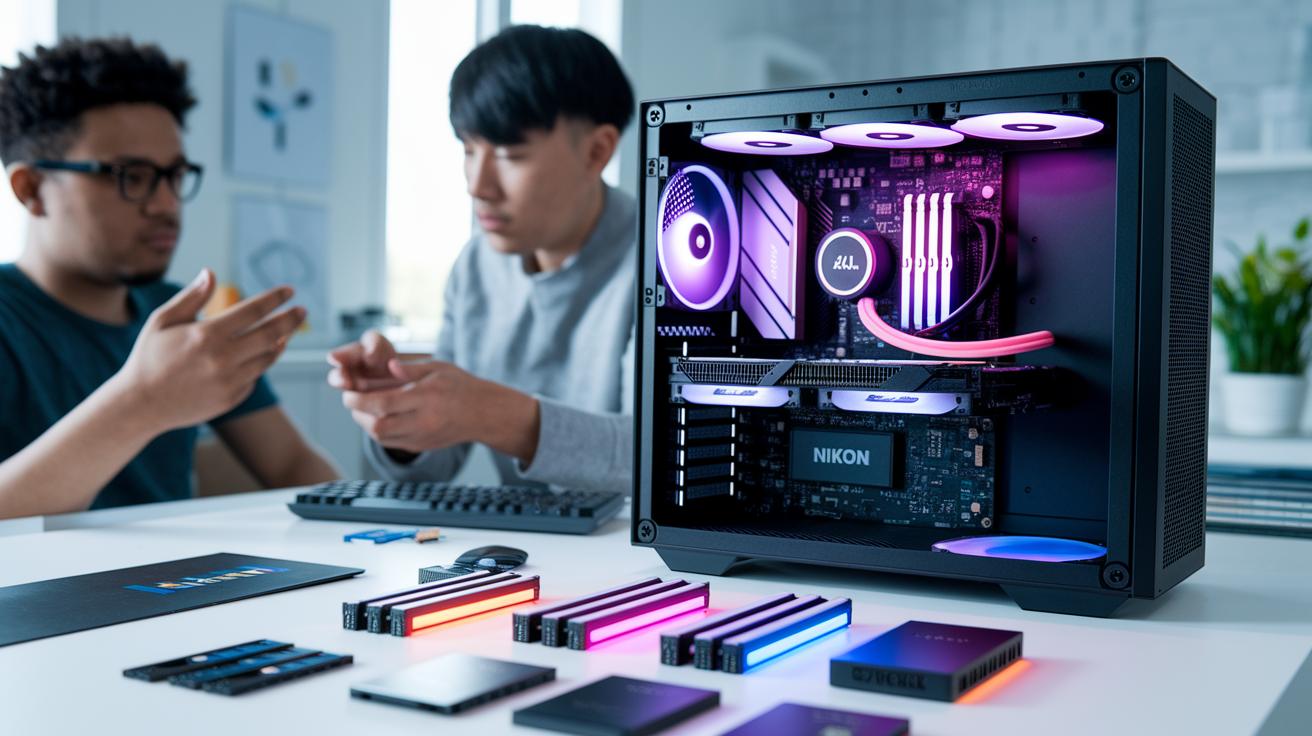
When software fixes don't get your PC up to speed, it might be a hardware issue. You may have already updated your software and tweaked settings, yet your computer still struggles with heavy tasks. Upgrading parts like SSDs, RAM, GPUs, or CPUs can give your PC the boost it needs. For example, swapping an old hard drive for an SSD can cut load times by 50 to 70 percent, making everyday tasks feel quicker. Adding more RAM reduces delays when you run many programs at once. A better GPU or CPU can raise frame rates and speed up processing, which helps for demanding apps and gaming.
Before you buy new parts, check they work with your current setup. You can look at the compatibility guide at pc components compatibility to make sure the parts match your motherboard, power supply, and case.
Some quick tips:
- Make sure the new SSD is optimized for storage.
- Confirm that extra RAM fits within your system's limits.
- Pick a GPU and CPU that meet your performance needs.
Upgrading your hardware can clear up long-standing performance issues when software methods fall short. Plan your upgrade carefully to enjoy lasting improvements in speed and reliability.
Final Words
In the action, we tackled diagnosing and solving common PC performance issues in Windows 10. We walked through essential software fixes like updating drivers, cleaning junk files, and managing startup processes. We pointed out key hardware bottlenecks that slow systems and discussed some advanced troubleshooting techniques. Regular maintenance and knowing when to upgrade can truly boost performance.
Our guide helps you handle pc performance issues confidently so you can enjoy a faster, smoother computing experience.