

Ever wonder if your PC feels slow or fast? This free browser test acts like a report card for your computer. It checks your CPU (the part that crunches numbers) and your GPU (the part that handles graphics) to see how well they perform. The test works on both old and new systems. With just a few clicks, you can see how your PC stacks up and get tips to boost its speed.
Overview of an Online PC Performance Test
This free online test runs right in your browser and checks how your PC performs. It uses JavaScript benchmarks to measure your CPU (the brains of the computer), GPU (the graphics processor), RAM, and overall system speed across different tasks.
The tool is very easy to use. It works on many systems like Windows, macOS, Linux, Android, and iOS, and it supports browsers such as Chrome, Firefox, Edge, and Safari. We designed it to give you a clear snapshot of your computer's speed no matter what device you use.
There are three test levels to match different devices. The light test uses 6 threads, which is great for older or slower computers. The medium test uses 12 threads and is a good match for most home or office machines. The heavy test pushes 24 threads, which really challenges top-end systems. Each level runs several synthetic tasks that mimic real work like math calculations and image rendering.
All the results are saved anonymously with a session ID, along with the test level you picked and your score. Think of the CPU score like a report card for your processor on multitasking tasks. This makes it easy to track your PC’s performance over time without any fuss.
How to Run an Online PC Performance Test
Before you start, shut down any extra programs. This helps your computer use all its power for the test. Closing background tasks stops them from slowing you down.
Make sure your computer is ready for a full load. If your PC is less than four years old, the default test should work fine. Older systems might need a low load test that uses 6 threads (small sets of work). Newer or stronger PCs can try a medium profile with 12 threads or a high load test with 24 threads for an extra challenge. Picking the right profile saves you from long test times or system hangs.
Open an up-to-date browser like Chrome, Firefox, Edge, or Safari. Older versions might crash or give odd results. For more tips, check out our getting started guide here: https://circuitcritics.com?p=226.
When you’re set, click the “Start Test” button. The test may push your CPU to 100% load, which can slow down your system, heat it up, or even shut it off if your PC is not very powerful. Make sure your computer is cool and plugged into a steady power source before you begin.
Follow these steps for steady and accurate results from this free online stress test. Enjoy the test and see how your computer really performs!
Key Metrics in Online PC Performance Testing
When you run online tests on your PC, you get several numbers that explain how well your system works. We start with the CPU Score, which shows how fast your processor handles many tasks at once. This number is based on how long it takes to finish different jobs when the CPU is working at full force. You also get a Single-Thread Score, which measures how quickly one processor core handles tasks one at a time.
Next up is the GPU Score. This score uses WebGL tasks (simulated graphics work) to see how well your graphics card manages several jobs and renders images. Along with that, the overall time the test takes tells you how quick your system runs under heavy load. Keep in mind that these tests use synthetic tasks, which might not match everyday use, but they give a useful look at your system's speed.
RAM usage is another important metric. It tells you how much memory your system uses during stress tests. The test adjusts the number of threads (6, 12, or 24) based on what your device can handle. This helps pinpoint where your CPU or GPU might slow down when working hard. For instance, a high CPU Score paired with a lower Single-Thread Score might mean your processor handles multiple tasks well but struggles with single tasks.
Finally, the total test time combines every phase and can highlight delays that suggest system strain. These numbers give you a clear snapshot of your PC's performance, but remember to compare them with other tests to get a complete picture.
Interpreting Your Online PC Performance Test Results
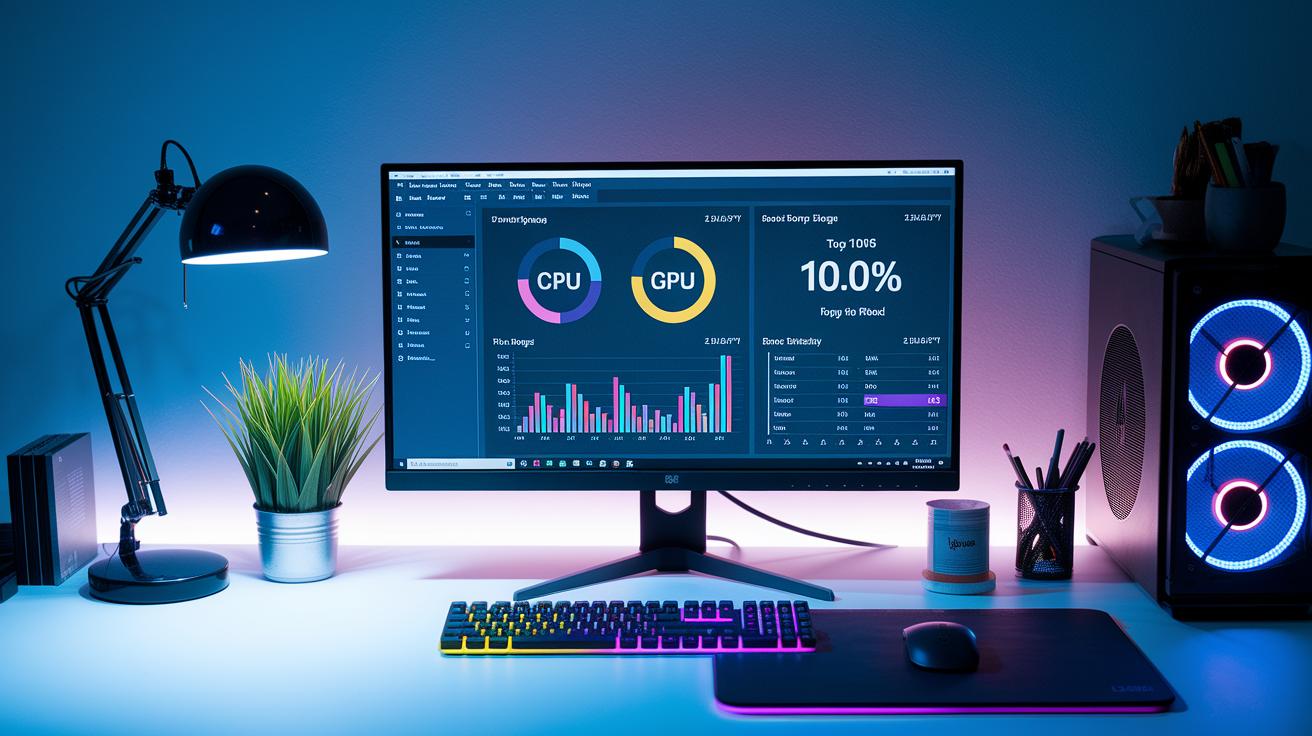
Your benchmark test gives you a clear look at your PC's performance. It shows scores for your CPU, GPU, and single-thread abilities, along with the total time taken for the test. If your CPU score is in the top 10%, it means your processor is doing really well compared to others.
The report also shows an anonymous leaderboard ranking. This lets you see how your system stacks up against other users. For example, a score of 85 means your PC is faster than 85% of the systems tested. It's a handy way to figure out where you stand, especially if you're thinking of upgrading your hardware.
Remember that the results come from user submissions and aren't checked by an independent party. So it's smart to cross-check these numbers with other tests. Many users download their reports as CSV files to track trends over time. You can even make simple charts to compare your CPU and GPU scores from one test to the next.
If you spot a sudden drop in your score, think about whether background apps or overheating might be to blame. Try closing extra programs or checking your cooling before running the test again. This careful approach helps ensure you get a true picture of your PC's capabilities.
Troubleshooting Online PC Performance Test Issues
If your online computer tests act up, you’re likely facing common issues. The test might freeze, take over 10 minutes, or even shut your PC down unexpectedly. You may also see different results when you switch browsers.
A quick fix is to update your graphics drivers. Old drivers can cause problems with GPU tasks (tests that check your computer’s graphics performance). Check your hardware maker’s website for the latest updates. Also, make sure your cooling system is working well. Overheating might slow down the test or cause shutdowns. Keep your computer in a cool spot and ensure that the fans are running smoothly.
Switching to a modern browser like Chrome or Edge can also make a big difference. Newer browsers deal with heavy tasks much better than older ones. It helps to close any extra applications before starting the test so that your system has more power. If you’re using a laptop or mobile device, plugging in a power source can prevent shutdowns due to low battery.
Below are some tips to follow:
- Update your graphics drivers.
- Check and clean your cooling system.
- Use a modern browser.
- Close extra applications.
These steps should help you get a faster and more stable online performance test experience.
Optimizing Your PC After an Online Performance Test

Run your benchmark and really check out your numbers. First, update your drivers and OS. Old software can slow you down, even if your hardware is strong.
Next, set your power mode to high performance. This lets your CPU and GPU do their best work. If you're on a laptop, switching to a high performance plan can prevent your system from throttling during heavy tasks.
If your test shows slow read and write speeds, think about defragmenting your drive or moving to an SSD (solid state drive, which reads data faster). These fixes can make your PC feel much quicker.
If your PC heats up too much under stress, your cooling might be falling short. Upgrading your fans or getting a better heatsink can help keep temperatures down.
Lastly, consider upgrading parts like RAM or even getting a stronger GPU or CPU if needed. For more tips on upgrading your PC, check out the upgrade pc components page: https://circuitcritics.com?p=255.
Choosing the Right Online PC Performance Test Platform
When you're choosing an online PC performance test, it’s key to find a tool that fits your needs. Some tests focus on pushing your CPU (the computer's main processor) while others put your graphics card under load.
Tools like Speed-Battle use JavaScript benchmarks to check your whole system. In contrast, Stress My GPU uses WebGL (a tool for handling graphics) to test just your graphics performance. Each tool comes with its own strengths and limits.
Speed-Battle is a go-to for many because it runs multiple thread tests to show pure CPU performance. It offers three different test profiles. For example, I once noticed my CPU score rise steadily while the test processed 24 threads. This shows the tool can really challenge modern processors.
Stress My GPU takes a different approach by focusing on visual graphics tests. It offers a more graphical output, but browser limits might stop it from pushing every graphics task to its fullest.
Some platforms combine CPU and GPU tests in one easy-to-use tool. These tools often provide live monitoring and let you export or share your test results. This is a big plus if you need detailed reporting or separate stress tests for different parts of your PC.
Final Words
In the action, we walked you through using a free, browser-based test to gauge your PC’s speed. We covered test setup, running different load profiles, reading core metrics, troubleshooting issues, and even options for boosting performance. This guide aimed to give you a clear look at how each step helps you understand your system’s strengths and limits. Rely on this online pc performance test to make simple, informed tweaks for a smoother, more reliable computing experience.