

Ever notice your PC slows down when you need it most? You might think a high-spec system means everything will run smoothly, but sometimes one bottleneck can drag the whole system down. In this guide, we take you through simple tests to check your PC's health. We’ll show you how to spot issues like slow CPU speeds (how fast your computer's main processor works), memory blockages (when your RAM can't keep up), and lagging disk use (when your hard drive responds slowly). Follow our step-by-step methods to uncover the hidden numbers that can help you boost your PC’s speed and enjoy a more responsive experience.
How to Check PC Performance: Enjoy Faster Results
Start by checking your PC's key performance stats. Open Windows Task Manager (Ctrl+Shift+Esc) to see real-time data on CPU speed, available RAM, and disk use. The Task Manager breaks down activity per CPU core and shows memory use by each program. This helps you spot any app that might be slowing things down.
Next, look at your disk speed. A hard drive or SSD that works slowly can make load times longer and tasks lag. Use Windows Performance Monitor to get a closer look at your system, including network and disk activity. Also, try built-in cleanup tools to free up space and boost speed.
For a more complete check, run third-party tools like UserBenchmark, Geekbench, or Novabench. These apps give numerical scores for your CPU, GPU, disk, and RAM (memory) performance under light load. Running tests when few background programs are active offers a clearer view of your PC's true strength. Have you ever run a test and seen that even a system with high specs can lag if one part doesn’t keep up?
Lastly, watch your network connection quality. Regular checks keep your PC running smoothly and ready for daily work, helping you enjoy faster overall performance.
Checking CPU and Memory Performance in Task Manager
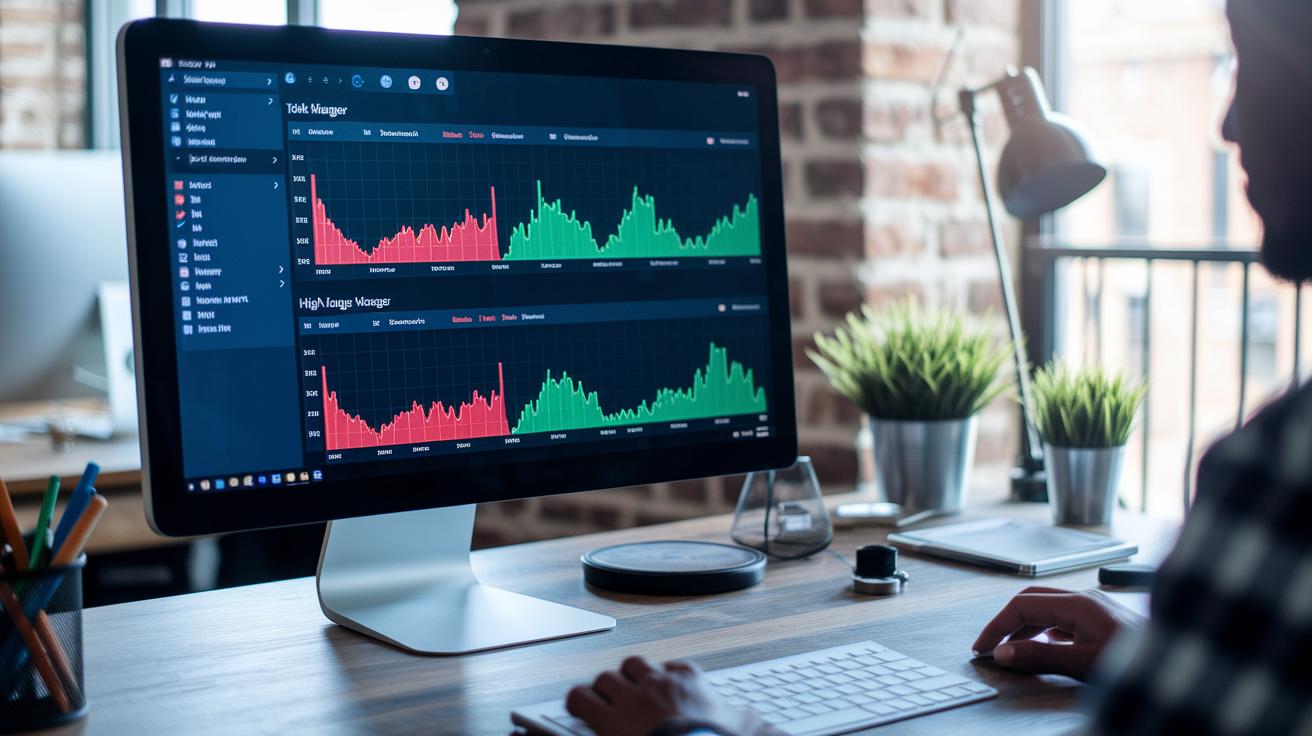
Press Ctrl+Shift+Esc to open Task Manager. This built-in tool gives you real-time data on your CPU, RAM, disk, and network usage. On the CPU tab, you’ll see graphs for each core along with an overall percentage. If one core stays at nearly 100% for a long period, it means a program is overloading that core. For instance, you might notice a heavy app keeping a core at 95% for more than 10 minutes.
Next, go to the Memory tab to see your total physical RAM use and the breakdown per process. Check for any application that regularly hogs memory, which could slow down your system. You might spot a process that uses over 1.5GB of RAM even when you aren’t doing much.
These charts help you pinpoint apps that are heavy on resources. Once you identify them, you can try closing or reinstalling those programs. This combined view of CPU and memory usage lets you troubleshoot performance issues more quickly:
- Find cores that are running at high usage.
- Spot processes that keep using a lot of memory.
- Consider shutting down or updating apps that cause these spikes.
Benchmarking Tools for PC Speed Tests
Benchmarking tools check how your PC performs by stressing major parts like the CPU (the computer's main chip), GPU, disk, and RAM (memory). They give you easy-to-read scores so you can compare your computer to others. Tests like these work best when your computer is quiet and not busy with other programs.
UserBenchmark reviews all the key parts and shows how they compare to normal scores. Geekbench tests both single-core and multi-core speeds so you can see how your PC handles different tasks. Novabench looks at graphics, memory, and disk speeds to spot any weak areas that could slow things down.
Before you run these tests, close any heavy programs running in the background. This helps the tools run smoothly and gives you steady results. Keeping an eye on your scores may even point out issues like overheating, outdated drivers, or bad cooling.
| Tool | Metrics Measured | Cost |
|---|---|---|
| UserBenchmark | CPU, GPU, disk, RAM | Free |
| Geekbench | CPU, GPU, disk, RAM | Free |
| Novabench | CPU, GPU, disk, RAM | Free |
By comparing your scores with those from similar setups, you might spot issues that don’t show up during regular use. A lower score can signal overheating, outdated drivers, or not enough cooling. Running these tests from time to time helps track any improvements after you make changes.
Diagnosing Disk and Storage Performance on Your PC

Slow storage can drag down your PC, making programs load slowly and causing stutters during tasks. One quick fix is running Windows Disk Cleanup, which removes temporary and duplicate files to clear space. Begin by checking your free space in File Explorer, then run Disk Cleanup to clear out unnecessary files. This simple step can give your system a noticeable boost.
For a closer look at your disk's performance, try using CrystalDiskMark. This tool checks your drive's read and write speeds, whether you're using an SSD (a fast type of storage) or an HDD (a traditional hard drive). It gives you a raw throughput number that shows how quickly your drive handles data.
If your system uses an HDD, running Windows Defragmenter can help too. It rearranges your files so they sit together, which speeds up file access. After that, open Resource Monitor to check the disk queue length (the number of operations waiting to be processed). A high queue can mean your storage is a bottleneck, slowing your computer down during heavy use.
Regularly checking your disk and storage performance helps you catch problems early. This means faster app launches, quicker file access, and a more reliable overall experience.
Monitoring System Temperatures and Hardware Health Metrics
When your PC overheats, both the CPU and GPU slow down to protect themselves. That's why it's smart to check your computer's internal temperatures regularly. Use a free tool like HWMonitor, Core Temp, or SpeedFan to get real-time readings from your CPU, GPU, motherboard, and hard drives. These apps offer live graphs that make it easy to spot any sudden spikes. For instance, if you're using HWMonitor during heavy work and see your CPU cores at 70 °C, you're in a safe zone.
Generally, most systems keep the CPU below 75–80 °C when under load and the GPU under 85 °C. If temperatures rise above these limits, your PC may slow down to avoid damage. Checking these numbers with thermal diagnostics software means you can monitor every part without having to open up your computer. If you consistently see high readings, it might be time for a cleaning or a tweak to your cooling setup.
- Keep an eye on real-time temperatures for each core and component.
- Ensure the CPU stays below 75–80 °C and the GPU remains under 85 °C.
- Use these tools to spot temperature spikes and connect them to performance issues.
Interpreting Performance Metrics, Identifying Bottlenecks, and Planning PC Upgrades

When you run tests to check how your PC performs, look for any part that might be slowing things down. For example, if your CPU works at 100% while your GPU barely reaches 50%, one part is holding back overall speed.
Use simple tools like Task Manager or Performance Monitor to see what's slowing your system. If your memory is always full, adding more RAM can help your computer work smoother. If files load slowly, switching from an HDD (old hard drive) to an SSD (a faster drive) might make a big difference. And if your computer struggles with graphic tasks, it might be time to replace an outdated GPU.
Before picking new parts, check that they match your current system. Look at your motherboard's CPU socket and make sure the new RAM fits the available slots. For more on this, visit the pc components compatibility guide at pc components compatibility. If you decide to upgrade, our upgrade pc components resource can help guide your choice.
- Look for the part that always reaches its limit.
- Consider adding RAM, swapping your drive, or updating your GPU.
- Double-check that any new parts work with your current hardware before buying.
Final Words
In the action, we dove into monitoring PC performance using built-in tools and popular benchmarks. We covered checking CPU, memory, and disk performance, keeping hardware cool, and spotting upgrade points. Each section gave real steps even everyday users can follow to spot issues and plan improvements. The guide breaks down how to check pc performance with clear, practical tips, so you feel set to boost system efficiency and reliability. Enjoy the process of fine-tuning your setup!
FAQ
How to check PC performance for gaming and during gameplay?
The process of checking PC performance for gaming involves using in-game benchmarks and monitoring tools like Task Manager to track CPU, GPU, and memory usage while playing.
How to check PC performance on Windows 10 and Windows 11, including shortcut keys?
The method to check performance on Windows 10 and 11 is by pressing Ctrl+Shift+Esc to open Task Manager, which shows real-time CPU, memory, and disk stats instantly.
What are some online and free tools for PC performance testing?
Free online tests like UserBenchmark and Novabench allow you to measure CPU, GPU, and disk speeds, generating scores you can compare with other systems for a complete performance view.
How to check PC performance on a laptop?
Checking laptop performance follows desktop steps—open Task Manager or use built-in utilities to monitor CPU, RAM, and disk activity to gauge how your device handles everyday loads.
How do I run a CPU performance test?
Running a CPU performance test involves using benchmarking tools such as Geekbench or UserBenchmark that stress the processor and provide numerical scores to reflect its speed under load.
How do I run full PC diagnostics?
A full PC diagnostics run includes using Windows Performance Monitor and third-party apps to check CPU, RAM, disk, and network performance, ensuring every component is functioning properly.
How do I test if my PC is running slowly and check overall performance stats?
Testing for slow performance means checking Task Manager for high resource usage and running benchmark tests, which helps reveal bottlenecks and confirms if your PC is underperforming.