

Ever notice how your phone photos sometimes look flat? It might not be just bad luck, it could be your camera settings. Mobile photography is more than just a quick snap. With simple tweaks, like adjusting ISO (how sensitive your sensor is) and shutter speed (how long your camera takes a picture), you can grab more detail in low light. We tested these adjustments and found they make a big difference. Follow along as we show you how to clear up blurry images and brighten dark scenes. Ready to turn your everyday pictures into standout photos?
Master the Exposure Triangle in Mobile Photography Camera Settings Tips
The exposure triangle is all about ISO, shutter speed, and aperture. On your smartphone, the aperture stays the same. That means you only need to adjust ISO and shutter speed to control brightness. These tweaks can make a big difference when lighting is tricky. Try these steps in your camera app:
- Tap the screen to pick where you want the light set.
- Slide the exposure bar up or down near the focus box.
- Use exposure compensation in Pro mode.
- Choose ISO settings based on your scene (try ISO 100–200 in bright light, 400–800 indoors, and 1600+ in low light, ideally with a tripod).
- Set shutter speed: faster speeds work for quick moves and slower speeds help in low light (again, use a tripod).
Advanced Exposure Controls
Mixing manual tweaks gives you more control. You can bring out details, save bright and dark areas, and cut down on noise. A few small changes in exposure, ISO, and shutter speed help keep colors real. Use the table below to match your ISO settings with the right shutter speeds:
| ISO Setting | Best Use | Recommended Shutter Speed |
|---|---|---|
| 100–200 | Bright daylight | 1/200 s+ |
| 400–800 | Indoor or cloudy | 1/60–1/200 s |
| 1600+ | Low light | 1/10–1/60 s (tripod) |
Getting your exposure just right helps keep your photos clear and balanced, no matter what's happening with the light.
Clean Lenses and Stabilize Shots for Mobile Photography Camera Settings Tips

Keep your lens clean for sharp photos. Wipe it with a cleaning fluid and a soft microfibre cloth. Even a tiny smudge can make your picture blurry or dull. Taking a few seconds to clean your lens before shooting outside can save you from weak shots.
Hold your phone steady to avoid motion blur. Use both hands and plant your feet shoulder-width apart for a strong base. If even a small shake can ruin your shot, try a tripod or set your phone on a firm surface. These tips help your photos look clear and true to life.
Set Manual Focus and Calibrate White Balance in Mobile Photography Camera Settings Tips
Focus Lock
To get a good shot, switch from auto focus to manual focus. Tap the screen and move the yellow focus box onto your subject. Hold it down until the yellow box starts pulsing. That tells you the camera has locked focus on your subject, even if it moves. This way, you stop the phone from refocusing on something else when new objects enter the frame. For example, if you're shooting a child running in the park, a locked focus helps you capture clear images as they move.
White Balance Settings
Now that your focus is set, getting the color right is just as important. Choose one of the preset white balance options like Daylight, Cloudy, or Tungsten to match the light around you. If you're in a tricky light, switch to Pro mode and adjust the color temperature using the Kelvin slider. This simple change helps fix color casts that might make your photo look too warm or cool. For instance, during sunset, a small tweak on the Kelvin slider can keep skin tones natural without washing out the background.
Sharper focus and the right white balance work together to keep your photos looking true to life, showing every color and detail as you saw it.
HDR and Dynamic Range Settings in Mobile Photography Camera Settings Tips

When you switch on HDR mode, your phone snaps three photos at different exposure levels. One shot brightens the bright areas, one captures the mid-tones, and one picks up the dark spots. Each image shows a part of the scene that might be lost in a single shot.
Then, the camera blends these shots into one balanced image. It tones down over-bright spots and brings out details hidden in the shadows. This mix helps overcome the limits of your phone’s sensor in high-contrast scenes and makes colors pop.
HDR works great in scenes like backlit portraits, sunsets, or rooms with bright windows. For example, in a backlit shot, HDR balances the strong sunlight with darker parts so both are clear. In sunsets, it lets you see the deep colors of the sky while keeping the foreground visible. Using HDR smartly means you capture both the light and the dark in a more natural way.
Mobile Photography Camera Settings Tips: Perfect Your Shots
Portrait mode gives your photos a more professional look by keeping your subject sharp while gently blurring the background. To get the best out of this mode, try positioning your subject a few feet away from busy areas. This extra space helps the phone's depth software work better, resulting in a natural, nice blur.
If your phone offers a slider for adjusting the blur, use it to set the level you prefer. You can also try different lenses if your device has more than one. Testing these options can lead you to the look you want. Remember, a calm and simple background makes your subject stand out even more.
Utilize Burst, Timelapse, and Timer Features in Mobile Photography Camera Settings Tips

Burst mode lets you grab a bunch of photos quickly by holding down the shutter button. It works well for action shots like sports, kids playing, or pets moving around. This way, you can pick the clearest snap from a run of photos. Some phones even let you use the volume buttons for a quieter way to capture bursts.
Timelapse mode is great for showing slow changes. It takes pictures at set intervals so you can see progress over time. Open your camera app, switch to timelapse, and set an interval that fits your scene. A longer gap works best for calm scenes like blooming flowers or city lights at dusk, while a shorter gap can catch quicker shifts.
Timer mode is handy when you need a steady shot without shaky hands, especially for group selfies or self-portraits. Hit the built-in timer or use the volume-button shutter to give yourself a few extra seconds. This helps you get into the frame and capture a balanced picture.
Composition Tricks with Grid Lines in Mobile Photography Camera Settings Tips
Using grid lines in your camera app is a simple trick that can boost your photo composition instantly. Most phones let you switch this on via Settings > Camera > Grid on iPhone or a similar option on Android. This feature gives you a clear guide to line up your subject and horizon while you shoot. It is especially handy when you need to snap a quick picture, ensuring your photo looks balanced and well-planned.
Try these tips for a more creative shot:
- Place your main subject off-center following the rule of thirds for a dynamic look.
- Use leading lines to naturally pull the viewer's eye into the frame.
- Count on the rule of odds to make group shots feel balanced.
- Check your horizon with the grid to keep it straight and stable.
Combine these grid line tricks with your camera settings to create photos that are not only well framed but also visually appealing. Have you ever noticed how a simple guide can make a huge difference in capturing the perfect shot?
Post-Process Workflow for Mobile Photography Camera Settings Tips
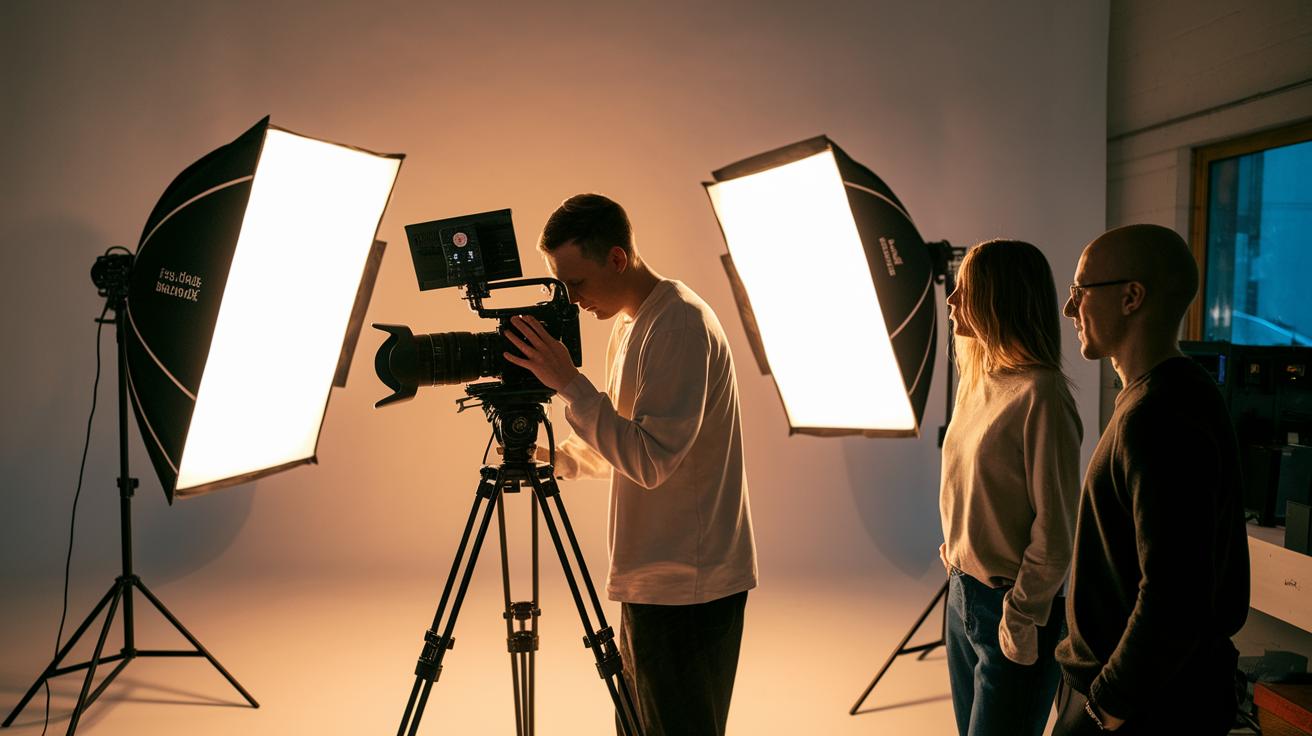
Begin by choosing your format: raw or JPEG. Shooting in raw gives you more data to work with later, so you have extra control when you adjust settings. In your editing app, set up profiles to quickly grab your favorite style. For example, you might say, "I lock in a cool tone profile when editing urban scenes." This method helps you lock down details that make your image really pop.
Next, adjust the exposure, contrast, and color temperature to suit your scene. Editing apps let you fix light problems, balancing bright spots with shadows while keeping colors natural. Try small changes, like nudging the exposure a little higher, and check before-and-after shots. You'll quickly see how even tiny tweaks can change the vibe of your photo.
Finally, save your custom presets and review your edit history. Presets speed up your workflow for similar shoots, and looking back at your edits helps you learn what adjustments best match your style. Step by step, each session builds your skill, turning a good shot into a standout photo.
Final Words
In the action, this guide broke down settings for exposure, focus, white balance, and HDR. We looked at cleaning lenses, steadying shots, and manual adjustments that fine-tune mobile photography. The article also covered tricks like using burst, timelapse, and grid lines, not to mention a smooth post-process workflow. These mobile photography camera settings tips help you balance controls and capture true-to-life moments. Enjoy capturing everyday scenes and pushing your creative limits with confidence and clarity.
FAQ
Q: What mobile photography camera settings tips can help both iPhone and Android users, especially beginners?
A: The mobile photography camera settings tips for iPhone, Android, and beginners suggest tapping to set focus and exposure, using manual controls in Pro Mode, and adjusting ISO and shutter speed for clearer, well-balanced images.
Q: Where can I find mobile photography tips and tricks PDF resources?
A: Mobile photography tips and tricks PDFs offer step-by-step guides and clear settings advice. Many photography blogs and websites provide free downloadable PDFs that help improve your shooting techniques.
Q: What are Samsung camera Pro Mode best settings?
A: Samsung’s Pro Mode best settings include manually setting exposure, ISO, shutter speed, and white balance. Using grid lines and focus control in Pro Mode allows you to capture clear, vibrant photos in varied lighting.
Q: What is the 20 60 20 rule in photography?
A: The 20 60 20 rule in photography advises that your composition roughly splits into 20% for foreground, 60% for the main subject, and 20% for the background, helping balance visual elements.
Q: What is the 3:1 rule in photography?
A: The 3:1 rule in photography guides lighting setups, suggesting that the key light should be about three times brighter than the fill light to maintain natural shadows and highlight details effectively.
Q: How can I make my mobile camera quality better?
A: Making mobile camera quality better involves cleaning your lens, using optimal settings like proper ISO and exposure, stabilizing your phone, and optionally using a tripod to reduce blur and improve clarity.