

Is your computer slow when you need it to be fast? A few simple changes can make your PC feel much quicker. Start by tweaking the programs that run at startup, switch to a high-performance power mode, and turn off extra visual effects. These steps clear out the clutter that slows your system down.
In this guide, I'll show you easy fixes that free up important resources and boost your PC's speed immediately. Get set to leave lag behind and enjoy a smoother, more responsive experience.
How to Get Better PC Performance Right Now
Open Task Manager to see how much work your CPU, memory, disk, and network are doing at any moment. This built-in tool shows you which apps are slowing down your computer. For example, if you notice high CPU use from a non-stop antivirus scan, it might be time to change its settings. These small fixes can lead to quick improvements.
Many computers slow down because too many programs run right when you start your computer. Turning off startup apps you don't need, like old utilities or extra messaging tools, can make your computer boot up faster. Also, switching to a high-performance power mode helps bypass energy-saving limits, which makes the computer feel snappier right away.
You can also boost speed by turning off extra visual effects like animations and shadows. Fewer graphic effects mean your computer can focus on more important tasks. Tweak these settings along with your startup programs, and you'll see a real boost in everyday performance.
- Turn off startup programs you don't use
- Set your power mode to high performance
- Reduce animations and visual effects
- Close extra browser tabs and windows
- Disable unnecessary background services
- Pause constant antivirus scans while working
- Check Task Manager regularly for resource-hogging apps
Clean and Maintain Your PC to Sustain Better Performance

Cleaning your computer often can make it run smoother. Use a disk cleanup tool to remove old temporary files, offline pages, installer files, and even clear out a full recycle bin. This frees up space on your hard drive, so it can work without delays.
When your files are split into pieces, your computer must search all over to read or write data. Running a disk defrag (a tool that merges these pieces) puts each file back together. The result is faster access to your data and a better overall performance.
It also helps to run malware scans regularly. Programs like Windows Defender or MalwareBytes Free can catch and remove unwanted software that uses up your computer's power. Keeping these threats at bay means fewer hidden processes slowing you down.
Lastly, don’t forget to keep your computer physically clean. Dust can clog vents and fans, making your CPU (the main processor) and GPU (the graphics card) overheat. Cleaning off this dust helps maintain good temperatures and keeps your PC performing well over time.
Update Drivers and Tweak Software for Improved PC Performance
Old drivers and operating systems can create crashes and slow performance. Running Windows Update or using your computer maker's driver installer gets you the latest fixes. Skip these and you might miss out on important speed boosts. Check Task Manager in Windows 10 and 11 to see which apps are overloading your CPU.
Windows also includes built-in troubleshooters that hunt for hidden issues. They look at your hardware, devices, apps, and search indexing, all common sources of slowdowns. Running these diagnostic tools regularly helps clear out problems and keeps your computer agile when you push it hard.
You can also speed things up by adjusting your startup programs. On older systems, use MSCONFIG; on newer ones, the Task Manager will do the trick. Disabling unnecessary background apps helps your computer start up faster and respond better over the course of the day.
Command line tools can give you an extra boost as well. Running scripts in PowerShell or Command Prompt (like powercfg commands) fine-tunes your settings to speed up boot times. These small tweaks make a noticeable difference without needing a full system overhaul. Combining regular updates with these adjustments lays the groundwork for smoother, more reliable performance.
Upgrade Hardware Components for High-Speed PC Performance
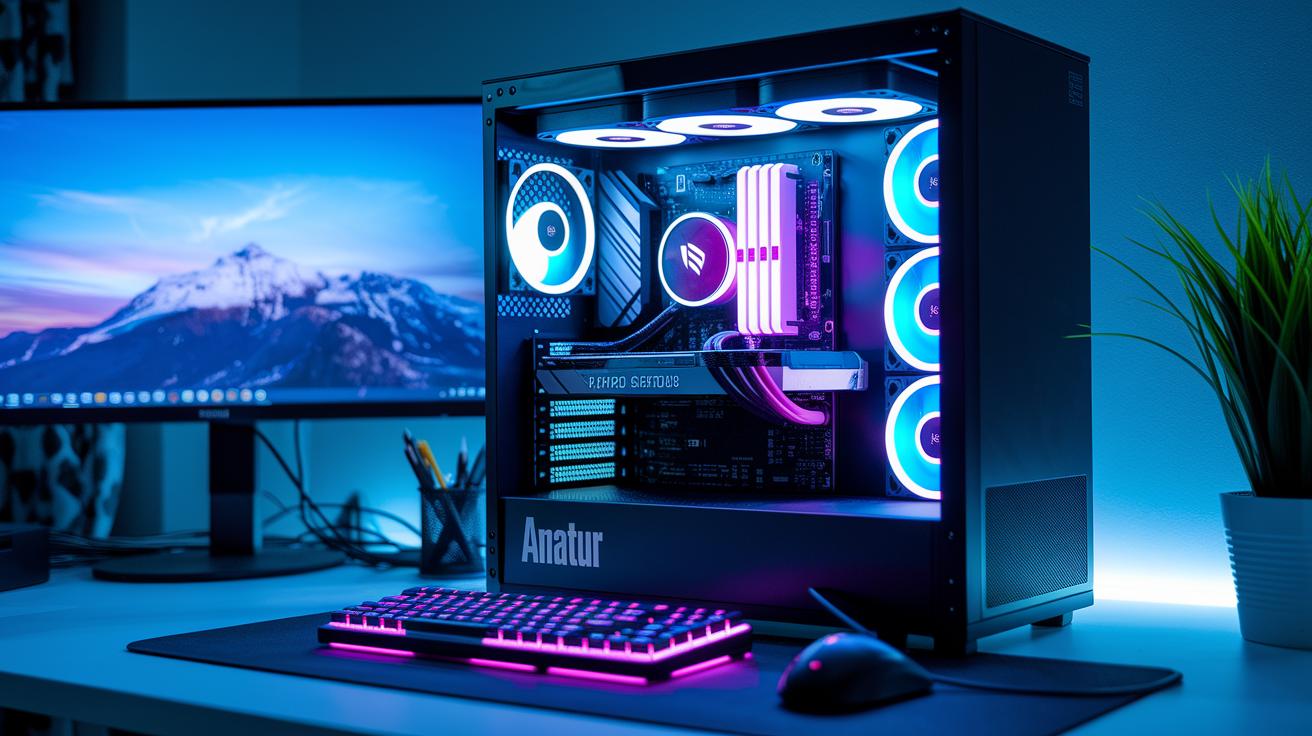
Upgrading your PC parts can give your computer a real speed boost by fixing the slow parts. Adding an extra 2 to 4 GB of RAM can make your system react faster. Swapping out a 7200 RPM hard drive for a SATA-III SSD makes booting and loading programs much quicker. Even changing a basic graphics card for a mid-range one can lift your gaming frames per second (FPS) and make day-to-day tasks run smoother. Better CPU cooling helps too, as it stops your processor from slowing down when it gets too hot. All these changes work together to help your computer multitask better and run more efficiently.
Before you start, check that new parts are compatible with your current setup. Each upgrade serves a clear purpose: more RAM boosts overall speed, and a new SSD cuts down on read and write delays. For instance, a SATA SSD can jump from about 120 MB/s to around 500 MB/s. Upgrading your GPU immediately improves performance for programs that use graphics heavily. These tweaks help your CPU and SSD work at their best, giving your PC a turbocharged edge.
| Component | Throughput | Estimated Impact |
|---|---|---|
| 8 GB → 16 GB RAM | Higher data access speed | Faster multitasking and smoother operation |
| 7200 RPM HDD → SATA SSD | 120 MB/s → 500 MB/s | Boot time drops from about 60 sec to 15 sec |
| Reference GPU → Mid-range GPU | Better graphics processing | Improves gaming FPS and visual fluidity |
These upgrades offer a clear, measurable speed boost. Tailoring your computer’s parts to what you need means it runs at its peak whether you’re multitasking, gaming, or running heavy programs.
Advanced Tuning and Monitoring to Sustain Better PC Performance
Keep an eye on your PC with tools like MSI Afterburner and HWMonitor. These apps show key numbers such as voltage, temperature, and fan speed in real time. When you watch these details, you can act fast to stop overheating or fix any slow spots in your system.
Tweaking your BIOS can also give your CPU and memory a boost. Turning on settings like XMP (which lets your memory run at its proper speed) and disabling C-states (power-saving modes that can slow things down) helps your hardware run smoother. This means your system stays steady even when it’s working hard.
Safe overclocking is another way to get more performance. By nudging your CPU speed up by about 200 MHz and carefully adjusting the voltage, you might see a 5–10% improvement in speed. Just keep a close watch on your system’s stability while you do this. It’s a smart, balanced way to boost performance without taking big risks.
Final Words
In the action, we broke down key steps to boost your computer speed, from tweaking startup programs and cleaning up files to updating drivers and upgrading hardware. Each section gave test-backed, immediate actions you can take for better pc performance.
We ran through real-time monitoring, safe overclocking methods, and practical maintenance tips. Small adjustments here and there can lead to a snappier, more efficient system. Keep testing, keep tweaking, and enjoy that faster computing experience.
FAQ
What are some Reddit recommendations for better PC performance?
The Reddit tips for better PC performance include cleaning up startup apps, switching to high performance power plans, reducing visual effects, and updating drivers. These steps boost responsiveness and overall speed.
How can I improve PC performance on Windows 10 and Windows 11?
The advice for Windows optimization suggests cleaning temporary files, disabling excessive startup programs, switching to high performance mode, and trimming visual effects to help your PC run faster on both Windows 10 and Windows 11.
How can I optimize my PC for gaming?
The gaming performance tips recommend updating drivers, managing background apps, lowering unnecessary graphics settings, and using high performance power modes to give you smoother gameplay and higher frame rates.
What free methods help speed up my PC and run it at best performance?
The free methods to speed up your PC include using built-in cleanup tools, disabling unneeded services, managing startup processes, and adjusting system settings. These tweaks help your PC perform at its peak without spending extra money.
How many FPS can a $700 PC run?
The FPS achievable on a $700 PC varies with game settings and titles, but you can typically expect around 60 to 100 FPS in many popular, competitive games when the system is well-optimized.