

Have you ever been in the middle of a game when sudden stutters break your focus? These little hiccups can make even a fast-paced game feel rough. It might look like your PC is lagging, but a few simple tweaks can bring back that smooth feel. Our guide keeps things clear and skips the heavy tech talk, giving you a fix you can try in about five minutes. Read on to see how a few clean installs and setting tweaks can restore the fluid gameplay you’ve been missing.
Troubleshooting Games Stuttering on PC: Step-by-Step Solutions
When your game stutters, it can really kill the fun. Stuttering happens when the graphics card (GPU) and monitor don’t sync well, leading to choppy visuals and lag. In high-FPS games, even tiny delays (micro stutter) can make your moves feel off.
We’ve put together a quick five-minute fix guide to clear up the common causes of stutter. These steps cut through the tech jargon so you can get back to smooth gameplay fast.
- Do a clean install of your graphics drivers using DDU in Safe Mode.
- Clear your system’s standby memory with Intelligent Standby List Cleaner (set it below 2048 MB on a 16 GB system).
- Cap your FPS a bit below your monitor’s refresh rate (try 141 FPS on a 144Hz screen).
- Turn on Shader Cache in your GPU control panel.
- Close any heavy background apps that might be hogging resources.
Each step is designed to target a common issue. Reinstalling the driver fixes delays between your GPU and screen. Clearing standby memory frees up RAM so that your game runs smoother, especially if you have 16 GB. Limiting your FPS keeps frame timings steady and stops micro stuttering. Activating Shader Cache helps the GPU breed a smoother experience after the initial shader setup. And shutting down resource-heavy apps eases the CPU load, reducing pauses and lag during gameplay.
Take a minute to try these fixes, you might find that one simple tweak is all you need for a more reliable gaming performance.
Games stuttering on pc: Quick Fix Ahead
Game stuttering happens when frames aren’t delivered evenly, even if your average FPS seems fine. For example, you might see 60 FPS on paper, but some frames take too long (50 ms or more). This causes sudden dips in performance and brief freezes that can add input lag.
Low FPS is different. Low FPS stays steady, like running at a constant 30 FPS. Stuttering, however, means the pace jumps unpredictably. You might experience quick hiccups that break up smooth gameplay even when overall numbers look good.
The usual culprits are delays when loading new textures (called asset streaming) and CPU issues that push one or more cores to 100% while the GPU stays below 95%. These problems stop frames from flowing smoothly. By watching out for spikes, freezes, and input lag, you can tell if your PC is stuttering or just running slow. This clear picture helps you pick the right fix to get back to a smooth game.
Software Fixes for Games Stuttering on PC: Driver and OS Tweaks
Basic fixes
-
First, do a clean install of the newest NVIDIA or AMD drivers. Use a tool like DDU in Safe Mode to remove old drivers. This clears out glitches, much like cleaning your desk helps you focus.
-
Next, turn on Shader Cache in your GPU control panel. This setting helps your GPU get shaders ready ahead of time. It cuts down on load times, much like preheating your oven saves time when baking.
-
Free up standby memory with a tool that clears memory below a set amount (for example, below 2 GB on a 16 GB system). This refreshes your PC, making sure your games have the RAM they need to run smoothly.
-
Shut down any heavy background apps like Chrome, Discord, or RGB utilities. Closing these programs reduces the CPU load, letting your PC focus on running your game.
Advanced fixes
-
Enable XMP/DOCP in your BIOS so your RAM runs at its full speed. This tweak boosts performance, similar to giving your engine a tune-up for extra power.
-
Consider resetting or clean-installing Windows if recent updates are causing stutter. A fresh install gets rid of conflicting settings, much like restarting a tired device helps it run better.
-
Finally, activate Windows Game Mode. This setting makes your system prioritize game tasks and manage resources well. It’s like switching to performance mode on your car, making sure everything runs smoothly when it counts.
Hardware Checks to Fix Games Stuttering on High-End PC
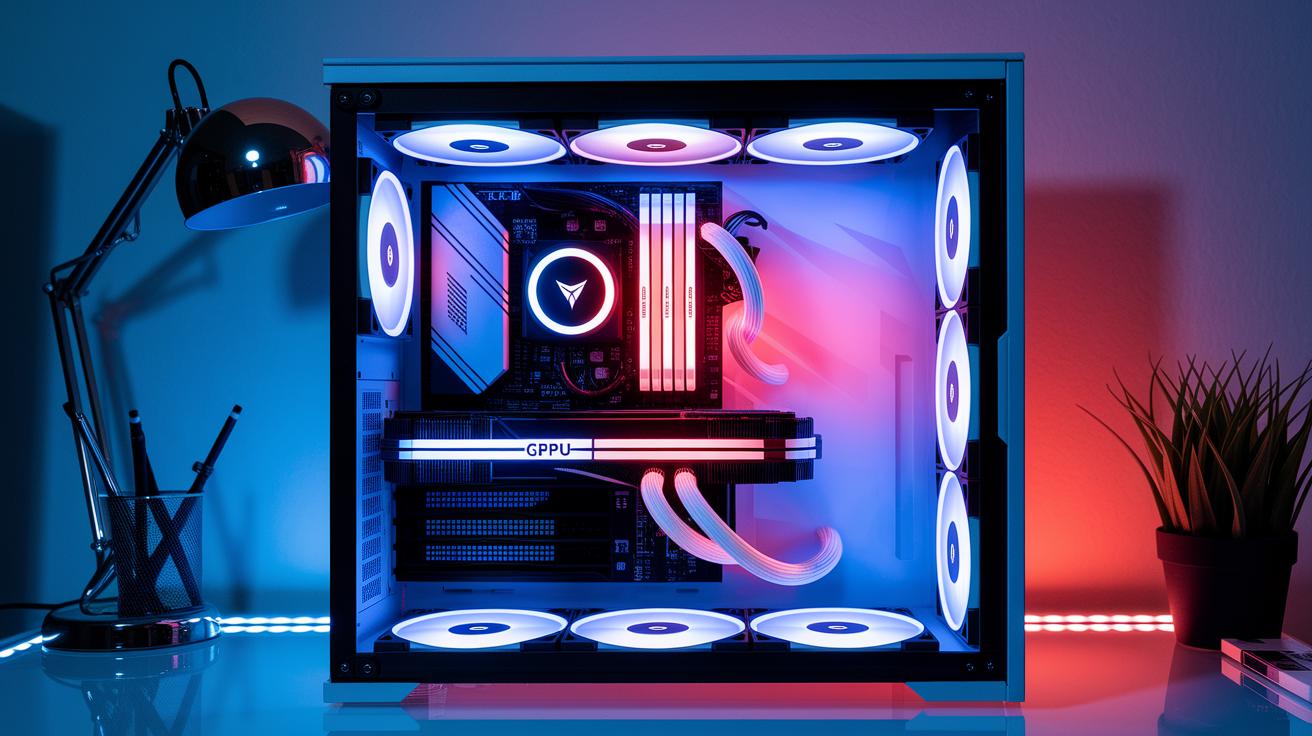
Even top-end gaming rigs can stutter if parts aren’t well balanced. Sometimes the CPU works too hard while the GPU waits around, which causes lag. You might have a strong GPU like the AMD Radeon RX 9070 XT with great VRAM support, but a slow CPU or memory can hold back the whole system. We’ve seen issues like thermal throttling (when temperatures hit 90–100 °C) and SSDs without enough free space that delay game data.
| Hardware Component | Check/Action |
|---|---|
| CPU usage check | Look for cores hitting 100% while GPU usage stays under 95% |
| GPU load check | Make sure the GPU isn’t always at 99-100% |
| Temperature monitoring | Watch CPU and GPU temps; clean dust, improve airflow, or reapply thermal paste if needed |
| RAM frequency | Enable XMP/DOCP to run RAM at its full speed |
| SSD free space | Keep enough free space to avoid delays in loading game assets |
| PSU health | Check that the power supply is stable during high load |
Keeping hardware in balance is key for smooth gameplay. If the CPU maxes out, even a powerful GPU can’t save you from random pauses. High temperatures not only cut performance short but can also trigger shutdowns. Running your RAM at its proper speed and having plenty of free SSD space help your system move data fast. Watching your PSU also stops sudden power dips that may cause stutter. Each step, from checking core usage to maintaining cool temps, works together to keep your gaming smooth and reliable.
In-Game Settings Tweaks to Minimize Game Stuttering on PC
Changing your in-game graphics and sync options can smooth out your gameplay and cut down on stutter. These small tweaks help the computer handle graphics better and keep your frame times steady.
Here are some steps to try:
- Cap your FPS just below your monitor’s refresh rate (for example, set 141 FPS on a 144Hz screen).
- Lower texture quality, shadow details, filtering, and even resolution to ease the load on your GPU (graphics card).
- Turn off texture streaming in Unreal Engine games to stop delays when new assets load.
- Disable VSync or try adaptive sync options like G-Sync or FreeSync to get more even frame pacing.
- Use an in-game or external frame limiter to reduce frame-time swings.
Each of these changes targets a specific cause of stutter. Capping the FPS keeps frame delivery consistent. Reducing graphics details makes intense scenes less demanding. Stopping texture streaming stops sudden load delays, while the right sync setting helps keep frames steady. In short, you might lose a bit of visual detail, but you gain smoother gameplay when every frame counts.
Advanced Diagnostics for Sudden PC Game Stuttering
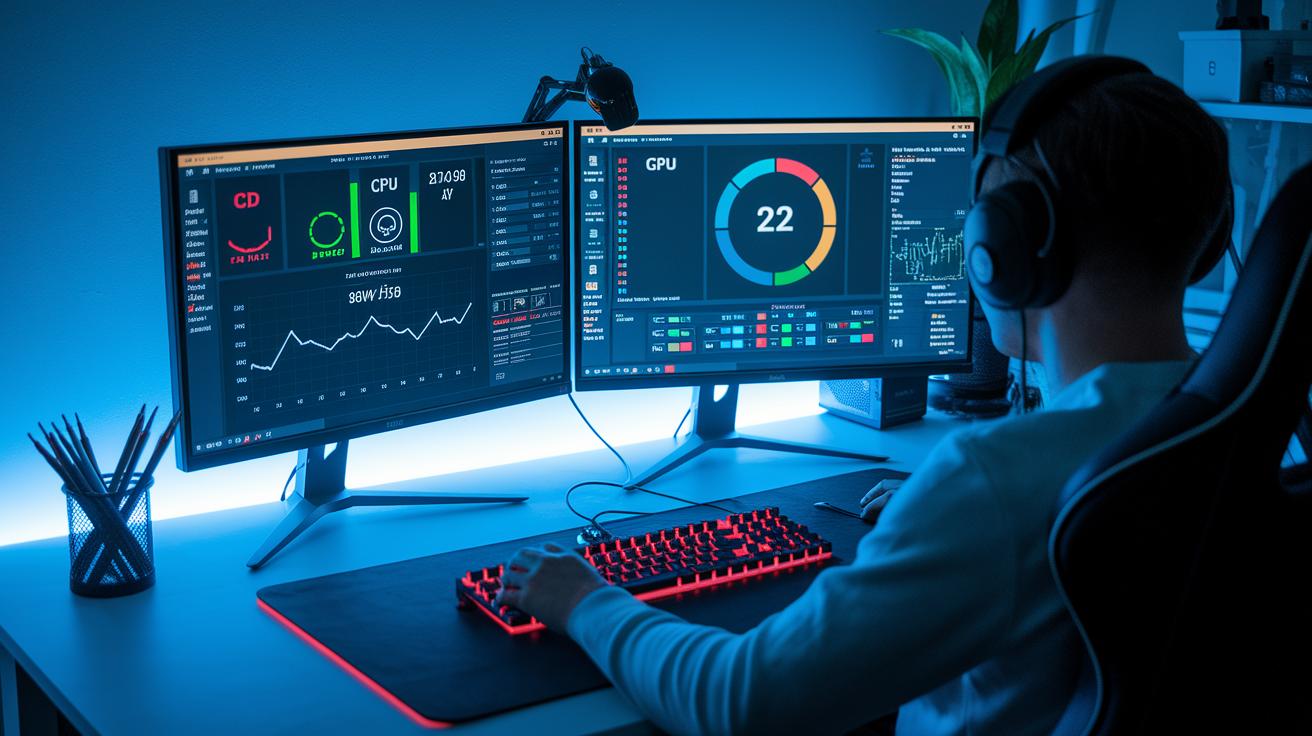
When your game starts to lag, it can be really frustrating. We use advanced tools like HWiNFO64 and MSI Afterburner to track what's happening with your PC during gameplay. These tools show real-time data on your CPU (the brain of your computer) and GPU (the part that draws your game), along with frame times (the time it takes to draw each frame). If you see frame times above 50 ms, that’s a clear sign of stutter.
Monitoring Tools Setup
- Install HWiNFO64 and MSI Afterburner.
- Set up MSI Afterburner to show overlays of CPU core use, GPU load, and frame-time charts while you play.
- Use HWiNFO64 to keep an eye on system temperatures and overall resource use.
- Run your game benchmark at full load to collect accurate performance data.
Interpreting Performance Data
Watch the overlays closely. Notice any frame-time spikes over 50 ms? They mark the moments when stuttering happens. Also, check if a CPU core hits 100% while the GPU stays under 95%. That may mean other background processes are slowing things down or game assets are loading inefficiently. By tracking these details, you can figure out if the lag is due to the CPU, the GPU, or conflicting processes. This clear data helps guide your next steps to smooth out your game performance.
Preventive Maintenance to Avoid Future Games Stuttering on PC
Taking care of your PC stops games from lagging when you least expect it. Simple, regular checks go a long way in keeping everything smooth and responsive.
Here are some hands-on tips:
- Clean dust from fans and check them to keep your system cool.
- Update your BIOS (the system’s basic software) and chipset drivers to improve stability.
- Install fresh GPU and audio drivers whenever updates are available.
- Set your Windows power plan to High or Ultimate Performance so resources stay steady.
- Do a clean boot now and then to spot and disable any startup services that might slow things down.
- Check your SSD’s health and run CHKDSK every month to catch storage issues early.
Following these steps keeps your hardware in top shape and makes sure your games run smoothly every time.
Final Words
In the action, we walked through quick fixes, software tweaks, hardware checks, and advanced diagnostics to tackle your stutter issues. Clear steps, real test data, and actionable advice formed the backbone of our guide.
Routine maintenance and smart in-game settings now help you avoid recurring hiccups. Follow these measures and enjoy smoother gameplay without the worry of games stuttering on pc. Happy gaming and smooth play ahead!
FAQ
What causes PC games stuttering on Windows 10, Windows 11, and high-end systems?
The PC games stutter when there are irregular frame-delivery issues. This usually happens from driver glitches, CPU and GPU mismatches, thermal limits, or delays when loading game assets.
How can I fix PC games stuttering on my computer?
The fix involves a few quick steps. You can perform a clean driver install using DDU in Safe Mode, clear standby memory, cap FPS below your monitor’s refresh rate, enable Shader Cache, and close heavy background apps.
Why does my PC suddenly start stuttering or my game appear choppy?
Sudden stuttering or choppy gameplay typically means there’s a momentary delay in asset streaming or a spike in frame-times. This could be from CPU overload or brief software hiccups during play.
What quick fixes help even with free games stuttering on PC?
Quick fixes for free games include updating your drivers, capping FPS just below your display’s refresh rate, allowing shader compilation to finish, and shutting down resource-heavy apps that slow the system down.
Can high-end PCs suffer from game stuttering and why does it happen?
Yes, high-end PCs can stutter. This often occurs when there is a CPU bottleneck, thermal throttling, or settings that don’t properly align the GPU with the CPU, leading to uneven frame delivery.