

Is your PC bogged down when you need it most? A few smart tweaks can clear the clutter and get it moving fast again. Think of it like cleaning a messy room, you turn off background apps (programs running without your knowledge) and adjust settings so your computer feels light and ready. I’ve seen these changes work on several machines, and the boost in speed is clear. Give it a try, and enjoy a smoother, faster PC experience.
Essential Steps to Increase PC Performance Quickly
-
Restart your computer
A simple restart clears out RAM and stops tasks that run in the background. It’s like giving your PC a fresh start. Try rebooting it and see if the response feels quicker. -
Disable startup apps
Open Task Manager or MSCONFIG and turn off programs that launch automatically when you start your computer. This cuts down on boot time and reduces clutter. When I turned off a few apps that I rarely used, my computer started up noticeably faster. -
Uninstall non-essential apps
Remove programs that you don't use often. This frees up disk space and cuts down on the work your system has to do. Think of it like cleaning your desk, less clutter usually means smoother performance. -
Use Disk Cleanup
Run the Disk Cleanup tool to delete temporary files, leftover installations, and a heavy Recycle Bin. Cleaning out these files can free up much-needed space, helping your computer work more efficiently. -
Configure ReadyBoost
If your hard drive is slow, you might try ReadyBoost with a fast USB drive like a SanDisk Extreme Go (up to 128GB, 200MB/s). This can help speed up accessing your files by adding extra memory storage to your system. -
Perform regular malware scans
Set up scheduled scans with tools like Windows Defender or MalwareBytes Free to catch and remove harmful software. Regular scans keep your computer clear of malware that can steal resources and slow things down.
Optimize Software Settings for PC Performance

Switching to the High Performance power plan lets Windows give more power to your CPU when you run tough tasks. This change makes your PC feel faster when you have many apps open. You can also turn off extra visual effects like animations and shadows in the Performance Options panel. For instance, disabling transparency and animation effects can make your computer respond quicker.
Turning off Search Indexing and Windows Tips & Notifications can free up useful CPU power and disk work. This tweak helps improve Windows 11's speed, especially on laptops or desktops with fewer resources. It cuts down on background work so your system focuses on your key apps.
For those who want more control without slowing down performance, check out Microsoft PowerToys. Tools such as FancyZones help you organize open windows, and File Locksmith shows which files are in use. These built-in utilities work together to give your system a quick, smooth boost that makes everyday tasks feel snappy and responsive.
increase pc performance: Enjoy Swift, Smooth Speed
Preventive Maintenance
Keeping your PC in top shape starts with a few simple checks. Begin by running DISM and SFC commands from the Command Prompt. For example, type "sfc /scannow" to let Windows scan and fix system file issues. It’s like giving your system a quick health check.
Next, plan a regular cleanup of your registry. A messy registry can slow things down by holding old entries. Use a trusted tool to clear these out while keeping your data safe. Also, use tools like Resource Monitor and Performance Monitor. They show you in real time which apps use the most CPU, memory, disk, or network power. If you find a process that hogs resources, you can close it to boost your PC’s speed for your main tasks.
Don’t forget built-in Windows troubleshooters. These tools, found under Hardware and Devices, Windows Store Apps, and Search & Indexing, automatically fix common issues. They help keep your PC running without you always having to step in. You can also use PowerShell scripts to automate disk optimizations and manage services. A few command lines can set power settings or boost disk performance regularly, reducing the need for manual fixes.
Reactive Troubleshooting
When your PC starts to drag, it's time to take action. First, scan for malware using Windows Defender or MalwareBytes Free. Bad software can slow things down by using up your PC’s power. A quick scan will help you catch hidden threats fast.
If problems linger, consider rolling back your system using restore points. This lets you undo recent changes that might have slowed your PC. It works well if you notice your system was faster before you installed new updates or drivers.
For tougher issues, you might need to reset your PC to factory settings. This wipes out your settings and files, but gives you a fresh start free of glitches. While you reinstall your apps and data, your PC regains stability and speed.
Using these reactive fixes along with preventive steps makes for a smart plan to keep your system running fast. Whether you use CMD commands for routine checks or recovery tools when issues strike, each method helps your PC stay swift and dependable.
increase pc performance: Enjoy Swift, Smooth Speed
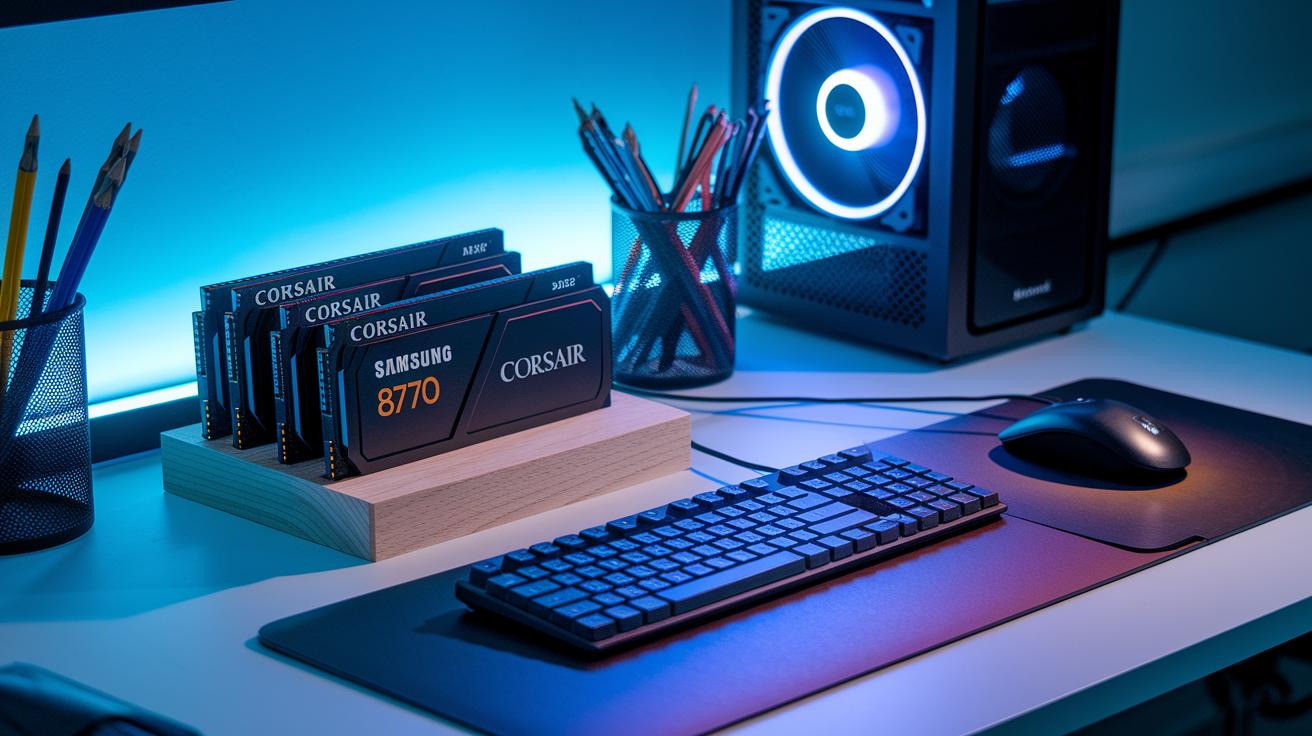
Upgrading your computer doesn't have to be hard. One easy fix is to add more RAM. Extra memory (like Corsair DIMMs) lets your PC handle more tasks at the same time. This means smoother switching between programs and fewer delays when you have many apps open.
Another change you can make is swapping out an old hard drive for a fast SSD. A solid-state drive like the Samsung 870 EVO speeds up boot times and loads your apps faster. Moving your operating system and main programs to a speedy SSD makes your entire computer feel quicker.
Don't skip on cooling upgrades. Better cooling, such as a new CPU cooler or improved case fans, helps keep your system running well. Good airflow lets your computer work at high speeds without overheating.
| Upgrade Type | Performance Gain | Example Model |
|---|---|---|
| Memory | Smoother multitasking and less delay | Corsair DIMMs |
| Storage | Faster boot and application launch times | Samsung 870 EVO |
| Cooling | Better temperature control for steady speeds | High-performance CPU cooler |
Each upgrade makes your PC run faster and handle everyday tasks more smoothly.
Benchmarking and Monitoring PC Performance
Regular benchmarking lets you spot gains and catch slowdowns. Tools like Cinebench check how well your CPU (the computer’s brain) handles tasks, while CrystalDiskMark measures your drive speeds. These tests help you see how tweaks make your PC faster. For example, running Cinebench shows you your CPU’s power before and after an upgrade.
Task Manager and Resource Monitor let you watch your system’s resources. They reveal which apps use the most CPU, memory, disk, and network power. This insight helps you fix issues before they slow you down during your daily use.
Comparing tests over time shows the impact of changes, like new settings or hardware upgrades. GPU benchmarks, for instance, reveal how well your computer handles graphics tasks. A handy tip is to test your PC when it’s performing at its best, then retest after making adjustments.
Regular testing combined with ongoing monitoring makes sure your PC stays fast and responsive. Tracking these numbers helps you decide when and what to upgrade to keep your system running at peak efficiency.
Final Words
In the action, we broke down steps to increase pc performance quickly by cleaning up startup programs, optimizing Windows settings, and using key maintenance tools. We showed how small tweaks and hardware upgrades can boost speed and free up system resources.
These actions work together to boost performance day-to-day. Use our guide to clear clutter and optimize settings. With the right tweaks and upgrades, you can truly increase pc performance and enjoy a smoother, more responsive system.
FAQ
How can I increase PC performance on Windows 11?
Increasing PC performance on Windows 11 means cleaning up startup apps, uninstalling unused programs, using Disk Cleanup, and switching to High Performance mode to better allocate CPU resources.
How can I boost PC performance for gaming and improve FPS?
Boosting gaming performance involves updating drivers, lowering in-game graphics settings, disabling unnecessary background tasks, and employing performance tweaks to achieve higher FPS.
How can I clean up my PC and make it run faster on Windows 10?
Cleaning up Windows 10 means running Disk Cleanup, uninstalling non-essential apps, disabling unnecessary startup programs, and scanning for malware to keep the system running smoothly.
What Windows 10 performance tweaks should I consider?
Useful tweaks include adjusting visual effects to reduce graphical load, turning off Search Indexing, and switching to High Performance mode, which helps free up CPU resources for better performance.
How do I set my PC to High Performance mode on Windows 10?
Setting your PC to High Performance mode is done through System > Power & Sleep settings, directing the system to use more CPU power for enhanced speed over energy savings.
How many FPS can a 700-dollar PC typically run?
A 700-dollar PC can usually run modern games around 60 FPS on medium settings, though actual performance varies based on specific hardware and in-game requirements.