

Ever notice your computer feeling slow and bogged down? Small changes can make a big difference. Think of it like cleaning your desk, removing the clutter helps things run more smoothly.
Simple steps, like switching out old monitor cables or closing apps you don’t use, can give your PC a fresh start. We tested a few tweaks and saw real improvements in speed without spending extra cash.
Have you ever waited too long for your computer to respond? With these easy adjustments, you can shave off those delays. Ready to give your PC a boost? Let's dive into a few practical tips to speed things up.
Improve PC Performance Quickly with Key System Tweaks
A fast way to speed up your computer starts with a few simple checks. First, make sure your monitor cable is plugged into the GPU port (the high-speed video output) instead of a slower one. If your display seems laggy, this change can give you an instant boost.
Next, clear out any old or unused programs. Many devices come loaded with up to 20 preinstalled apps you likely never use. Open your "Programs and Features" menu and uninstall the ones that aren’t needed. This step frees up your system to focus on the apps you actually use.
Managing background apps is another easy win. Open Task Manager to see which programs are running in the background and close non-critical ones. It’s like cleaning up your desk, you remove clutter so you can work faster and more efficiently.
A simple restart might also do the trick. Turn your computer off completely, unplug it for a moment, then plug it back in and turn it on. This fresh start can clear away temporary glitches dragging down performance. I’ve seen it clear issues I wasn’t even aware of.
Finally, review your startup apps. Disable any auto-run services or unnecessary background apps so your computer can work faster right from boot-up.
Each of these tweaks helps cut out extra tasks that slow you down, letting your computer feel quicker and smoother every day.
Streamline Startup and Background Tasks to Boost PC Performance
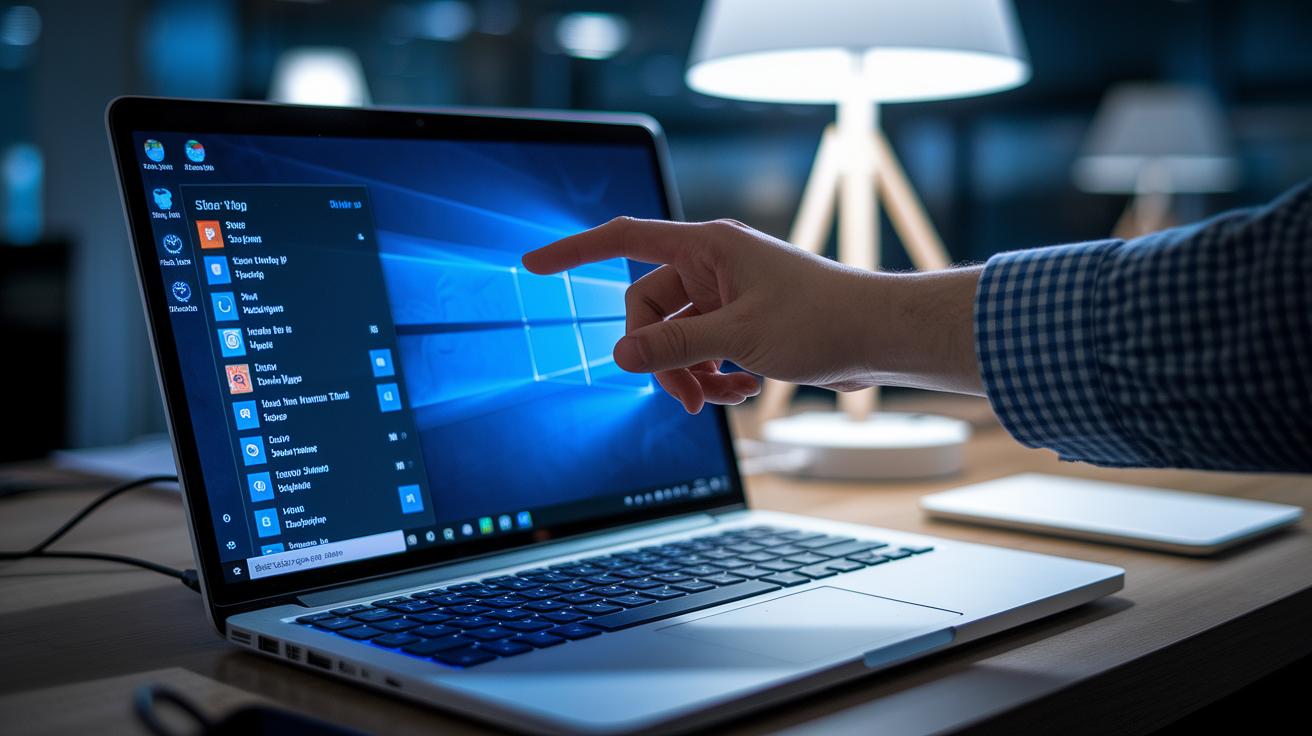
Open Task Manager to check which apps launch when your PC boots. Disabling programs that start by themselves, like Spotify or Skype, can free up RAM and make booting faster. I once turned off a few unnecessary apps and saw a real boost in startup speed, letting me get to work sooner.
Background processes can also slow things down at startup. Turning off services such as Search Indexing (a tool that speeds up file searches) and Tips & Notifications cuts out extra work the system doesn't need to do right away.
Try this simple checklist to clean up your startup processes:
- Open Windows Task Manager and go to the Startup tab.
- Look for apps you rarely use when you start the computer.
- Disable these non-essential programs to save RAM and speed up boot time.
- Turn off background services like Search Indexing and Tips & Notifications.
- Set non-critical apps to launch only when you need them.
Using the latest Windows Task Manager in Windows 10 or 11 makes it easy to organize these settings. After tweaking things myself, I noticed a much faster boot time, a quick fix that breathes new life into your system. These changes help your PC save resources for the tasks that truly matter.
Clean Disk Storage to Enhance PC Performance and Free Space
Begin by opening Disk Cleanup on your computer to remove clutter that may be slowing you down. This tool gets rid of temporary files, offline web pages, and leftover installer files from past updates, freeing up much-needed space.
Next, try using a cleaning program like CCleaner or Malwarebytes. These apps delete cached files and other lingering data that builds up over time. I've seen friends notice their computers running a lot smoother after a quick cleanup.
It also helps to tidy up your file organization. Delete or archive old documents and consider transferring them to cloud services like Google Drive or OneNote. This not only makes room on your hard drive but also speeds up file searches.
Don't overlook your web browser. Clearing your browsing history and cookies can make your browser work faster too.
- Open Disk Cleanup and scan for junk files.
- Use a trusted cleaning tool to remove cached data.
- Archive old documents to a cloud storage service.
- Clear your browser's history and cookies.
Taking these simple steps speeds up your computer and makes it easier to find the files you need quickly.
Update Software and Drivers for Peak PC Performance
Keeping your software updated is key to a smooth-running PC. Installing the latest Windows updates and drivers from official sources clears out bugs and fixes glitches. When drivers get old, your system can slow down or show errors. That's why refreshing your drivers regularly is a smart move.
Built-in troubleshooters can help spot what’s slowing you down with your hardware or apps. I once ran a hardware troubleshooter after updating a driver and found that reinstalling it fixed a sudden lag. These tools make it easy to find and fix issues without much hassle.
Cleaning up your system registry (the database where Windows keeps its settings) also helps your computer perform better. Over time, broken or outdated entries can pile up and cause problems. Using a trusted registry repair tool clears out these old keys. Just be sure to back up your registry before you make any changes.
If you run into problems installing drivers, head to the manufacturer’s website and download the official drivers. Reinstalling from a clean file often sorts out any issues caused by a faulty installation.
- Update Windows and drivers through official channels.
- Run troubleshooters to quickly spot and fix problems.
- Clean your system registry with a trusted tool to remove old entries.
- Download official drivers again to fix installation errors.
Following these steps helps your PC run at its best, ready to handle daily tasks and heavy loads without unexpected slowdowns.
Optimize Cooling and Power Settings to Stabilize PC Performance
When you're tackling heavy tasks like graphically intense games, your CPU can heat up. Keep an eye on its temperature using a simple app or the BIOS tool. When the temperature nears 85°C, it's a clear sign you might need to clean out dust or improve your cooling.
Switch your Windows Power Mode to "High Performance." This setting allows your CPU to run at full speed rather than holding back to save energy. It makes your system more responsive when every second counts.
A well-maintained cooling system is a must. Use compressed air to clear dust from vents and fans. A dust-free PC lets air flow better and keeps components running safely.
Don't forget about your room. A cool, well-ventilated space helps lower ambient temperatures, easing the strain on your PC's cooling. Simple tweaks in your setup can lead to notable improvements in performance.
Upgrade RAM and SSD to Elevate PC Performance
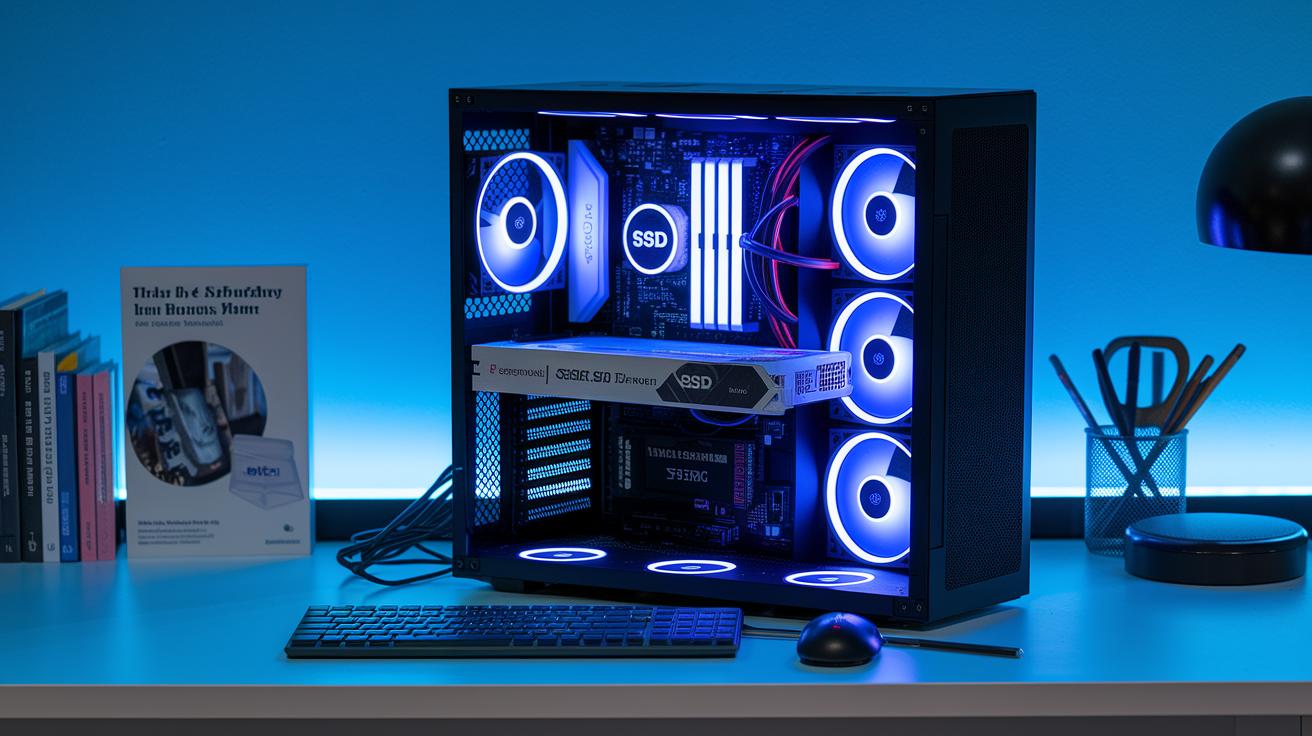
Upgrading your computer’s hardware can make it feel much quicker. Adding 2–4 GB of RAM helps your system run several programs at once and cut down on using your hard drive as extra memory (paging). I’ve seen older PCs become much more responsive after a simple RAM upgrade.
Switching from a mechanical hard drive to a solid-state drive (SSD) can also speed things up a lot. An SSD loads your operating system and apps faster, so programs like Adobe Photoshop or modern games start in seconds instead of minutes. Just keep an eye on it, a failing SSD can still hurt performance.
For more guidance, you can check these resources: upgrade pc components shows you good RAM options and ssd installation tips helps with setting up your drive.
- Add 2–4 GB to improve multitasking.
- Switch to an SSD for quicker boot and load times.
- Upgrade hardware to make daily tasks smoother.
- Enjoy a noticeable boost in overall performance.
Maintain PC Performance with Regular Security and Cleanup
Keeping your PC running well goes beyond simple software fixes. Start by running virus and ransomware checks with Windows Defender or a trusted app. These scans find hidden threats before they slow your computer down. I once found a small threat while scanning that, if ignored, could have hurt performance.
Set up daily or weekly maintenance tasks from the Control Panel. This automates checks and cleanup routines. Tools like CCleaner or Windows Disk Error Checking help tidy up the registry and fix disk problems. Removing unwanted programs and malware often stops your system from slowing down.
Here is a simple checklist:
- Run virus and ransomware scans often.
- Set up automated maintenance in the Control Panel.
- Use free tools to clean the registry and repair disks.
- Regularly remove unnecessary programs and malware.
These steps keep your computer lean and fast. With a mix of security scans and regular maintenance, you nip slowdowns in the bud. This routine gives your system the space it needs to run smoothly every day.
Fine-Tune PC Performance for Gaming and Reduced Latency

Turn on Game Mode if you're using Windows 10 or 11. This pause stops background tasks and blocks notifications while you play. Think about a fast shooter with no pop-ups distracting you mid-action.
Switch off extra motion effects and visual features you don't need during sessions. This frees up system power so your computer can boost frame rates. You can also lower the game's resolution or detail level. Lower settings help games load faster and run more smoothly, like turning a high-res movie into a fluid animation.
Make sure your network settings are right. Test your connection to keep ping under 100 ms (the time it takes for data to travel to the server). If your ping goes above 200 ms, lag spikes can almost freeze your game. It’s like trying to talk when there’s a delay, everything feels off.
- Open Windows Game Mode settings and turn it on.
- Change the visual settings in Performance Options.
- Test your network and keep an eye on your ping.
- Lower in-game detail settings to boost your frame rate.
Final Words
In the action, we've covered key system tweaks to boost your PC's responsiveness. We looked at cleaning up bloatware, managing background tasks, and updating drivers to clear the sluggish feel. We also dug into optimizing cooling and power settings and even explored hardware upgrades like extra RAM or an SSD. These steps show how to improve pc performance in practical, low-risk ways. Try these methods to see a noticeable boost and enjoy smoother everyday computing. Keep tweaking and watch your system come alive!
FAQ
How can I boost PC performance and fix a laggy system?
Boosting PC performance means cleaning out temporary files, disabling non-critical startup apps, updating drivers, and even upgrading hardware like RAM or an SSD. These steps help reduce lag and improve gaming speeds.
How do I improve PC performance on Windows 10 and 11?
Improving performance on Windows 10 and 11 involves running Disk Cleanup to clear clutter, managing background apps through Task Manager, updating device drivers, and adjusting power settings to maximize responsiveness.
How can I clean up my PC to run faster?
Cleaning up your PC involves using cleanup tools to delete temporary files, uninstalling unused programs, archiving old data, and clearing browser history, which all free up disk space and speed up the system.
What free methods can I use to speed up my PC?
Free methods to speed up your PC include disabling auto-start programs, running built-in Windows utilities like Disk Cleanup, controlling background tasks with Task Manager, and performing regular system maintenance.
How do Reddit users suggest improving PC performance?
Many Reddit users recommend uninstalling bloatware, tweaking startup settings using Task Manager, keeping drivers up to date, and cleaning system registries to remove clutter and boost performance.
What commands can boost PC performance?
Using Windows commands such as Disk Cleanup and defragmentation tools can remove clutter from your system, optimize file storage, and improve overall performance by ensuring the computer runs without unnecessary delays.
How can I fully optimize my PC?
Fully optimizing your PC means cleaning disk storage, disabling redundant background tasks, updating software and drivers, fine-tuning cooling and power settings, and considering hardware upgrades for lasting improvements.