

Are your smart gadgets acting up and losing connection? If your fridge or thermostat struggles to stay online, you’re not alone. It might be a weak Wi-Fi signal or a router placed in a bad spot. The fix is often simple and fast. Try checking your router settings, update the firmware (built-in software), and reset your device when needed. This quick work can usually get your smart devices back on track. Stay with us for more easy, down-to-earth tips.
Resolving Smart Appliance Connectivity Issues: Quick and Reliable Troubleshooting
Smart appliance errors often come from weak Wi-Fi signals or a router set up in the wrong spot. Many devices rely on Wi-Fi, and sometimes Bluetooth (a short-range wireless technology), so interference can make connection errors show up. One quick fix is to turn off both your appliance and your router for about 30 seconds before restarting them. This simple step often gets everything working again, though you might need to try more if problems keep happening.
Sometimes, the issue is outdated firmware. Firmware is the software that runs on your router or appliance, and if it isn’t up-to-date, the connection can be unstable. Checking for updates on a regular basis can help smooth out glitches and keep your devices paired nicely.
Also, consider where your devices are placed. If your smart speaker or thermostat is too far from the router, the signal may drop in and out. Try moving them closer and running a network scan to spot any dead zones in your home. You might find that household items like microwaves can also create interference.
It helps to jot down any error messages, like “NW-101” or network timeout alerts. Noting these details can point you to whether the problem is with the device or your network. If a simple reboot doesn’t work, it might be time to dive deeper into your router settings or check for further firmware updates.
Smart Appliance Router Setup and Network Configuration Tips
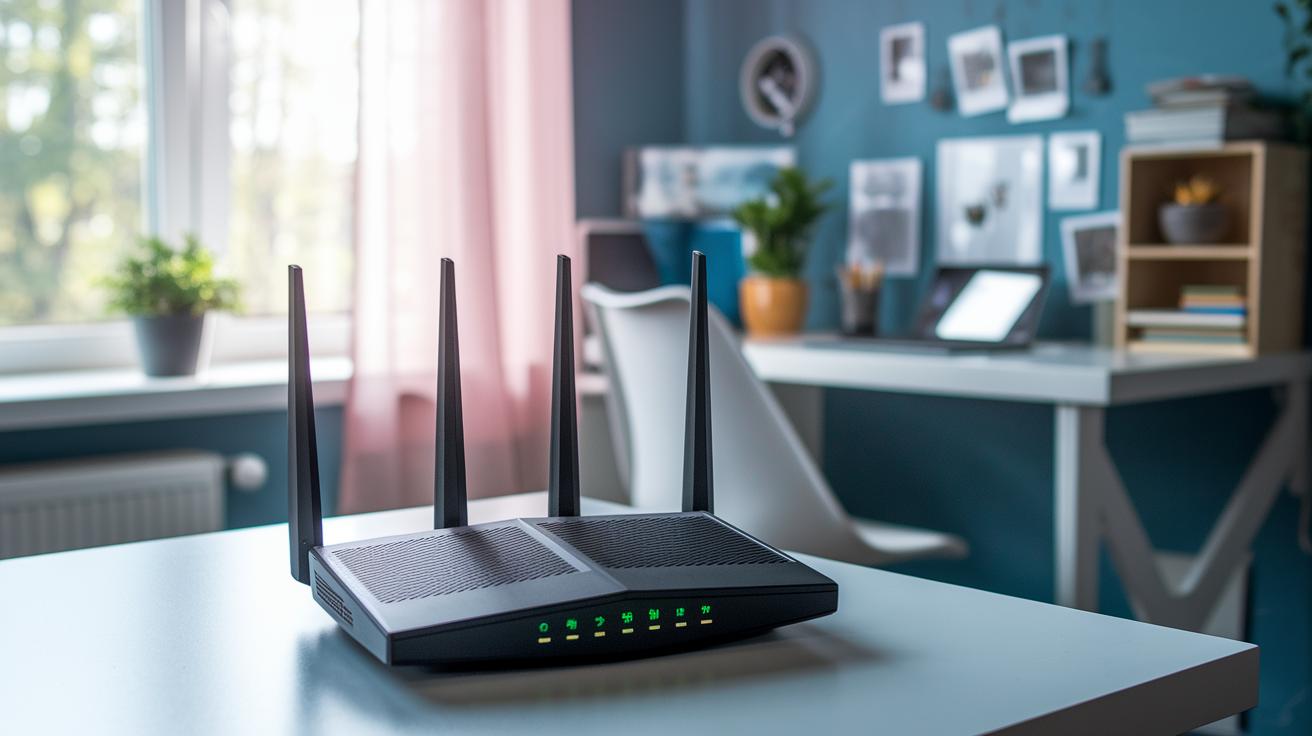
Let's start with your router settings. A good setup can fix many smart appliance connection issues. One important step is to choose the right frequency. The 2.4 GHz band covers longer distances while the 5 GHz band can send more data each second (throughput). Pick the one that fits your home's layout best.
Next, check your router's firmware. Updated firmware often fixes small bugs and makes smart devices work better. Make sure to look for updates and install them as soon as they appear.
Secure your network by using a clear SSID (the name of your network) and strong security settings like WPA2 or WPA3. This is like having a strong password for your email. It helps keep unauthorized users out and reduces connection dropouts.
Pay attention to the router's channel selection too. A poor channel choice can cause interference from neighbors. Try different channels using simple wifi channel tips, or use router tools to find the clearest option in your area.
If you have important devices like smart thermostats or security cameras, set up Quality of Service (QoS) rules. QoS lets you reserve some of your internet speed (bandwidth) for these devices, often improving their performance noticeably.
Finally, test your network layout by making sure devices are close enough to the router and not blocked by obstacles. If problems continue, try resetting both the router and your smart appliances so they can sync up again. These steps help create a robust network that keeps your smart devices running smoothly.
Diagnosing Wi-Fi and Bluetooth Connection Failures in Smart Appliances
Begin by checking your Wi-Fi signal strength with a network-scan app. A weak reading (called RSSI, which measures signal strength) can mean walls or old router firmware are getting in the way. I once saw my smart thermostat show error code "E-22" when it was pushed into a corner behind a bookshelf.
For Wi-Fi issues, try these steps:
- Use an app to test signal strength and find weak spots.
- Look for obstacles like walls or heavy furniture.
- Check that your router firmware is up to date so it doesn’t drop signals.
- Note any error messages, such as "E-22", to figure out if timeouts are happening.
Bluetooth problems need a different check. Bluetooth works best within about 30 ft. If your smart speaker or another gadget is too far, it might not pair properly. Also, devices like microwaves that use 2.4 GHz can create interference and mess with both Wi-Fi and Bluetooth.
To fix Bluetooth issues:
- Make sure the device is within 30 ft.
- Remove the old connection by clearing the device’s cache; this often helps.
- Check that no other gadget is causing conflicts, especially if you have many smart devices.
- Try moving the device to an open area and re-pair it.
By running both Wi-Fi and Bluetooth tests, you can figure out if interference or a setting issue is to blame. A strong signal reading and a successful re-pair should get your smart appliance talking to your home network again.
Step-by-Step Connectivity Troubleshooting Guide for Smart Appliances
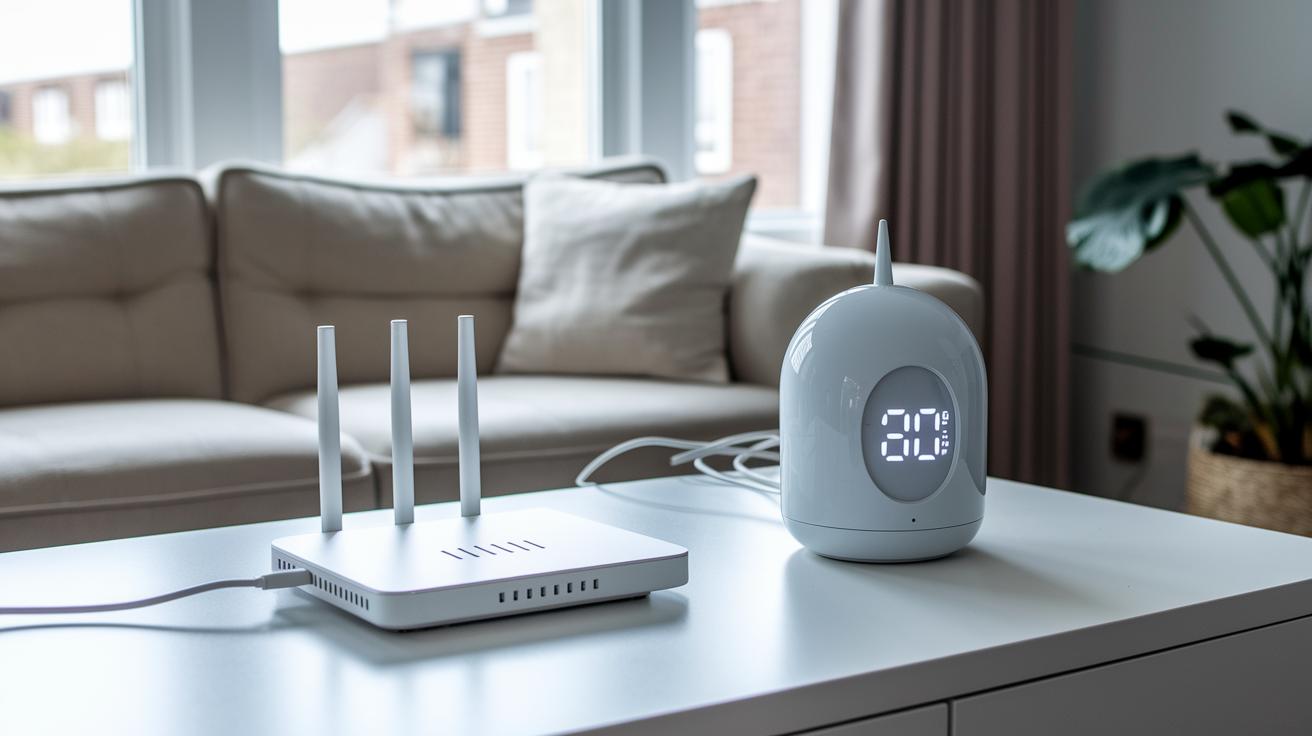
First, try restarting both your appliance and your router. Unplug them, wait for 30 seconds, and plug them back in. This simple step can clear up many temporary glitches.
Next, run a network speed test to make sure your internet speed and delay (latency) are enough for your device. Write down any error messages you see. For example, if a “NW-101” timeout appears, note it down, it can be helpful when you check the manufacturer's help guides.
If your appliance still has trouble connecting, consider doing a factory reset. This returns the device to its original settings, which can clear stubborn software issues. After the reset, use the official mobile app to re-pair your appliance.
A steady, step-by-step process is important when dealing with smart appliance connection issues. Here’s a quick checklist:
- Verify that you have entered the network name (SSID) correctly.
- Check your router’s DHCP leases to avoid IP address conflicts.
- Make sure your router’s firmware is up-to-date. Outdated firmware can cause random disconnects.
- Look at any error codes to see if the issue is with the network or the appliance itself.
Also, use network-mapping tools to spot dead zones in your home. These tools check for weak signal areas, interference, and even physical obstacles that block the signal.
If none of these steps fix the problem, take another look at the diagnostic guide provided by the manufacturer. Run the network speed test after each change to see if the connection improves. Following this order, from a simple power cycle to checking for network drops, helps you cover all of the common issues with smart appliance connectivity.
Firmware Updates and Security Measures to Prevent Smart Appliance Connection Dropouts
Manufacturers release firmware patches every month to close compatibility gaps and fix security issues in smart devices. These updates help stop random disconnections and resolve known problems. For instance, seeing an "Error 401" usually means there's a server login issue that stops your device from connecting.
It’s best to update one device at a time. Updating gradually lets you check that each device stays stable before moving on. Always use the official companion app for these updates since it walks you through the steps and reduces errors.
Security settings are just as important as firmware updates. Switching from WPA2 to WPA3 (a newer security protocol) tightens up encryption and shields your network from unauthorized access. However, some older devices might not support WPA3 so check your device manual before you change settings.
By following these steps, you keep your devices both connected and secure. Watch for update alerts and update one device at a time. This careful approach helps prevent update failures and stops connection dropouts caused by weak security.
Staying on top of firmware and security settings is key to a reliable smart home. Set regular reminders to check for patches and improvements. If a device starts acting up, a quick update might be the fix you need.
Optimizing Home Networks for Reliable Smart Appliance Connectivity
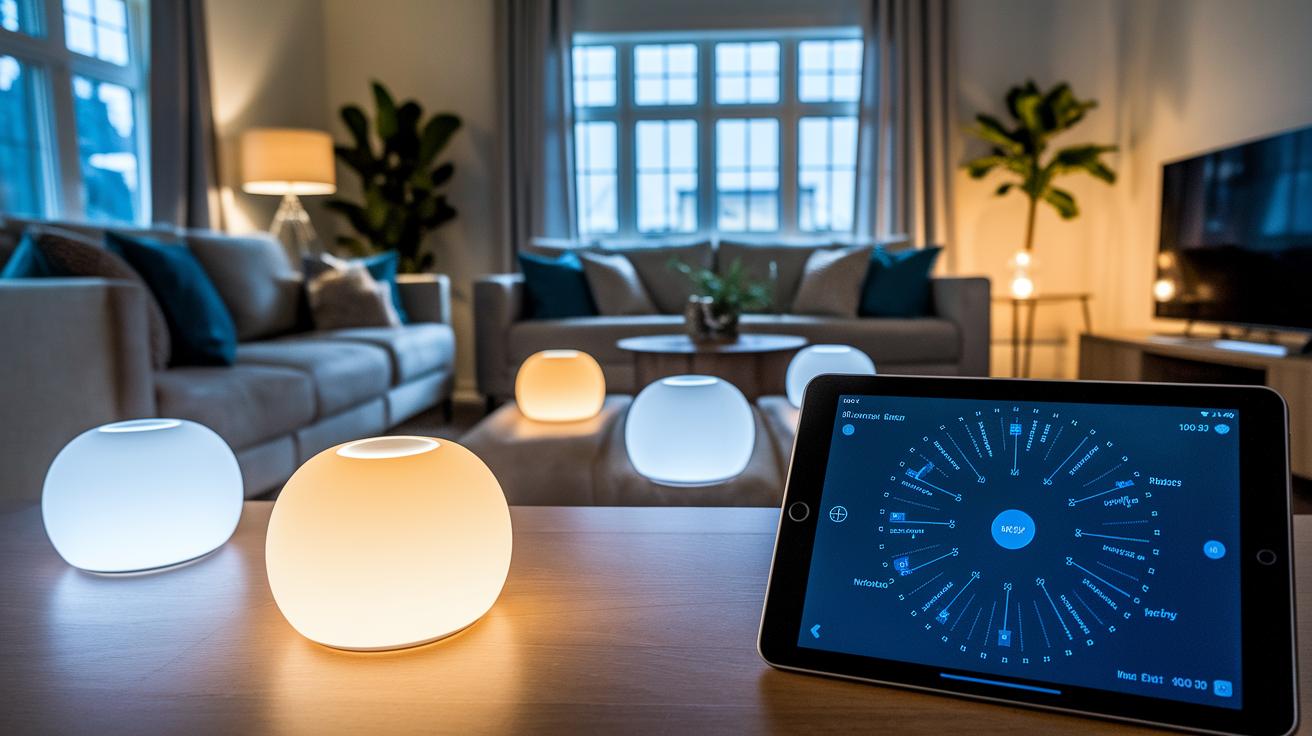
Start by installing a mesh Wi-Fi system. It covers your home evenly and automatically moves devices to the best available band, kind of like having a mini router in every room. This helps cut down on connection problems, even in bigger spaces.
Next, use quality of service (QoS) settings. This feature sets aside part of your internet speed for important devices, like security cameras. It means your critical gadgets get the internet share they need, even when many devices are online.
Keep your network in top shape by rebooting your router every week. A quick restart clears out glitches and feels like pressing a reset button, which can boost your connection's stability.
Run simple tools to check for delays (latency), lost data (packet loss), and slow spots (throughput bottlenecks). These tests help you spot trouble areas, so you can adjust your network settings or move devices to get the best performance.
Finally, consider having a professional map your network. They can pinpoint dead zones and interference points. This detailed map shows exactly where fixes are needed to stop frequent drops.
By mixing advanced hardware, regular check-ups, and hands-on testing, you can cut down on interruptions and keep your smart appliances running reliably.
Final Words
In the action, we broke down common connection snags and offered hands-on fixes for smart appliance connectivity issues. We covered everything from quick power cycles to router setup, careful troubleshooting, and essential firmware updates. Each tip is designed to get your devices back online quickly and keep your network running smoothly. Simple steps like these help prevent dropouts and make daily tech life less stressful. With these practical fixes in place, you'll enjoy a more stable smart home experience and greater peace of mind.
FAQ
What causes smart appliance connectivity issues and how can they be troubleshooted?
The connectivity issues often stem from weak Wi‑Fi signals, outdated firmware, or poor router placement. A simple reboot of the router and appliance usually resolves minor faults before deeper fixes are needed.
How does proper router setup and network configuration boost smart appliance connectivity?
Proper router settings, such as choosing the right band and updating firmware, reduce interference and improve signal stability for smart appliances. This setup minimizes dropouts and enhances overall performance.
How can I diagnose Wi‑Fi and Bluetooth failures in smart appliances?
Diagnosing involves checking signal strength, clearing cache, and re‑pairing devices. Testing helps pinpoint if Bluetooth’s limited range or Wi‑Fi’s physical barriers are causing connection errors.
What are the key troubleshooting steps for resolving connectivity issues in smart appliances?
Start by power‑cycling the device and router, then run a network speed test and check for error messages. Follow up with a factory reset and use network‑mapping tools to locate dead zones if problems persist.
How do firmware updates and security measures prevent smart appliance connection dropouts?
Regular firmware updates fix bugs and compatibility issues, while upgrading security protocols, like moving to WPA3, minimizes dropouts. Updating devices individually ensures stability across your smart home setup.
How can a home network be optimized for reliable smart appliance connectivity?
Using mesh Wi‑Fi, setting QoS rules, and scheduling weekly router reboots can boost connection reliability. These steps help manage interference and maintain steady performance across all smart appliances.