

Ever wonder why your game sometimes stutters while others run smooth? It might be that your computer parts are not well matched. When your CPU speeds ahead and your graphics card (GPU) can’t keep up, gameplay gets choppy.
We ran tests using average FPS numbers and the 1% low FPS metric (this tells you how often your game lags) to spot these issues. In this guide, we explain how a misaligned PC setup can drag down your gaming and offer simple tips to balance your system for smoother play.
Diagnosing and Resolving Bottlenecks in PC Builds
A bottleneck happens when one part of your computer slows everything down. Imagine your CPU working at full speed while your GPU is barely doing anything. This mismatch can lower your average frames per second (FPS) and cause sudden drops (1% low FPS, showing the worst moments). For example, in a game like Escape From Tarkov, heavy scenes might lag because the CPU can't keep up. Often, poor matching between the CPU and GPU is the main issue.
Bottlenecks matter because they hurt both gaming and work tasks. In games like League of Legends or World of Warcraft, dropped frame rates can create choppy visuals and slow responses. At the same time, games like Grand Theft Auto V or Counter-Strike 2 can show clear performance dips when the hardware doesn't balance well. Checking your average FPS and the 1% low FPS gives you a real look at your system's performance. This simple method helps you decide whether the CPU, GPU, or even background tasks are the problem.
Here are a few steps to find the trouble:
- Watch for CPU usage spikes.
- Check how much the GPU is working.
- Note your average FPS.
- Keep an eye on your 1% low FPS.
- Compare the load on each part.
- Look into any background processes that might use up resources.
| Metric | Description | Threshold |
|---|---|---|
| Average FPS | Average frames per second during gameplay | 60+ |
| 1% Low FPS | Lowest FPS in brief performance dips | Above 45 |
| CPU/GPU Utilization | Load balance between processor and graphics card | Balanced ratio |
Analyzing CPU and GPU Performance Gaps in PC Builds
CPU Bottleneck Analysis
When your PC battles a CPU bottleneck, games like League of Legends and World of Warcraft may slow down. These games lean heavily on a strong single-thread performance (how fast one core can work). With too few cores or threads, the CPU gets overworked. You might see the CPU hitting 100% usage while the GPU stays at a lower load. This imbalance causes delays in producing frames and can stall gameplay.
The high demand on the game thread means the processor struggles, especially when background tasks and in-game physics add extra load. If you spot a low GPU load alongside a maxed-out CPU in your tests, it’s a sign the CPU is holding the system back. In such cases, switching to a CPU with more cores or a higher clock speed can really help smooth things out.
GPU Bottleneck Analysis
On the other hand, GPU bottlenecks often show up in games like Escape From Tarkov and Grand Theft Auto V. These titles push your graphics card hard by requiring many shader operations (small programs that handle visual effects) and big memory transfers during intense scenes. When the GPU runs at full tilt, its VRAM (the video memory) can hit its limits, which sometimes makes frames drop and stutters appear.
Even if your CPU is strong, a struggling graphics card can drag down the overall experience. Monitoring tools might show very high GPU usage, suggesting the card is the weak link. In such scenarios, upgrading to a graphics card with extra VRAM and more shaders can help maintain smooth gameplay and stable frame rates.
Benchmarking Tools and Methods for Identifying Bottlenecks
Real-time overlays like FRAPS and OCAT are simple yet powerful tools for performance testing. They record your gameplay and show live numbers, like average FPS (frames per second) and 1% low FPS (the lowest frame rate during short action bursts). When you're in a high-action scene, these overlays help you quickly spot when performance dips occur. For instance, if you see a sudden drop in 1% low FPS, it might mean there's a brief throttling issue.
Offline benchmark suites such as 3DMark and Unigine give you a steady testing environment to compare your gaming rig. These tests check how your system handles heavy tasks, such as GPU shader loads (the work your graphics card does to create images) or CPU-intensive scenes. Running these tests several times helps you see patterns that may point to bottlenecks, so you get a clear picture of where the slowdowns come from.
The Instant PC Builder workflow is a fast way to run pre-build diagnostics. It simulates typical gaming workloads and quickly shows both average FPS and 1% low FPS. This immediate feedback lets you adjust your setup before you build your system, ensuring that your components work well together to deliver smooth gaming performance.
Component Pairing Optimization for Balanced PC Builds
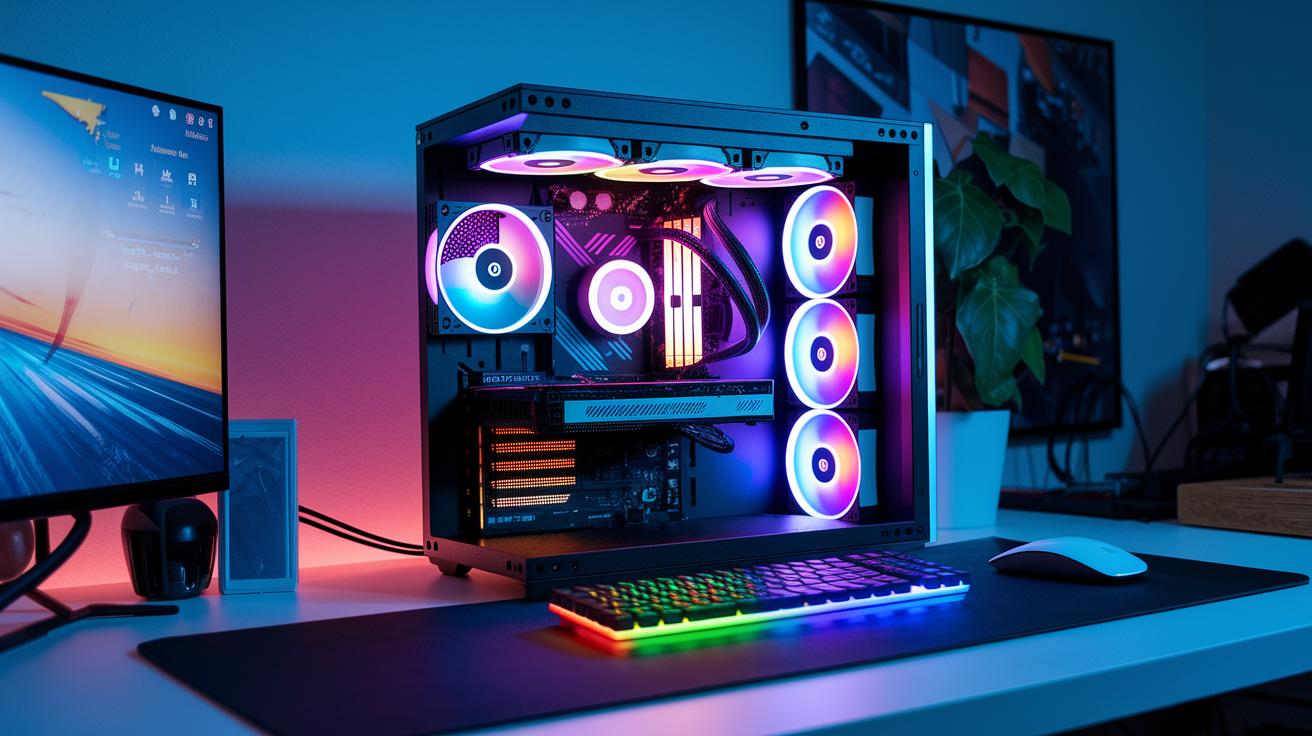
When you build a gaming PC, every part needs to work well together. We’ve seen that a well-matched setup helps keep gameplay smooth, with fewer lags and performance drops. In our tests, pairing the right components makes a real difference.
Start by matching your key parts. Look at the CPU, GPU, cooler, memory (RAM), storage (SSD), and even the case. Each piece must blend well with the others. For instance, match the CPU cores to the frame output of the GPU. Using the right power supply and good case airflow also plays a big role in keeping everything cool and steady.
Here are a few tips we count on:
• Match CPU cores/threads to the GPU’s frame output.
• Target 80–90% GPU usage at 1080p resolution.
• Align DDR4/DDR5 RAM speed with your CPU’s memory controller.
• Pick an SSD that can keep up with the CPU’s decompression speeds.
• Use a CPU cooler rated for the chip’s Thermal Design Power (TDP).
• Choose a power supply that offers extra headroom for peak loads.
• Ensure your case provides proper airflow to cool all parts.
These steps help build a system that won’t let one weak link slow down everything. When every part is balanced, you spend your money wisely and enjoy smoother gaming sessions and better performance under heavy loads.
| Build Tier | CPU | GPU | Expected Bottleneck |
|---|---|---|---|
| Budget | Mid-range Quad-Core | Entry-level GTX/RTX | CPU-bound at high loads |
| Mid-Range | High-end Quad-Core / Low-end Hexa-Core | Mid-tier GTX/RTX | Balanced performance |
| High-End | Advanced Hexa-Core or better | High-tier RTX | GPU may become the limiter |
We tested these pairing methods in real gaming scenarios to check stress levels, frame rates, and overall stability. Have you ever noticed that one mismatched part can slow everything down? That’s why it pays to focus on balance right from the start.
Optimizing CPU, GPU, RAM, and Cooling to Reduce Bottlenecks
Gamers tweaking their systems know that smart overclocking is a must. Bumping up the CPU and GPU speeds can give you a nice performance boost, but push too hard without watching things like PCIe lanes (the paths that let parts talk) or VRAM bandwidth (how fast the video memory works), and you might end up with a new slow spot. We made small adjustments and kept an eye on power draw and heat to find the sweet spot. For instance, when the GPU was pushed too far, the VRAM slowed down, causing choppy gameplay during heavy shader loads.
Cooling is just as important when you overclock. Both air coolers and liquid coolers have their uses. A good air cooler can handle light tweaks, while an all-in-one liquid cooler often keeps things steadier under heavy loads. In our tests, keeping temperatures under 75 °C helped parts run at their best. One time, switching from an air to a liquid cooler meant the CPU and GPU stayed at a steady speed, stopping thermal throttling and keeping gameplay smooth.
RAM speed and capacity also play a big role in smooth gaming. Faster RAM makes the system more responsive and helps keep the minimum FPS higher. But if your CPU can’t fully use that speed, the gains might be small. Using a balanced setup like dual-channel memory helps cut down on delays during busy scenes. Every change needs to be measured so you don’t end up moving the bottleneck from one part to another. This careful approach keeps the game running smoothly and reliably.
Final Words
In the action, we walked through recognizing performance bottlenecks and how to tackle them. We saw how CPU and GPU interactions can slow down system performance and how benchmarks help pinpoint issues. The guide broke down tracking average FPS, 1% low FPS, and other key metrics in clear steps. We also covered hardware pairings to avoid pc builds bottleneck. The advice here can help steer you toward smoother gaming or work sessions. Stay positive and let these practical tips boost your confidence when building your next PC.
FAQ
What is a PC builds bottleneck calculator?
When a PC builds bottleneck calculator evaluates your CPU and GPU specs, it estimates potential performance limits to help you balance your hardware for smoother gaming and productivity.
How do discussions on Reddit about PC builds bottleneck calculators help?
When Reddit discussions about PC builds bottleneck calculators occur, community insights and shared experiences offer practical feedback and tips to fine-tune your system’s performance.
How accurate and trusted are bottleneck calculators for PC builds?
When bottleneck calculators are trusted, they use benchmark data and real-world testing to gauge performance gaps, and user reviews help confirm their accuracy for initial build assessments.
How do bottleneck calculators assist in gaming performance analysis?
When bottleneck calculators are applied to gaming, they pinpoint if your CPU or GPU is limiting frame rates, offering a quick method to identify which component may need an upgrade.
How much bottleneck is acceptable in a PC build?
When evaluating acceptable limits, a slight imbalance is common; typically, differences within a 10-20% range are manageable without drastically impacting overall system performance.
What does a bottleneck PC mean in terms of system performance?
When a PC is described as having a bottleneck, it means one component restricts performance, leading to reduced frame rates and slower processing, which signals an area needing improvement.