

Ever feel like your PC just isn't meeting your expectations? Building a solid computer is more than choosing flashy parts; it's about making sure each part works together like players on a team. We break it down into simple steps so you won't waste money on pieces that clash later. This guide offers a clear, hands-on plan to help you pick the right components. Whether you're gaming, working, or streaming, you can build a PC that fits your needs and stays within your budget.
How to Choose PC Components: A Step-by-Step Selection Guide
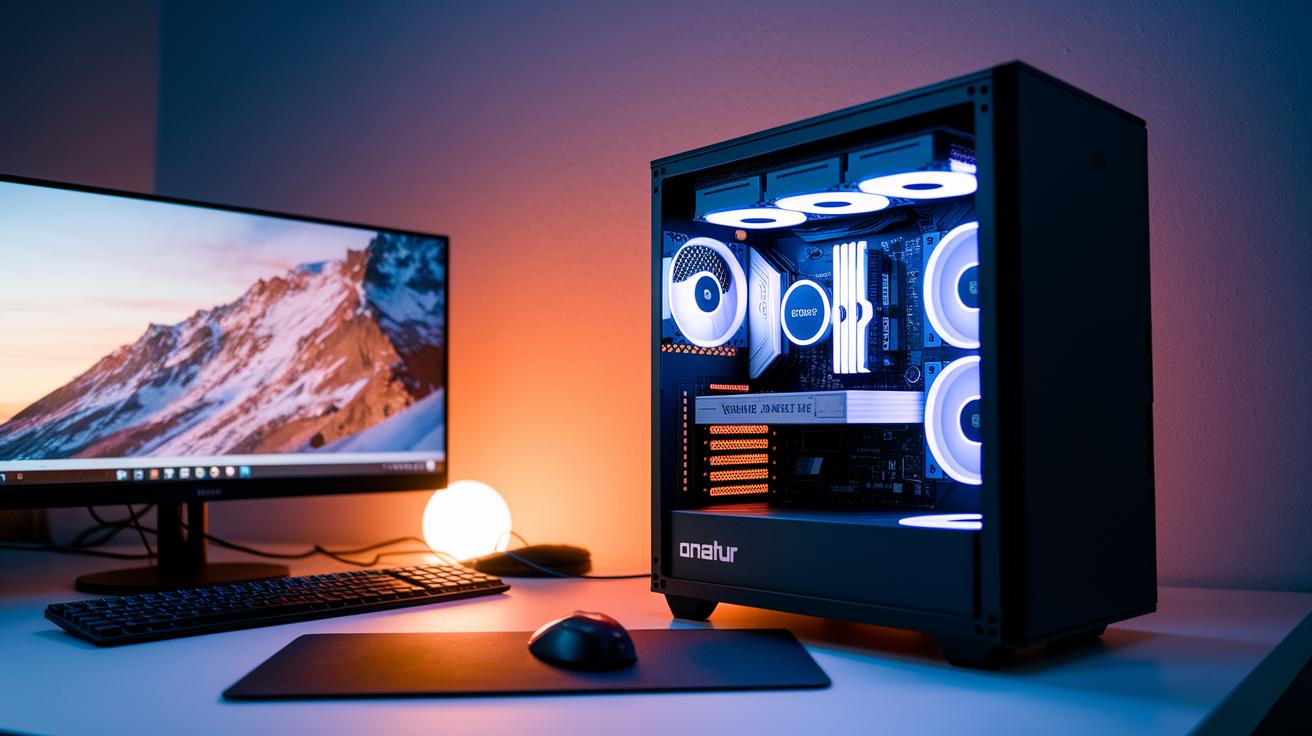
When you plan your PC build well, it saves you time, cash, and lots of hassle. A thoughtful plan means you find the right mix of power and budget without buying parts that won't work together. For instance, a midrange AMD Ryzen 5 or Intel Core i5 gives you steady performance without breaking the bank.
A clear, step-by-step plan is your best friend. It makes sure every decision is backed by research and meets your real needs, whether you're gaming, working, or streaming. All core parts must work well together. For everyday use and gaming, we recommend at least 16 GB of RAM. And don’t forget, your GPU should match your monitor’s resolution and refresh rate.
- Define your budget and decide what you'll use the PC for.
- Research CPUs and GPUs to hit your performance targets.
- Check compatibility (like socket type, form factor, and power needs).
- Compare memory, storage, and power supply options.
- Buy your parts and get ready to build.
Sticking to these simple steps helps you avoid expensive mistakes. When you know what you need and verify that each part fits, you cut out confusion and ensure your build runs smoothly every time. Enjoy the process and the secure, reliable performance that follows.
Assessing Component Compatibility When Choosing PC Components
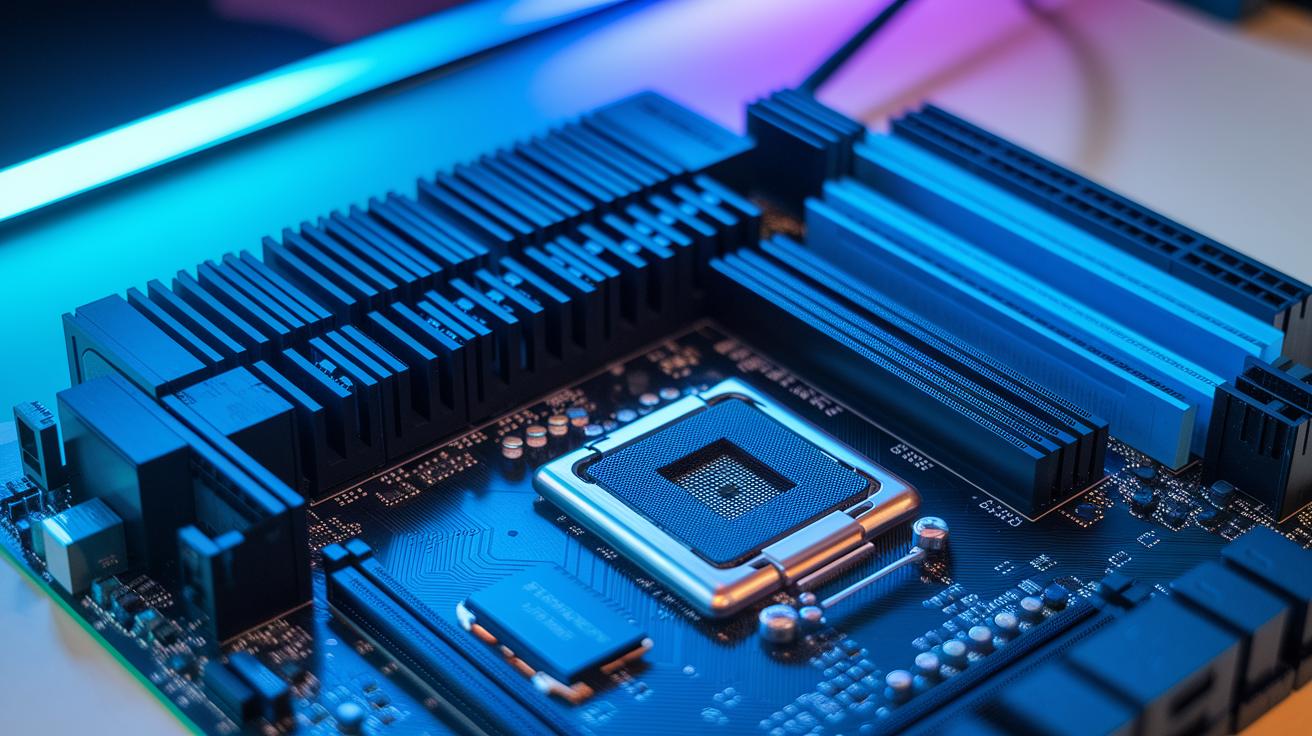
Building a PC can be tricky if pieces don't work well together. When parts are mismatched, your system might be unstable or not perform as it should. For example, if you put a CPU in a motherboard that doesn't support its socket, you might face boot issues. The wrong type of RAM can slow things down. We want to make sure every part speaks the same language.
Double-checking key factors for each component helps prevent problems during the build and later upgrades. Even small mismatches can lead to long and expensive troubleshooting sessions. Always review your motherboard manual for the correct specifications and check online tools like those on CircuitCritics to make sure everything fits.
| Compatibility Element | Key Check | Recommended Spec |
|---|---|---|
| CPU ↔ Motherboard | Socket and chipset | AM4 with B450/X570 or LGA1700 with Z690 |
| RAM ↔ Motherboard | Type and speed | DDR4-3200 or DDR5-5200 |
| GPU ↔ Case/Slot | PCIe slot and clearance | PCIe 4.0 x16, at least 290 mm length |
| PSU ↔ Components | Wattage and connectors | 650 W with 80+ Gold efficiency |
| Case ↔ Motherboard | Form factor | ATX/mATX/ITX |
Using online tools and checking your motherboard manual closely are smart moves. It saves time and spares you the hassle of dealing with unexpected issues after assembly. Always make sure the CPU and motherboard sockets match, and that the RAM type and speed are supported. Confirm that the GPU will fit in your case and that it connects properly to the PCIe slot. Lastly, add up the wattage of all parts and allow a 20-30% extra margin for your PSU. This careful checking before buying helps ensure a smooth and reliable build.
Choosing the Right CPU and GPU for Your PC Components
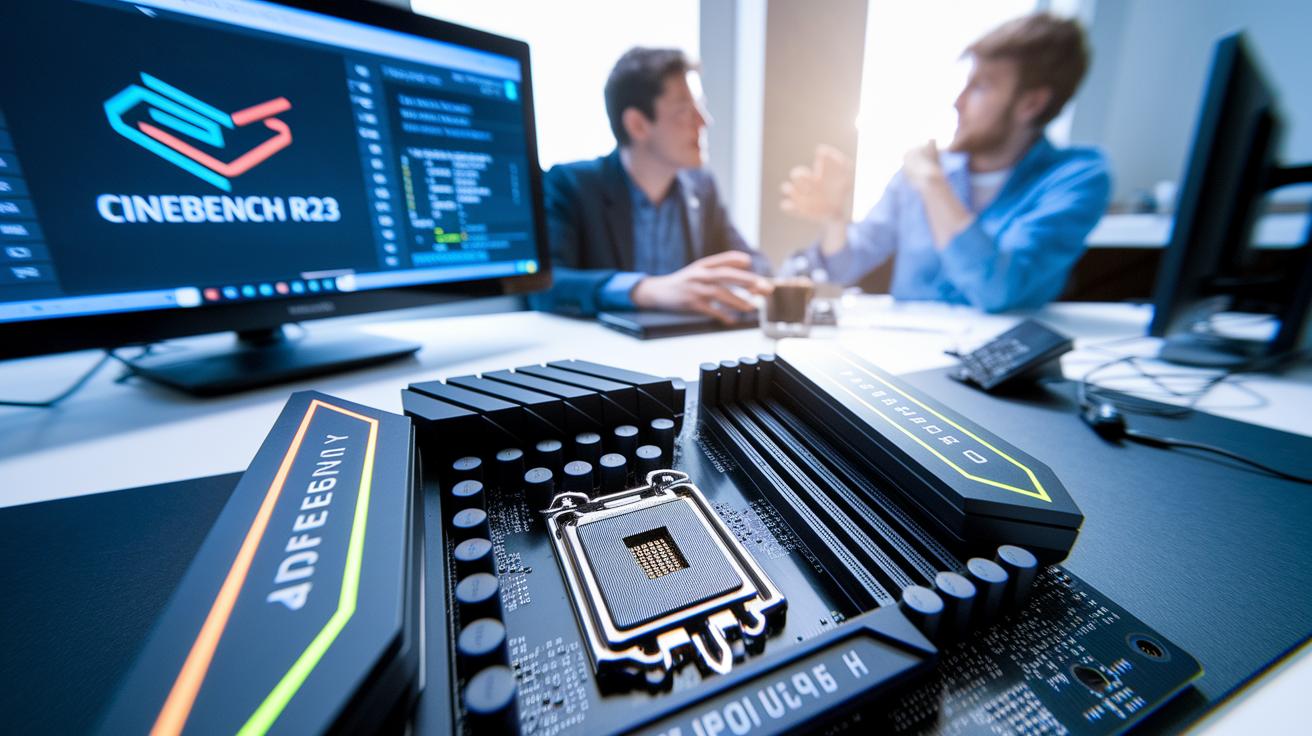
CPU Selection Essentials
When you pick a CPU, focus on real-world numbers like how many cores, threads, and the clock speed. For example, a CPU with 6 cores and 12 threads running around 4.4 GHz can be a solid mix of speed and cost. We often use tests such as Cinebench R23 to see how fast different processors run under load. Both Intel and AMD offer good options. You might use an affordable Ryzen 5 5600 for lighter tasks or go for a Ryzen 9 7950X when heavy multitasking and gaming call for extra power. Also, check terms like IPC (instructions per cycle, which means how many tasks a CPU handles each cycle) and TDP (thermal design power, which shows how much heat it produces). A higher TDP may require a better cooling system to keep the processor running smoothly.
GPU Selection Essentials
Picking a graphics card is all about the VRAM and how it’s built. A card with 6 GB VRAM might work well for 1080p gaming, but if you plan to play on high-resolution screens or want special effects like ray tracing, look for one with at least 12 GB. We see cards like the RTX 4060 as good for entry-level gaming, while the RTX 4080 fits high-end needs. Your monitor’s resolution and refresh rate, whether you use a 1440p or 4K display, determine the best option. Compare the specs to balance your budget with performance so that your build runs everyday tasks and games without a hitch.
Memory, Storage, and Power Supply Tips for PC Component Choices
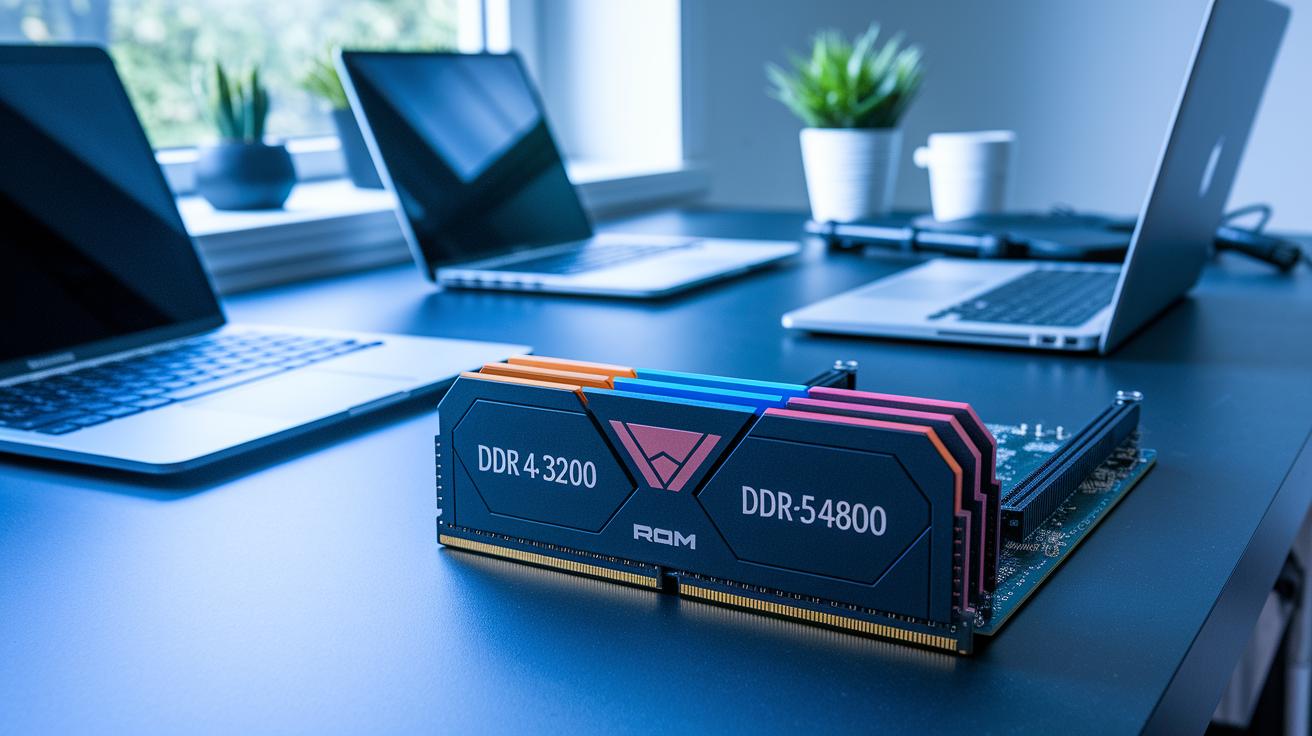
When picking memory, think about the trade-offs between speed, latency (the delay before data is processed), and capacity. We found that 16 GB in a dual-channel setup with DDR4-3200 or DDR5-4800 works great for most builds. Faster RAM can lower delays and make your system feel more responsive, but that benefit depends on your CPU and motherboard. Lower latency helps your system handle tasks quickly, like making a brief phone call instead of a long chat. Balancing these factors keeps your machine nimble, whether you play games or work daily.
Storage options break down into three main types: NVMe SSDs, SATA SSDs, and traditional HDDs. An NVMe SSD, often between 500 GB and 1 TB, is ideal as your main drive because it boots your computer and loads programs fast. If NVMe is too pricey, a SATA SSD gives a good mix of speed and cost. And if you need lots of space for media or backups, a traditional HDD can save money while storing your files. Each option has its perks, whether it's super-fast boot times or cost-effective storage.
For power supply tips, knowing your wattage needs is essential. First, add up the estimated wattage of all your parts. Then, choose a power supply unit (PSU) that offers 20-30% more wattage than that total. This extra headroom keeps your system stable and allows for future upgrades. Look for units with efficiency ratings like 80+ Gold or Platinum to cut down on wasted power and keep your electricity costs low.
Selecting PC Case and Cooling Solutions When Choosing Components
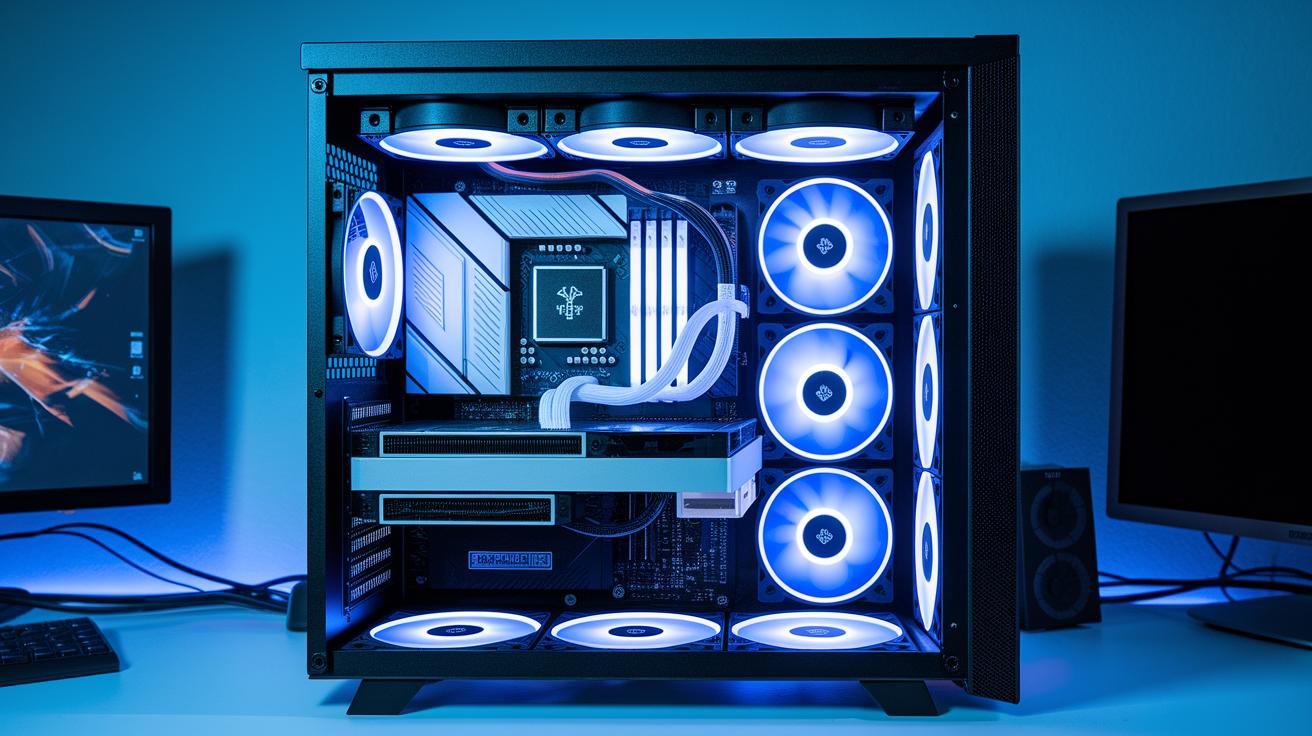
When choosing a PC case, size matters a lot. You need to pick one that fits your motherboard size, whether it's ATX, mATX, or ITX, and has enough drive bays for your storage. Look for cases with good cable management to keep everything neat and help air flow. A clear cable path not only makes your build look tidy but also keeps your components cool. And while it should match your style, make sure it offers places for a front intake and top exhaust fan to keep the air moving. For example, a mid-tower design with extra spots for fans can keep your system both organized and cool.
Cooling your PC is just as important. If you're on a budget, an air cooler can be a smart choice. These coolers are simple to install and usually run between 20 dB and 35 dB, which most people find quiet enough. But if you plan on overclocking or push your system hard, a liquid cooler with a 240 mm to 360 mm radiator might work better. It offers strong cooling performance, though it may cost more and run a bit louder. In the end, your choice should balance fan count, radiator size, and noise so your system stays cool without being too loud.
how to choose pc components for winning builds
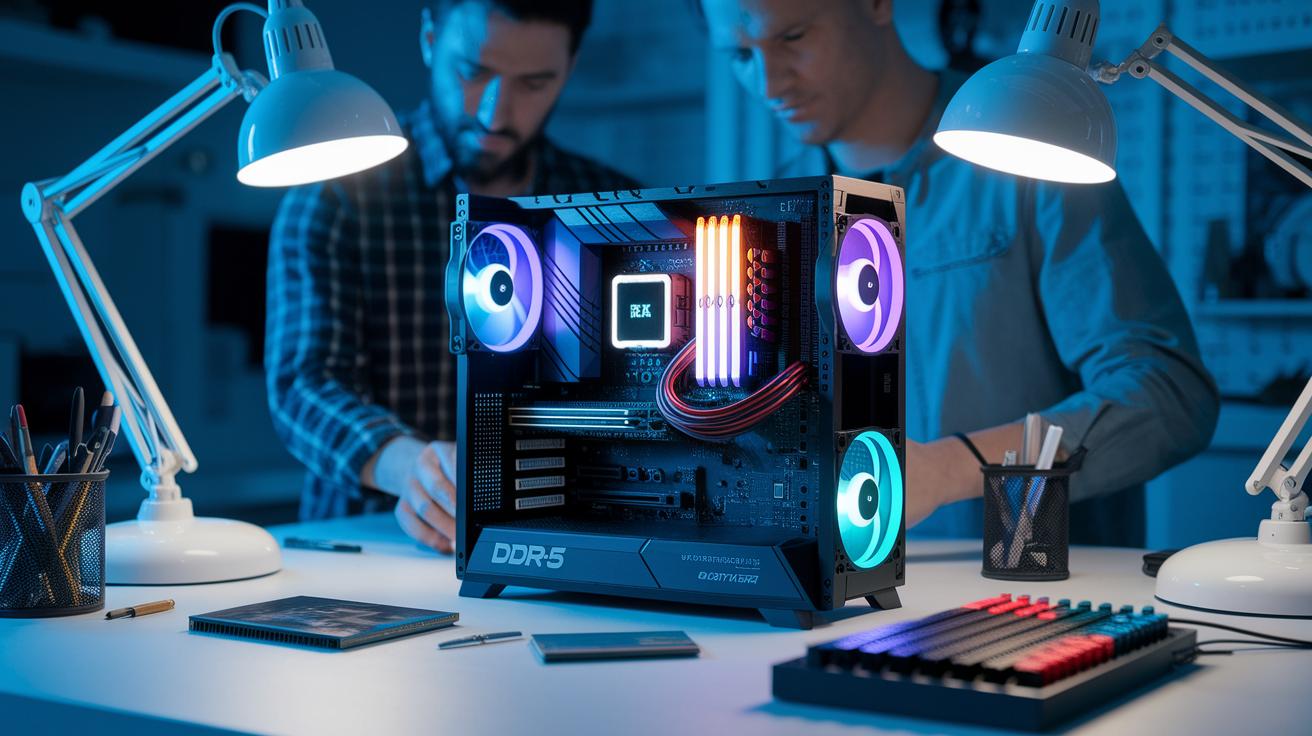
Building a fast PC on a tight budget means planning your upgrades carefully. Start by choosing parts that save money now but still allow for future upgrades. For example, pick a motherboard that supports next-gen PCIe (how data moves between parts) and has plenty of RAM slots. This lets you add improvements later without rebuilding your system. Look for boards that work with DDR5 or allow for a future socket upgrade. This strategy helps you get more from your money while keeping your PC ready for tomorrow’s tech.
It also pays to invest a bit more in parts that last. A weak power supply can cause crashes or fail early. Instead, choose a power supply (PSU) with modular cables and 20-30% extra wattage than you need. This extra power makes room for future upgrades. Spending a little more on a quality motherboard also means it can handle different CPUs and faster memory options down the road. These choices help you avoid extra costs when it’s time to update key components.
Keep an eye on prices and watch for sales. Following market trends and buying during discount seasons can save you a lot of money. Planning your buys when prices drop means you can stretch your budget further while keeping your build flexible for future upgrades. This smart approach lets you build a winning, upgradable system that grows with your needs.
First-Time System Assembly Tips for Your New PC Components
Assembly Fundamentals
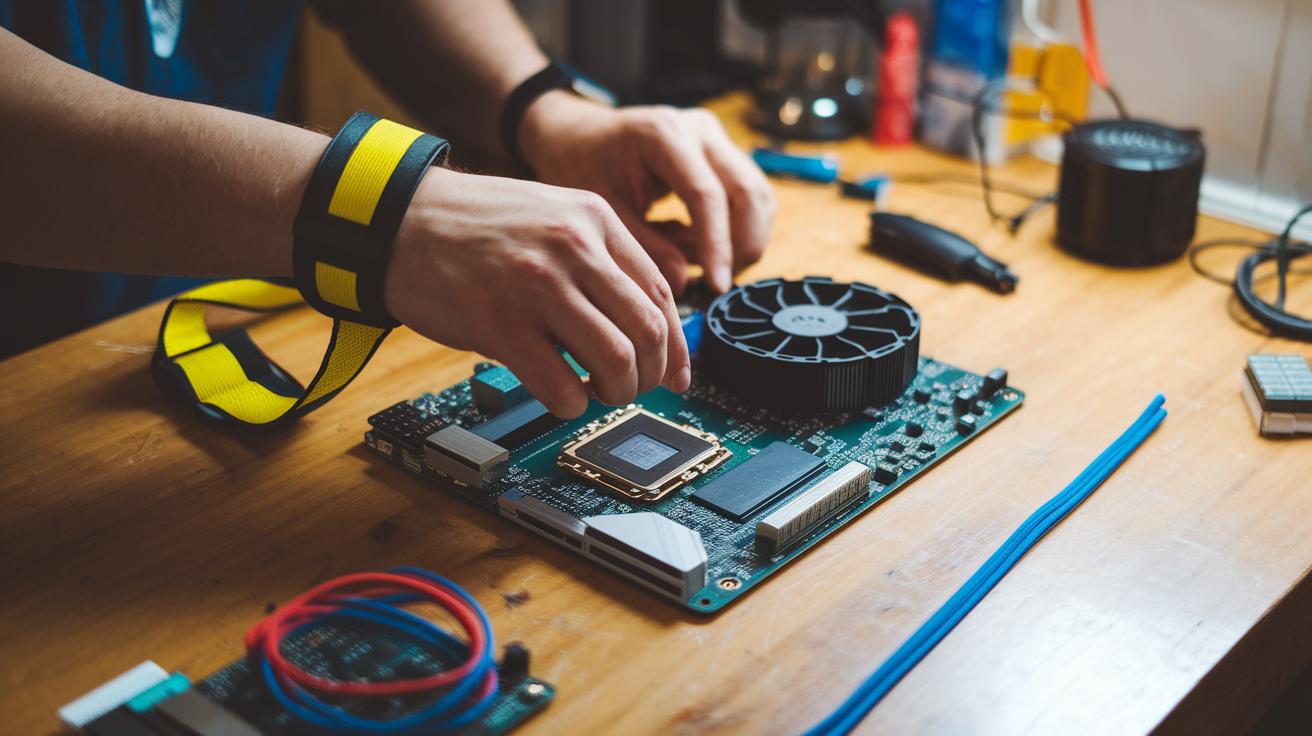
Start by putting safety first. Always wear an anti-static wrist strap and work on a dry, non-conductive surface to avoid shocks. Before you begin, gather your tools, keep a screwdriver and some zip ties nearby for neat cable management. A clutter-free workspace means you won't lose screws or small parts. For example, set your CPU and motherboard on a clean table instead of a carpeted area to lower the risk of static.
Installation Guidelines
Follow a clear order for a smooth build. First, install the CPU. Then, spread a thin layer of thermal paste evenly before attaching the cooler. Next, firmly insert the RAM into the motherboard. Place the motherboard in your case and connect the power supply cables correctly. After that, install your GPU and drives. Tighten the screws on the CPU cooler in a diagonal pattern to make sure the pressure is even. Finally, route your cables behind the motherboard tray to reduce clutter and improve airflow.
Final Words
In the action, we broke down selecting PC parts from setting a budget to matching CPU, GPU, and all supporting components. We examined compatibility checks, memory/storage choices, cooling, and assembly tips.
This guide shows how to choose pc components without risking costly mistakes. Following these clear steps gives you confidence in your choices and a smoother build process. Enjoy the satisfaction of building a system that truly fits your budget and performance needs.
FAQ
How to choose PC components on Reddit and how to pick PC parts (Reddit)?
Choosing PC components on Reddit involves reading community build guides and user feedback. This advice suggests starting with a clear budget, researching performance reviews, and checking component compatibility with trusted online tools.
How to choose PC components for gaming?
Choosing components for a gaming PC means defining your game goals and budget first. It involves selecting a balanced CPU and GPU, sufficient RAM, and parts that work well together to deliver smooth gameplay.
What parts are needed to build a gaming PC?
Building a gaming PC requires a CPU, motherboard, GPU, RAM, storage (SSD/HDD), power supply, case, and cooling solutions. Each part must meet your gaming needs and match compatibility standards to work seamlessly.
How do I check PC parts compatibility?
Checking PC parts compatibility means verifying that the CPU socket, RAM type, expansion slots, and power connectors match your other components. Users should rely on online tools and manual guidance to confirm proper fit and function.
What is the best order to pick PC parts?
The best order starts with setting your budget and defining your use case, then researching the best CPUs and GPUs, checking compatibility details, comparing memory and storage options, and finally purchasing the components.
How many FPS can a $700 PC run?
A $700 PC typically runs games at about 60 FPS in 1080p, though actual performance depends on game optimization and specific component choices. Tuning game settings can also influence the overall frame rate.
Is there a PCPartPicker app?
PCPartPicker primarily works as a website that offers build guides, price comparisons, and compatibility checks. While some third-party solutions exist, the main official tool remains on the website for the best user experience.
Can I build a gaming PC under $100,000?
Building a gaming PC under $100,000 is very achievable since most gaming builds fall within much lower price ranges. Spending over $100,000 is unnecessary for any standard gaming setup.