

Ever wonder if your graphics card is really at its best? Benchmark tools push your GPU hard to see how it handles tough tasks. They work like testing an athlete at full sprint, showing clear numbers that reveal your card's true power. In this guide, we look at the top tools used by both pros and hobbyists and explain how each one measures performance. Get set to view your GPU through honest, real-world data and simple analysis.
Essential GPU Benchmark Software Tools for Performance Evaluation
GPU benchmark tools push your graphics card to the max and show clear performance numbers. FurMark 2.10.2, released on Oct 27, 2025, tests your GPU's heat and power limits. It steadily ramps up the load, much like watching your GPU burn calories during a final sprint.
3DMark has been trusted since 2013 for testing graphic power. Its Time Spy suite creates demanding 3D scenes that help professionals compare performance easily and consistently.
Unigine Heaven works with both DirectX and OpenGL to render realistic 3D scenes. The Superposition 1.1 update refines this process, offering a controlled setting for weighing how a GPU performs.
Basemark GPUScore: Relic of Life 1.0.0, from Mar 9, 2022, digs into graphic tasks and bridges the gap between synthetic tests and real gameplay. It gives detailed insights that many users find practical.
GeekBench 6 tests both CPU and GPU performance across different platforms. It shows clear numbers that tell you how well your hardware handles everyday tasks as well as heavy-duty apps.
UserBenchmark has been giving a free, quick PC speed test since 2011. It offers a fast look at your graphics card's strength without any complex setup.
Each of these tools meets specific needs, from deep professional analysis to fast, everyday testing. They help you get real, useful insights to know exactly how your GPU holds up under pressure.
Installing and Setting Up GPU Benchmark Software
First, check that your system meets the basics. You need Windows 10 or 11 and a graphics card driver that works with DirectX 12 (for example, NVIDIA GeForce 591.44 WHQL). Always update your drivers from your GPU maker’s site to avoid performance hiccups.
Next, install any extra software like the .NET Framework or Visual C++ runtimes if your benchmark tool needs them. Many testing programs rely on these libraries for smooth operation.
Then, download the official installers for your benchmark software by yourself. Skip third-party packages to keep your system clean. Some tools might ask you to accept cookies when you first open them, so be ready.
Finally, check that your hardware acceleration settings are turned on. This step helps your GPU monitor record accurate temperature and load data during tests. A proper setup leads to reliable results you can trust.
Comparing Leading GPU Benchmark Suites
We’ve now put all the comparison details into the Essential GPU Benchmark Tools section so you don’t have to read the same info twice. In that section, you’ll find an HTML table that lays out key specs side-by-side.
- 3DMark Time Spy runs steady DirectX 12 stress tests.
- FurMark shows how the GPU handles heat and power when pushed hard.
- Unigine Heaven tests rendering performance using both DirectX and OpenGL.
- GeekBench 6 checks both CPU and GPU performance across different platforms.
- UserBenchmark gives you a quick, free snapshot of your PC’s speed.
This clear setup makes it easy to compare features without any extra fluff.
gpu benchmark software Fuels Bold GPU Performance
Synthetic tests and real-game demos turn numbers into clear insights. Running Final Fantasy XIV Dawn Trail v1.1 (released Jun 11, 2024) shows you an average frames-per-second (FPS) value, while Endwalker (from Jul 12, 2021) reveals how the GPU holds up during long sessions. An older test, A Realm Reborn Character Benchmark (from Aug 22, 2013), shines a light on how past designs deal with today's demands.
These tests let you see how the graphics card performs under heavy gaming loads. In big games, a steady FPS means smoother play; a drop in FPS might signal that you need to adjust some system settings. Regular stress tests mimic data-heavy tasks to ensure the card's temperature limits aren’t holding it back.
For example, a 3D performance session pushes the GPU to keep a steady frame rate even in scenes full of dynamic effects. It also checks power draw to spot any signs of instability. If the tests show heat or power issues, then it might be time to tweak your tasks or cooling setup. Regular checks like these help catch hidden problems before they affect your gaming, making each test a key part of keeping your system reliable.
Analyzing and Interpreting GPU Benchmark Results
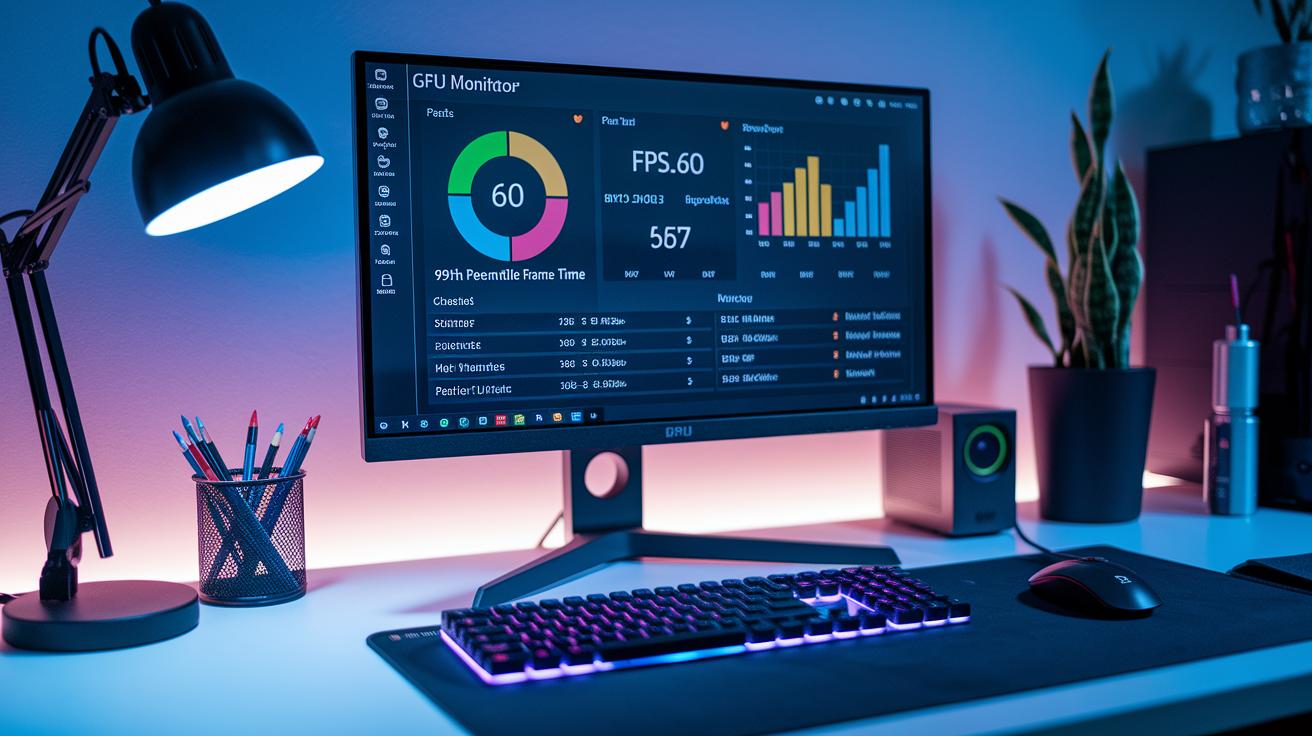
Benchmark metrics take raw numbers and turn them into easy-to-understand insights. For instance, Average FPS tells you how many frames the GPU draws each second, giving a clear idea of how smooth gameplay or video playback will be.
The 99th-percentile frame time shows the worst delays you might experience. When this value spikes, it can mean you'll see stutters or lag at times.
Peak GPU temperature measures the highest heat reached under heavy use. This number helps you know if your cooling system is doing its job or if it might need an upgrade.
Power usage in Watts tells you how much energy your card uses and how well it turns that energy into performance. This matters for both your electric bill and system stability.
Stability scores count how often your system crashes or freezes during heavy loads. They serve as a warning if your hardware is struggling during intense sessions.
We suggest checking these numbers every 3 to 6 months or after major hardware changes. This regular checkup helps you spot potential problems before they affect your system’s performance.
• Average FPS – smoothness indicator
• 99th-percentile frame time – stutter risk
• GPU temperature peaks – thermal headroom
• Power draw (W) – efficiency measure
• Stability score – crash/freeze occurrence
Advanced GPU Diagnostics and Customizable Test Suites
MSI Kombustor
MSI Kombustor pushes your GPU to its limits. It ramps up the load and shows you live updates on fan speeds and temperatures. When your GPU heats up, you’ll see the fan speed jump as it tries to cool things down. This test gives you a clear look at how effective your cooler really is.
OCCT
OCCT doesn’t just test the GPU, it also stresses the CPU, memory, and power supply. It tracks voltage, power draw, and GPU load throughout the test. This way, you can catch potential issues early before they become bigger problems. The detailed reports help you understand if your system is balancing performance with safety.
AIDA64 Extreme
AIDA64 Extreme runs custom OpenGL benchmarks to see how well your GPU handles rendering tasks. It logs sensor data like temperature and voltage during the test, so you get solid numbers on how your graphics card performs under heavy loads. This gives you a complete picture of its strength and limits.
GPU-Z
GPU-Z keeps an eye on your GPU in real time. It shows your clock speeds, memory usage, GPU load, and even the fan curves as the test intensity shifts. This live data is a handy tool for overclockers and pros who want to fine-tune their setups or diagnose any performance bumps along the way.
Final Words
In the action, we broke down top gpu benchmark software and walked through installation, comparison, testing, and analysis. We looked at stress tests with FurMark, feature checks in 3DMark, and real-world game scenarios to catch every performance detail. We even covered advanced diagnostics and customization options for deeper insights. Each step showed how real numbers matter when choosing the right tool. Testing, tweaking, and clear checks take the guesswork out of your upgrades. Enjoy the ride with the data firmly in your hands.
FAQ
What is the best free GPU benchmark software?
The best free GPU benchmark software combines tools like 3DMark, Heaven Benchmark, and Superposition Benchmark, which test stress, temperature, and rendering performance to give clear, useful metrics for your graphics card.
How do I check my GPU benchmark?
Checking your GPU benchmark involves running tests such as 3DMark or FurMark and reviewing results like average FPS, temperature peaks, and power draw to gauge your card’s performance accurately.
Is Cinebench a GPU benchmark?
Cinebench primarily tests CPU performance but includes limited GPU assessment using OpenGL tests, which makes it less detailed for graphics cards compared to dedicated GPU benchmarks.
What do users say on Reddit about GPU benchmark software?
Reddit discussions about GPU benchmark software focus on real-world testing experiences with tools like 3DMark, Heaven Benchmark, and FurMark, often sharing installation tips and performance comparisons.
How can I download free GPU benchmark software?
You can download free GPU benchmark software from official sites such as 3DMark or Heaven Benchmark, ensuring your system meets the requirements and you use secure, trusted sources for installation.