

Ever wonder if your computer can handle intense design work or real-time 3D tasks? Cinebench 2024 challenges both your CPU and GPU with detailed 3D scenes that mimic everyday creative jobs. It shows how one core performs with daily apps and how multiple cores work together on demanding tasks. It also measures how well your graphics card renders clear, sharp visuals. In this article, we break down the test numbers to reveal your system's true capabilities.
Cinebench Benchmarks: Stellar CPU & GPU Ratings
Cinebench 2024 tests both the CPU and GPU. It uses the Redshift engine to render a detailed 3D scene full of complex textures, lighting, and memory tasks. This test gives you important numbers like single-core and multi-core CPU scores and an OpenGL score for the GPU. Single-core scores show how fast one core can handle everyday tasks, while multi-core scores tell you how well the system works when several cores work together. If your system scores high on single-core tests, everyday programs run quickly. Overall, Cinebench gives you a clear picture of how your computer handles real-time 3D tasks and design work.
Cinebench 2024 works with many types of processors. It supports classic x86/64 chips from Intel and AMD, along with ARM-based processors such as Apple’s M1, M2, and M3. It runs on both Windows and macOS, so you can compare scores across platforms. Besides CPU testing, its GPU OpenGL score shows how well a graphics card deals with detailed visuals. This makes it a handy tool no matter if you work with 3D design, scientific visualization, or other graphic-intensive tasks. Its wide hardware support makes the benchmark very versatile.
Each score in Cinebench 2024 offers clear insights into your system’s performance. A higher single-core score means your system can efficiently handle tasks that rely on one core. Better multi-core numbers tell you it excels at handling many tasks at once. The GPU score, on the other hand, reveals if your graphics card smoothly renders detailed images in real time. By checking these figures, you can quickly see if your setup is ready for demanding creative or technical work. This detailed look at Cinebench 2024 helps both everyday users and professionals make smart hardware decisions.
Comparing Cinebench R23 vs Cinebench 2024 Scores

A slight tweak in test design can change score interpretation significantly. Cinebench R23 and Cinebench 2024 use updated test scenes, so you can't compare their scores directly. Both versions measure how well a CPU handles single-core and multi-core tasks and also check GPU OpenGL rendering (a method to display graphics). The 2024 scene is built to mimic what modern workloads really need. This means even a small change in the test setup can boost the CPU single-core score without notably affecting everyday use.
It's best to look at each version on its own. Instead of matching raw numbers head-to-head, focus on how each version's scores highlight improvements in optimization and more practical performance demands.
Below is a sample table showing scores from different Cinebench versions. Use it to get a sense of performance trends and adjust your expectations accordingly. Remember, the updated test scene in Cinebench 2024 may lead to higher scores that reflect better hardware support and more accurate rendering simulation.
| Version | CPU Single-Core Score | CPU Multi-Core Score | GPU OpenGL Score |
|---|---|---|---|
| R20 | 850 | 4800 | 6000 |
| R23 | 870 | 5000 | 6100 |
| R25 | 880 | 5100 | 6200 |
| 2024 | 900 | 5300 | 6500 |
Cinebench Installation & Testing Methodology
Cinebench is free on both Windows and macOS. You can easily download it from the official website. Before running any tests, make sure you close all other apps and turn off any background services. This helps keep your results clear and true to your system's performance. Whether you're using Cinebench R23 or the 2024 version, this setup makes sure your numbers stay consistent.
Follow these steps to install and run Cinebench:
- Download the version you need from the official site.
- Install the app by following the on-screen instructions.
- Open Cinebench on your computer.
- Pick the right settings to match your test needs.
- Run the test to check your CPU and GPU performance.
- Write down your scores so you can compare them later.
This simple routine helps you get reliable Cinebench results every time on Windows and macOS.
Analyzing Single-Core vs Multi-Core Cinebench Benchmarks
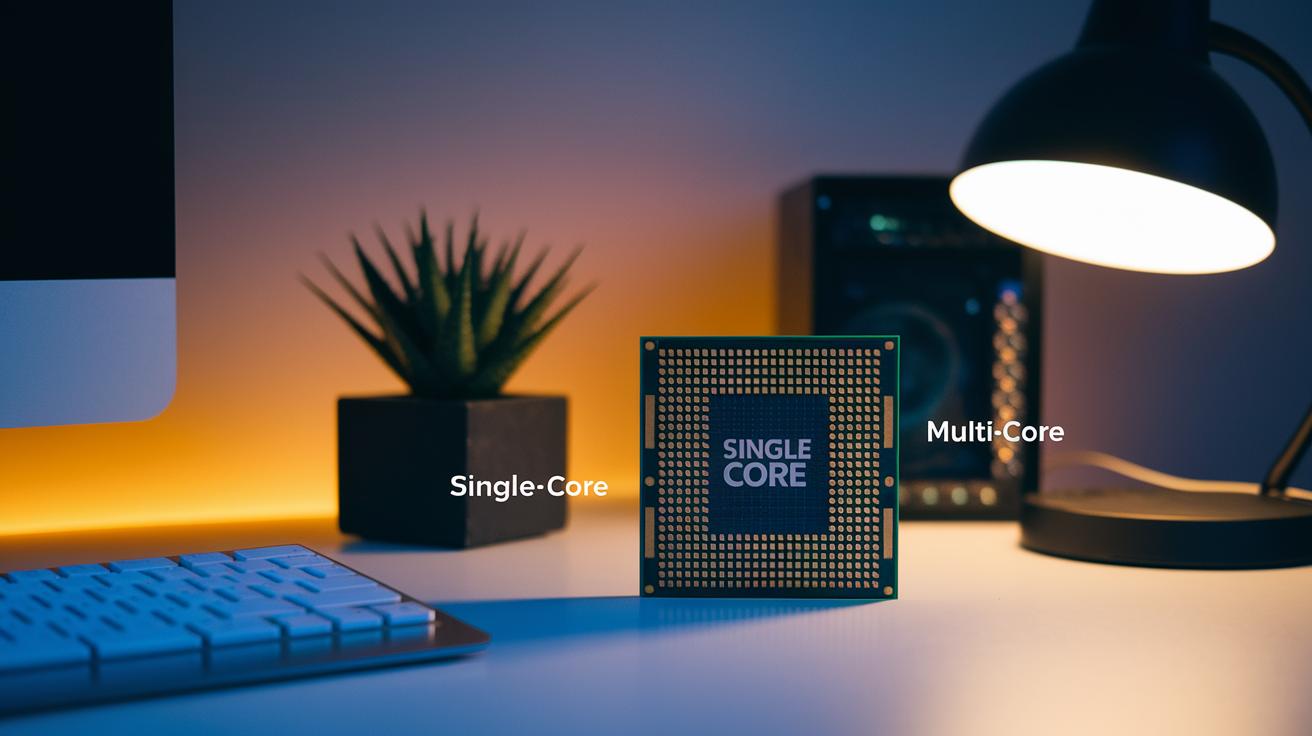
Cinebench checks a CPU in two ways. The single-core test shows how a processor does when only one part of it is running, much like seeing how quickly one worker can finish a simple task. This score matters for everyday programs and light apps.
The multi-core test, on the other hand, shows how well all cores work together. When more cores join in, tasks like video editing or rendering run faster. It’s a good measure for heavy, multi-step jobs.
By looking at both scores, you can spot performance trends between different processor generations. A high single-core score means smooth running for basic tasks, while a strong multi-core number shows the chip can handle demanding jobs better. This way, you can pick the CPU that fits your real needs based on clear, test-based data.
CPU vs GPU Performance Insights in Cinebench Benchmarks
Cinebench's 3D rendering test mimics everyday visual effects and science tasks. It pushes both the CPU and GPU hard by making the processor handle tough, memory-heavy scenes while the graphics unit draws detailed models with OpenGL (a tool that helps computers show graphics). This hands-on test lets chip makers tweak their designs and fine-tune GPU drivers. Think of it like a workout that shows off both the strong points and the stress points in the hardware.
Modern AMD Ryzen and Intel Core processors behave differently in multi-core tests. Ryzen chips excel when juggling several tasks at once, which makes them smooth in rendering work. On the other hand, tests by Desktop CPU Reviews show that Intel processors score higher in single-core tasks, meaning they can quickly run everyday programs. These clear differences help you decide which processor fits your workload best.
When it comes to graphics, discrete GPUs can hit limits due to OpenGL bottlenecks in detailed 3D scenes. Even top-end GPUs struggle with very complex visuals. The Cinebench GPU score highlights these limits and shows where driver tweaks and hardware fixes can improve performance. This testing is key for gamers and graphics pros who need to know how their systems will really perform. Each test paints a clear picture of the balance between raw power and driver efficiency, giving reliable data you can trust.
Interpreting Cinebench Score Distributions & Trends

Cinebench score distributions show how well a system performs by using results from hundreds of tests. The charts let you see where most scores fall, with many systems grouping together and a few scores that stand out. For instance, if one system scores much higher on multi-core tests, it may be using clever ways to handle many threads (small computer tasks) at once. This view helps us see which hardware regularly leads and which falls behind. Even tiny design improvements can lead to big score jumps during memory-intensive tasks.
Trendlines in these charts also point out yearly improvements. As Cinebench gets new updates, multi-core scores generally rise. This steady increase mirrors better processor efficiency. By comparing scores from different generations, you can tell a one-off high score from a real design upgrade. When you read the data closely, it forms a clear pattern that shows how modern workstations deal with heavy 3D and rendering work.
Optimizing System Settings for Reliable Cinebench Results
First, prep your PC by shutting down any background tasks. Update your BIOS and your CPU and GPU drivers so nothing extra interferes with the test. Overclocking (running parts faster than their usual speed) might boost your scores, but it can also cause flaky results if you don't keep a close watch on temperatures and voltages. It's like tuning a guitar; even small tweaks can change the feel of your system.
Keep your testing setup the same every time. Run your benchmarks in a controlled space and check that each test gives similar numbers. Odd or drifting results can come from hidden background processes. Fixing these issues helps make sure your Cinebench scores truly reflect what your system can do.
Cinebench Version Comparison: R15 Through 2024 Testing Evolution

Cinebench has come a long way since R15. Early tests with R15 used simple designs and basic rendering tasks. With R20, we noticed changes in test scenes, memory handling, and how threads are managed. These tweaks gave a clearer picture of performance. By the time R21 arrived, scoring became more precise and CPU thread scaling was easier to see.
When R22 hit the scene, the tests began showing a better look at OpenGL calls and how the system manages memory. These small changes made a big impact, especially when we compared them to older versions.
By 2024, the testing methods had really evolved. The new version refined how it counts threads and tracks memory use. It also improved GPU tests to match today’s needs. This makes it simpler to spot how performance shifts from one generation to the next. Even if you can’t compare every version directly, tracking Cinebench’s evolution from R15 to 2024 helps explain the true shifts in CPU and GPU performance.
Final Words
In the action, we explored Cinebench 2024’s testing of CPU and GPU performance. We broke down the setup steps and discussed how single-core and multi-core scores stack up, while comparing current results with past versions. You learned how to optimize system settings for steady cinebench benchmarks and how to interpret score trends from R15 through 2024. This guide is meant to help you make confident choices and get the most from your device. Enjoy testing and finding the perfect balance between budget and performance.