

Ever notice how your PC can feel as slow as a tired runner? A little cleanup can give it a fresh burst of energy. Try removing old programs and deleting stray files. This simple cleanup cuts clutter and stops unwanted tasks in the background. In the end, your PC becomes more responsive and ready to handle your busy day.
Boost PC Performance: Speedy, Smart Tips
Sometimes a few small tweaks make your computer feel brand new in just minutes. If your PC is slowing you down, try removing barriers that weigh it down. Small actions like deleting old software, stopping background tasks, and cleaning out junk files can really help. I once cleared out years of unused programs and noticed my computer spring back to life.
To speed up your PC, start by fighting off security threats and clutter. Using free tools to check for viruses and fix simple errors can boost overall response time with little hassle. Running cleanup tools often will keep your system lean and quick.
- Remove old programs in the Control Panel’s Programs and Features to free up space and shut down extra background services.
- Do a full scan with Windows Defender or Malwarebytes to get rid of malware that might slow your system.
- Use Windows Disk Cleanup to delete temporary files, saved web pages, and leftover installer files.
- Try free utilities like CCleaner or Glary Utilities to fix basic registry errors and clear junk files.
- Clear your browser cache and history to help your internet browsing feel smoother.
- Schedule these cleanups regularly to keep your hard drive clutter-free and your PC running efficiently.
These steps target common slowdowns and help your computer work faster without breaking the bank. With a bit of routine maintenance, you can keep your system speedy and ready for everyday use.
Software Tweaks to Boost PC Performance and Responsiveness

First, cut down on startup programs. Open Task Manager (or use MSCONFIG on older Windows) and turn off apps you rarely use, such as Spotify or Skype. This simple change frees up RAM at boot and makes your system start up faster.
Next, change your visual effects settings. Go to System > Advanced system settings > Performance Options and select "Adjust for best performance." This removes extra graphics that slow things down and can make your computer feel up to 30% faster.
Then, turn off Search Indexing and disable Tips and Notifications. These background services can cause sudden CPU spikes by constantly accessing your disk. Disabling them reduces background work and lets your machine focus on what matters.
Finally, enable Windows Game Mode when running full-screen apps and use the built-in troubleshooters for Hardware, Devices, and Windows Store Apps. Game Mode stops updates and notifications during play, while the troubleshooters help fix hidden slowdowns automatically.
Strategic Hardware Upgrades to Boost PC Performance
Adding a little extra RAM, about 2–4 GB, can really smooth out your work when you have several apps running. More memory helps your computer switch tasks quicker and cuts down on delays from the hard drive.
Swapping out an old HDD (traditional spinning disk) for a modern SSD (a faster, flash-based drive) makes a huge difference too. In our tests, a system booted in nearly 20 seconds with an SSD, compared to roughly 60 seconds with an HDD. This upgrade also means your apps start up almost instantly, creating a brisk and responsive feel throughout.
A quality CPU cooler is another upgrade worth considering. It keeps your processor cool even under heavy use, so your computer can maintain its peak speed without overheating. This not only boosts performance under load but can also extend the life of your parts.
Don’t forget to keep your hardware drivers updated. Newer drivers make sure all parts of your system work well together. Whether you update through the Device Manager or a maker’s tool, staying current can prevent slowdowns and let every upgrade work as it should.
| Component | Performance Gain | Estimated Cost |
|---|---|---|
| RAM Upgrade | Smoother multitasking and less hard drive paging | $30-$50 |
| SSD Installation | Faster boot times and quicker app launches | $70-$150 |
| CPU Cooler | Better thermal management and steady speeds | $40-$80 |
Efficient Memory Management to Boost PC Performance

Keep an eye on your memory with Task Manager’s Memory tab. Check which apps use too much RAM and close the ones you don’t need. For instance, if an unused browser is hogging a lot of RAM, shutting it down clears up space and helps other programs run smoothly.
Next, adjust your virtual memory settings to handle heavy tasks. Open System Properties and change the page file size to between 1.5× and 3× your physical RAM. This simple change gives your computer extra room when it starts to run low on real memory.
Finally, use built-in tools like Resource Monitor or RamMap to clear up standby and cache memory. These tools help remove clutter, letting your system run better. Also, run Windows Memory Diagnostic to check for any faulty memory modules that might slow you down. Addressing these issues early keeps your PC running fast and responsive.
Optimizing System Startup to Boost PC Performance
Turning on fast startup can cut your boot time in half. First, open Settings and go to System > Power & Sleep. Then, click on Additional power settings and choose what happens when you use the power buttons. Fast startup mixes a full shutdown with a bit of hibernation (a mode that saves open data). This means your computer starts up faster by skipping non-essential steps.
You can also ease the load by managing which apps launch on boot. Open Task Manager and switch to the Startup tab. Disable apps that you don't need right away. This saves RAM (the short-term memory your computer uses) and stops extra processes from slowing things down. In short, fewer startup apps give you a cleaner, more responsive system from the moment you power on.
Another smart move is to schedule regular disk cleanups. Use Task Scheduler to run Windows Disk Cleanup every week. That tool removes temporary files and leftover bits that can drag your disk performance down. Also, uninstall programs you no longer need and limit background apps in Privacy settings. Together, these steps help keep your computer lean, efficient, and quick to start up.
Monitoring & Benchmark Utilities to Boost PC Performance
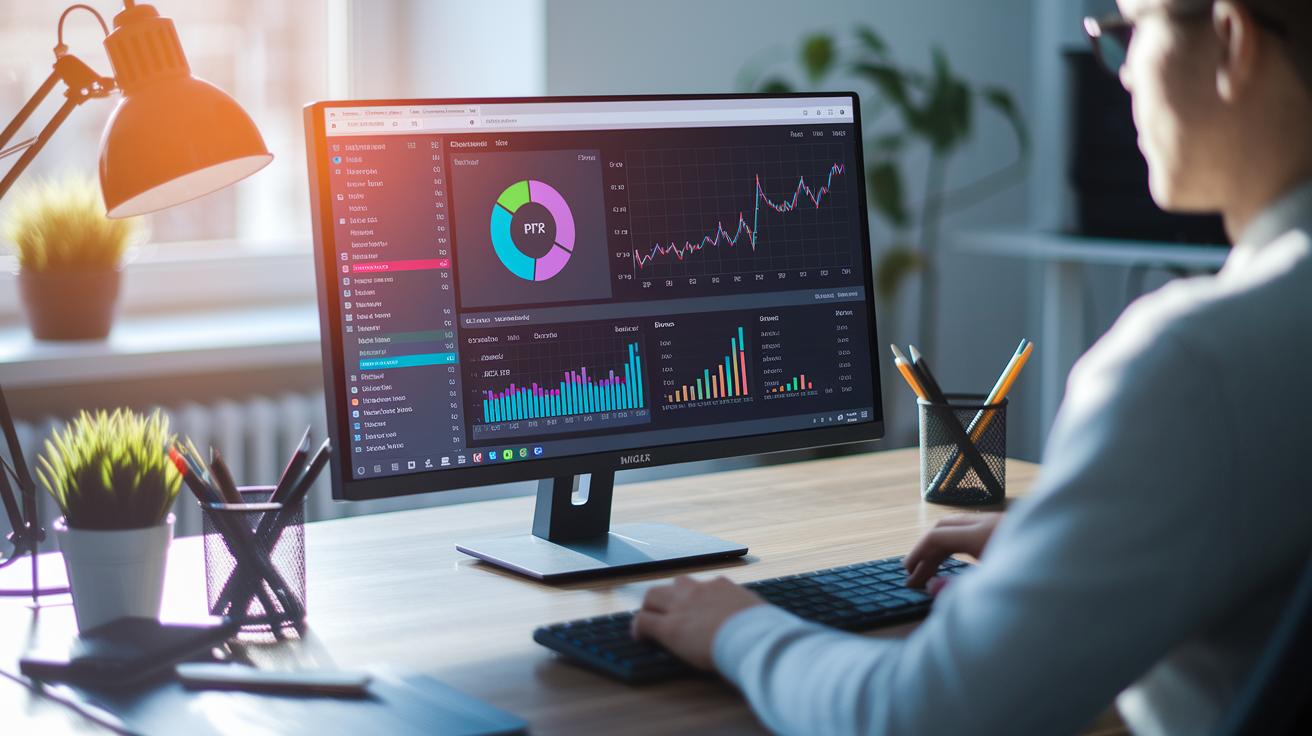
Keeping tabs on your PC is key for a smooth run. You can use Resource Monitor and Performance Monitor (perfmon.exe, a built-in tool) to see real-time figures. These tools let you track CPU, memory, and disk activity so you can spot what feels slow during your usual tasks.
Benchmarking gives you clear numbers that show improvements. You can run tests on your CPU and GPU using the Windows Assessment Tool or another trusted program. This method gives you a before-and-after snapshot of your system’s speed. Free tools like Fortect help fix registry errors fast, while IObit Advanced SystemCare cleans clutter and checks security. Glary Utilities even offers one-click cleanup so you can measure how much quicker your PC gets.
Don’t forget to update your firmware regularly. Check for BIOS or UEFI updates from your motherboard maker to fix small issues and boost stability. With solid benchmark results, you can decide when it’s time for more tweaks. By using these monitoring and benchmarking utilities, you can track performance changes, solve slowdowns, and keep your PC in top shape.
Advanced Tuning & Overclocking to Boost PC Performance
Tweaking your PC in the BIOS or UEFI lets you adjust the CPU multiplier and voltage (the power your processor gets) within safe limits. This gives your chip a little extra punch. Start by entering your system settings and choose a small boost within the vendor-set limits. Even a tiny change can make your computer react faster during heavy tasks.
Next, try using a tool like MSI Afterburner to overclock your GPU (graphics processing unit). This tool pushes your card to run quicker, but keep an eye on the temperature so it doesn't overheat. You can also set custom fan curves in your cooling software to hold temperatures steady under load. By checking voltage and heat closely, you can enjoy faster performance while keeping your system stable. If you notice any crashes or errors, roll back your tweaks right away.
Safety always comes first, if your system shows signs of instability, pull back on the adjustments immediately.
Final Words
In the action, this article walked through clear steps for a quick system refresh. We covered deleting unwanted programs, running virus scans, and cleaning temporary files to free up valuable disk space. You saw how tweaking startup and memory management settings makes your day-to-day use smoother. We also touched on hardware upgrades and advanced tuning for those ready to get extra mileage from their setup. Give these steps a try to boost pc performance and enjoy a faster, more reliable machine.