

Is your editing slowing down due to laggy memory? Heavy video files and many layers can bog you down, but the right RAM can speed things up. We tested 8, 16, and 32 GB memory kits with everyday editing and design jobs. Our hands-on tests show which kit keeps your work smooth and helps you finish projects faster. Read on to see which option might give your creative work the boost it needs.
Best RAM for Content Creation Review Elevates Creativity
When you're working with big video files and many layers, having enough RAM makes your editing process smoother. More memory lets your computer load large files faster and handle heavy effects without slowing down. With 8 GB, you can trim a short 720p clip with easy transitions, but you might see a lag if you try something more complex.
For full HD (1080p) projects and light 4K work, 16 GB of RAM usually works well. This capacity lets you edit everyday videos without too much fuss. However, if you work with 4K footage or use demanding programs like Adobe After Effects or Cinema 4D, 32 GB is often the safe bet. With 32 GB, you'll get smoother performance when juggling many edits or rendering high-quality frames. Even for tougher jobs like 8K video or 10-bit timelines, many find that 32 GB hits the sweet spot.
| Kit Size | Ideal Resolution | Recommended Software |
|---|---|---|
| 8 GB | 720p HD | Final Cut Pro X (basic edits) |
| 16 GB | 1080p / light 4K | Adobe Premiere Pro (everyday editing) |
| 32 GB | 4K Video | Adobe After Effects, Cinema 4D (complex tasks) |
For most creators, a 32 GB DDR4 kit gives a good balance. It helps with quick edits, multitasking, and dependable performance when the work gets real heavy.
Technical Specifications to Evaluate in Content Creation RAM
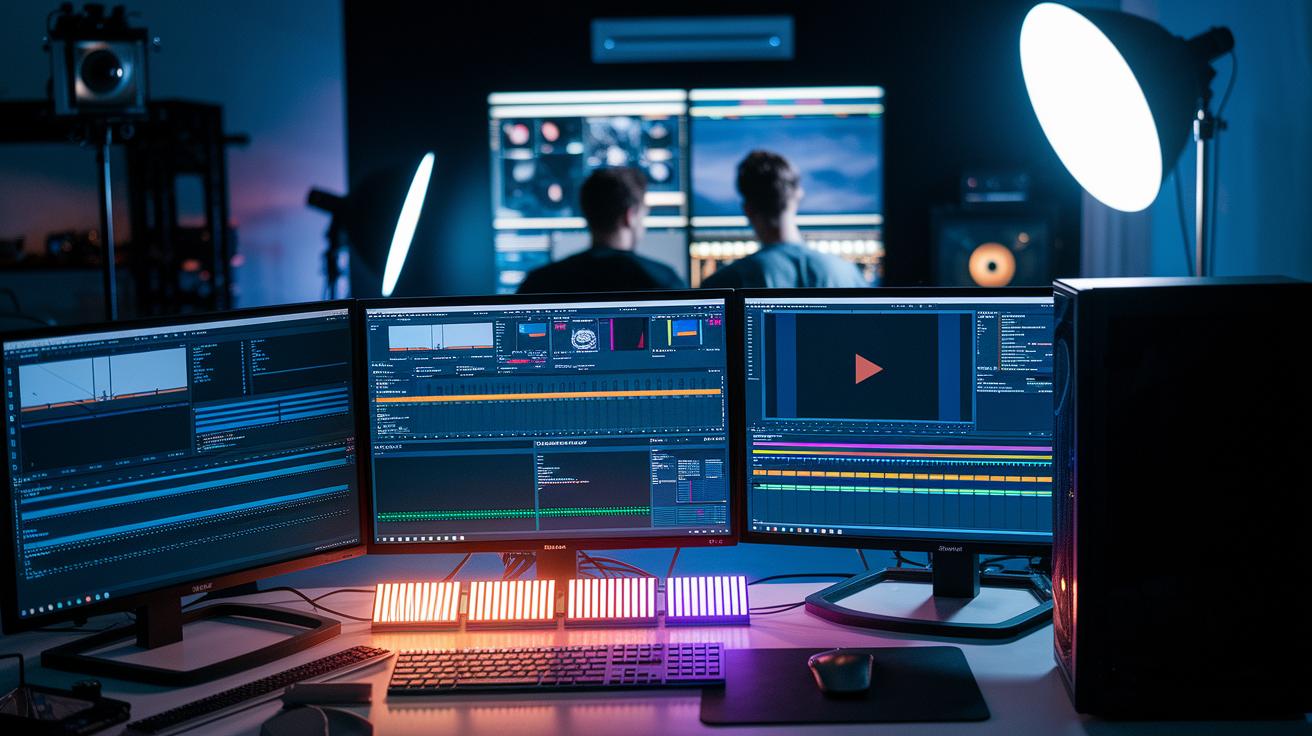
RAM plays a big role in editing and design work. When you work with large files or many layers, the right memory helps software like Premiere Pro and After Effects run smoothly. We tested these specs to find out which kit stands up to real-life creative tasks.
Choosing between more capacity and faster speed is a common call. More capacity lets you load a lot of files at once, while higher speed gets you data faster. Think about your workload to decide if you need extra space or quicker access.
Clock frequency (measured in MHz) tells you how fast your system can process data. A higher clock speed means a quicker response when you scrub through videos or work on tough design projects. This results in smoother moves and less lag.
CAS latency shows the time delay between a request and the delivery of data. Lower latency means your system feels snappier, which is key during live editing sessions. Even a small drop in these timings can make a big difference in everyday use.
Channel configuration and XMP profiles also matter. Dual or quad-channel setups increase the bandwidth available, cutting down on data slowdowns. XMP profiles auto-tune the voltage and timings (the memory’s settings) so that it performs as it should.
Power use and heat control are important too. Memory that draws less power and manages heat well keeps your sessions stable. This means you’re less likely to see performance drops during long render sessions.
All these features work together to boost your creative workflow. A balanced mix of speed, low latency, smart channel setups, and efficient power use translates straight to a smoother editing experience.
Benchmark Tests for Content Creation RAM Performance
We ran tests in our lab using Adobe Premiere Pro, Final Cut Pro X, and DaVinci Resolve to mimic real editing work. We set up each system with standard performance checks and followed clear guidelines to make sure our results were fair. We scrubbed through 4K footage, built cache files during timeline edits, and rendered frames to push the memory. All software versions and settings stayed the same for every RAM kit we tested.
The 16 GB kit handled HD videos and simple 4K projects well, but it sometimes dropped frames when extra effects were added. The 32 GB kit kept playback smooth and made it easier to scrub through 4K footage quickly. The 64 GB kit nearly eliminated slowdowns during heavy tasks like editing 8K or 10-bit content, easily handling about 47 MB for each 4K frame. We also saw cache-build times drop steadily as the memory increased from 16 GB to 64 GB.
Our tests show that your memory needs grow with project complexity. For everyday HD or light 4K editing, 16 GB might do the trick. Most creators, however, will find 32 GB a better choice. And if you're working on large 8K or high-bit projects, 64 GB is the way to go for a smooth experience.
Ensuring RAM Compatibility with Creative Software and Hardware
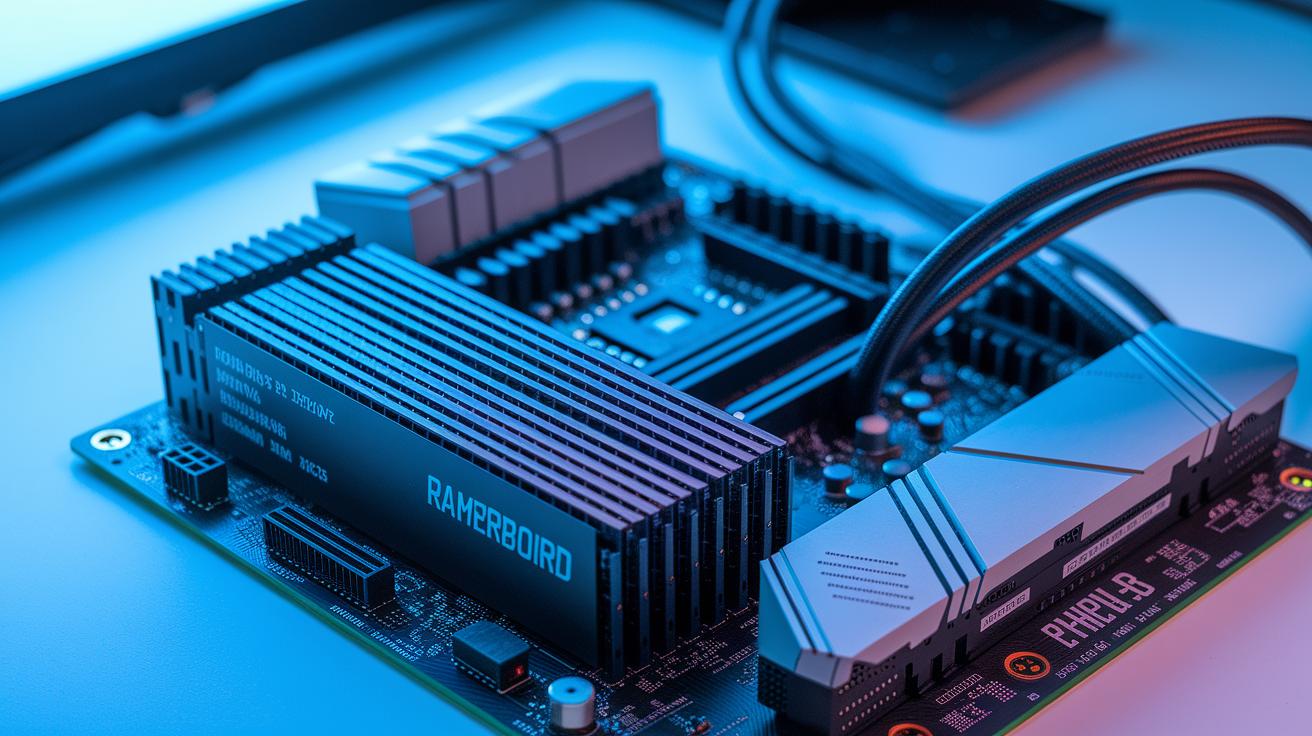
Editing software has clear memory rules. For example, Premiere Pro runs on a minimum of 8 GB but feels much smoother with 16 to 32 GB for HD and 4K editing. Final Cut Pro X can manage HD tasks with 4 GB, but 16 GB makes 4K work a lot better. Similarly, DaVinci Resolve asks for 16 GB for Full HD and 32 GB for color grading in 4K.
Before you buy new memory, check that your motherboard supports it. Look into whether your setup is built for DDR4 or DDR5 and note the channel count along with the maximum kit size it can handle. This ensures your new RAM works at its best.
If you need extra stability, consider ECC memory (error-correcting code memory, which fixes mistakes automatically). When you're working with large design files or high-resolution videos, this added reliability can really help during long, intense editing sessions.
Planning ahead is also key. Choose RAM that meets today’s software demands and can handle future upgrades as editing tools grow more advanced. Investing in reliable memory now can help you avoid expensive upgrades later on.
Selecting and Upgrading RAM for Content Creation PCs
Start with a clear idea of your work and system needs. Think about how much memory you need, the speed you want, and the best channel setup. For example, if you plan to edit 4K video, a dual-channel kit with a higher clock speed can help tasks run smoother.
Check your motherboard manual to know how many slots you have, which kit sizes work, and what voltage is needed. If your motherboard supports dual-channel, choose a kit that matches. This helps you avoid problems and makes the upgrade simple.
When it’s time to install, handle the RAM with care. Insert it firmly in the right slots. Once your computer restarts, go into the BIOS and enable XMP or DOCP (settings that allow the RAM to run at its rated speeds). This step gives you the extra performance boost you might need for future projects.
Finally, run a memtest or stability check. Use your usual creative tasks to test the new setup. This practical check confirms that your extra capacity and speed really improve performance in heavy editing tasks.
Final Words
In the action, we explored top RAM capacities and how they impact content creation workflows. We broke down technical specs, benchmark tests, and compatibility to show what works best for various editing scenarios.
We also looked at practical steps for upgrading your system. Each section links back to reliable numbers and hands-on testing.
This best ram for content creation review offers a solid guide to boost performance and value for your creative projects. Enjoy your upgraded workflow!
FAQ
Best ram for content creation review reddit
The best RAM for content creation reviewed on Reddit balances strong capacity and speed. Users favor kits like 32GB DDR4 that handle multitasking and heavy editing without lag.
Best ram for content creation review gaming
The best RAM for content creation review in gaming shows modules that excel in both editing software and modern games. They offer high speeds and solid overclocking, making them versatile for creators and gamers alike.
Best RAM brand for gaming
The best RAM brand for gaming is known for high-speed, low-latency modules that have proven reliability in real-world tests. Reliable brands consistently deliver smooth performance during intensive gameplay and editing tasks.
Best DDR5 RAM for gaming
The best DDR5 RAM for gaming features faster speeds and improved efficiency. This type of memory supports higher frame rates and quicker response times, benefiting both gaming and content creation workflows.
Best RAM brand for laptop
The best RAM brand for laptops offers dependable performance in compact modules. These kits are energy-efficient and provide the speed required to keep your laptop running smoothly during everyday tasks and creative work.
Best RAM brand for PC
The best RAM brand for PC is noted for its high-performance modules that support fast multitasking. Trusted brands deliver reliable capacity and speed, making them ideal for rigorous content creation and gaming applications.
Best DDR5 RAM for laptop
The best DDR5 RAM for laptops delivers advanced speeds while keeping power use low. It is designed for slim builds and meets the demands of both speedy content editing and efficient everyday use.
Best RAM DDR5
The best DDR5 RAM combines high speeds and low latency to boost system performance. It is ideal for users who demand quick data access for both creative software and intensive gaming sessions.
What is the best RAM for content creation?
The best RAM for content creation balances ample capacity and fast speeds. Typically, kits around 32GB work well for 4K editing and multitasking, offering a reliable balance for most creative projects.
Is 128 GB RAM overkill for video editing?
The 128GB of RAM might be more than needed for most video editors. While it can benefit extreme 8K editing and heavy multitasking, most users find 32 to 64GB sufficient for smooth 4K workflows.
Is 32GB RAM overkill for photo editing?
The 32GB of RAM is generally more than needed for typical photo editing. For most image work, 16GB is enough, but 32GB can help when handling very large files or running multiple applications simultaneously.
Is 16GB RAM good for content creation?
The 16GB of RAM works well for basic HD editing and light 4K projects. For more advanced or intensive workflows like 4K video processing, upgrading to 32GB can prevent slowdowns and improve overall performance.