

Ever imagine a small computer managing your home? The Raspberry Pi is a low-cost device that can control lights, sensors, and more.
In this guide, we walk you through simple steps to build a smart hub for your living room. We explain how to install the needed software, set up your network, and manage your gadgets with ease.
Turn your home into a smart space without a hefty price tag or a complicated setup.
Raspberry Pi Home Automation Setup: Step-by-Step Smart Hub Guide

Raspberry Pi is a low-cost mini-computer that serves as a handy control center for your home. It’s great for beginners who want to build a smart hub without spending a lot. You can set up a system that turns lights on and off, checks security sensors, and works with everyday devices, all with a few simple steps.
Start by installing the operating system. Use Raspberry Pi Imager to load Home Assistant OS or openHAB onto a microSD card. It’s much like updating your phone’s firmware. Once the OS is ready, insert the card into the Pi, connect a monitor, keyboard, and mouse, then power it up. The system boots up quickly, displaying a simple interface for managing your devices.
Next, get your network set up. Plug in an Ethernet cable for a steady connection or edit the Wi-Fi settings in the provided configuration file. This link lets your hub talk to smart devices like thermostats, lights, locks, and sensors. It also makes it easy to integrate popular gadgets such as Philips Hue, Nest, or Sonos via Home Assistant.
- Raspberry Pi board (Pi 4 or Pi 5)
- MicroSD card with Home Assistant OS or openHAB
- Power supply that meets the wattage needs
- Ethernet cable or Wi-Fi adapter
- USB Zigbee/Z-Wave dongle for extra device support
- Case and cooling to protect and manage temperature
Finally, check that you can access Home Assistant’s web user interface. Open a browser on another device, type in the Pi’s IP address, and you’ll see a dashboard where you can add and control your smart devices.
Selecting the Ideal Raspberry Pi Model for Home Automation

When picking a Raspberry Pi board, you need to weigh processor speed, memory (RAM), and price. Each model brings different strengths to a smart home setup. Some boards have faster processors and more RAM, which means they can run many tasks at once. Others are ideal for simple jobs like turning light switches on and off. Price is key too. Cheaper models suit basic projects, while spending a bit more can boost performance for central smart hubs.
| Model | CPU | RAM | Recommended Use | Price Range |
|---|---|---|---|---|
| Pi Zero | Single-core | 512 MB | Basic IoT tasks | $10–$15 |
| Pi 4 | 1.5 GHz quad-core | 2–8 GB | Multiple containers, automations | $35–$75 |
| Pi 5 | 2.4 GHz quad-core | Strong GPU | Touchscreen dashboards, HMI projects | $60–$80 |
If you’re just starting out and want to keep costs low, the Pi Zero is a solid pick for simple tasks. If you need more processing power and flexibility, the Pi 4 is a good match. And if you’re looking to run detailed visuals or multiple services at once, the Pi 5 is the way to go. I’ve seen that matching the right board to your needs can make all the difference in a smooth smart home experience.
Integrating Sensors and Devices in Raspberry Pi Home Automation

Your Raspberry Pi has GPIO ports that let you attach sensors for quick, local data collection. You can plug in a module like the DHT22 (a sensor for temperature and humidity) or a PIR sensor that detects motion. When you connect these sensors directly, your setup gets real-time data without waiting on cloud services. I hooked up a DHT22 to my Pi and saw temperature changes on my dashboard right away.
Adding USB Zigbee and Z-Wave adapters opens up even more control options. These adapters let your Pi communicate with popular devices like Philips Hue lights or IKEA TRÅDFRI bulbs. They also work with systems such as SmartThings, making your setup more flexible. With a Zigbee dongle, you can add extra wireless sensors to broaden your home’s monitoring.
- DHT22 temperature/humidity sensor
- PIR motion sensor
- MQ-2 gas sensor
- Aqara door sensor
- Sonoff smart switch
- Fibaro flood sensor
- IKEA TRÅDFRI bulb
Once you have all your sensors connected, check their performance using a central management system like Home Assistant or Node-RED. This software shows you the sensor data and lets you set up rules for smart responses. For example, you can program it to alert you if a door sensor is triggered or if a motion sensor picks up unexpected movement.
Raspberry Pi Software Platforms and Code Examples for Home Automation
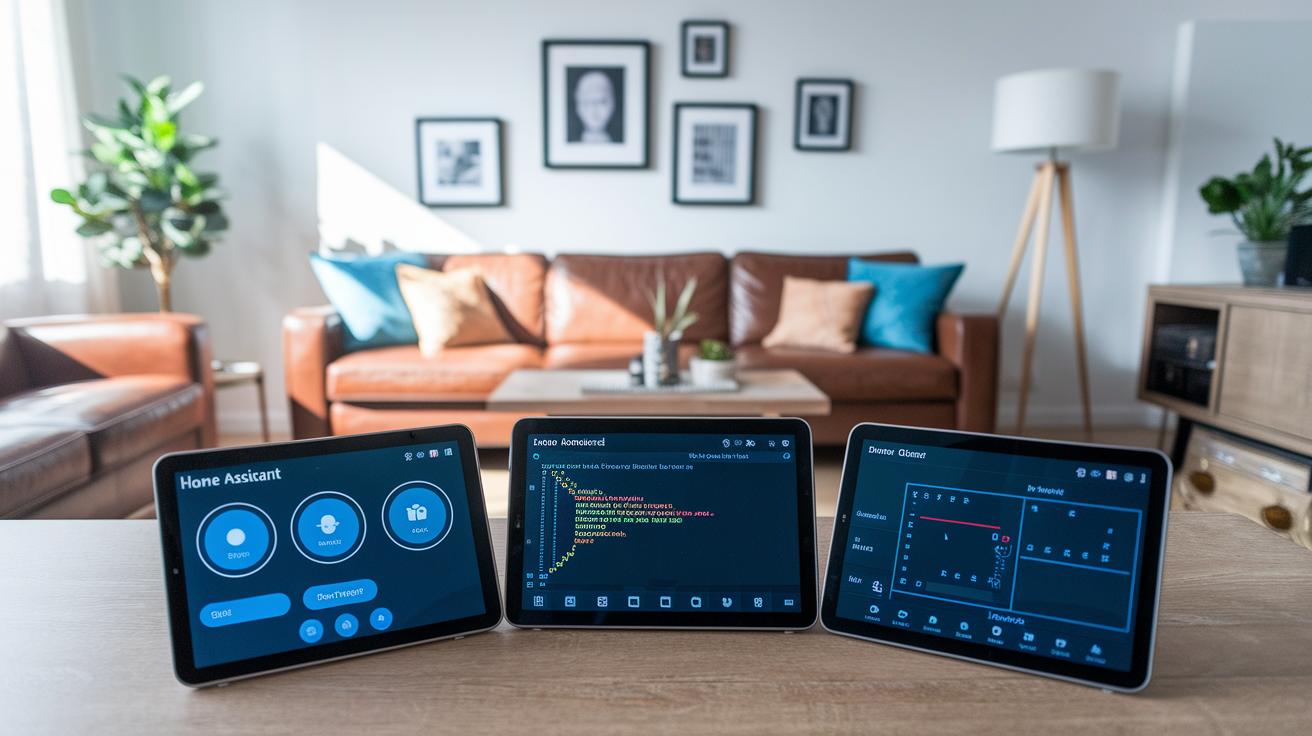
Home Assistant, openHAB, and Node-RED each offer their own ways to smartly control your devices at home. Home Assistant gives you a browser-based dashboard and lets you set up automations with YAML (a simple code format) while playing well with over 2,000 integrations. openHAB is built on a modular system and uses rule scripting in Java or Groovy. This is great if you like diving deeper into code. Node-RED, on the other hand, uses visual flow programming to easily link together nodes like MQTT (a messaging protocol) and WebSocket, making it easy to create custom dashboards and automation flows with little coding.
Home Assistant Automations
A quick example in Home Assistant uses YAML to trigger an event at sunset. When the sun sets, it turns on your hallway light. For instance, see the YAML script below:
- alias: "Turn on hallway lights at sunset"
  trigger:
    platform: sun
    event: sunset
  action:
    service: light.turn_on
    entity_id: light.hallway
This code shows how the system can act on its own when the sun goes down, letting you enjoy a warm, automatic home setup.
Node-RED Flow Examples
In Node-RED, you might want a flow that sends a mobile notification when a motion sensor picks up movement. Here is a simple JSON export of that flow:
[
  {
    "id": "motionSensor",
    "type": "mqtt in",
    "topic": "home/motion",
    "wire": ["notificationNode"]
  },
  {
    "id": "notificationNode",
    "type": "function",
    "name": "Notify Mobile",
    "func": "msg.payload = 'Motion detected!'; return msg;",
    "wire": ["mobileNotify"]
  },
  {
    "id": "mobileNotify",
    "type": "debug",
    "name": "Mobile Notification"
  }
]
This simple setup shows how Node-RED connects a motion sensor to a mobile alert using a few nodes. It makes automation feel natural and light on the code.
It also makes sense to keep your automation scripts organized by committing them to Git. This way, you track changes with clear commit messages and version tags, which is a big help when you need to revisit or debug your setup.
Securing and Maintaining Your Raspberry Pi Home Automation System

Lock down your Pi with a basic firewall. We recommend using ufw (an uncomplicated firewall) to allow only necessary ports like 22 for SSH and 8123 for Home Assistant. This setup keeps unwanted access attempts at bay. Next, serve your web interface over HTTPS. Installing Let’s Encrypt certificates with auto-renewal protects the data traveling between you and your device. If you have trouble connecting, double-check your port settings, a small misconfiguration can block the traffic you need.
Protect your settings and data with daily backups. Set up an automatic backup process for your Home Assistant or openHAB snapshots, and store them on an external NAS or cloud service. This way, if you mess up or your hardware fails, you won’t lose everything. It’s also smart to look at your backup logs regularly to be sure everything runs as it should.
Keep your system updated to cover new security holes. Regularly schedule OS and package updates, and check for firmware updates for both your Zigbee/Z-Wave dongle and your Raspberry Pi. If you face network hiccups or need to restart a service, a quick reboot or checking your update history can often solve the issue. These habits help your system stay secure and run smoothly.
home automation raspberry pi: Smart Simplicity
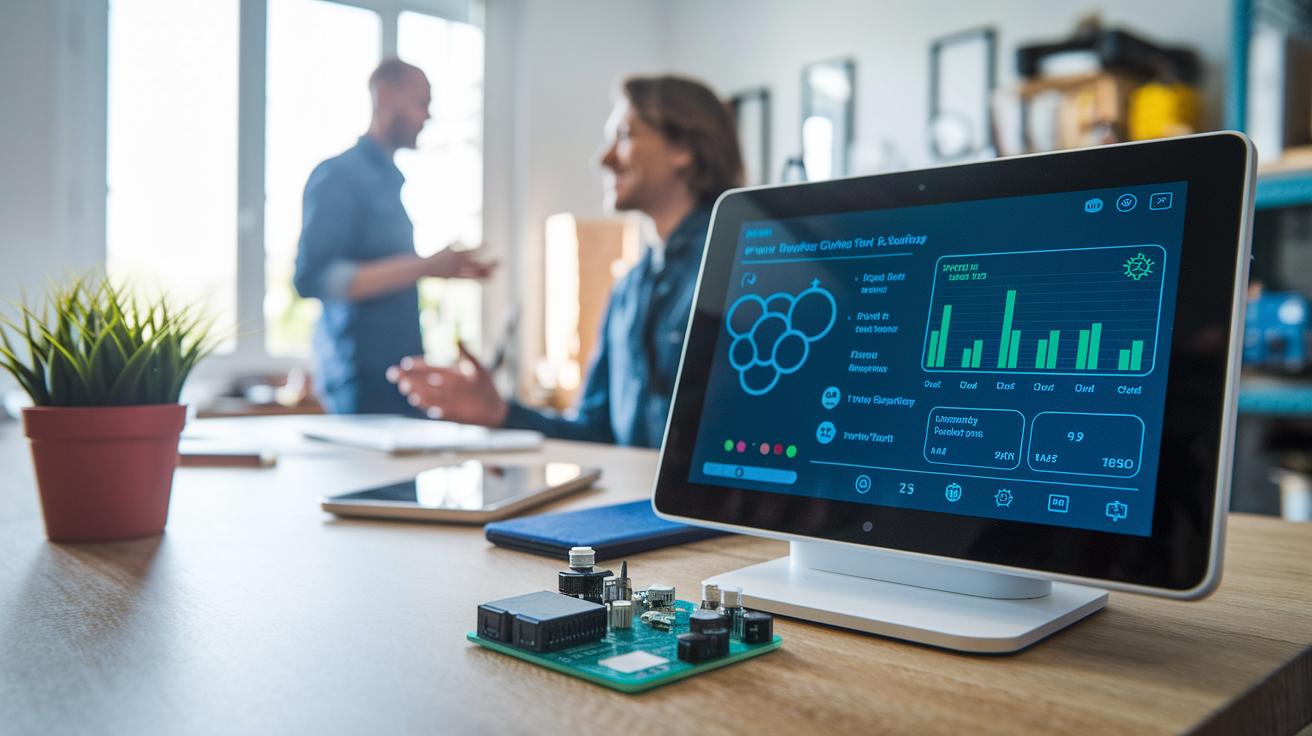
You can use the Raspberry Pi 5 to build quick, responsive dashboards with the Lovelace UI or a custom web app. Its powerful GPU shows smooth live camera feeds and device updates. Pair it with Elecrow CrowPanel ESP32 HMI touchscreens for a dedicated control center. Imagine a 7-inch screen that immediately shows your security feeds and energy charts.
You can also build a portable weather station with the Pi. Add sensors for temperature, humidity, and air pressure (barometric sensor) that feed live data to a cloud database. This setup gives you real-time weather updates and can serve as a base for more clever automation projects. It might even trigger indoor climate adjustments or alert you when the weather shifts suddenly.
Want to control your home by voice? Connect the Pi with Home Assistant Cloud or use MQTT bridging to work with Alexa or Google Assistant. You can also set up a motorized garage door by connecting the Pi to a relay module and running a Python script. When you trigger it remotely, the system safely opens or closes the door, boosting both ease and home security.
Share your code on GitHub so others can join in. Open-source projects grow when developers swap ideas and fixes. Your GitHub repository becomes a community hub for troubleshooting and new smart home improvements.
Final Words
In the action, our guide walked through setting up a Raspberry Pi smart hub. You saw how to flash the OS, connect devices, and secure your mini-computer with practical steps. Each section broke down the setup, from basic sensor integrations to advanced projects like custom dashboards and voice controls.
This clear process aims to make your smart home build approachable and efficient. Enjoy building and tweaking your home automation raspberry pi for a smarter, more connected living space.
FAQ
Is Raspberry Pi good for home automation?
The Raspberry Pi is a popular and cost-effective mini computer for home automation. Models like the Pi 4 and Pi 5 provide ample power for running platforms such as Home Assistant and managing multiple smart devices.
How do I set up Home Assistant on a Raspberry Pi?
The Home Assistant Raspberry Pi setup involves flashing Home Assistant OS onto a microSD card with Raspberry Pi Imager. Once booted and connected via Ethernet or Wi-Fi, you configure the dashboard for centralized smart control.
How does Home Assistant run on Raspberry Pi 5?
Home Assistant on Raspberry Pi 5 benefits from a faster CPU and enhanced graphics, which help handle multiple automations and rich dashboards. This model delivers a responsive experience for control panels and smart integrations.
How does Home Assistant perform on Raspberry Pi 4 and 3?
On Raspberry Pi 4, Home Assistant offers smooth performance for complex tasks, while the Pi 3 manages basic automations reliably. Both support central device control but vary in processing speed and capacity.
Where can I find home automation Raspberry Pi code on GitHub?
The home automation Raspberry Pi GitHub community offers open-source projects and sample configurations for platforms like Home Assistant, openHAB, and Node-RED. These resources simplify integrating and customizing your smart home system.
What is the best Raspberry Pi smart home software?
The best Raspberry Pi smart home software includes Home Assistant, openHAB, and Node-RED. Each option provides a user-friendly interface, extensive integrations, and robust community support for effective automation.
Can I run Netflix on Raspberry Pi?
Running Netflix on a Raspberry Pi is possible with operating systems like LibreELEC that support a compatible media player add-on. Although it works, performance may fall short compared to dedicated streaming devices.
Can I use a Raspberry Pi as a PLC?
A Raspberry Pi can serve as a basic programmable logic controller with custom scripts and relay modules. While it handles simple control tasks, it does not match the reliability of traditional industrial-grade PLC hardware.