

Ever wonder if a simple cable setup could be the reason your internet feels slow? We dug into it and found that messy or poorly arranged cables can really hold back your network.
Our hands-on tests show that cleaning up your wiring can boost speed and stability. We explain the best way to strip your wires, arrange them neatly, and test every connection.
Follow these clear, proven steps to give your network a real boost.
Key Network Cable Installation Tips for Optimal Connectivity

Start by getting your cable ready. Remove about 1 inch of the outer jacket to expose four twisted pairs. This step is key for a firm connection. Arrange the wires in the T568B order (a wiring standard) and trim them evenly to about 0.5 inches. This makes sure each wire fits neatly into the RJ45 connector. Use a quality cable stripper and the proper crimping tool. After crimping, give the cable a gentle tug to check that every connection is secure.
Next, plan your network layout. Look for drop points behind desks or near access points to support heavy tasks like video calls. Pick the right cable type for your needs. Cat6 works well for most uses, while Cat6a handles faster speeds and longer runs. Protect the cables by running them through walls, ceilings, or raceways so your setup stays tidy. Group your connections by installing keystone jacks or patch panels at a central spot, often called Node Zero in home setups or a telecommunications room in offices.
| Step | Key Action |
|---|---|
| Cable Stripping | Remove 1 inch of jacket to reveal twisted pairs |
| Wire Arrangement | Follow T568B standard and trim evenly |
| Connector Seating | Fully insert wires into RJ45 before crimping |
| Testing | Perform a gentle tug test to check the connection |
| Layout Planning | Select drops near high-bandwidth areas |
| Cable Selection | Choose Cat6 or Cat6a based on your speed needs |
Planning and Pre-Installation Checklist for Network Cabling

Start with a clear plan for laying out your network cables. Measure each cable carefully and add a little extra length to allow for changes or future upgrades. Mark key points like your central hub (Node Zero) or patch panels and label the routes behind desks or near access points so everything stays organized. Using color-coded tags and checking connector fits early can help avoid issues later.
| Task | Purpose |
|---|---|
| Measure cable lengths | Cut exact lengths and allow extra slack for changes |
| Identify Node Zero | Create a central spot with a patch panel to ease troubleshooting |
| Map drop locations | Choose spots behind desks and near access points for good performance |
| Select cable type | Decide on Cat5e, Cat6, or Cat6a based on current needs and future plans |
| Assemble essential tools | Gather a cable stripper, crimping tool, punch-down tool, and tester for a smooth install |
| Plan cable pathways | Route cables via walls, ceilings, or raceways with clear labels for easier maintenance |
Network cable installation tips for a smooth setup

Plan your cable routes carefully so everything stays neat and works well. Use conduits (protective tubes), cable trays (shelves for wires), and raceways (covers for cables) to keep your wires safe from harm and interference. Follow the bend rules to prevent signal loss and damage. Also, run cables away from power cables and EMI sources (devices that create electromagnetic interference) to minimize noise. Use velcro straps or cable clips instead of zip ties so the cables don’t get extra strain when they move or change temperature.
Label or color-code your cables for quick identification later, especially if you have separate lines for voice and data. Setting up different routes for each type can prevent mix-ups and make troubleshooting easier. When working above head level, follow proper conduit and raceway techniques to keep things safe. This neat setup not only looks good but also helps your network perform better and makes maintenance a breeze.
Step-by-Step Ethernet Cable Termination and Connector Tips

Follow these five easy steps to finish Cat5e and Cat6 cables. Read our extra tips below for more details.
-
Strip the cable jacket
Use a cable stripper to remove about 1 inch of the outer cover. This gives you a clean area to work without harming the inner wires. -
Arrange the wire pairs
Untwist the wires gently. Align them in the T568B order to reduce interference and keep your network running smooth. -
Trim the conductors
Cut the wires to about half an inch long. Keeping them even helps make sure each wire fits right in the connector. -
Fully insert the wires
Push the trimmed wires into the RJ45 connector until they all reach the end. Cat6 wires are a bit thicker than Cat5e, so double-check each one is properly in place. -
Crimp and perform a tug test
Secure the connector with a crimp tool. Then, gently pull on the cable to be sure all wires are locked in firmly.
Advanced troubleshooting and cable type insights
-
Check that all wire lengths are even before inserting them. Uneven wires can weaken the connection.
Example: "Measure twice, cut once , short wires can disrupt data flow." -
For Cat6 cables, remember that thicker insulation and tighter twists might need a slight change in technique compared to Cat5e.
-
If the connector fails the tug test, remove it and verify each wire is seated correctly. Often, a wire that isn’t fully in place is to blame.
-
Compare cable types using the table below to see the main physical differences:
| Factor | Cat5e | Cat6 |
|---|---|---|
| Conductor thickness | Slightly thinner | Slightly thicker |
| Internal structure | Standard twisted pairs | May include internal separators |
Testing, Troubleshooting, and Performance Verification

First, plug your cable into a cable tester. This tool checks that every wire is connected correctly by testing for continuity (a continuous electrical path) and making a complete wire map. Testing both ends while the cable is under load shows you how it will perform on an active network.
Next, measure the signal loss on each twisted pair (two wires spun together) to ensure they carry data without weakening. Write down your readings and compare them to the standard limits.
Another useful tool is time domain reflectometry (TDR). TDR sends a quick pulse along the cable and watches for echoes from defects like kinks or faults. If the TDR finds a problem, check the connectors for any pin errors and fix them if needed.
Follow these steps for a full check:
- Connect the cable tester to both ends and note the continuity results.
- Measure the signal loss on each pair to spot any deviations.
- Run the TDR test to locate faults along the cable.
- Inspect connectors where issues arise and re-terminate them if necessary.
- Document all results to confirm the installation meets compliance.
This hands-on method makes it easy to catch common issues and ensures your cable installation is ready for real-world use.
Fiber Optic Installation Methods for High-Speed Links

Fiber optics are cables with a thin glass core wrapped in Teflon or PVC insulation. They carry data at high speeds, which makes them great for today's networks. Start by picking either single-mode or multi-mode fiber. Use single-mode for long distances and multi-mode for shorter ones. Always use the right stripping and cleaving tools since the glass is very fragile. A good tip: a sharp cleaver helps cut cleanly and reduce signal loss.
Choose connectors like LC or SC that match your transceivers. When it comes to joining cables, you have two choices. Fusion splicing welds the fibers together for a smooth, almost invisible connection. Mechanical splicing lines them up in a splice enclosure. After splicing, test for attenuation (how much signal is lost) and reflectance (how much light bounces back) to make sure the connection meets standards.
Protect your fiber cable by running it through conduits or inner ducts. This keeps it safe from physical damage. For outdoor or industrial setups, gel-filled, armored cables give extra protection against harsh weather and impacts.
Ensuring Code Compliance and Safety During Cable Installation

When running network cables, start by checking your local building codes and the TIA/EIA standards for low-voltage wiring. These rules tell you how far apart cables need to be and where they should go. Following these guidelines helps avoid interference and makes sure your work will pass an inspection.
Make sure you pick the right cable jacket ratings like CM, CMR, or CMP when working in spaces like plenum (air circulation areas) and riser (vertical pathways). This not only lowers fire hazards but keeps the air quality safe too.
Keep a safe gap from electrical lines to cut down on interference and the risk of accidentally touching them. We also suggest adding surge protectors at patch panels. Surge protectors help defend your network against voltage spikes and sudden surges. And remember, get any required permits to show you’re following local rules.
Wear proper protective gear when fishing cables through walls or ceilings. It keeps you safe from risks and shows that you care about a proper, secure setup. By sticking to these guidelines, you cut risks, boost safety and reliability, and set up your installation to pass inspections without a hitch.
Outdoor, Overhead, and Underground Network Cable Installation Tips
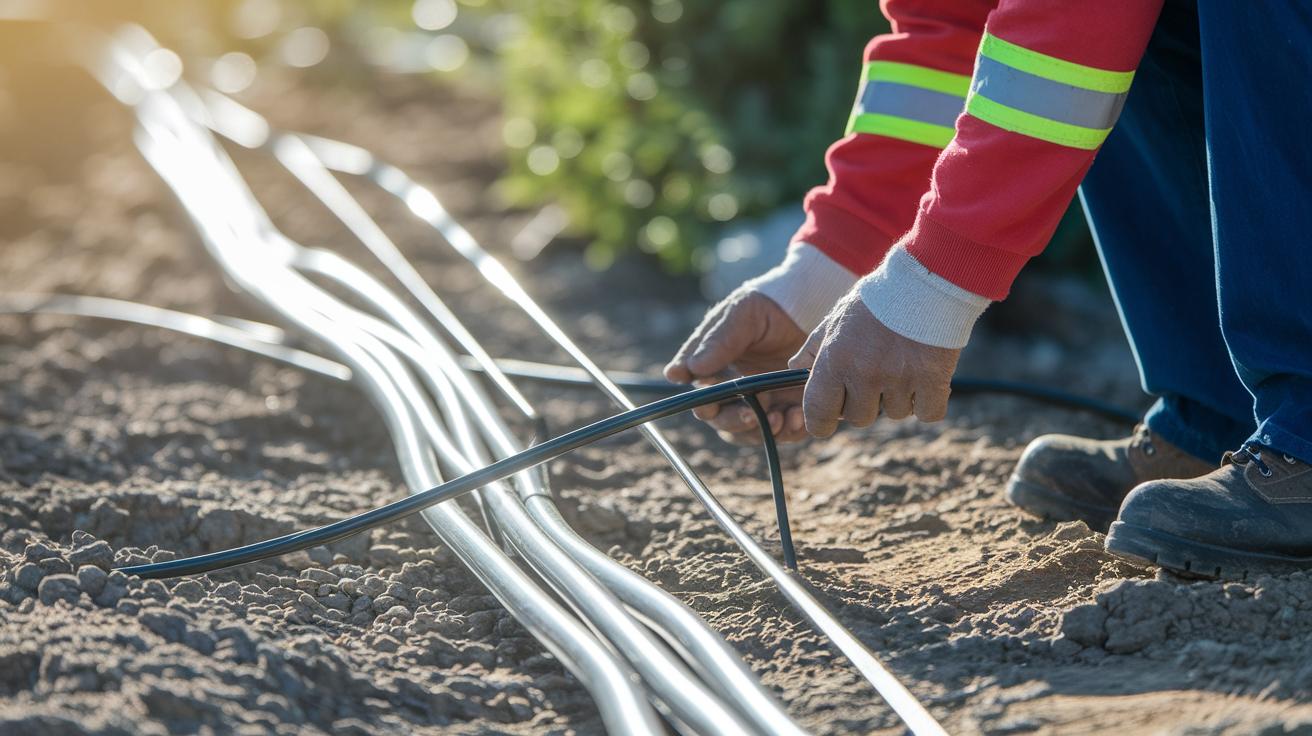
When running cables outdoors, pick ones that are tough against the sun. Use UV-resistant, outdoor-rated, or gel-filled cables meant for direct burial. These cables stand up to bad weather and block UV light. For underground wiring, run your cables in a rigid or flexible conduit. Always set the conduit at a slight angle to help water drain out.
For overhead cables, secure them with messenger wires or cable trays. This stops them from sagging and makes it easier to reach them later for maintenance.
Keep a careful eye on how much you pull on your cables. Too much tension can cut the signal. Also, don't cram too many cables into a conduit or tray. Overcrowding can make them overheat and even damage the wires.
At points where cables exit a box or outdoor area, use proper seals to keep moisture out. In busy or industrial areas, opt for armor jacketing. This extra layer boosts protection against bumps or hits.
Following these steps helps keep your network running smoothly, no matter where the cables go.
Futureproofing and Scalable Network Infrastructure Planning

When you build your network, plan for growth from the start. A well-organized cabling system is key. Place your patch panels in a single area, like Node Zero or a telecom room, to simplify management. Use Cat6a or higher-rated cables for extra headroom with new technologies. For example, if you set up a new office, add extra cable drops for future devices. This smart move limits disruptions when you expand later.
Document every cable run with clear, color-coded cords and labels on outlets. Stick to TIA-568 standards so your layout stays consistent and troubleshooting becomes easier. Also, leave space in cable trays and racks to add new circuits without having to redo your work.
Keep accurate records of every cable route. Detailed notes can save you hours during upgrades. One office, for example, mapped every cable pathway before their expansion, which really sped up the process later.
Plan extra space in your rack and tray design. This approach stops you from running out of room and avoids expensive reconfigurations. By planning ahead, your network stays strong and ready to meet your evolving needs.
Final Words
In the action, this guide showed practical ways to boost your network setup. We walked through cable striping, T568B wiring, and solid termination practices for secure connections.
We reviewed key planning steps, effective cable routing, and proper testing methods that help you avoid mistakes. We also covered outdoor setups, code-safe installs, and futureproof schemes that ensure lasting value.
Use these network cable installation tips to build a reliable system that stands up to everyday demands. Enjoy a smooth, efficient setup and a network that works for you.