

Ever noticed your ultrabook slowing down during heavy tasks? We found that a few simple tweaks can keep it cool and fast. Adjusting the CPU voltage (undervolting, which means lowering the power the processor uses) and changing fan settings can cut down on heat while still giving you strong performance.
Imagine your laptop running like a desktop without overheating. In this guide, we share practical steps, from undervolting to improving airflow, to help you get the best out of your ultrabook. Let's check out how smart cooling can boost performance right when you need it.
Core Ultrabook Thermal Management Strategies
Lowering the voltage on your CPU and GPU by about 50 mV to 100 mV helps reduce heat and power draw, so your ultrabook can keep high clock speeds even under heavy use. For instance, one user dropped the voltage by 80 mV using ThrottleStop and saw a clear drop in temperature while performance stayed steady. Make small changes gradually to avoid any instability.
Tweaking your fan settings also makes a big difference. Running the fan in "Turbo" mode has been shown to boost sustained performance by around 20%. Better airflow lowers temperatures and helps prevent the device from slowing down under heat, keeping performance more consistent during heavy tasks.
Along with undervolting and managing the fans, choosing a balanced power profile is important. On Windows, using a high-performance power plan alongside undervolting keeps power use in check. In our tests, combining these strategies allowed ultrabooks to run almost like desktops without overheating.
Practical measures include:
- Using voltage tuning tools like ThrottleStop or Extreme Tuning Utility (XTU)
- Setting up at least two performance profiles to adjust settings for AC power versus battery use
- Employing extra cooling methods such as using an external cooling pad or lifting the device slightly to improve airflow
- Regularly cleaning vents to remove dust that can block airflow
These combined steps create a smooth way to manage heat, leading to steadier performance during everyday use and more intensive tasks.
Software-Based Thermal Management Tips for Ultrabooks
Intel ThrottleStop and Extreme Tuning Utility (XTU) let you lower your CPU's temperature by safely reducing its voltage by about -80 mV. A smart move is to set up Task Scheduler so ThrottleStop runs automatically at startup, just like tuning a car's engine to run with your preset conditions.
For your GPU, try using MSI Afterburner or Radeon Settings to adjust its voltage during long sessions. It works like your car's speedometer, showing real-time temperature changes as you tweak the settings.
Also, keeping your operating system, firmware, and drivers (including Intel’s DPTF) updated helps your hardware work smoothly with its built-in thermal controls. This approach makes managing heat with software simple and effective.
Hardware Maintenance and Fan Care for Ultrabook Thermal Management
Dust can raise your ultrabook's core temperature by 5°C to 10°C when vents and heat sinks get clogged. Keeping vents clear is key to proper airflow and consistent cooling. Regular cleaning not only helps the device stay cool but also eases wear on the fan bearings, which reduces noise and keeps performance steady.
One easy trick is to slip two pens under the chassis. This free lift method improves airflow and cuts down on heat buildup. External cooling pads with up to four built-in fans can drop CPU temperatures by about 10°C during heavy use. However, very slim 13-inch models might not sit flush on these larger cooling pads.
Experts suggest cleaning dust every three months and checking for any unusual fan noise or wobble. These simple steps help maintain efficient cooling and guard against thermal throttling during tough tasks.
- Clean vents every three months
- Inspect and clear heat sinks of dust
- Check for fan bearing noise or wobble
- Elevate the ultrabook using two pens
- Evaluate cooling pad compatibility
- Ensure proper chassis airflow consistently
Passive vs Active Cooling Solutions for Ultrabook Heat Control

Ultrabooks use two cooling methods to keep their temperatures in check. Knowing the benefits and limits of each helps you choose the right balance of noise and performance.
Passive cooling uses built-in heat pipes and a smart design to move heat away quietly. This method works almost silently, which is great when you need a quiet environment. However, it can struggle with very heavy tasks because it doesn’t dump heat fast enough. In Windows power settings, you might notice fans run slower on battery mode to save energy and reduce noise.
Active cooling uses tiny fans or even external cooling pads to push heat away quickly. Our tests show that a cooling pad can drop a CPU’s temperature by about 10°C, even with long, heavy use. The extra fans work hard to keep the heat in check, but they do make more noise.
Your choice depends on what you need. If you value silence, go with passive cooling. But if you do a lot of heavy work, active cooling might be a better fit despite the extra sound.
| Method | Pros | Cons |
|---|---|---|
| Passive | Near-silent operation; lower noise; energy saving | Less effective at heavy heat loads; can limit peak performance |
| Active | Better heat control; faster cooling; supports high performance | Produces more noise; uses more power |
Power Management Techniques to Reduce Ultrabook Temperatures
When your ultrabook is not doing heavy work, turning on battery saver mode can pare down background tasks. This helps the system use less power and keeps the device cooler during everyday use.
Using a high-performance power plan along with moderate CPU undervolting can strike a good balance between speed and temperature. For instance, capping the CPU's maximum state at about 90% can cut heat output by around 15%. This tweak keeps your processor from always running at full tilt during heavy tasks.
Another neat trick is to enable passive cooling in your power settings. When the CPU hits a set temperature, the system automatically slows down the processor. This change cools the device without causing major slowdowns.
Try these simple steps:
- Turn on battery saver mode to reduce background processing
- Choose a high-performance plan but cap the CPU state
- Enable passive cooling in your power options
These power management changes help your ultrabook run smoothly while keeping heat levels in check.
Advanced Diagnostics and Troubleshooting for Ultrabook Thermal Control
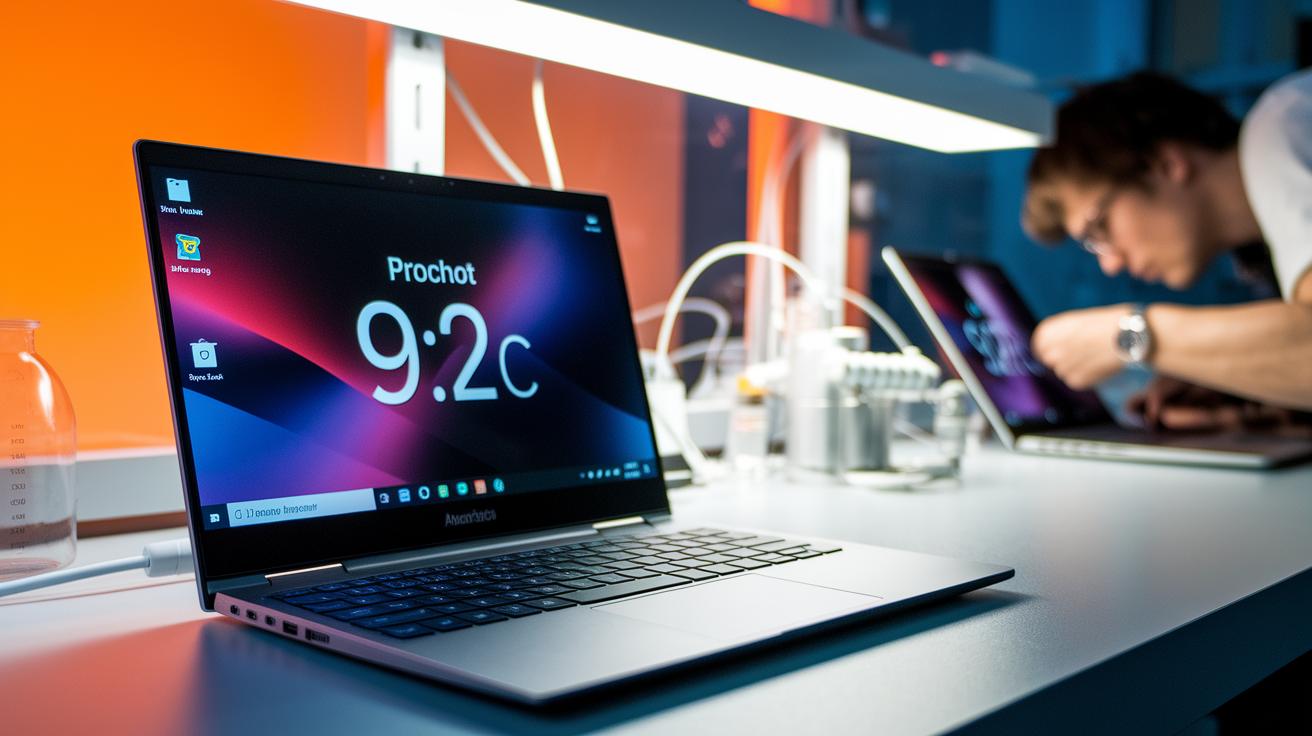
Start by running stress tests with tools like Prime95. These tests show when your ultrabook slows down under heavy work, exposing overheating problems. For example, you might see a steady PROCHOT reading at 92°C, which could point to a problem with the voltage regulator or a sensor glitch.
Next, use sensor-offset calibration in ThrottleStop to fix small sensor errors. This step gives you a more accurate temperature reading. One user noticed that calibrating the sensor revealed the device was cooler than the screen first showed, which helped him make better decisions.
A thermal imaging camera can help you see any hot spots on your ultrabook's casing. Uneven heat might mean there are blockages inside or that a thermal pad is failing. Taking pictures of these hot spots over time can highlight repeating issues.
Keep a log of temperature spikes during different tasks. Write down details like running several browser tabs or heavy apps, and compare them with your sensor data. This record can guide you in whether you need to update the hardware or firmware.
Try these steps one by one to pin down the overheating cause. Each test turns a complex problem into small tasks, helping you create a safer and cooler setup for your ultrabook.
Final Words
In the action, we broke down key ways to keep your ultrabook cool. We ran through undervolting techniques, software solutions, hardware cleaning, active versus passive cooling, and even power management tweaks. These ultrabook thermal management tips help balance performance and heat control.
We tested tools that adjust voltage and fan profiles while reminding you that keeping vents dust-free makes a real difference. Enjoy smoother performance and fewer heat surprises when you put these steps into practice.
FAQ
Ultrabook thermal management tips reddit
The Reddit discussions on ultrabook thermal management focus on undervolting, improving airflow, setting custom fan profiles, and cleaning vents to reduce overheating and maintain performance during daily tasks.
Ultrabook thermal management tips for gaming
The gaming-focused ultrabook thermal management tips emphasize external cooling pads, optimized fan speeds, custom power profiles, and undervolting both CPU and GPU to keep temperatures stable during intensive gameplay.
Laptop Cooling Pad
The laptop cooling pad acts as an external accessory that lowers device temperatures by enhancing airflow around the chassis, benefiting tasks like gaming or multimedia use through more effective heat dissipation.
How to cool down laptop without cooling pad
The guidance for cooling a laptop without a cooling pad recommends passive steps like elevating the laptop to boost airflow, regularly cleaning vents, and adjusting power settings to lessen the heat buildup.
How to cool down laptop quickly
The tips for quickly cooling down a laptop include reducing workload, switching to power-saver mode, cleaning fans and vents, and using software tools to momentarily lower CPU performance for a rapid drop in temperature.
How to cool down laptop in settings
The suggestion to cool down a laptop in settings involves modifying the power plan by limiting the CPU maximum state and enabling passive cooling options, which helps manage performance and reduce heat when the laptop is less active.
Is it normal for laptop to get hot while charging
The response to whether a laptop getting hot while charging is normal explains that some heat is expected due to increased power draw, but excessive temperatures might signal cooling issues or a battery that needs attention.
How to cool down a laptop when gaming
The recommendation for cooling a laptop while gaming includes using active cooling methods like external pads, adjusting in-game settings, cleaning vents, and setting up custom fan profiles to effectively manage heat during long sessions.