

Is your ultrabook screen built for real life? Many promise bright, sharp visuals but sometimes fall short on brightness, detail, or true color. Imagine a screen that makes work and play look great in both dim rooms and bright sunlight. In this guide, we break down key numbers like brightness, contrast, and refresh rates (how fast the screen updates) so you know what you’re getting. We share these details to help you pick the ultrabook that fits your everyday needs.
Ultrabook Screen Quality Guide: Core Evaluation Criteria
Screen quality matters for both work and play. It shows up in how clear and true your images appear. Brightness, resolution, and color accuracy affect your comfort during long work sessions and creative tasks. For example, a screen that reaches 200–300 nits of brightness is easier to use indoors, while color pros may want more than 600 nits to see every detail correctly.
Understanding these numbers helps you see the trade-offs between different ultrabook models. A higher resolution makes text and images look sharper, which is key for graphic design or CAD work. The choice between IPS (a type of display technology that offers wide viewing angles) and OLED panels changes how deep the contrast feels and how colors look from the side. And even the refresh rate, usually starting at 60Hz, can affect how smooth things look when gaming or watching videos.
Key things to check include:
- Brightness (measured in nits)
- Contrast ratio
- Resolution and pixel density
- Color gamut and accuracy
- Panel technology (IPS versus OLED)
- Refresh rate
- Aspect ratio and screen size
These factors combine to create your day-to-day experience. Whether you're editing videos in a bright studio or juggling several apps in a busy cafe, a well-balanced screen makes a big difference. Picking an ultrabook with the right mix of these features means you get a display that works well for almost any task you throw at it.
Brightness and Contrast in Ultrabook Screen Quality
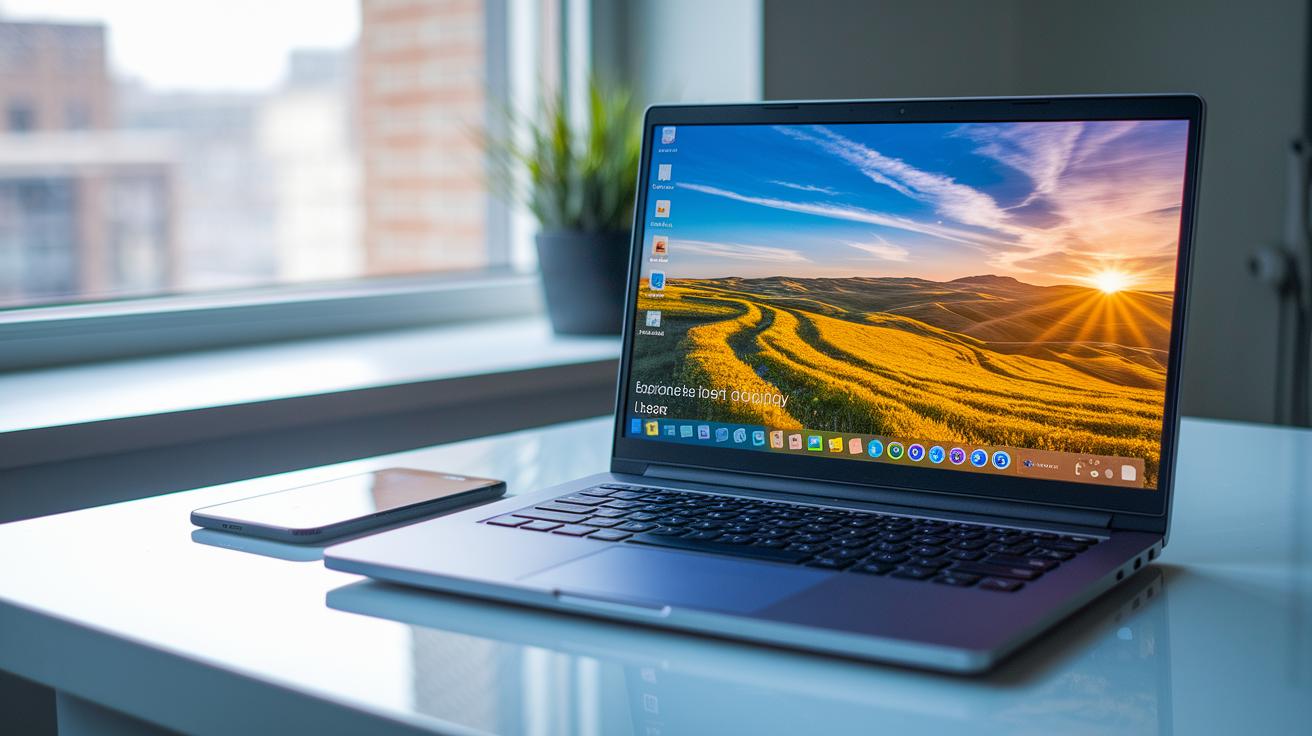
Ultrabook displays must strike a balance between brightness and color depth. For indoor use, a brightness range of 200 to 300 nits is usually enough. It keeps text sharp without causing eye strain. For those working on professional editing or using the device outdoors, screens may hit over 600 nits, though high brightness can sometimes make colors look washed out. Generally, reaching about 250 nits is a solid target to stay clear in mixed lighting. This standard helps us decide which screens handle everyday tasks while also supporting color-critical work.
| Brightness Range (nits) | Ideal Use Scenario |
|---|---|
| 200–300 | Indoor desk use |
| 300–500 | Mixed lighting environments |
| >600 | Outdoor or professional color-critical work |
Contrast is key to a lively display every day. Many screens, especially IPS panels, offer about a 1,000:1 contrast ratio (which shows a moderate difference between dark and bright) that works well for routine tasks. Meanwhile, OLED displays push the envelope by delivering deeper blacks and more vivid colors. This quality makes them a top pick for anyone involved in design or video editing. When brightness and contrast are in harmony, daily computing feels more engaging and clear.
Ultrabook Screen Quality: Resolution and Pixel Density Analysis
When you pick an ultrabook, the screen resolution really makes a difference. Full HD (1920×1080) is common and works fine for web browsing and basic document work. But if you want extra clarity, like for graphic design or detailed CAD work, you might want to move up to QHD (2560×1600) or even 4K (3840×2160). These higher resolutions show sharper text and images, so everything looks cleaner and more detailed.
Pixel density, which is how many pixels you have per inch, also counts a lot. A higher pixel density means smoother text and sharper images. This is key when you work on detailed spreadsheets or create intricate visuals. Bigger pixel density helps reduce the blocky look of the screen, even if you zoom in close.
Another point to keep in mind is the aspect ratio. While many devices stick with the standard 16:9, some are switching to 16:10 or 3:2. These wider options give you more vertical space, which makes it easier to handle multiple windows or creative apps. Balancing resolution, pixel density, and aspect ratio can give you a screen that does well for everyday tasks and professional work alike.
Ultrabook Screen Quality: Color Accuracy and Gamut Coverage
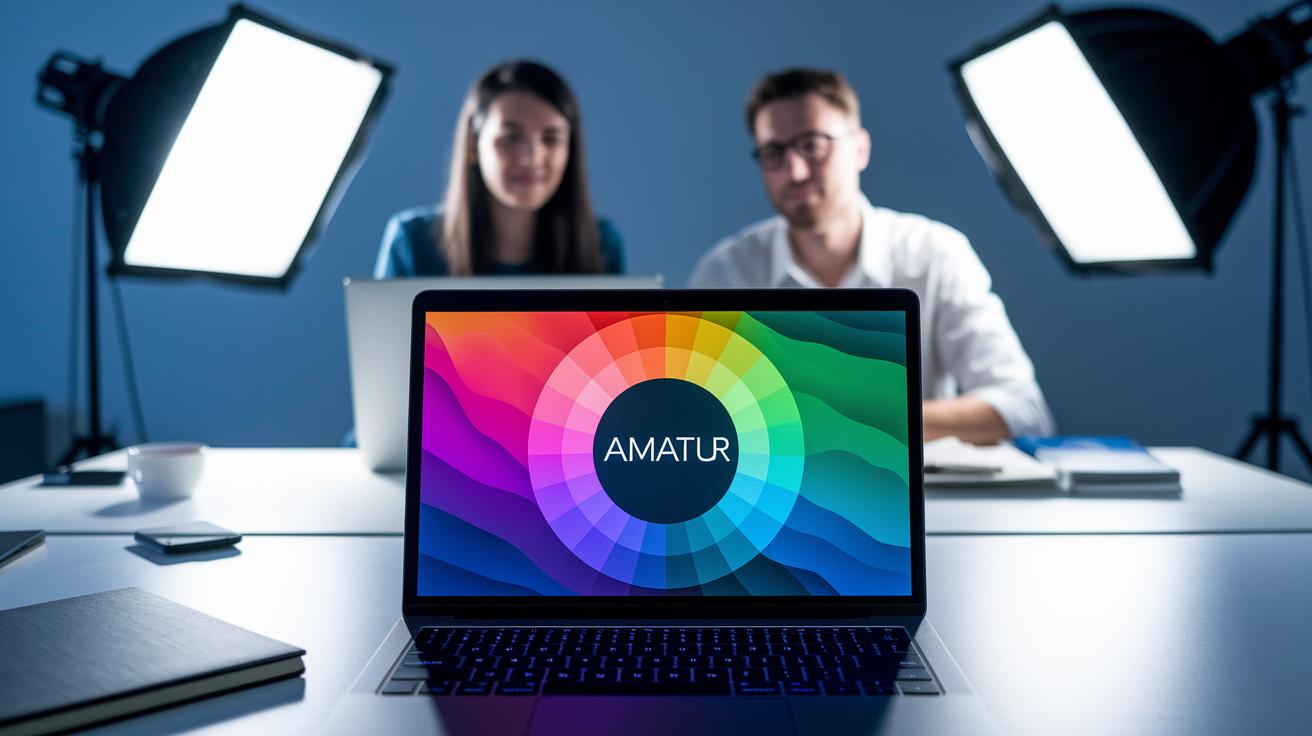
When you look at an ultrabook’s screen, you want it to cover over 95% of the sRGB color range. Many displays now meet and even exceed this mark, with some panels showing more than 100% sRGB (72% NTSC equals 100% sRGB). This means the colors appear rich and true, matching high standards for both print and digital work.
There is a big difference between IPS and OLED panels. IPS screens give steady color even when you look from different angles, which is important if you need the colors to stay the same. OLED panels push deeper colors and higher contrast, meaning the blacks are darker and images jump out more. This difference becomes clear when the lighting changes or when you work on detailed design projects.
For those who need spot-on color accuracy, keeping colors steady across the screen is key. Even small shifts can throw off a design or photo edit. Lower delta-E variations (a measure of color difference) mean the screen stays close to that 95% sRGB target. This reliable performance gives you peace of mind that your display can handle detailed, color-critical tasks.
Ultrabook Screen Quality Guide: IPS vs OLED Panel Technologies
Ultrabooks mix slim designs with vibrant visuals. The type of screen technology makes a real difference. Engineers have worked hard to tune both OLED and IPS panels so they deliver exactly what you need day to day. OLED screens let the device stay super thin with deep blacks and strong contrast, while IPS screens offer steady color and wide viewing angles even if they come in a bit thicker with less punch in contrast.
OLED Panel Characteristics
OLED panels do away with the backlight. This means each pixel lights up by itself, allowing for a very thin display and true, deep blacks. The result is a high contrast image that really pops. Plus, you save energy when watching darker scenes because only the needed pixels light up. There is a chance of burn-in (when a static image sticks on the screen) if you leave the same picture up too long, so keep that in mind if you work with static graphics. Overall, OLED helps keep the ultrabook sleek while delivering lively and rich visuals.
IPS Panel Characteristics
IPS panels use a steady backlight to shine through evenly. This design gives you clear and consistent colors, even when looking from the side. The trade-off is that the screen may be a little thicker and sometimes shows a bit of backlight bleed (light seeping from the edges). Still, IPS is a solid choice if you value reliable color across the board. One thing to note is that IPS screens tend to use more power when showing bright images, so keep that in mind if battery life matters to you.
Ultrabook Screen Quality: Matte vs Glossy Finishes and Anti-Glare Layers
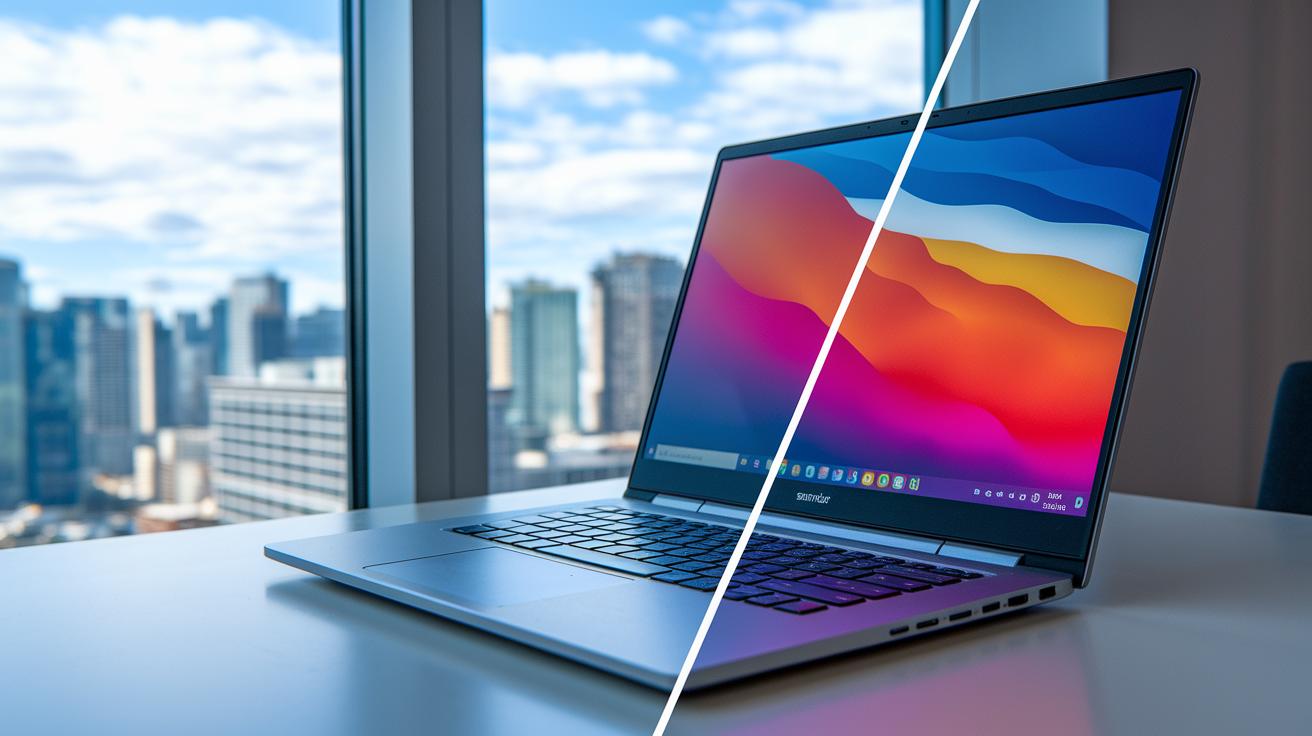
Matte screens have a coating that scatters light. This makes the image a bit softer while cutting down on reflections and glare. As a result, your screen stays clear even in bright rooms or next to a window. Extra anti-glare layers spread out ambient light, which is great for both sunny outdoor spots and busy offices. Ever tried working by a sunlit window and got distracted by glare? A matte finish can really help.
Glossy screens, on the other hand, boost contrast and make colors pop, giving visuals a rich and vibrant feel. They show off stunning details when the lighting is steady. But they also tend to create noticeable glare under direct light, which can get in the way if the light conditions change. This makes glossy screens less ideal in places where light is unpredictable.
When deciding on a screen finish, think about where you usually work. If you are often in bright or variable light, matte coatings or screens with anti-glare layers are a smart pick. If you typically work in controlled lighting and enjoy vibrant visuals, a glossy finish might be appealing, just remember that it may struggle outdoors or in overly bright settings.
Ultrabook Screen Quality Guide: Calibration and Testing Procedures
When you set up your ultrabook screen for daily use, start by adjusting it to about 200-300 nits (a measure of brightness) and aim for 95% sRGB coverage (the range of regular colors). Many ultrabooks include preset tools that let you reach these levels easily, much like adjusting your smartphone's brightness. We recommend testing the screen in your usual work spot to see if it needs extra tweaks.
For creative work or professional use, you might need a sharper calibration. In bright settings or when color accuracy is key, bumping the brightness up to around 600 nits can help. This is when external tools like a colorimeter (a device that measures color) come in handy, allowing you to fine-tune settings such as gamma (how brightness levels appear), contrast, and the white point (the balance of whites). Third-party calibration software often gives you more detailed control than built-in presets, helping you check that every color is accurate and reliable.
Final Words
In the action, we broke down the key factors shaping ultrabook display performance. We covered brightness, contrast, resolution, color accuracy, panel types, finish options, and testing tricks.
Our guide showed how these elements affect real-world use, from indoor tasks to high-demand work. Each metric was explained clearly so you know what to look for when comparing devices.
This ultrabook screen quality guide offers solid tips to help you choose a display that meets your needs and brings value to everyday use.
FAQ
What does Dell ultrabook screen quality guide cover?
The Dell ultrabook screen quality guide covers display brightness, resolution, color accuracy, and panel technology to help users gauge real-world performance.
What is the standard laptop screen size in pixels?
The standard laptop screen size in pixels generally refers to resolutions like 1920×1080, which deliver a clear, balanced display for everyday computing tasks.
What are the laptop screen size width and height measurements?
The laptop screen width and height vary across models, with manufacturers usually providing physical dimensions in centimeters or inches alongside the diagonal measurement.
What is a laptop screen size in cm?
A laptop screen size in cm usually refers to the diagonal measurement, with common models ranging from about 33 cm to 40 cm to match typical display sizes.
What is the HP laptop screen size in pixels?
The HP laptop screen size in pixels typically aligns with common resolutions like 1920×1080, ensuring detailed visuals and overall display clarity.
What is a standard laptop size in cm?
A standard laptop size in cm generally falls between 33 cm and 40 cm diagonally, matching popular screen sizes from 14 inches to 15.6 inches.
What does laptop screen size wallpaper mean?
Laptop screen size wallpaper refers to background images that match the display resolution, such as 1920×1080, to ensure images fill the screen without distortion.
What is the best laptop screen size for students?
The best laptop screen size for students usually ranges from 13 to 15 inches, balancing portability with sufficient workspace for studying and note-taking.
What is the difference between a 2K and a 3K laptop screen?
The difference between 2K and 3K laptop screens is their resolution, where 3K has more pixels and often delivers sharper, crisper images compared to 2K displays.
Is 1080p good for a 15.6 inch laptop?
A 1080p resolution is good for a 15.6-inch laptop because it offers clear visuals and balanced performance for daily tasks and media consumption.
What’s a good screen resolution for a laptop?
A good screen resolution for a laptop typically starts at 1920×1080, with higher options like QHD or 4K available for users who need greater detail or sharper images.
How do I get 1920×1080 resolution on my laptop?
To get a 1920×1080 resolution on your laptop, adjust your display settings in the operating system and update your graphics drivers to ensure proper performance.