

Ever notice your Wi-Fi slowing down even when the signal looks strong? You might see your wired PC zipping along while your phone or laptop seems stuck.
In this guide, I share simple tests you can run on each device to find the culprit. We look at handy tools, check for interference, and hunt down background apps that may be stealing your bandwidth. Follow these clear, step-by-step tips, and you'll soon boost your home Wi-Fi where it counts.
Essential Steps to Diagnose and Fix Home Wi-Fi Speed Issues
Start by testing your home Wi-Fi on every device. Run tests on both wireless and Ethernet connections. For example, a PC hooked up with a cable might get over 200 Mbps, while a TV or laptop on Wi-Fi may only reach about 50 Mbps. These differences show where problems might be hiding.
- Use a tool like Ookla Speedtest to check each device.
- Compare wired and wireless speeds to spot any drop-offs.
- Test during busy and slow hours to see when the network feels crowded.
- Open Task Manager (or Activity Monitor) to check for background tasks that may use up your bandwidth.
- Write down which Wi-Fi channels are in use. Nearby routers on the same channel can cause interference.
- Look at obstacles like walls or appliances that might block the signal.
- Save your initial numbers. This makes it easy to see any improvements later.
Measuring these speeds gives you a clear picture of your network. With real data, you can quickly pinpoint guilty devices or problem areas. This step-by-step method sets you up to boost your Wi-Fi performance and plan the next fixes.
Identifying Common Causes of Slow Home Wi-Fi Speeds
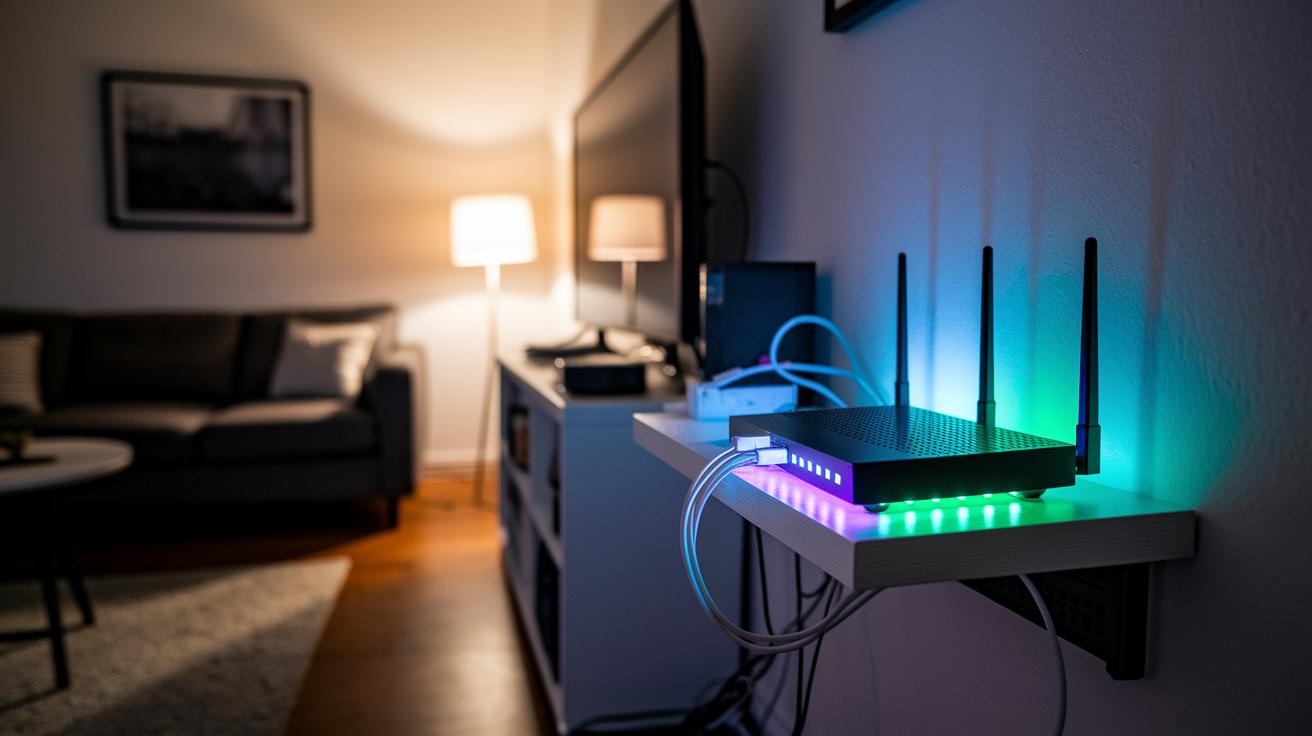
Your Wi-Fi may slow down because of many common issues. Things like signal interference, poor router placement, weak security settings, and too many connected devices can all hurt your speed. Big metal objects, nearby electronics such as microwaves and cordless phones, and other local routers using the same 2.4 GHz channel can block your signal. When your network is overloaded with gadgets or left open to unknown users, it loses speed. Outdated firmware adds to the problem by making your Wi-Fi slower and increasing delays.
| Cause | Symptom | Quick Fix |
|---|---|---|
| Neighbor congestion | More interference from nearby routers | Switch to a cleaner channel |
| Physical obstruction | Weak signal in some rooms | Move the router to a more open spot |
| Network overload | Slow speeds with too many devices | Disconnect or limit device usage |
| Insecure access | Unknown users hogging bandwidth | Boost your network security |
| Outdated firmware | Unsteady performance and risks | Update your router’s firmware |
It is important to check each factor before you start fixing things. By finding the exact problem, you can fix slow speeds step by step and make your Wi-Fi work better.
Optimizing Router Placement and Configuration for Better Speeds
Set your router in a central, open spot and high up. This simple move can boost your Wi‑Fi speeds right away. Even small tweaks in placement and setup can improve your connection and reduce issues.
- Get the router out of closets, corners, and tight spaces to spread the signal better.
- Keep it away from other gadgets and big metal objects so interference stays low.
- Use separate names for the 2.4 GHz and 5 GHz networks to manage your devices more easily.
- Pick less busy channels, like 1, 6, or 11 on the 2.4 GHz band.
- If your router supports it, try turning on the Wi‑Fi 6E or Wi‑Fi 7’s 6 GHz band.
- Aim external antennas toward the spots where you use the most devices to focus the signal.
Balancing how devices connect on different bands can cut down on signal jumps and dead spots. This careful setup makes your network run smoother, with fewer slowdowns and interruptions.
Updating Firmware and Inspecting Hardware to Resolve Speed Drops
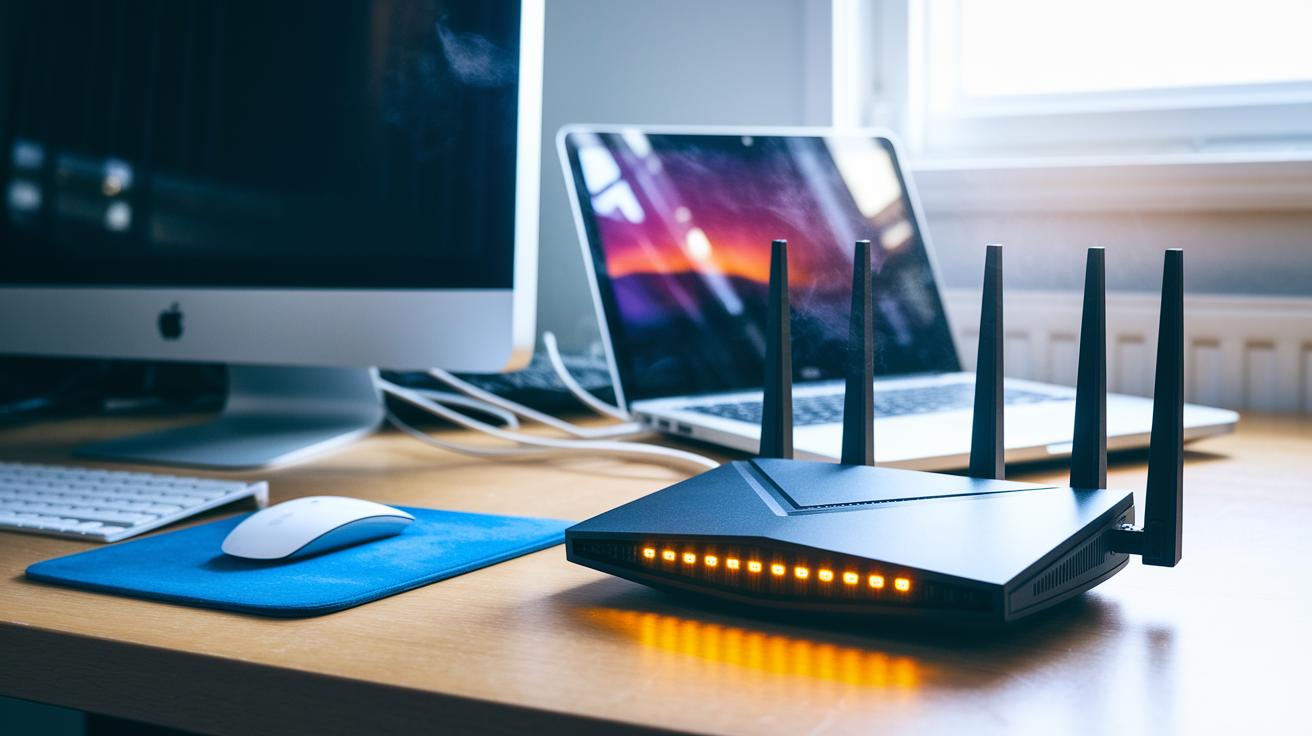
Updating your firmware and drivers can fix glitches and boost network speed. Without the latest software, your router and devices might slow down or lose connection, which makes looking for issues much harder.
• Start by updating your router’s firmware using the admin dashboard provided by the manufacturer. For extra help, check out these router maintenance tips: https://circuitcritics.com?p=1692.
• Make sure your computer and laptop network drivers are up to date so they work smoothly and keep the data moving fast.
• Look over your router and any extenders for dust buildup or overheating signs. Dust can block vents and make the gear work poorly.
• Try a warm restart to clear out any minor glitches. Keep in mind, while rebooting often fixes short-term issues, doing it too much won’t necessarily keep problems away.
Doing regular checks as suggested by the maker can stop many common network issues. Keeping your firmware, drivers, and hardware in good shape is a great first step to enjoy a steadier and faster home network.
Conducting Advanced Environmental and Interference Audits
Scanning your wireless environment is essential in busy living spaces where many devices and networks overlap. By checking the channels used around you, you can clearly see where dead zones and interference happen. This simple audit helps you understand when and where performance drops occur, guiding you to make tweaks that boost your connection.
Using Wi-Fi Analyzer Apps
Wi-Fi analyzer apps like NetSpot let you take a quick look at your network’s airwaves. Install one on your computer or phone to see a visual map of nearby networks and the channels they use. For instance, you might notice a cluster of networks on the 2.4 GHz band, which can interfere with your own signal. Recognizing these patterns helps you pick a less crowded channel and adjust your setup to work better.
Shielding and Channel Tuning
Sometimes a small change makes a big difference. A simple trick is placing a sheet of aluminum foil behind an antenna, it can help shield your signal and give it a slight boost in crowded areas. You can also manually choose a channel on your router, switching between options like 2.4 GHz, 5 GHz, or even 6 GHz. This tactic works best when interference is concentrated, letting you fine-tune your system and improve overall performance.
Implementing Wired Connections and Mesh Systems to Improve Home Network
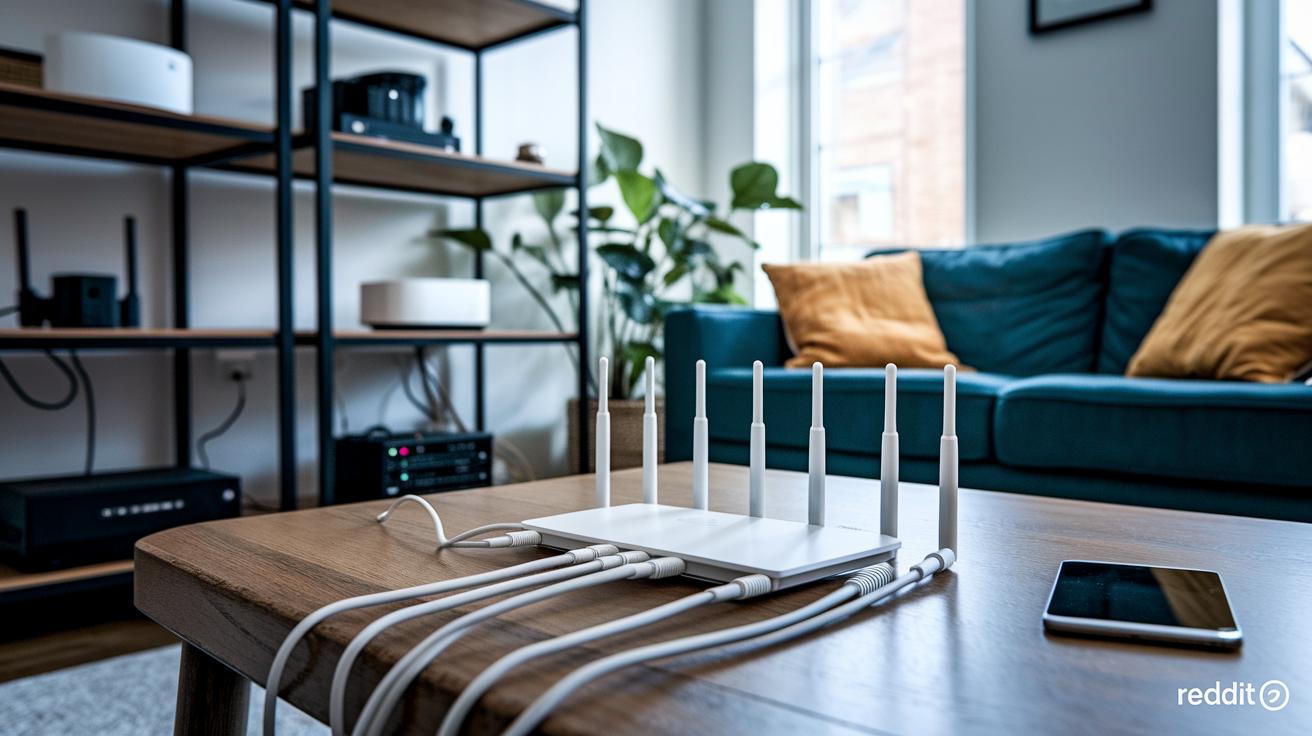
Wireless networks can sometimes drop the ball with dead spots or slow speeds. When that happens, wired connections and mesh systems can make a big difference by building a solid network backbone that reaches every room.
- Direct Ethernet connection: For the best speed and stability, plug your game console, PC, or smart TV straight into your router with an Ethernet cable.
- Powerline adapters: These gadgets send your internet signal through your home’s electrical wiring. Keep in mind, though, that how well they work depends on the quality of your wiring.
- Mesh networks: Set up a few nodes that connect via wired backbones. They help fill in dead zones while keeping your full bandwidth intact.
- Extenders: Old-school extenders can be hit or miss. After you install one, check the speeds to be sure it’s boosting your signal as promised.
- Checking node speeds: Log in to your router’s admin page to see if every node is performing at the rate you expect.
Place your adapters and nodes carefully for the best coverage without any speed loss. Putting them in low-interference spots helps you build a strong network that's ready for heavy streaming and everyday internet use.
Ongoing Monitoring and Maintenance to Sustain Wi-Fi Performance
Doing regular checks keeps your connection in top shape. When you run a routine review, you can spot small changes before they become big issues. Sometimes, simple audits show you hidden congestion or interference that might not stand out day-to-day. A quick look at your speeds and network activity lets you tweak settings so you avoid sudden slowdowns. This steady upkeep makes sure your network stays reliable, even when you push it hard.
- Monthly speed tests: Run tests to check download and upload speeds along with latency (the delay before data moves).
- RF environment rescans: Use a Wi-Fi analyzer to detect congestion or interference from new devices.
- Reviewing QoS and device load balancing: Adjust settings so that gaming, VoIP (voice over internet protocol), or streaming get top priority.
- Logging hardware reboots: Keep a record of every restart and firmware update to note any changes in performance.
- Escalating to the ISP when in-home fixes fail: If updates and tweaks don’t help, let your internet provider check for issues with the line or setup.
Keeping a log of each change and its effects helps you build a handy history of your network’s performance. This record shows what works and helps you plan future adjustments, ensuring long-term stability and a steady connection.
Final Words
In the action, we mapped out steps to test, measure, and compare Wi-Fi speeds with tools and practical techniques. We covered interference checks, router repositioning, firmware updates, and even shifting to wired or mesh systems. Following these steps gives you a roadmap to tackle how to troubleshoot wi-fi speed problems at home. Stick with these clear actions and enjoy a smoother, more reliable network day after day.
FAQ
Why is my internet slow on my phone, including Android devices?
The internet on a phone can be slow due to low signal strength, background apps, and network congestion. Testing different networks and updating your phone’s software can often improve performance.
Why is my internet slow on my computer but not on other devices?
The computer might be running heavy background processes or outdated network drivers, which other devices avoid. Running updates and checking for interference can help boost your computer’s speeds.
Why isn’t my Wi-Fi working on my phone?
Wi-Fi on your phone may fail if there’s a misconfigured network, outdated OS, or router glitch. Restarting your device or resetting network settings usually helps resolve connectivity issues.
Why is the internet slow today in my area even with a good connection?
Internet speeds may drop locally due to network congestion or ISP issues, even if your connection is strong. Testing at different times and contacting your provider may reveal the root cause.
How can I fix slow internet on my phone and improve Wi-Fi speed?
Improving slow internet on your phone often means restarting the device, updating software, and switching between Wi-Fi and cellular data. Testing with a speed app can guide further troubleshooting.
How do I diagnose Wi-Fi speed issues and figure out what is slowing down my connection?
Diagnosing Wi-Fi issues starts with running speed tests and checking active apps. Using diagnostic tools can identify interference, device limits, or background activity that may be affecting your network performance.