

Trouble pairing your Bluetooth headphones? We've been there. First, check that your phone's Bluetooth is on. Next, keep your headphones close to your device. Finally, give both a quick restart.
Think of this like talking face-to-face instead of shouting across the room. These steps help clear old connections and fix low battery issues. Soon, you'll be back to your favorite tunes without a hitch.
Let's get your headphones working again.
Complete Step-by-Step Bluetooth Headphone Connection Troubleshooting Guide
-
Make sure your master device’s Bluetooth is turned on. Check your phone or laptop’s settings. If you don't see the Bluetooth icon, flip the switch.
-
Keep your headphones within 10 feet of the source. Avoid walls or metal objects that could block the signal. It’s like having a face-to-face conversation instead of trying to shout from another room.
-
Put your headphones into pairing mode. Hold down the power button for 5 to 7 seconds until the LED flashes blue and red. Many skip this step, but that blinking light tells you the headphones are ready to be discovered.
-
Remove old Bluetooth connections from your device. This stops your headphones from automatically linking to a previous connection and causing trouble.
-
Restart both your headphones and your master device. Turn them off for about 30 seconds and then back on to refresh the connection, like giving them a quick break.
-
Check that both devices have a battery level above 20%. Low battery can weaken the signal and lead to dropouts or connection hiccups.
-
Verify compatibility. Your master device should support Bluetooth Smart (modern Bluetooth found in devices with iOS 7+ or Android 4.3+). Ensuring both use the same Bluetooth version helps them talk to each other without miscommunication.
-
Minimize wireless interference by keeping your devices away from Wi-Fi routers. If you’re juggling multiple connections, see if your headphones support multipoint connectivity to prevent conflicts.
Common Bluetooth Headphone Connection Issues and Their Causes
-
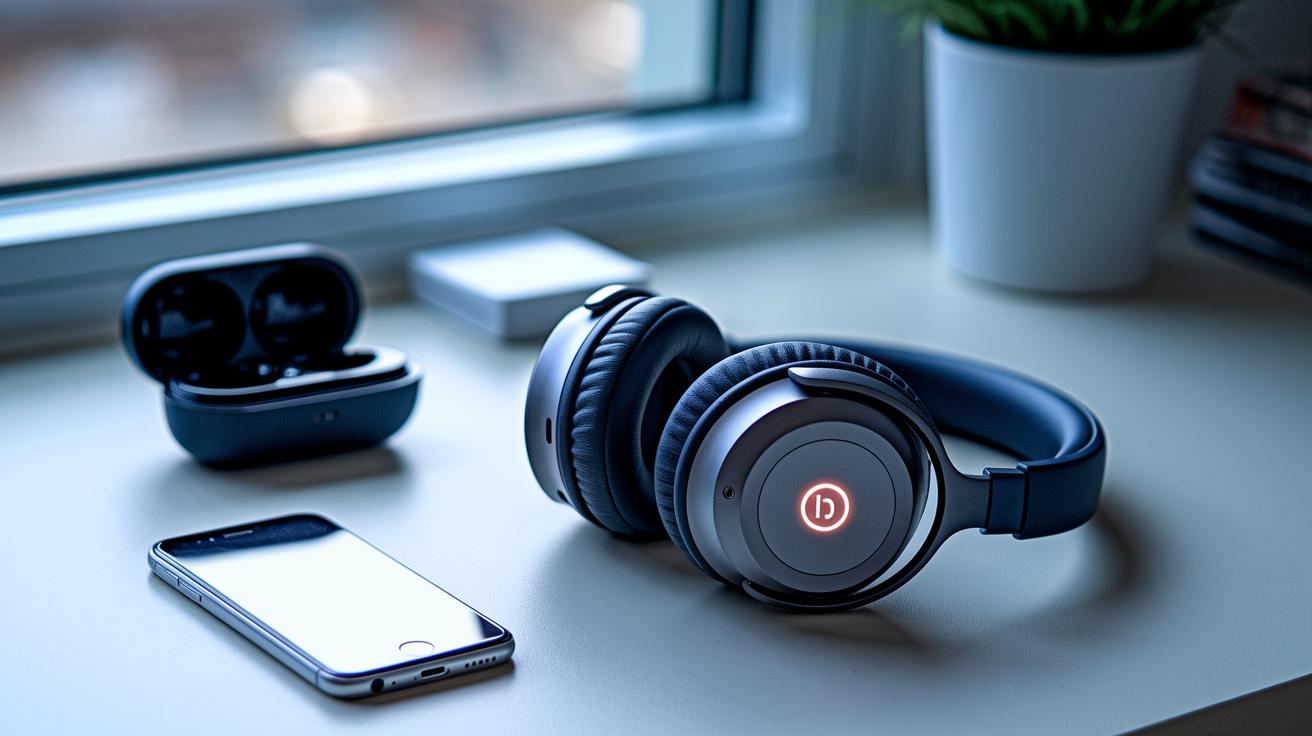
Pairing failures can happen when your headphones do not connect, even if you follow the steps. This often occurs when the headphones are not set to pairing mode (look for a blinking light) or the device’s Bluetooth is off.
-
Random dropouts during playback can be caused by low battery in either the headphones or the main device. If you notice the sound cutting out, it might be time to charge them.
-
One-sided or uneven audio, where one earbud plays but the other does not, is usually not a hardware fault. This issue can arise if the earbuds are not placed correctly in the charging case or if there was an error during pairing. Ensuring both earbuds are seated properly usually fixes the problem.
-
Poor sound quality or audio delays may result from codec mismatches. For example, if one device uses a codec like aptX and the other uses AAC (different methods to compress audio), this can create a lag that makes music or voice sound off.
-
Multipoint conflicts occur when more than one device is in range. If the headphones connect to the last-paired device by mistake, you might hear audio from an unexpected source.
Diagnosing Hardware and Software Factors Affecting Bluetooth Headphone Connections
Start by updating your device's Bluetooth drivers. Outdated drivers can cause connection issues. On Windows, for example, open Device Manager, right-click on the Bluetooth item, and choose update. Mac, Android, and iOS users should check their settings for any driver updates.
Next, update your headphone firmware with the maker’s companion app. If your headphones have old firmware, you might hear stuttering or dropouts. One user even said that updating fixed a stuttered audio problem. Check the app’s version and update notifications to make sure your headphones are running the newest software.
Then, double-check your audio settings. Make sure your headphones are set as the default audio output. Also, verify that the proper audio profile is active, use Hands-Free Profile (HSP) for calls or Advanced Audio Distribution Profile (A2DP) for high-quality sound. If you hear delays or one-sided audio, adjusting these settings can help.
Finally, confirm that your device supports Bluetooth Smart (which means iOS 7+ or Android 4.3+). Also, check that the Bluetooth versions are compatible. Ensure the source and your headphones both support the same codecs (aptX, LDAC, or AAC) so you avoid sync issues and quality drops.
- Check and install OS Bluetooth driver updates
- Update headphone firmware via the companion app
- Verify Bluetooth Smart and matching version support
- Review system audio settings and default profiles
- Confirm codec support aligns on both devices
Resolving Interference and Range Problems for Bluetooth Headphones
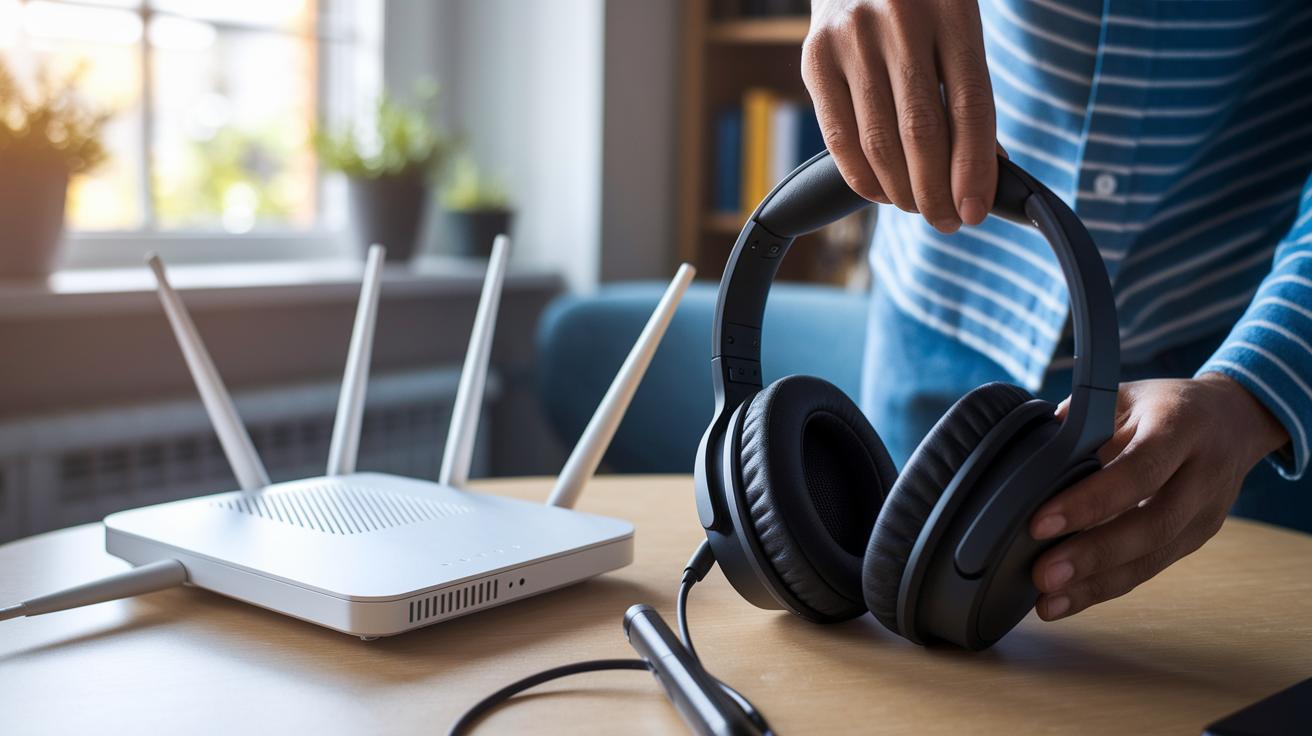
Bluetooth and Wi-Fi often share the same 2.4 GHz band. That means your wireless router can sometimes interfere with your headphone connection. A good trick is to keep your headphones and the device paired with them at least 3 feet away from your router.
If your router is busy on too many channels, try switching channels in its settings. For example, moving from channel 6 to channel 11 can cut down interference. For detailed guidance, you can check out router maintenance tips on our website.
Also, avoid pairing or playing music near metal surfaces or concrete walls. These materials can block radio signals, which may cause your connection to drop or become unstable. Try using your headphones in different rooms to spot the best spot with fewer barriers. If one room constantly causes issues, it might be best to set up where there are fewer obstructions.
In some cases, a hardware fix can help. An external USB Bluetooth adapter with a high-gain antenna often delivers a stronger, steadier signal, especially in environments with a lot of radio noise.
- Keep your headphones and source device at least 3 ft away from routers
- Change router channels if interference persists
- Stay clear of metal and concrete during pairing and playback
- Test your setup in different rooms
These steps help ensure you get a stable and clear Bluetooth connection without constant interference.
Optimizing Bluetooth Headphone Settings, Firmware, and Codecs for Seamless Audio
Begin by checking if your headphones support advanced audio codecs like aptX, LDAC, or AAC (the rules that compress and transmit sound). If you hear lag or sync issues, try switching between these profiles, for example, change from AAC to aptX and listen for a smoother sound.
Next, open your headphone's companion app and look for firmware updates. New firmware can clear up delay problems and boost overall connectivity. Also, review your device or app audio settings to ensure the stereo balance is even. Play a song where one channel has distinct sounds (like vocals on the left and instruments on the right) and adjust until both sides sound equal.
Lastly, if your device offers a latency-reduction mode, turn it on and experiment with different codec profiles. This step might further reduce any noticeable delay.
Preventative Maintenance and Best Practices for Bluetooth Headphone Connection Stability
Keep your firmware and drivers up to date. Outdated software can cause bugs like sudden dropouts and poor sound quality. We’ve seen cases where a firmware update kept a user’s connection strong all day.
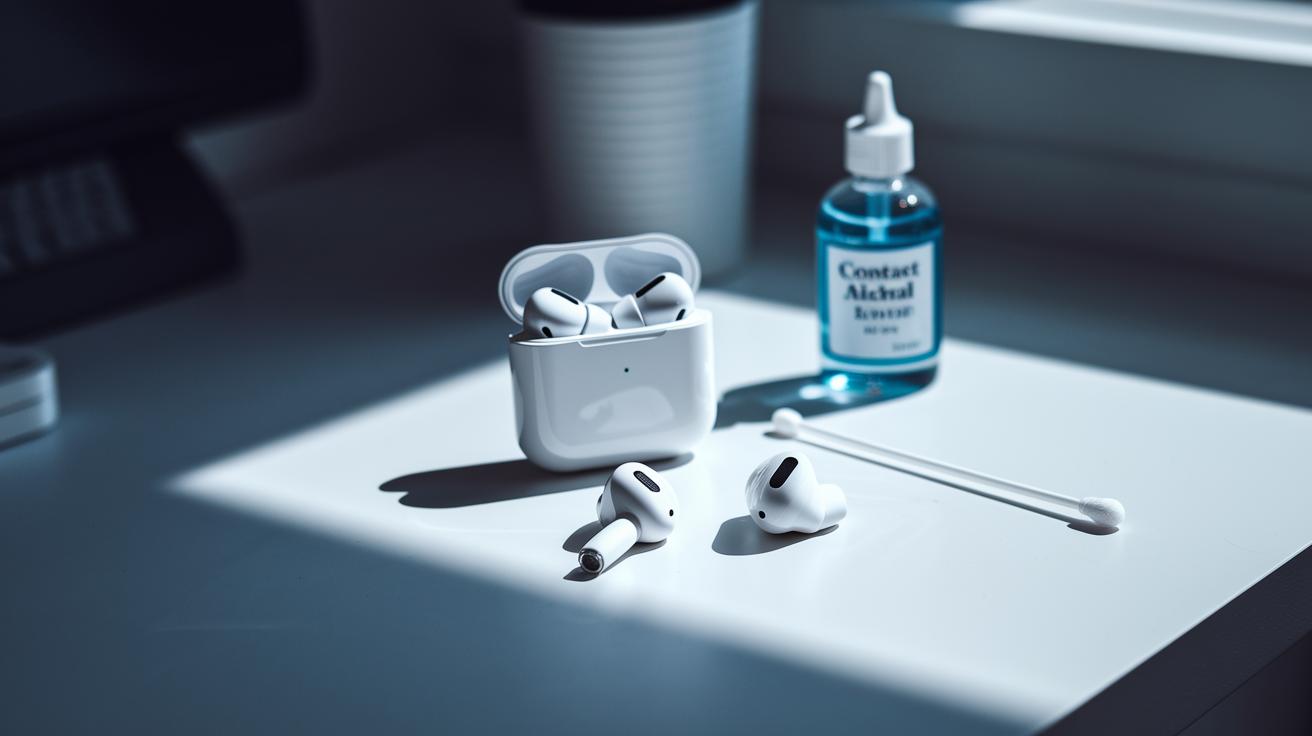
Regularly clean the headphone contacts and the charging case terminals. Use a dry cloth or a contact alcohol swab to remove any dust or debris. This simple step can boost performance and extend your headphone life. For more cleaning tips, check our peripheral maintenance guide.
Try to keep your battery level between 20% and 80%. Batteries that are too low or too fully charged may affect the signal, so managing the charge keeps the connection steady.
When you face connection issues, follow proper shutdown and reboot steps. Turning your device off for about 30 seconds before restarting can clear temporary glitches.
- Keep firmware and drivers updated
- Clean contacts and case terminals regularly
- Maintain battery levels within 20% to 80%
- Follow proper shutdown and reboot procedures
These steps help prevent future problems and keep your Bluetooth link reliable.
When to Reset, Forget, or Re-Pair Your Bluetooth Headphones
If your Bluetooth connection keeps giving you trouble, start by removing the old profile. Go to your Bluetooth settings and tap on "Forget This Device." If your headphones still don't work right, try a factory reset. Check your manual for the exact steps, usually, this means holding the power button for about 10 seconds until the LED flashes blue.
These steps build on the simpler fixes like disconnecting and restarting your devices.
- Select "Forget This Device" to clear old pairings.
- Do a factory reset using the button sequence in your manual.
Contacting Support and Additional Resources for Bluetooth Headphone Troubleshooting
If your Bluetooth headphones still have connection issues after trying every fix, it's time to get help. A manufacturer or an authorized service center can check for hardware problems or other complex faults that a simple reset can't fix. Look at your user manual for warranty details and repair options on the product website.
Before you reach out, write down every step you've taken. This list helps support teams see what you've already tried. It also shows that you've done your homework. If you suspect a hardware defect, professional repairs might be needed to fix the issue properly.
- Monitor your warranty status for repair eligibility
- Keep a detailed record of the troubleshooting steps
Also, note any error messages or odd behavior to share with the support team. This info can help speed up the repair process.
When basic fixes don't work, professional help is available.
Final Words
in the action, we walked through a clear and straightforward guide on how to troubleshoot bluetooth headphone connection issues. We broke down basic checks like ensuring Bluetooth is enabled, keeping devices close, and using pairing mode correctly. We then addressed common issues such as dropouts, balance problems, and interference, before steering into firmware upgrades and battery checks. We even covered when to reset or reach out for support. This hands-on guide gives you real steps to get your setup working smoothly and confidently. Enjoy your hassle-free listening experience!
FAQ
How do I troubleshoot Bluetooth headphone connection issues on Windows 10, iPhone, and Android?
The troubleshooting process for Windows 10, iPhone, or Android involves ensuring Bluetooth is enabled, removing older pairings, placing headphones in pairing mode, and restarting both devices. Checking battery levels also helps.
Why is Bluetooth not finding devices?
When Bluetooth doesn’t find devices, confirm both the source and headphones are in pairing mode, within a close range, and free from interference. Updating drivers or firmware might also resolve the issue.
Why are my wired headphones not connecting?
Wired headphone issues usually stem from loose connections, a damaged audio jack, or incorrect settings. Checking the plug, testing on another device, and confirming the correct output device in settings often fix the problem.
How do I fix Bluetooth pairing and connection problems, including glitchy or unresponsive performance?
To fix pairing and connection issues, remove old pairings, restart both devices, and verify that the headphones are in proper pairing mode. Update firmware and drivers, and work in a low-interference environment for better results.
Why are my Bluetooth headphones connected but not working?
Connected but non-functioning headphones may point to low battery, misconfigured audio settings, or driver issues. Checking and updating firmware, ensuring sufficient charge, and selecting the right output device can solve this issue.
My Bluetooth earbuds won’t connect to each other—what should I do?
When earbuds won’t connect to each other, follow the manufacturer’s pairing instructions, reset the earbuds if necessary, and remove past pairings. A restart of both earbuds can help them synchronize properly.
How do I reset Bluetooth headphones?
Resetting Bluetooth headphones usually requires holding the power button for about 5–7 seconds until the LED flashes. Consult your manual for the exact factory reset procedure, then re-pair the headphones with your device.