

Is your smart TV not working right and making things slow? A factory reset can clear bugs, free up memory, and let your TV start fresh in just a few minutes. This guide walks you through how to reset it quickly. When you reset, your saved settings like Wi-Fi and app data are wiped, bringing your TV back to its original state. Follow along for easy steps and helpful tips on getting your TV running smoothly again.
Step-by-Step Smart TV Factory Reset Guide
If your smart TV starts to lag, crash apps, or show glitches, a factory reset can help. It wipes out your saved Wi-Fi, apps, and login data, giving you a fresh start. Before you begin, jot down your Wi-Fi password and streaming service details.
- Turn on the TV and tap the Home button on your remote. This brings up the main menu.
- Head over to Settings and find the General or System section.
- Pick Reset from the list. A warning will tell you that your saved settings will be erased.
- Enter the default PIN (often 0000 or 1234). For example, type 0000 when asked.
- Confirm that you want to proceed by selecting Yes or Confirm.
- Wait while the TV clears its memory. It will shut down services and delete all user data.
- Allow the TV to restart on its own. The screen will flash, and then you'll see the initial setup screen.
- If you can’t reach the menu, try using the remote’s built-in reset function. On older models, this means holding down a specific key combination (check your manual for details).
After the reset, the setup wizard will guide you through choosing a language, connecting to Wi-Fi, and signing into your accounts. Your TV now acts like it's just been unboxed and is ready for a new setup.
Samsung Smart TV: Complete Factory Reset Instructions
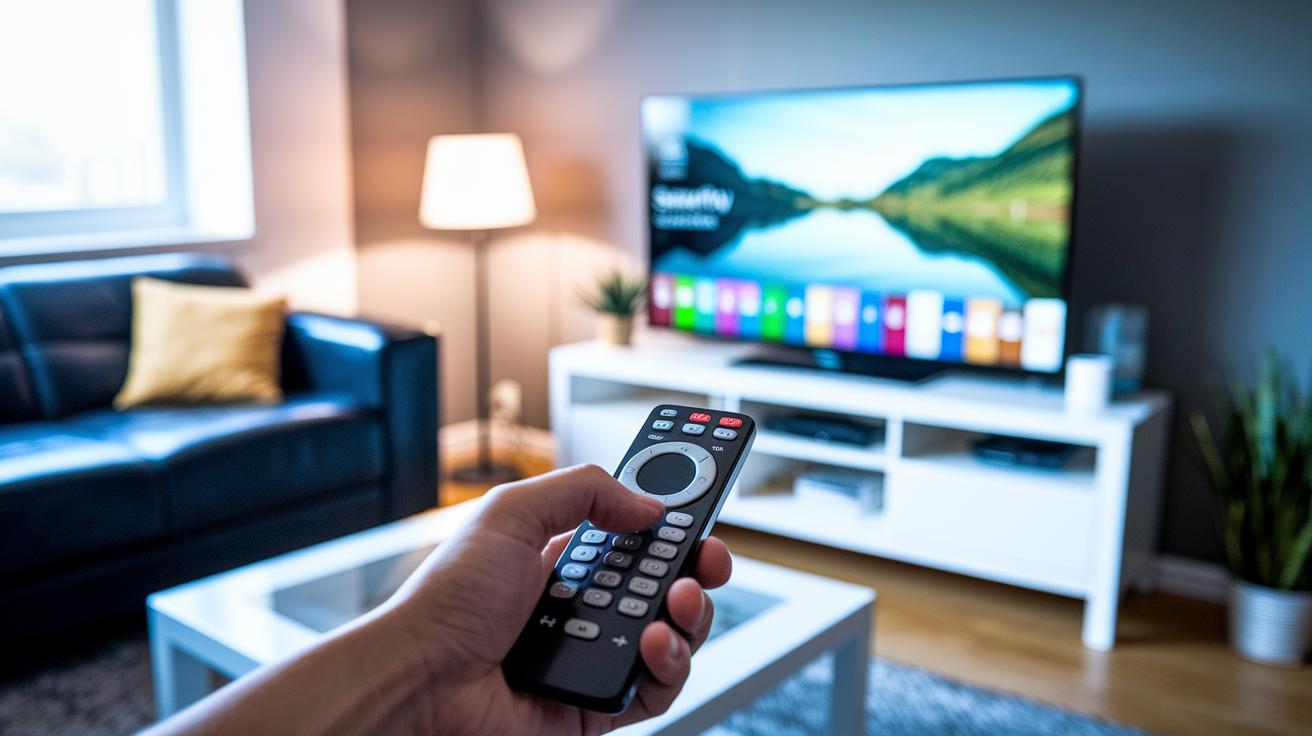
A factory reset wipes all your saved settings to fix glitches, slow performance, and app crashes. Before you start, be sure to note down your Wi-Fi passwords and streaming logins. Pick the reset method that fits your Samsung model; each method comes with model-specific tips.
Method 1: Reset via Settings Menu (Recommended)
Press the Home button on your remote. Then, go to Settings > General > Reset. Enter your PIN (usually 0000 or 1234). A warning will pop up to let you know that all custom settings and apps will be erased. The TV will clear its memory and restart. Once it boots up, a setup wizard will guide you through language selection and connecting to Wi-Fi. On some newer models, you might also see on-screen troubleshooting tips if certain issues, like persistent app errors, aren’t fully resolved.
Method 2: Reset Using the Remote
If you can’t access the menu or your TV has older firmware, try this method. Hold the specific key combination on your remote (check your TV manual for details). This will restart your TV without needing to navigate the menus and launch a basic setup. This method is useful if the menu doesn’t respond or if your model has quirks that make the menu reset difficult.
Factory Reset vs Hard Reset on Smart TV: Key Differences
A hard reset wipes away small software glitches by simply turning your TV off and on again. This quick power cycle can fix minor issues without deleting your apps, settings, or Wi-Fi setup. It's much like rebooting a frozen computer.
A factory reset, on the other hand, clears nearly everything. It removes all your user data, including the apps you installed, saved Wi-Fi details, and login info. Then the TV goes back to the state it was when it left the factory. This reset works best when you face ongoing problems or major malfunctions.
When deciding which reset to use, think about how much data you want to keep. A hard reset is perfect for little hiccups, while a factory reset is a good choice for a complete system refresh. And if you still see issues like HDMI errors or blurry video after trying both, it might be a sign of a hardware problem.
Preparation for Smart TV Factory Reset: Data Backup and Safety
Before you hit reset on your TV, take a few minutes to gather all the key details. This simple prep helps you avoid losing important information and stops any hiccups during the reset process. After the reset wipes your saved Wi-Fi networks, apps, and custom settings, you'll need your backup details to quickly set up your TV again. Also, plug your TV into a surge protector to guard against power issues that might interrupt the process.
- Save your Wi-Fi names, passwords, and streaming service logins.
- Write down any custom settings or channel lineups you may want later.
- Make sure your TV is connected to a surge protector.
- Check that your TV’s firmware (the software that runs it) is up to date.
- Look up your TV’s user manual for the default PIN and any model-specific tips.
Troubleshooting Smart TV Factory Reset Failures and Error Codes
It can be a real hassle when your TV fails to reset properly. You might see error messages, the reset might freeze, or it may even get stuck in a loop. Here are some common issues and practical steps to try.
-
Your TV might show an "Incorrect PIN" error. For instance, if typing 0000 or 1234 still brings up an error, double-check your input and refer to your user manual for model-specific instructions.
-
Sometimes the reset process stops mid-way. In these cases, your TV screen might freeze because it lost power briefly. Check that your power supply is stable and consider using a surge protector to avoid interruptions.
-
If both factory and hard resets fail after multiple attempts, this can indicate a hardware issue, like a problem with the main board. When this happens, it may be time to contact technical support or explore replacement parts.
Keep an eye on these symptoms and use these steps to diagnose and fix your TV’s reset problems. Have you ever run into these reset issues before?
Final Words
In the action, we covered everything from step-by-step instructions to prep work that ensures no important data gets lost. The guide walked through two methods, outlined what to expect after a reset, and gave easy troubleshooting tips if things go sideways. We showed how a factory reset wipes user settings completely, setting the stage for a fresh start. Follow our guide to know how to factory reset a smart tv so you can solve glitches and get your display back to its original performance.
FAQ
How do I factory reset my smart TV using the remote control?
Using your remote control, you can perform a factory reset by accessing your TV’s settings. Typically, navigate to Settings > General > Reset and enter the default PIN (often 0000 or 1234) to confirm. The TV then reboots.
How do I factory reset my smart TV without a remote?
When you lack a remote, locate physical buttons on your TV to navigate or trigger a reset. If these steps do not work, consult your user manual as reset methods vary by model.
How do I perform a hard reset when my Samsung TV screen is unresponsive?
Performing a hard reset means power-cycling your TV. Unplug the TV from the wall, wait about a minute, then plug it back in. This process clears temporary glitches without erasing personal settings.
How do I force a factory reset on my smart TV?
Forcing a factory reset often requires using the TV’s built-in button sequence or holding down specific buttons. Check your user guide for explicit instructions, as the method differs by model.
Why might my Samsung TV require a reset code or PIN during a factory reset?
Samsung TVs request a reset code or PIN to avoid accidental resets. The default code is usually 0000 or 1234. If these do not work, refer to your manual for the correct code.