

Ever wonder if dust in your computer is slowing it down? Dust makes parts like the CPU (the computer's brain) and GPU (graphics card) work harder than they should, which can lower performance and even cause damage. Cleaning your PC is like giving it a tune-up that helps it stay cool and run smoother. In this guide, we show you a step-by-step method to safely remove dust without harming any delicate parts. A clean computer not only runs better but also lasts longer. Isn't it worth a try?
How to Clean a PC Safely: Bright Results
Keeping your PC clean is key to its performance and life. Dust can trap heat and slow your computer down by making parts like the CPU (the brain of your computer) and GPU (the part that handles images) work too hard. A clean PC helps fans and heat sinks get the cool air they need.
Try this routine: dust the PC lightly every 1–2 weeks, wipe the outside once a month, and do a deep clean inside every 3–6 months. Follow a clear, step-by-step method so you don’t damage any parts.
- Turn off your PC and unplug it.
- Move it to a bright, well-ventilated space on a flat surface.
- Wipe off the outer panels and any connected devices.
- Remove the side panel using the right screwdriver.
- Use compressed air to clear dust from inside. Hold the fans still so they do not spin.
- Put everything back together, plug your PC in, and check that it works.
Before you finish, look at the filters on the intake and exhaust fans. They can collect a lot of dust. Take your time and use the manufacturer’s recommended torque settings for the screws. This careful approach helps avoid static shocks and makes sure your PC keeps a steady flow of cool air.
Tools and Preparations for Safe PC Cleaning
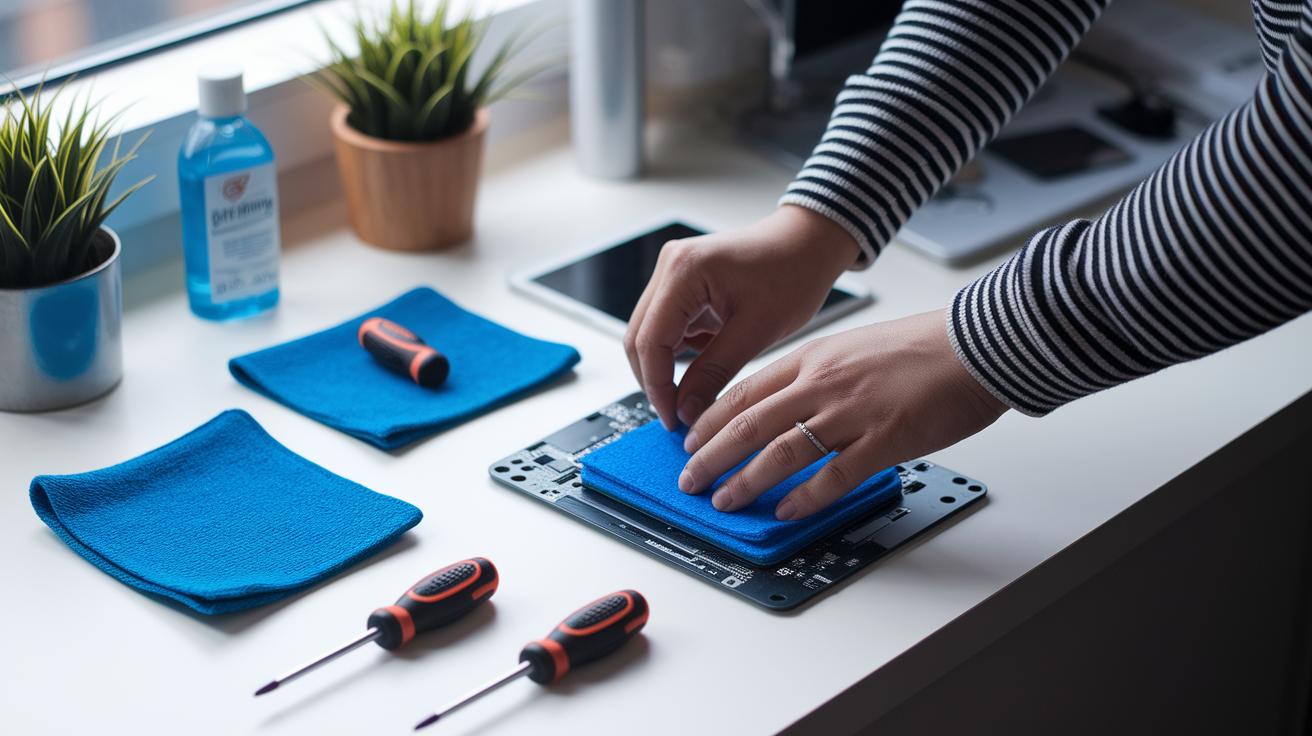
Before you start cleaning your PC, gather all your essential tools and set up a safe workspace. You need a microfiber cloth, a can of compressed air, a Phillips screwdriver, and isopropyl alcohol (90% or higher). Place these items on a stable, flat table near a window or a fan. This lets you take advantage of fresh air and extra ventilation. Choose a work spot that isn't carpeted to lower the chance of static buildup, and make sure the area is well lit so you can see any dust or grime.
Next, protect your computer's sensitive parts by using a wrist strap or a grounded mat to stop electrostatic buildup. Wearing anti-static gear is the best way to avoid a static shock when you work. The microfiber cloth gently wipes surfaces without scratching them, while a small amount of isopropyl alcohol can help remove stubborn marks. Stick with DIY, solvent-free cleaners and steer clear of harsh chemicals like acetone. This simple setup keeps your PC safe and helps prevent small parts from getting lost.
Safe External PC Cleaning: Case, Monitor, and Peripheral Care
Start by using a slightly damp microfiber cloth and gentle sweeps to clean your computer case, front ports, and monitor. For the monitor, spray a small amount of cleaning solution on the cloth before wiping. This gentle method stops moisture damage and keeps your finish smooth and scratch-free.
Next, clear out dust by lightly blowing it from USB and audio ports, and wipe flat surfaces to remove grime. Give extra care to your keyboard, mouse, and cables using the same soft cloth. You can remove keycaps for a deeper clean or brush lightly between the keys. Wiping smooth areas like touchpads helps remove fingerprints without harm. Treat cables carefully to avoid any wear and tear.
By following these steps, you keep your setup clean and cool, ensuring everything stays in top condition.
Safely Cleaning Internal PC Components: Dust Removal and Fan Servicing
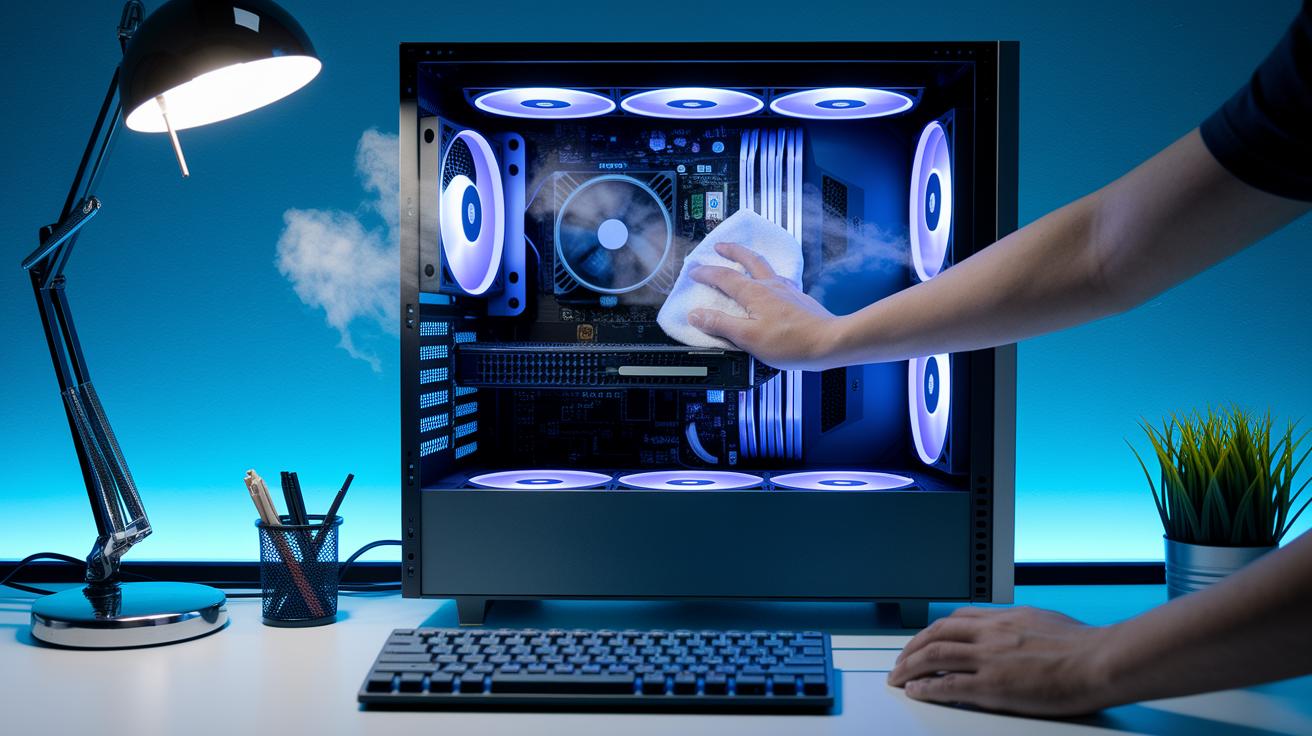
Keeping your PC dust-free is important for cooling and steady performance. Dust can clog fans and heat sinks, forcing parts like the CPU and GPU to work harder. This extra stress can slow your PC down or even damage it. Regular cleaning lets air flow well and stops heat from building up.
Hold your fans steady before using compressed air. Short bursts at a 45° angle push dust away from fragile circuit boards. Also, check filters near intake fans often. Cleaning these filters helps your PC keep cool.
| Component | Cleaning Method | Recommended Frequency |
|---|---|---|
| CPU Fan | Compressed air short bursts | Every 3–6 months |
| GPU Heatsink | Air nozzle at 45° angle | Every 6 months |
| Intake Filters | Remove, tap out, or rinse | Monthly (or more in pet environments) |
| Power Supply Vent | Air canister from vent side | Every 6–12 months |
When you reassemble your PC, work with care. Tighten every screw and put parts back in the right order. Loose screws can create short circuits on the circuit board. Follow the manufacturer’s guidelines for screw tightness and panel positioning. It also helps to re-route cables so airflow stays clear, which creates a healthy case pressure.
Handle parts gently and check that no tool or debris is left inside before closing the case. This careful approach helps guard against static damage and ensures smooth operation. A slow, methodical reassembly lets you catch misaligned connectors or dangling cables. These small checks can prevent future overheating and keep your system running at its best.
Electrical and Static Discharge Safety for PC Cleaning
Start by turning off your PC and unplugging it from the wall. Once you pull out the power cord, wait about five minutes. This wait lets the power supply’s capacitors (small parts that hold charge) lose any lingering energy, which helps prevent shocks or accidental harm to your components.
Static electricity is a real threat to sensitive parts. To keep your computer safe, ground yourself. You can wear a wrist strap or keep touching a metal part of the case that is properly grounded. This stops any built-up static charge from zapping the circuits.
Keep liquids at least 12 inches away from your PC. Never spray cleaners directly onto any part of your computer. This rule helps avoid liquid damage and the risk of short circuits. Also, check your warranty before opening the case because doing so could void your coverage.
Maintenance Schedule and Post-Cleaning Checks for Long-Term PC Health
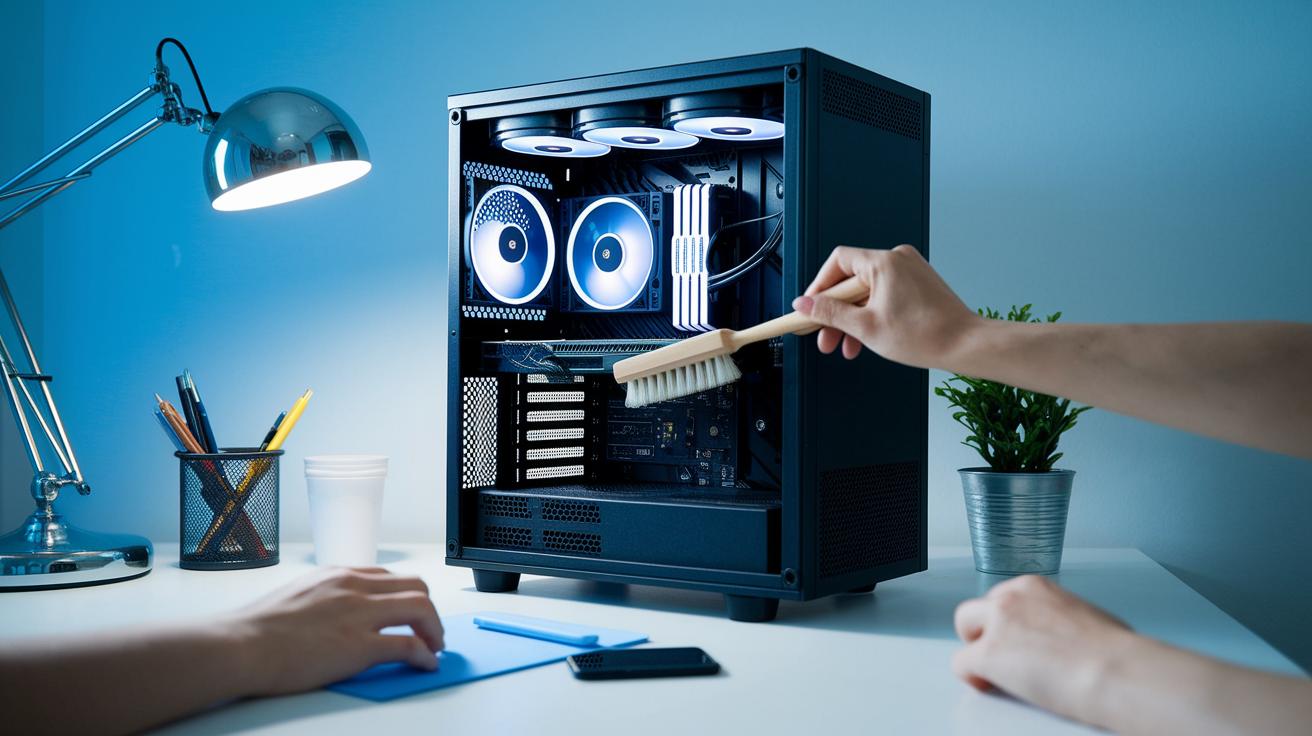
Keep your computer cool and running well by setting up a regular cleaning schedule. Dust the PC lightly every two weeks and wipe the case every month. Every three to six months, open your PC for a deep internal cleaning that removes hidden dust from the parts. Keep a simple log with dates, notes, and any parts you replace. This log helps you catch problems early and plan your next cleaning session. For example, if you see dust building up on a fan filter, write down the date so you can check it again sooner.
After putting your PC back together, run some tests to make sure everything works. Use hardware-monitoring tools to check that the fan speeds and the CPU/GPU temperatures (how hot these parts get) stay within safe ranges. Listen for any strange fan noise and see if the cooling system feels steadier. These checks help you spot loose connections or cables that aren’t set right. Following the manufacturer’s instructions during reassembly is key. Tighten screws to the right level and make sure all parts are secure. This care helps keep your PC from overheating and slows down performance drops.
Final Words
In the action, we walked through cleaning your PC safely. We covered proper shutdown, unplugging, and stepwise disassembly to clear dust buildup and protect against electrical risks. Simple routines like wiping surfaces, using compressed air, and checking filters keep your system cool and reliable. Following the guide shows how to clean a pc safely while preserving its longevity. Stick with these steps, and you'll enjoy a smoother, well-maintained setup that keeps performance high and repairs low.
FAQ
How can I safely clean your PC physically and internally?
The safest way to clean your PC involves powering it down and unplugging it, using a microfiber cloth and compressed air (or a soft brush if needed), and applying anti‑static measures. Avoid direct liquid sprays and harsh chemicals.
How can cleaning your PC help it run faster?
Cleaning your PC improves performance by clearing dust buildup that causes high temperatures and by removing junk files that slow down system operations.
How should I clean my PC software, junk files, and storage?
Cleaning your PC software means using built‑in tools or trusted utilities to delete temporary files and unnecessary programs, which frees up storage and boosts overall performance.
What methods work if I can’t use compressed air for internal cleaning?
If compressed air isn’t available, gently use a soft brush or microfiber cloth to dislodge dust from internal components, taking care not to damage sensitive parts.
What should I avoid when cleaning my PC?
Avoid using too much liquid, harsh chemicals, or direct sprays on components. Do not use abrasive materials or aggressive brushing techniques, as these can damage delicate parts.
Can I use isopropyl alcohol to clean my PC?
Using isopropyl alcohol (90% or higher) is acceptable for cleaning non‐porous surfaces. Apply it sparingly on a microfiber cloth and avoid soaking any components to prevent damage.