

Worried that moving your data to a new Android might end in a mess? It doesn't have to be hard. You can easily back up your contacts, photos, and files and then get everything on your new phone without a hitch. In this guide, we explain step by step how to save your current data and switch over smoothly. We even cover simple ways like using your Google account sync (which automatically copies your contacts and apps), pairing devices with Bluetooth, and transferring via USB cable. Ready to keep your files safe and start fresh? Let's dive in and make your upgrade worry-free.
Step-by-step guide to transfer data to a new android phone
Before you begin, protect your data. Open Settings on your current phone, go to System, then tap on Backup. This step saves your important information.
Next, get both phones ready. Make sure they have updated software, are charged over 50%, and use the same secure Wi-Fi or a USB cable for a wired transfer. Also, check there’s enough free space on your new device.
Here are some simple ways to move your files without data loss:
-
Google account sync – On your old phone, turn on sync for Contacts, Calendar, and App Data (find this by going to Settings > Accounts > Google). When setting up your new phone, select “Restore from backup.”
-
Bluetooth pairing – Enable Bluetooth on both phones, pair them, and send files in small groups. This works well for light transfers.
-
NFC tap – If both devices support NFC (near field communication), just tap them together for a quick data handoff.
-
Wi-Fi Direct – Turn on Wi-Fi Direct on both devices. This creates a direct connection, and you can pick which files to transfer without using the internet.
-
USB cable copy – Connect the devices with a USB cable, or use a PC as a go-between to drag and drop larger folders like your photos and videos (DCIM folder).
-
Cloud storage – Upload your files from your old phone to a cloud service such as Google Drive, Dropbox, or OneDrive. Then, download them on your new phone.
-
Third-party apps – Apps like SHAREit, Xender, or SuperBeam set up a local hotspot for a smooth and fast transfer.
After moving your data, remember to update your two-factor authentication details to keep your accounts secure.
Preparing Both Android Phones for a Smooth Migration
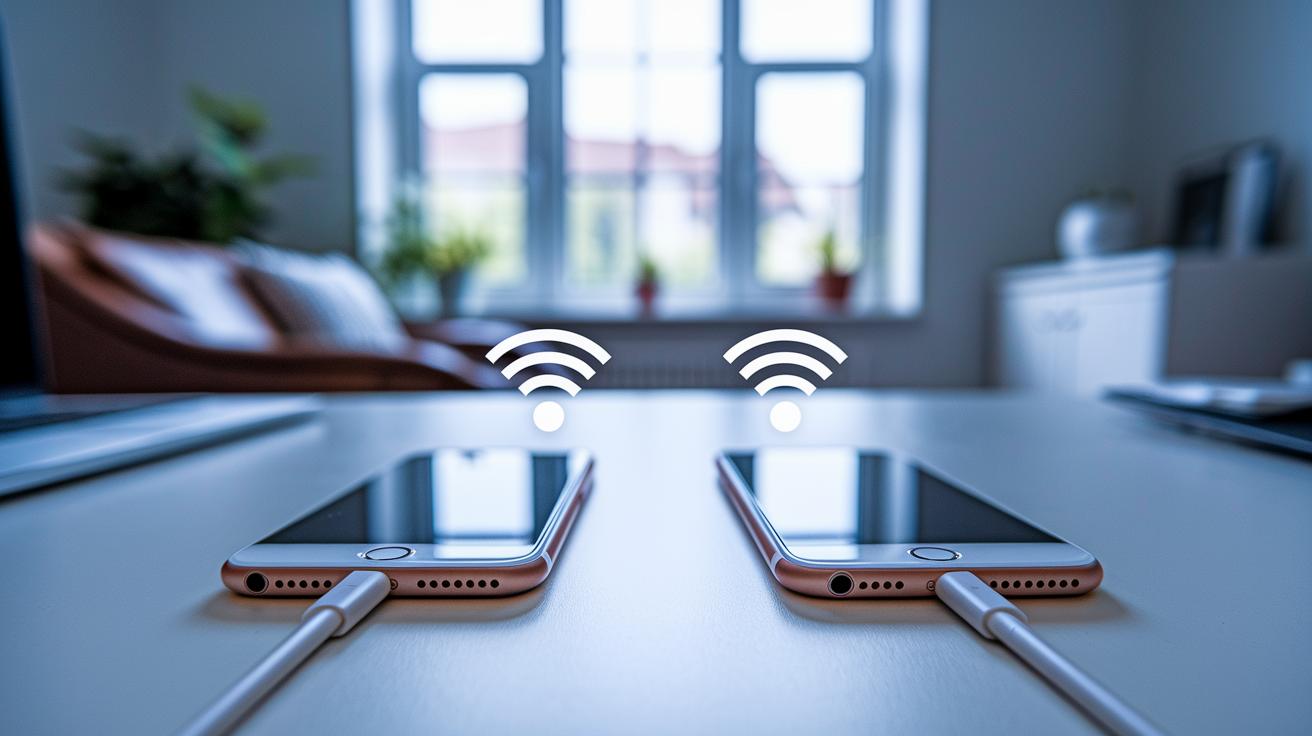
Start by backing up your old phone. Open Settings, tap System, and then Backup. Turn on the Google Drive backup so your contacts, messages, and app data are saved. You might see a "Backup complete" message when it’s done.
Next, update the operating system on both phones. Go to Settings and check for updates. One user once said, "I once lost a transfer because my phone shut off midway." This shows why it’s important to keep your system current.
Make sure both phones have more than a 50% charge. This step helps prevent any interruptions during the transfer.
Connect both phones to the same secure Wi-Fi network. This keeps the file transfer smooth. Also, confirm the new phone has enough free storage and sign into the same Google account on both devices.
Using Google Backup Method to Restore Data on Your New Android Phone
If you run into trouble getting your data back with Google Backup, start by checking a few simple things. First, make sure your old phone was syncing properly and you had a steady Wi-Fi connection. Often, the issue is that you signed in with an old account, which can block the backup from restoring fully.
When it comes to photos, decide which backup option fits your needs. Choose original quality if you need every detail. But if you want to save space, go with Storage saver mode. One user noted that even in Storage saver mode, their photos looked sharp while using less room.
If you notice that documents or other files are missing, double-check that they were uploaded to your cloud storage. For services like Google Drive, Dropbox, or OneDrive, make sure your account details and file locations are correct.
| Backup Option | Things to Consider |
|---|---|
| Google Photos (Original quality) | More detail but uses more space |
| Google Photos (Storage saver mode) | Saves space with a small dip in quality |
| Cloud storage (Drive, Dropbox, OneDrive) | Ensure your account and Wi-Fi are working properly |
- Always check your network connection before starting the restore.
- Make sure you are signed in with the correct, active Google account.
Cable Connection Techniques for Direct Phone Memory Transfer
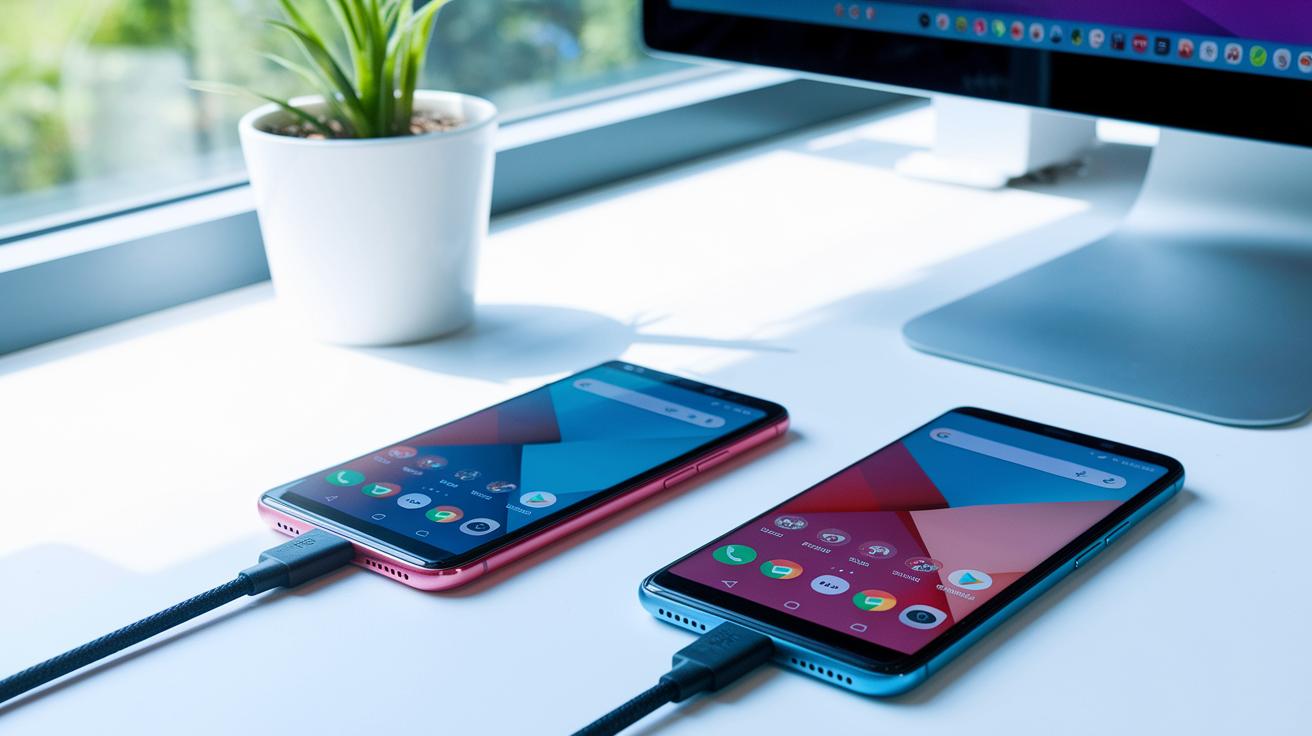
Using a USB-C to USB-C or USB-A cable is a fast and reliable way to move big files from your old Android phone to your new one. Just plug the two phones together with a compatible cable and copy your files directly. This method is great for transferring folders like DCIM (where your photos and videos are saved), Documents, or Music without needing an internet connection. One user said they connected their phones with a USB-C cable and the transfer was so quick that moving their media files felt like a breeze.
If you can’t connect the phones directly, try attaching both to a computer with USB cables. Open your file explorer, find the folders on your old phone, and simply drag and drop them to your new device. This computer-assisted way works well when you have lots of data to move.
If you run into connection problems, enable USB debugging in the Developer Options on your phones. This setting helps clear up any issues and makes the transfer process smoother. With these cable-based techniques, you have a solid way to transfer your data quickly and reliably.
Wireless Data Handover: Wi-Fi Direct, Bluetooth, and NFC for Android Migration
• Bluetooth
Turn on Bluetooth on both phones and pair them. Once paired, simply select the files to share. It moves files slowly, so it's best for small transfers. A user noted, "I transferred my song list in just a few taps, but larger videos would take too long."
• NFC
Make sure both devices support NFC. Give the backs of the phones a light tap to start an Android Beam session. This method works at a moderate speed. It’s quick to start with just one tap, but it works best for smaller files and has a short range.
• Wi-Fi Direct
Activate Wi-Fi Direct on both phones to establish a connection that does not require internet. Then choose the files manually for transfer. This method is fast and handles large files well. However, its speed can vary depending on the phone's hardware. One user shared, "Wi-Fi Direct made transferring my video library far faster than Bluetooth."
| Method | Average Speed | Pros | Cons |
|---|---|---|---|
| Bluetooth | Slow | Easy pairing and quick setup | Best for small files only |
| NFC | Moderate | Quick start with a single tap | Limited file size and short range |
| Wi-Fi Direct | Fast | No internet needed; great for larger transfers | Performance depends on the device hardware |
Manufacturer Apps Overview: Samsung SmartSwitch and Other Migration Software
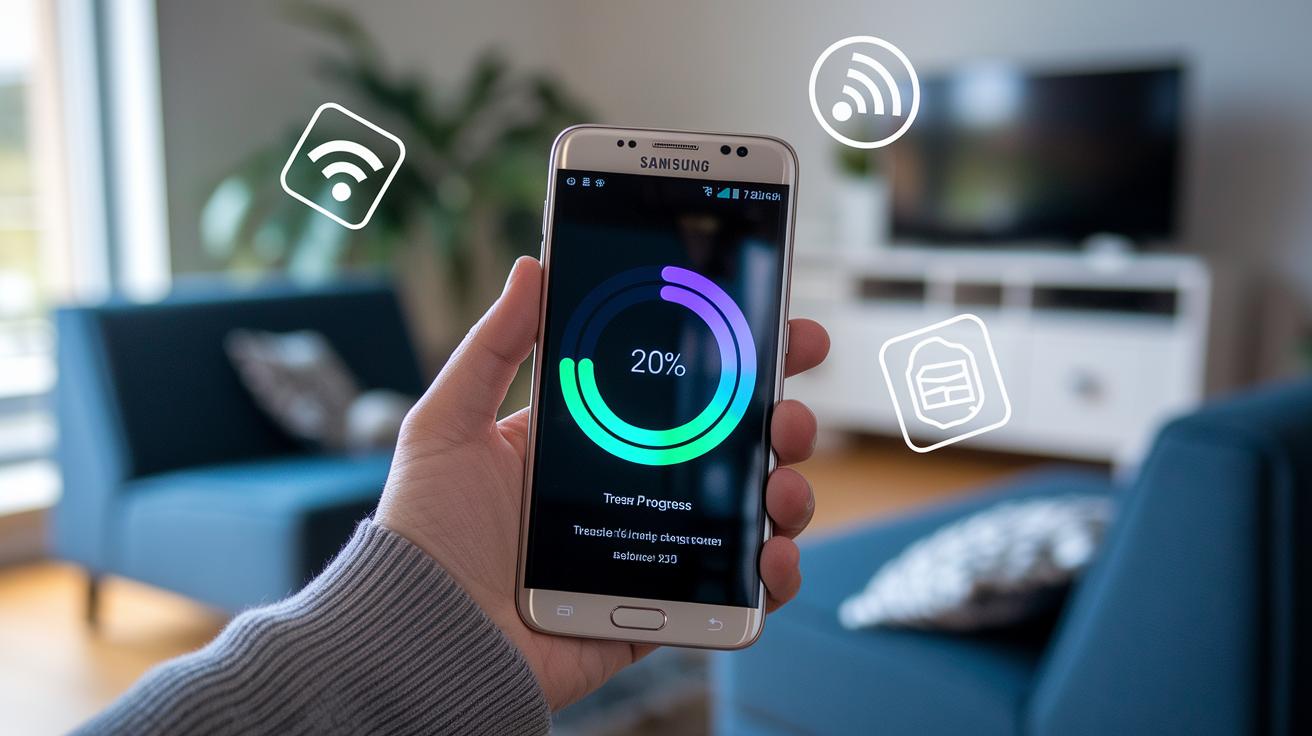
Samsung SmartSwitch comes built into Galaxy phones to help you quickly move contacts, messages, photos, apps, and settings from your old device. When you set up your new Samsung, just tap "Copy apps & data" to bring over your backup or previous phone details. It works with both wireless and wired transfers, so you can choose what suits you best.
While other brands offer similar restore features, Samsung users get a boost with SmartSwitch. It handles even large files fast and smooth. One user noted, "I moved my contacts and media in minutes, hassle-free." That shows you this tool works well for everyday needs.
If you don't use a Galaxy device, there are solid third-party apps available. Tools like SHAREit, Xender, and SuperBeam create a local Wi-Fi signal to transfer files quickly without cables. They scan for nearby devices and make the data swap simple and fast.
Built-in options are great when moving lots of data, but third-party apps add flexibility, especially if you switch brands. Test a few options to see which method fits your needs best, and enjoy a smooth data transfer process.
Transferring Specific Data Types: Contacts, Photos, Messages, and Apps
Contacts
Google Contacts takes care of syncing your contacts for you. Once you sign in on your old phone, your contacts connect to your Google account automatically. This means when you log into your new phone, your contacts show up right away. If you want more control, you can export your contacts as a .vcf file. This file lets you add contacts manually on your new device. One user mentioned they kept their contacts safe by doing both, a smart backup move.
Photos & Videos
Google Photos offers two backup modes: original quality and Storage saver. Original quality keeps all the details, while Storage saver compresses photos to free up space. You can also transfer your entire DCIM folder using a cable, which works great if you have a lot of photos or videos. One user found cable transfers to be the fastest way to move large video libraries without waiting for uploads.
Messages
There are a couple of ways to bring over your messages. When you set up your new phone with Google backup, SMS texts are usually restored automatically. Samsung users can also use Smart Switch, which imports messages and keeps them in order with the correct time stamps. This dual approach means you have a backup plan if one method doesn’t work.
Apps & Preferences
When you sign in during your new phone’s setup, Google backup will reinstall your apps and bring back many settings and home-screen layouts. For Samsung users, Smart Switch can also copy over app settings and preferences, making the switch smoother. In the end, your apps and their setups come along for the ride so you don’t have to start from scratch.
Troubleshooting Common Issues and Security Tips for Android Data Migration
File transfers sometimes run into hiccups. Large files sent over Bluetooth can lag and freeze the connection. Keep your devices close together and securely paired. Also, check that both phones support Android Beam if you plan to use NFC for quick transfers.
Occasionally, USB connections might not respond right away. In these cases, turn on USB debugging in Developer Options. This small step often fixes the connection so your files can move smoothly. Another issue to watch for is having too little storage on your new phone. Always make sure there is enough free space before you begin.
After moving your data, update two-factor authentication on important accounts. This extra step helps avoid access problems later on. It’s also wise to log out and back in for key apps and accounts to confirm everything is working.
- Keep your Bluetooth devices close.
- Ensure both devices support NFC.
- Enable USB debugging if USB transfers stall.
By following these tips, you'll make your data migration safe and stress-free.
Final Words
In the action, we broke down the process into a few clear phases: backing up your old phone, prepping both devices, and moving your files using various methods. Here are the seven primary ways we covered:
- Google Account sync
- Bluetooth pairing
- NFC tap
- Wi‑Fi Direct
- USB cable copy
- Cloud storage
- Third-party apps
These steps show you how to transfer data to a new android phone with ease. Enjoy your new device knowing your important files are safely moved.
FAQ
How do I set up my device using OK Google?
Setting up your device with “OK Google” involves powering it on, connecting to a secure network, signing into your Google account, and following on-screen prompts for configuration.
How does transferring data wirelessly between Android phones work?
Transferring data wirelessly connects both phones on the same network or via direct connections like Bluetooth, NFC, or Wi‑Fi Direct, allowing you to move files without cables reliably.
How do I transfer data from my old phone to a new Android phone using a USB cable?
Transferring via USB means connecting both phones with a compatible cable and following on-screen instructions, which securely copies files without needing an internet connection.
How can I transfer everything from my old phone without using Wi‑Fi?
Transferring without Wi‑Fi can be done using methods such as Bluetooth, NFC, or a direct USB cable connection, though speeds and ease may vary by method and file size.
Do I need to insert my SIM card before transferring data and what items might not transfer automatically?
Placing your SIM in your new phone can activate cellular service, but most files transfer independently. Note that SMS threads, specific app data, and device settings might not carry over automatically.
What are the primary data transfer methods for Android migration?
The seven primary transfer methods are:
- Google Account sync
- Bluetooth pairing
- NFC tap
- Wi‑Fi Direct connection
- USB cable transfer
- Cloud storage backup
- Third‐party apps like SHAREit
What are the key differences between Bluetooth, NFC, and Wi‑Fi Direct for wireless transfers?
These methods differ in speed and ease. Bluetooth is slow but simple; NFC enables quick pairing for small files; Wi‑Fi Direct offers faster speeds and a direct connection without internet. The table below summarizes the details.
| Method | Average Speed | Pros | Cons |
|---|---|---|---|
| Bluetooth | Slow | Easy pairing, widely supported | Not ideal for large files |
| NFC | Very low | Fast pairing, simple tap | Works only for small transfers |
| Wi‑Fi Direct | Fast | High speed, good for large files | Setup can be more involved |