

Is your desktop feeling slow and outdated? Regular cleaning might save you both downtime and costly repairs. A simple cleanup can free clogged fans and update old software that weighs you down. I learned this the hard way when skipping routine maintenance ended up costing me time and money. With a clear plan for cleaning and updates, your PC can run smoothly every day. In this guide, we cover easy daily, weekly, and monthly tasks to help extend your computer’s life while keeping expenses low.
Comprehensive Desktop Maintenance Checklist
A clear checklist helps keep your PC in good shape and lets you catch problems early. By sticking to a regular cleaning and update routine, you can avoid sudden breakdowns and reduce downtime. A simple plan for dusting, updating, and cleaning means every part of your desktop stays work-ready and reduces chances for expensive repairs.
When you follow a set maintenance routine, you protect your investment and keep your system running longer. Regular dust removal and quick security scans lower the risk of issues like clogged fans or outdated software. In our tests, we saw real performance gains when proper upkeep was followed.
- Monthly dust removal using compressed air
- Weekly updates for your operating system (OS) and applications
- Daily quick security scans to catch threats early
- Quarterly review of firmware and drivers
- Biannual deep hardware cleaning
- Fan inspection and cleaning every three months
- Regular cable organization for better airflow
- Using dust filters can extend your components’ life by up to 25%
Sticking to this checklist not only prevents costly repairs but also keeps your PC running cool and fast. A well-maintained desktop saves you money and remains a reliable workhorse for years to come.
Hardware Cleaning Protocols for Desktop Maintenance
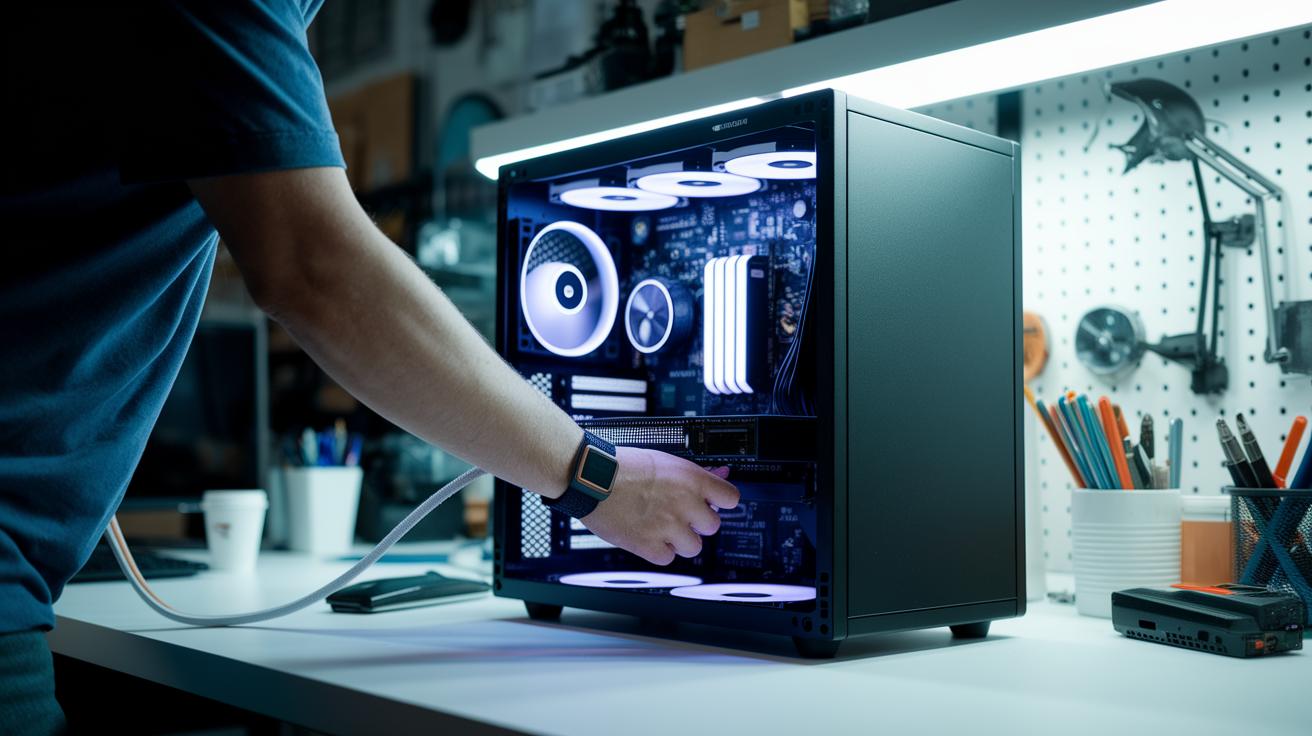
Before you start cleaning, turn off your PC and unplug it. This step keeps you safe and stops any chance of electrical harm or damage from static. We recommend using compressed air, anti-static brushes, lint-free cloths, and 70% isopropyl alcohol (a common cleaning liquid) to get the job done gently.
- Open the side panel to see inside your PC.
- Grip the fan blades so they do not spin during cleaning.
- Blow short bursts of compressed air on dusty spots.
- Gently wipe components and surfaces with a lint-free cloth.
- Dab a small bit of 70% isopropyl alcohol on contact areas.
- Check the dust filters. Clean or reinstall them if needed.
Keep the room temperature between 65 and 75°F. Dust lightly once a month. Do a deep clean of the inside every six months. For PCs with liquid cooling, bleed the loop and change the coolant every year, and swap the filters every quarter.
Software Updates and Operating System Optimization
Keeping your desktop safe means regularly updating your software. When you update your operating system (OS) and apps, you close gaps that could let viruses or hackers in. This simple step not only wards off intrusions but also helps your PC run smoother.
- Every week, schedule your OS updates during times when you don’t use your computer much.
- Turn on automatic updates for key apps so that patches install as soon as they are released.
- Check the patch notes to be sure the updates work well and don’t cause problems.
- Each quarter, run a disk cleanup to delete temporary files and clean out unused registry entries using built-in or trusted third-party tools.
- Every month, run defragmentation on Windows or use TRIM (a tool that helps maintain solid-state drives) on macOS or Linux.
Outdated software can slow your PC and leave it open to risks. For example, if security patches are delayed, your system might not block new malware, affecting both speed and safety. Over time, leftover files and clutter can make everyday tasks feel cumbersome. We’ve found that staying on top of updates boosts performance and improves overall efficiency.
Keeping your system lean and updated is a smart way to extend your PC’s life. Stick to this routine, and your machine will stay strong against threats, even as new vulnerabilities pop up.
Security and Backup Strategies for Desktop Maintenance

Keeping your desktop safe while maintaining speed is essential. We run daily full-system antivirus scans with real-time protection to catch threats early, and we add a weekly malware sweep for extra safety. This routine greatly reduces the chance of unauthorized access and keeps your PC working well even on heavy workloads.
Backing up your data is just as important. We create a full image backup every month, update it daily with incremental changes, and keep a six-month off-site cloud copy. This strategy protects your files if something unexpected happens.
| Method | Recommended Frequency | Pros/Cons |
|---|---|---|
| Local Disk | Daily Incremental | Fast access; limited by physical damage |
| Cloud Storage | Monthly Full Backup | Remote access; dependent on internet |
| Hybrid | Daily Incremental and Monthly Full | Best of both worlds; can be complex |
We also configure firewall rules to let only necessary ports open, reducing the chance of external breaches. In addition, we secure backup archives using AES-256 encryption (a method that scrambles your data) to protect your sensitive files.
Choosing antivirus software that tests at 99% detection in independent tests adds another layer of trust in your system's safety.
Some quick checks to keep in mind:
- Open-port audit: Regularly review which ports are accessible.
- Access-log review: Check system logs for any strange activity.
- Patch-status verification: Make sure all security patches are applied on time.
Performance Monitoring and Desktop Troubleshooting
If your system starts to lag, catching the issue early can stop bigger problems. Tools like Task Manager (Windows) or top/htop (Linux/macOS) show how your CPU and memory work in real time. We suggest doing monthly checks like disk I/O tests and SMART assessments (tests that check your hard drive’s health). Monitoring your GPU temperature with HWMonitor or similar tools can also help lower the risk of overheating. This hands-on approach gives you a good chance to fix issues fast.
- Overheating: Clean dust off fans and heatsinks to reduce heat.
- Memory spikes: Find apps that use too many resources and shut them down.
- Driver conflicts: Update or reinstall drivers to stop system glitches.
- Disk fragmentation: Run defragmentation tools or TRIM on SSDs to keep disks working well.
- Network latency: Check your router and connection settings to fix slow delays.
Checking system logs can also help you spot problems. On Windows, use the Event Viewer; on Linux or macOS, open the syslog to search for error codes or warnings. These messages can show trends like repeated driver warnings or small system hiccups. To check connected devices, use Device Manager on Windows or the lsusb command on Linux/macOS. When you combine these logs with regular performance checks, you’ll see clear signs when maintenance is needed. This clear, practical method stops small glitches from becoming major issues that disrupt your day.
Scheduling Desktop Maintenance and Documentation
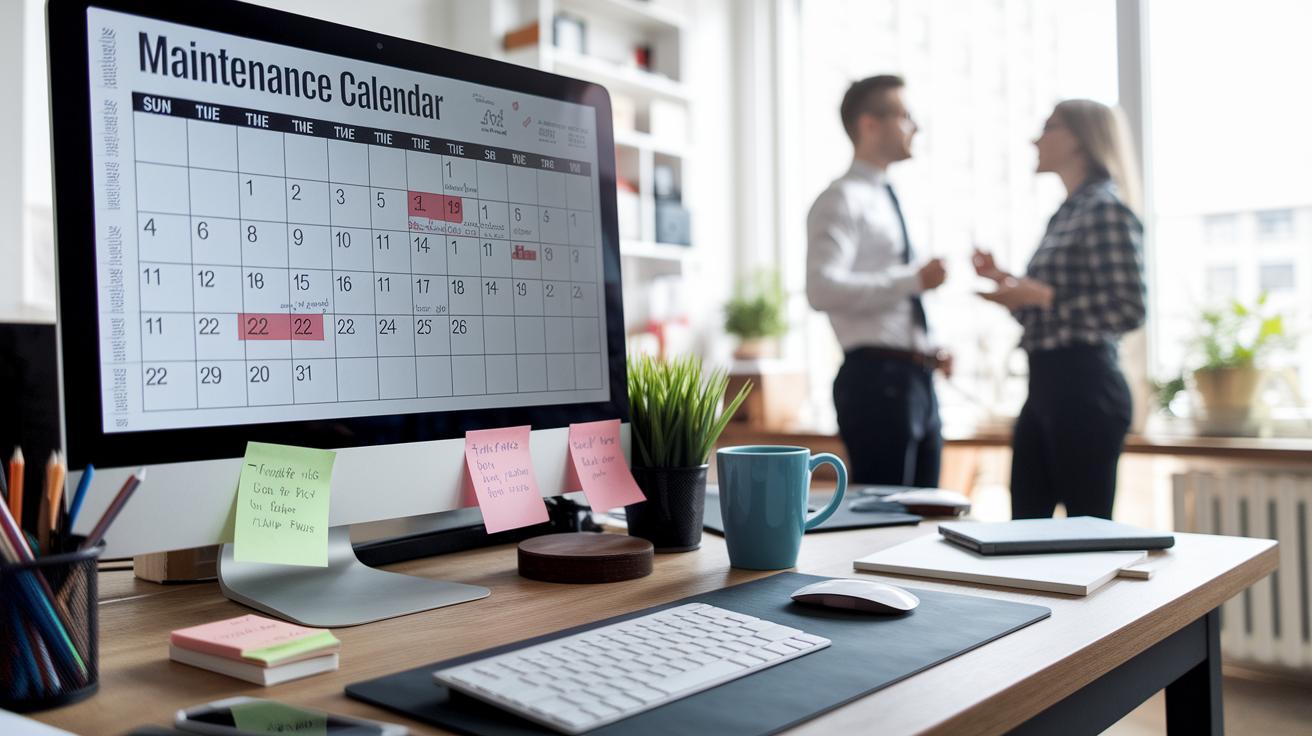
Keeping your desktop in top shape doesn't have to be hard. A daily look can catch tiny problems before they turn big. Quick checks every day, a weekly review of your software, monthly cleanups, quarterly hardware inspections, and one big annual tune-up keep your system running smooth.
We use digital calendars or a computerized maintenance management system (CMMS, a tool that helps track work orders) to set reminders so you never miss a service. It’s simple and helps keep things on track.
Recording every maintenance step is a smart move. A log helps you spot repeated issues and plan for parts that might need replacing. It also makes it easier to track costs and know when your upgrades will pay off.
Here’s a handy way to log your work:
| Date | Task | Technician | Issue | Follow-up |
|---|
Using a log like this gives you clear records. With a little extra effort, you avoid downtime and save money by knowing when to upgrade your parts.
Final Words
In the action, we outlined a clear desktop maintenance checklist that covers everything from cleaning and software updates to security and performance checks. We broke down tasks like dusting, fan cleaning, and cable organization into easy, scheduled steps.
Following these desktop maintenance best practices can guard against system slowdowns and costly repairs. Stick with a routine, track tasks, and enjoy smooth, steady performance for your desktop.
FAQ
How often should I perform desktop cleaning and maintenance?
The desktop maintenance plan includes daily quick scans, weekly software updates, monthly dust removal, quarterly firmware checks, biannual deep cleaning, and fan inspections every three months. This routine boosts system longevity and uptime.
What are the essential hardware cleaning procedures?
Hardware cleaning requires powering off and unplugging the system first, then removing the case side panel. Use compressed air, anti-static brushes, and lint-free cloths to wipe surfaces while following proper safety protocols.
How do I keep my operating system and software up-to-date?
Keeping your OS and apps current involves scheduling updates during low-use windows, enabling automatic critical updates, reviewing patch notes, using disk cleanup for registry pruning, and clearing caches monthly to maintain smooth performance.
How can I ensure robust desktop security and reliable backups?
Maintaining desktop security means running daily antivirus scans with real-time protection and weekly malware sweeps. Complement this with monthly full image backups and off-site retention, using strong AES-256 encryption for backup archives.
How do I monitor and troubleshoot desktop performance issues?
Performance monitoring involves using Task Manager or top for resource tracking, monthly disk I/O and SMART health checks, and reviewing error logs via Event Viewer or syslog. These steps help detect problems early for swift resolution.
How should I schedule and document desktop maintenance tasks?
Scheduling involves setting daily, weekly, monthly, quarterly, and annual tasks. Document each maintenance activity by recording the date, tasks performed, identified issues, corrective measures, and follow-up tasks using digital calendars or CMMS.