

Ever get frustrated when your PC slows you down during games? You're not alone. Lag and rough gameplay can ruin even your best rig. Small tweaks to your hardware, settings, and network can really boost your frame rates and smooth out your experience.
In this guide, we show you simple steps to speed up your PC. Our hands-on tips help you game with confidence and keep you one step ahead of the competition.
Core Strategies to Improve PC Gaming Performance
Boosting your PC gaming speed takes more than a single tweak. It involves changes to your hardware, software, network, and system settings. When you fine-tune these areas together, you avoid having one weak link slow you down. For example, turning on Game Mode cuts back on background tasks, DirectStorage helps load games faster, and a wired Cat-6 connection can keep your network steady. These changes work together to give your system a smoother, more consistent performance.
Consider the following steps:
- Upgrade hardware (see our guide on PC component upgrades for ideas)
- Adjust your operating system settings (like Game Mode and power plans)
- Overclock your CPU and GPU (this boosts frame rates)
- Tweak in-game visuals to balance clear graphics with fast performance
- Optimize your network by using a wired connection and adjusting router settings
- Maintain your system by clearing clutter and freeing up resources
- Use tools like benchmark tests and temperature readers to monitor performance
Each tweak may offer a small boost on its own, but together they build a noticeable difference. Changing your OS settings can free up extra processing power, while well-chosen hardware updates and in-game tweaks add to the gains. These combined improvements can raise your frame rate stability by about 5-15%, making gameplay feel quicker and more responsive. In the end, every setting you adjust works in harmony to help your PC deliver smooth, competitive gaming.
Optimize Windows Settings to Improve Gaming Performance

Tuning your Windows settings can boost your FPS. When you tweak the system, it frees up power from the CPU and GPU so your game feels smoother. Game Mode, for example, stops extra background tasks so your PC can focus on running games at high frame rates.
- Enable Game Mode: Open Settings, go to Gaming, and toggle Game Mode on. This lets your system focus on game tasks.
- Enable hardware-accelerated GPU scheduling: This setting shifts some work from the CPU to the GPU, which cuts down on frame delays.
- Disable visual effects: Turn off transparency and animations in Performance Options. This makes the interface crisper.
- Manage startup apps: Use Task Manager to disable apps you don't need at startup. This frees up memory and speeds up boot time.
- Adjust your power plan: Switch to a High Performance or Ultimate Performance plan so your components run at full strength.
- Disable overlays: Turn off the Game Bar overlay and in-game notifications. This helps stop sudden FPS drops.
These changes might only seem small on their own, but together they free up resources, lower latency, and make your gaming smoother on both Windows 10 and Windows 11.
Essential Hardware Upgrades to Boost Gaming FPS
Graphics cards, storage, and memory are the core of your gaming PC. Today’s games need a GPU from NVIDIA or AMD because built-in graphics just can’t handle detailed textures and complex effects. Upgrading to a PCIe Gen4 NVMe SSD can cut load times by about half so you get into the game faster. Boosting your memory from 16 GB to 32 GB helps keep the action smooth, even when you juggle many tasks. Adding CPU and GPU overclocking with solid cooling can push your frame rates up by 5–20%.
| Component | Benefit | Estimated FPS Gain | Cost Range |
|---|---|---|---|
| GPU upgrade | Better rendering and smoother play in modern 3D games | 5–20% | $300 – $700+ |
| NVMe SSD | Faster load times and less lag during play | Up to 50% load time reduction* | $100 – $200 |
| 32 GB RAM kit | Smoother multitasking and gameplay in large worlds | 5–10% | $80 – $150 |
| CPU cooler | Keeps temperatures low to allow safe overclocking | 5–15% | $30 – $150 |
Before you upgrade, check which parts slow down your system and consider your gaming needs. For many gamers, a GPU upgrade gives the biggest boost if your visuals are lagging. If long load times are a hassle, the NVMe SSD is a fast fix. More RAM is a low-cost way to cut stutters, and a good CPU cooler helps you overclock safely. Mixing these upgrades right can lift your performance without breaking the bank.
Advanced Overclocking and BIOS Tweaks for Gaming Rigs

Preparing your system
Before you start, grab your stress-test tools and temperature monitors. Use apps like Prime95 or 3DMark to fully load your PC, and check temperature changes using HWMonitor or a similar program. This checklist makes sure your cooling system works and your computer is steady before you change any settings.
Enabling XMP and PBO in BIOS
- Restart your computer and press the key to enter the BIOS setup.
- Find the memory settings and turn on the XMP profile. This speeds up your RAM beyond the standard DDR4-3200 rate.
- Look for Precision Boost Overdrive (PBO) in the UEFI settings, and switch it on. If your BIOS has Resizable BAR, enable that too. These settings help get more performance from your processor (the unit that runs your PC).
GPU overclocking best practices
- Open MSI Afterburner or any other GPU overclocking tool you prefer. First, note your current speeds and temperatures.
- Slowly increase the core clock and watch for changes in FPS (frames per second) during your tests.
- Adjust the voltage in small steps and keep a close eye on temperature.
- Run short benchmark tests after each change to find the right balance between speed and stability.
After you make these changes, run at least three 3DMark stress tests. This ensures your system stays stable under heavy load and that your new settings boost performance without causing overheating or errors.
System Maintenance and Monitoring for Stable Gaming FPS
Keeping your computer in good shape helps your games run smoothly. Over time, junk files build up and hidden background tasks can slow you down, causing lag and stuttering during play. Regular check-ups let you catch problems early and ensure your hardware works at its best. When you clear out the clutter, your PC can focus on gaming, making every session feel fast and responsive.
- Disk cleaner: Programs like CCleaner and Windows Disk Cleanup remove extra files and help keep your drive from getting over 70% full.
- Defragment/TRIM tool: Running HDD defragmentation or SSD TRIM commands (which help keep your files organized) keeps your disk performing well.
- Benchmark suite: Tools like 3DMark or Unigine Heaven let you test your system’s speed before and after changes.
- Hardware monitor: Apps such as HWMonitor and GPU-Z show real-time temperatures and clock speeds.
- Antivirus: Regular scans stop harmful software from using up your CPU or GPU power.
A monthly routine to clean up, check your system’s health, and run tests can help you spot issues before they become big problems. This simple habit keeps your frame rate high and guarantees a steady gaming experience for the long run.
Network and Latency Tweaks for Smooth Online Gaming
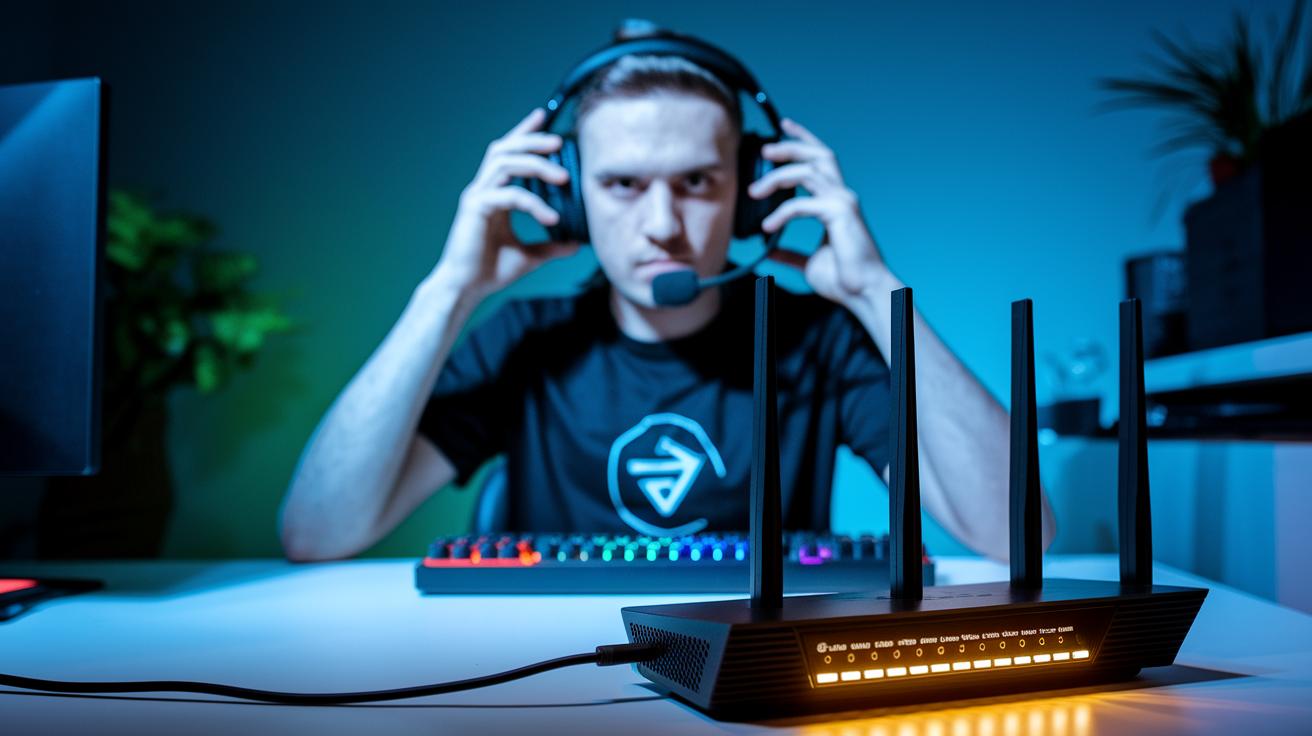
When you play online, every tiny delay can matter. A fast, steady connection makes sure your moves hit the game server quick. In fast games, even a blink of a second counts. A smooth connection can be the difference between a win and a loss. Lower ping means your actions match the game better, giving you a solid edge over players who suffer from lag.
- Use a wired Ethernet connection with quality cables (like Cat-6 or Cat-8) to keep your link stable.
- Set QoS on your router to put gaming traffic first and cut down on other online noise.
- Switch your DNS to gaming-focused servers to shave off extra milliseconds from domain lookups.
- Close background downloads and streaming apps to free up bandwidth for your game.
- Open UDP gaming ports in your firewall to reduce packet loss during heavy sessions.
Regular tests with tools like Speedtest.net help you check that your tweaks are really working.
Fine-Tuning In-Game Graphics and Display Settings
Getting the balance right between visuals and speed can make or break your gaming. You can tweak some graphics settings to push up your FPS without losing too much clarity. This matters a lot, especially in fast-paced games where every frame counts. Adjusting these settings can cut down on delays and make your controls feel snappy, which helps keep the action smooth and competitive.
- Turn off motion blur: This trick can boost your FPS by 10–20% and helps keep things clear during rapid moves.
- Set resolution scale between 90–100%: This keeps your screen clear while easing how hard your system works.
- Use medium texture quality: Lowering texture detail eases the load on your GPU while still looking good.
- Disable V-sync or use FreeSync/G-Sync: This change cuts input lag and stops screen tearing by syncing the game's frames to your display.
- Match the in-game refresh rate to your monitor’s top setting (like 144 Hz or 240 Hz): This change makes the display smoother.
- Reduce shadow draw distance: Cutting back on how far shadows are rendered frees up system power and increases FPS.
Try out different settings in each game to find the mix that gives you crisp visuals and fast, responsive gameplay.
Final Words
In the action, we took a close look at ways to boost PC gaming performance through hardware upgrades, OS tweaks, overclocking, and system maintenance. We also outlined steps for optimizing network settings and fine-tuning in-game graphics for a smoother experience.
Every step can help improve PC performance for gaming. Each tweak shows real gains when combined. Keep testing options and fine-tuning settings to match your budget and desired play style. Enjoy smoother gameplay and a more responsive rig!
FAQ
How can I optimize my PC for gaming?
Optimizing your PC for gaming means enabling Game Mode, updating drivers, using high-performance power settings, and closing background apps. These tweaks free up system resources for smoother gameplay.
How quickly can I fully optimize my PC for gaming?
Fully optimizing your PC in 10 minutes is possible by activating Game Mode, managing startup apps, and adjusting power settings. These fast settings free up resources and boost performance almost immediately.
How can I boost game performance on a laptop?
Boosting game performance on a laptop requires updating drivers, shutting down background tasks, and using a high-performance power plan. These steps help the laptop use its resources more effectively during gaming.
How can I improve gaming performance on mobile devices or Android?
Improving gaming performance on mobile means updating your system, lowering in-game graphics settings, and closing background apps. These adjustments free up memory and CPU power, leading to smoother gameplay.
Is 500 fps overkill?
Achieving 500 fps may be more than needed for most setups since monitors typically refresh between 144 and 240 Hz. This range generally provides smooth visuals without wasting system power.
How many fps can a $700 PC run?
A $700 PC can often run popular games at 60 to 120 fps on medium settings, though performance depends on hardware and game optimization. This balance typically offers good visual quality and smooth play.
What does game boost mean?
Game boost refers to tweaks that improve game performance by closing extra apps, updating drivers, and fine-tuning system settings. The result is smoother gameplay and increased fps.