

Have you ever noticed your smart speaker missing your words or getting commands wrong? This usually happens when the firmware (the built-in software that runs your device) is out of date. Updating it fixes voice issues, boosts sound clarity, and keeps your device secure.
In this guide, I'll walk you through the update process with clear, easy steps. We start by readying your speaker, then move on to setting up a solid connection, and finally complete the update without any fuss.
By following these steps, you'll enjoy a smarter, more reliable smart speaker that listens better every time you speak to it.
Smart Speaker Firmware Update: Simplify Your Updates
Updating your smart speaker’s firmware is key for smoother voice commands, better sound tweaks, and fixing bugs like misheard wake words. It also tightens security by patching any vulnerabilities. When you see an update via the mobile app, it's time to upgrade for a more stable speaker.
-
Prepare your speaker
Check that it’s plugged in or has at least 20% battery. This helps avoid any power loss during the update. -
Connect to Wi-Fi
Make sure you have a solid signal on either a 2.4 GHz or 5 GHz network. A steady connection helps the download finish without stopping. -
Open the companion app
Start up the app linked to your speaker. It will tell you if an update is waiting. -
Locate the firmware update option
Look for the update section in the app. Sometimes you’ll find it in the device settings menu. -
Download the update
The update file is usually between 10 and 50 MB. The app typically handles the download automatically once you choose the update option. -
Install the update
Hit the install button and wait about 2–5 minutes for it to complete. Your speaker may restart during this process. -
Confirm the new version
After the restart, check the app to see the firmware version. A new version means your update was successful.
During and right after the update, you might notice the speaker pausing for a moment. If your speaker is part of a smart home hub, make sure all devices sync up again once your speaker is back online.
Smart Speaker Compatibility and Update Prerequisites
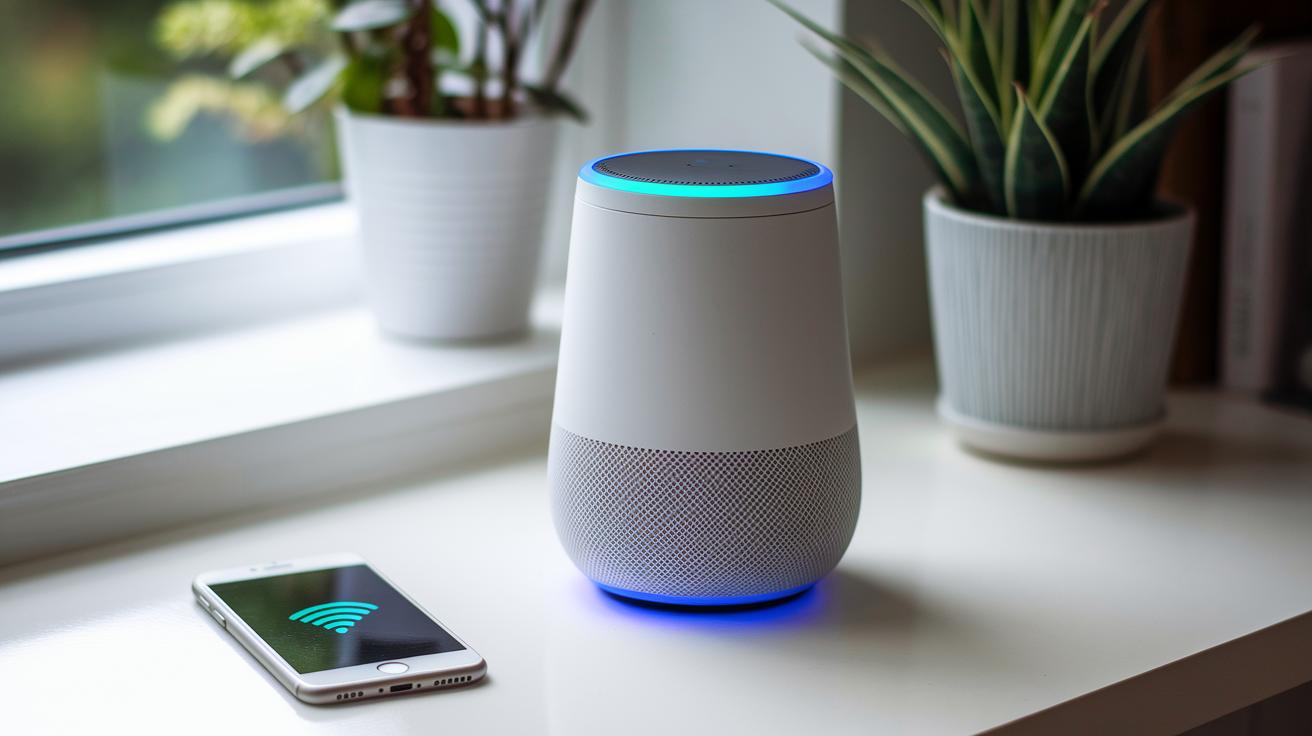
Before updating your smart speaker, make sure it’s ready. Check the model, region, and firmware build against the maker’s update specs. This helps keep errors at bay.
A strong Wi-Fi connection is a must. Make sure you're on a steady 2.4 GHz or 5 GHz network. Also, verify that your router settings and available bandwidth will allow a smooth download. A drop in connection might leave the update incomplete.
Power is another key factor. Your speaker should either be plugged in or hold at least a 20% battery charge. Updating on low power can cause problems during installation.
Finally, the mobile app and your device’s operating system should be up to date. Having the latest version prevents glitches when you start the update.
| Step | Action |
|---|---|
| 1 | Check the speaker’s model, region, and firmware version. |
| 2 | Confirm you’re on a stable 2.4 GHz or 5 GHz Wi-Fi network. |
| 3 | Ensure the speaker is plugged in or has at least a 20% battery. |
| 4 | Update the companion app and your device’s operating system. |
For more tips on checking your device’s compatibility with your smart home setup, check out the best smart home devices.
Key Benefits and Security Improvements in Firmware Updates
Firmware updates make your smart speaker work better every day. They can speed up how quickly your speaker processes sound by about 20%, which means it listens and responds with more clarity. This fast processing helps when you give voice commands, making the device feel quick and responsive.
These updates also take care of common problems. They fix issues like sound dropouts and missed wake words so the speaker stays reliable. If your device used to lose connection or sound clear at times, updated firmware can help smooth things out.
On the security side, firmware updates patch known vulnerabilities such as CVE-2023-1234. They update important features like encryption and TLS libraries (tools that secure your data). Even if you don't worry much about security, these updates are key to keeping your smart speaker safe from potential breaches.
Manufacturers recommend checking for updates every month or when a new version is released. This regular maintenance helps your speaker run smoothly and stay secure, keeping your smart home environment protected while extending the life of the device.
Troubleshooting Smart Speaker Firmware Update Issues

Firmware updates can hit snags like failed downloads, incomplete installs, or boot loops. If you see an error like code 504 or your speaker stops responding, try these steps:
-
Network dropout:
- Restart your router to refresh the connection.
- Reconnect your speaker to Wi-Fi.
- Run the update again once your network is stable.
-
Insufficient storage:
- Check how much free space your speaker has.
- Delete any files or apps you do not need.
- Restart the update to get a complete download.
-
App crash:
- Close the companion app completely.
- Open the app again and look for any update options in settings.
- Clear the app’s cache if you run into trouble again.
-
Power loss:
- Make sure the speaker is plugged in or that its battery is over 20%.
- Connect it to a steady power source before retrying the update.
-
Corrupted download:
- Remove the existing update file from the app’s cache.
- Download the firmware package again to avoid corruption.
- Verify the file once it finishes downloading before you install it.
For extra help, check the app logs or use voice prompts to spot issues. If your speaker still does not work right, try rolling back to the previous firmware version or perform a factory reset to get things back on track.
Advanced Manual Firmware Flashing and Rollback
Entering Bootloader Mode
Many smart speakers let you get into bootloader mode if you know how. To enter, turn off the speaker, then hold the special hardware button as you power it up. You’ll know it worked when the display or LED starts blinking or shows another sign that indicates recovery mode. This means you can now use advanced firmware flashing tools.
Flashing Firmware via USB or SD
When the speaker is in bootloader mode, you can update its firmware using a USB or SD card. Use the flashing tool provided by the manufacturer to choose the right firmware file. It helps to check the file’s checksum (a code that confirms file integrity) before you continue. Following the maker’s instructions and using approved tools can prevent mistakes that might brick the device.
Performing a Rollback
If the new firmware doesn’t work as expected, you can roll back to an older version. Always keep a copy of the previous firmware. Use the rollback commands available in the bootloader menu and check the speaker for any issues right after. This simple rollback step helps keep your speaker running reliably while you test out firmware updates.
Scheduling and Automating Smart Speaker Firmware Updates

A lot of people find that turning on automatic updates for their smart speaker makes life simpler. Most companion apps have a simple toggle that lets you do this. Just flip the switch and your device can download updates overnight or during quiet times.
Some apps even let you set a schedule. You can pick nightly checks to get the newest firmware as soon as it is out, or use weekly updates to lower busy network times. In business settings, cloud tools let administrators send updates to many devices at once and keep an eye on the process. This makes managing a group of smart speakers much easier.
Many systems also let you delay updates during peak hours. If your network is busy or spotty, the update will wait and try again later. Some systems even have a retry feature if the first update attempt fails. This flexibility helps keep your device stable and its firmware up to date without any fuss.
Regularly scheduled updates save you time and keep your smart speaker secure and ready for everyday tasks.
Smart Speaker Firmware Update FAQs
-
What new features or improvements do firmware updates bring?
Major updates can tweak how your speaker hears commands and improve its connection to other devices. Smaller updates mostly fix bugs. For example, a recent update made the wake-word detection quicker so the speaker responds faster. -
What should I do if my speaker acts differently after an update?
If your speaker starts acting odd, try a simple restart. Then, check your settings to make sure nothing has changed. For instance, I once fixed unexpected pauses by just rebooting the device. -
Can I roll back to an earlier firmware version if issues arise?
Usually, you cannot revert to an older firmware since updates are meant to be permanent. It helps to check your user manual if you suspect an exception exists. -
How do update alerts improve my device’s security?
Alerts let you know when a security patch is ready. This helps fix known issues quickly. I remember an alert that led to an update which patched a specific security hole. -
What are common misconceptions about firmware updates for smart speakers?
Many think updates might harm performance, but they usually boost how your speaker works and keep it safer. I used to worry about updates until I noticed my speaker running smoother and more securely after one.
Final Words
In the action, this guide broke down the smart speaker firmware update process. It walked through steps like preparing your speaker, connecting to Wi-Fi, verifying compatibility, and troubleshooting issues. We looked at how updates boost performance and secure your device. Advanced methods like manual flashing and rollback were also covered. Following these steps gives you a solid plan for a smooth smart speaker firmware update. Stay confident about your device and feel ready to get the most out of every update.
FAQ
How do I get the latest firmware update?
Getting the latest firmware update involves checking your speaker’s companion app for alerts and notifications over Wi-Fi. This ensures your device has the newest features and security fixes.
How do I update the firmware on my speaker or soundbar?
Updating your speaker or soundbar means connecting to a reliable Wi-Fi network and using the device’s settings or mobile app to download and install the new firmware, which improves performance and adds patches.
What is a firmware update?
A firmware update is a package of software improvements that enhances your device’s performance, fixes bugs, and patches security vulnerabilities, all delivered over your internet connection.
How do I update Bose devices like the Portable Smart Speaker, Home Speaker 500, or Soundlink 2?
Updating these Bose devices means opening their companion app, checking for firmware update notifications, and following the on-screen instructions to download and install the update securely.
How do I troubleshoot issues like a speaker stuck on update or a red blinking light?
When a speaker gets stuck on update or shows a red blinking light, it indicates an interrupted installation. Troubleshooting steps include restarting the device, verifying your Wi-Fi connection, and reinitiating the update process.
How do I use the Bose speaker updater tool?
Using the Bose speaker updater tool means launching the companion app, following the update prompts, and ensuring your device stays connected during the download and installation for a smooth update experience.
How can I access the Bose Portable Smart Speaker manual or update information online?
Accessing the manual or update details means visiting the official Bose support website, where you can find firmware instructions, release notes, and troubleshooting guides for your specific speaker model.