

Ever wonder if your phone’s editing app can make your photos pop? In today’s fast-moving world, the right tool can turn an average snap into something striking in just seconds. We tested many apps and looked at both simple tweaks and cool creative overlays. You’ll see choices like Snapseed for easy fixes and PicsArt for bold effects. There’s an option for every style and budget. Read on to find the app that can truly boost your mobile photography.
Top mobile photography editing apps for 2026

Each app has its own strengths that may suit your editing style. Luminar Neo is great for deep edits and a user-friendly design. Snapseed is a free tool that lets you fine-tune contrast and brightness easily. Photoshop Express and VSCO mix simple retouching with film-like styles. If you need to work with raw files and sync your work to the cloud, Photoshop Lightroom is a smart pick. PicsArt is your go-to for creative overlays, while Pixelmator gives iOS users solid layer editing. Google Photos offers simple backup options so you can focus on your shots. For a nostalgic touch, try 1998 Cam to get a vintage film look, or use Colorize to add color to classic black-and-white images.
| App Name | Category | Platform | Pricing |
|---|---|---|---|
| Luminar Neo | Advanced Editing | iOS, Android | One-time purchase |
| Snapseed | Free Editor | iOS, Android | Free |
| Photoshop Express | Basic Retouch Tools | iOS, Android | Free |
| VSCO | Film-inspired Presets | iOS, Android | Freemium |
| Photoshop Lightroom | RAW Editing | iOS, Android | Subscription |
| PicsArt | Creative Overlays | iOS, Android | Freemium |
| Pixelmator | Layer-based Editing | iOS | Paid |
| Google Photos | Auto Backup & Tweaks | iOS, Android | Free |
| 1998 Cam | Vintage Film Look | iOS, Android | Paid |
| Colorize | B&W Colorization | iOS, Android | Free |
mobile photography editing app: Fantastic Choices

Mobile photography editing apps come with many useful tools that help you fine-tune your photos easily. They offer smart controls that work great with your phone, letting you boost colors, tweak contrast, or add creative filters. These features can turn a simple shot into something special.
Here are some cool options you can try:
- Snapseed: tweak contrast and exposure in small areas, and fix spots with a healing brush
- Lightroom Mobile: work with RAW files (the unedited image data), adjust curves, and change HSL settings (hue, saturation, lightness)
- VSCO: use film-like presets and control grain for a vintage look
- Luminar Neo: swap out skies with AI help and add atmospheric effects
- PicsArt: work with layers, mix blend modes, and add text that follows curves
- Prisma: apply art filters powered by AI to give your photo an artistic twist
- Retroux: add retro vibes and light-leak effects
- Waterlogue: boost your photo with a watercolor painting look
These editing apps make it easy to customize your work so it fits your style. They let you make everyday photos look more creative and special while keeping the process simple and fun.
UI and usability in mobile photography editing apps

Snapseed makes editing feel natural with a simple, gesture-driven design that guides you through each tweak.
Luminar Neo Mobile has a clear, steady layout that works well on both iOS and Android. Its tools are grouped by function, which makes it easy to find what you need when you need it.
Lightroom offers a modular setup with panels you can switch between easily. Its Creative Cloud sync lets you flip from mobile to desktop without a hitch, which is great for those who work on multiple devices.
PicsArt keeps things tidy with intuitive layer controls and pop-up tool palettes that hide extra details until you want them. Meanwhile, VSCO goes for a clean, minimalist look by hiding most tool icons to keep your space clutter-free.
Overall, each app is built with a different style in mind. Whether you're after simplicity, extra control, or a mix of both, there's an app here that fits your editing needs.
Tutorial: Using a mobile photography editing app step by step

Step 1: Installing and launching the app
First, download your photo editing app from the App Store or Google Play. Let the app access your camera and files so it can work with your photos. You might also need to accept update alerts and set up a subscription for extra features. Once done, open the app and sign in if it asks you to.
Step 2: Importing and organizing photos
When the app starts, go to your camera roll and pick the photos you want to edit. You can sort your images by adding star ratings or putting them into albums. These quick previews help you pick your favorite shots so you can edit them faster.
Step 3: Applying basic adjustments
Start editing by cropping and straightening your photo. Tweak the exposure (how light or dark it is), contrast (the difference between dark and light areas), and brightness to bring out the details. Think of these settings as setting up a clean canvas before you add any fancy touches.
Step 4: Using advanced features
If your app lets you, switch to RAW mode for more detailed edits. Use tools like selective edits or healing brushes to fix spots and blemishes. Many apps also offer filters and smart tweaks using AI. These added features let you fine-tune your image just the way you want it.
Step 5: Exporting and sharing edited photos
Once you're happy with your edit, choose the resolution and file format you need. Save your work on your device or share it straight to social media. This way, you can easily show off your new photo or keep it for later use.
Comparing your mobile photography editing app options

Luminar Neo asks for one payment while Lightroom relies on monthly fees. If you prefer a one-time investment, Luminar Neo might be the better fit. Our tests show that its advanced tools are available right away, which makes editing simpler compared to Lightroom’s subscription model.
Snapseed and VSCO each offer a different feel. Snapseed arranges its tools in an easy-to-use way so even tricky edits feel natural. VSCO uses a freemium plan that unlocks creative filters when needed. Meanwhile, Pixelmator works best on iOS and Photoshop Express runs well on more devices. Both give you solid editing features with differing styles, letting you pick what feels right.
For those who want extra control, ProShot and Camera+ let you fine-tune settings manually, a bonus for detail-oriented users. In contrast, Prisma and 1998 Cam produce bold, artistic looks with their unique filters. Google Photos keeps things simple with straightforward editing and backup options. PicsArt, on the other hand, uses layered retouch tools for a deeper dive into your edits. Each app strikes its own balance between full control and instant creative effects.
Expert tips for maximizing your mobile photography editing app
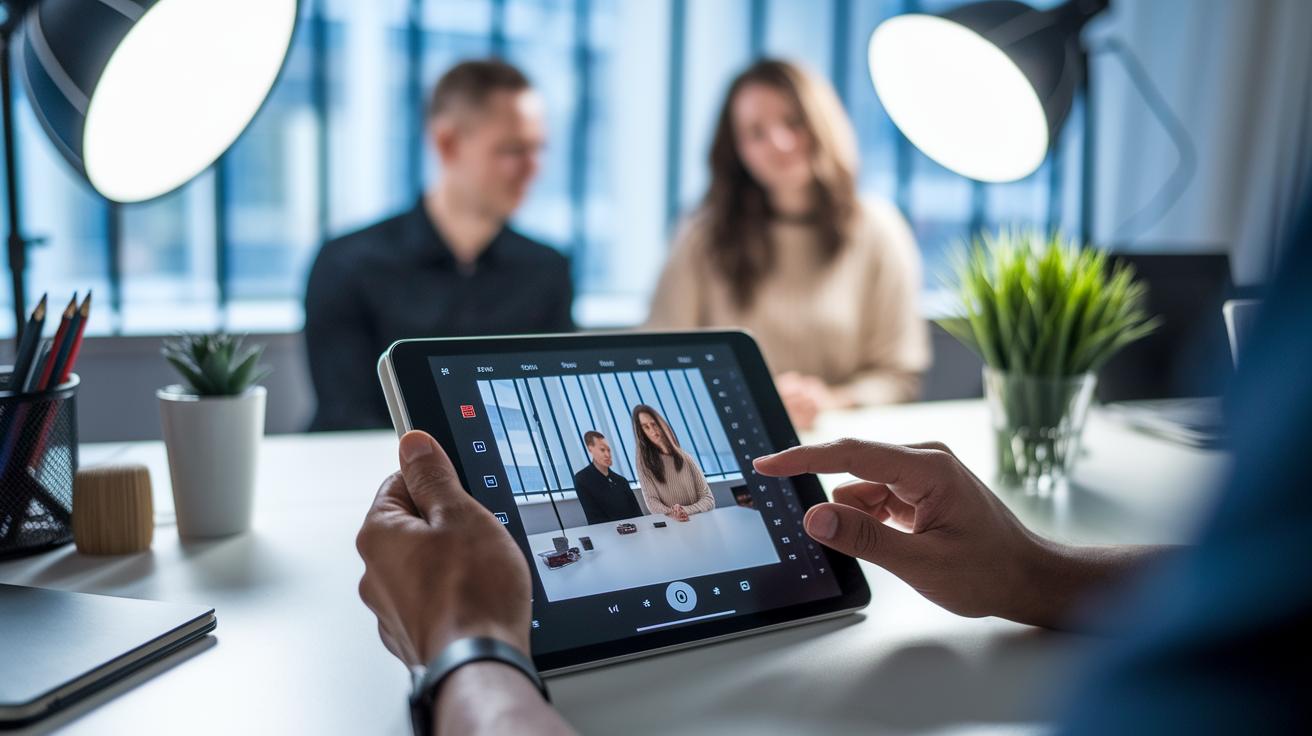
Snapseed stacks let you edit photos without changing the original image. You can tweak small parts of your photo without messing up the entire shot. This approach keeps your work flexible and precise.
Lightroom Mobile lets you save presets and use them on many images. This means you can quickly give your photos a unified look and speed up your editing when you need a fast touch-up.
For a smoother workflow, try using several apps in order. First, shoot in RAW with Camera+ to capture all the details. Next, use Snapseed for careful adjustments. Then, add creative touches with VSCO presets. You can also try Colorize for a vintage feel or ProShot’s grid overlay to get your framing right. This step-by-step method helps you fine-tune your photos quickly and achieve impressive results.
Final Words
In the action, we reviewed top mobile photography editing apps, breaking down key features, user-friendly designs, and clear workflows. We compared pricing, platform support, and editing power, so you can spot which app fits your needs best. Our guide walks you through step-by-step processes while offering smart tips to boost your editing skills. A mobile photography editing app can help you capture, enhance, and share your shots confidently. Enjoy the process and trust your choice as you create stunning images.
FAQ
What are some free mobile photography editing apps available?
The question on free mobile photography editing apps shows that Snapseed, Photoshop Express, and Google Photos offer robust editing tools without cost, making them excellent choices for budget-friendly photo editing.
Which mobile photography editing apps work well on both iPhone and Android?
The inquiry about cross-platform mobile photography editing apps highlights that Adobe Lightroom, Snapseed, and PicsArt deliver consistent features and performance on both iPhone and Android systems.
What is the best mobile photo editor for both hobbyists and pros?
The question on the best mobile photo editor indicates that Adobe Lightroom and Snapseed are top picks, with Lightroom offering advanced RAW capabilities and Snapseed providing intuitive, free editing tools.
How can one edit photos on mobile like a professional?
The query on professional mobile editing illustrates that using tools like selective adjustments, layer-based edits, and custom presets helps create polished images similar to studio-quality results.
Which mobile photo editing app is best for beginners?
The question on beginner-friendly photo editing apps suggests that Snapseed and Photoshop Express are ideal, thanks to their simple interfaces and straightforward tools that ease new users into editing.
What editing tools does Snapseed offer for mobile photography?
The question on Snapseed reveals that it provides selective contrast, exposure controls, a healing brush, and creative filters—all designed to support both basic and advanced photo enhancements.
How does Adobe Lightroom enhance mobile photo editing?
The question about Adobe Lightroom shows that its support for RAW image editing, cloud syncing, and organized adjustment panels makes it a powerful choice for serious photographers.
What features does AI Photo Editor – Polish provide in mobile editing?
The question on AI Photo Editor – Polish indicates that it utilizes artificial intelligence to automatically enhance colors, sharpen images, and simplify edits, making it ideal for quick, effective adjustments.
How is CapCut used for mobile photo and video editing?
The question on CapCut clarifies that while it is mainly a video editor, its creative tools also allow for fun photo adjustments, especially suited for content creators on social media.
What editing features does YouCam Perfect offer on mobile?
The question on YouCam Perfect explains that it focuses on beauty filters, retouching, and fun effects designed for selfies and casual photo editing, making it popular among users who prefer quick enhancements.
Why choose VSCO for mobile photo editing?
The question on VSCO illustrates that it is favored for its film-inspired presets and creative controls, offering a minimalistic interface that appeals to photographers seeking artistic and styled edits.