

Ever notice that your pictures sometimes look a bit off on your screen? It might be time to give your monitor a quick tune-up. In this guide, we show you how to adjust brightness, contrast, and color temperature (how warm or cool your display appears) so your photos really pop. Think of it like fine-tuning your radio, small changes can make a big difference. With a few simple tweaks and the right tools, you can enjoy visuals that feel true to life, perfect for anyone who loves sharp, genuine colors.
Color Calibration Step-by-Step for Monitor Accuracy
Getting colors right on your monitor starts with a few key steps that tune your settings for true-to-life visuals. Here’s how you can do it:
-
Warm up your monitor for about 30 minutes. This gives it time to settle into its normal temperature, which helps get accurate readings.
-
Choose a calibration tool that works for you. You can pick a physical device like a colorimeter (a tool that measures color) or use a software utility. Tools like the X-Rite i1Display Pro or Datacolor SpyderX can make this step easier.
-
Fix the brightness using grey images. Adjust it so blacks stay rich and whites don’t get washed out. Aim for a brightness of around 80–120 cd/m² if you edit photos.
-
Tweak the contrast and adjust the RGB gains (red, green, blue) to set neutral midtones. This makes sure your shadows and highlights look natural.
-
Set the color temperature to 6500K. This is the standard (known as D65) that keeps whites steady in different lighting.
-
Apply the new ICC profile through your system’s display settings. This custom file tells your computer how to show your monitor’s colors correctly.
-
Double-check your work. Use online test images or a built-in Display QA Reference tool to see if the gradients, skin tones, and color range look right.
A monthly reminder to recalibrate can help keep your colors consistent over time.
Essential Tools for Monitor Calibration
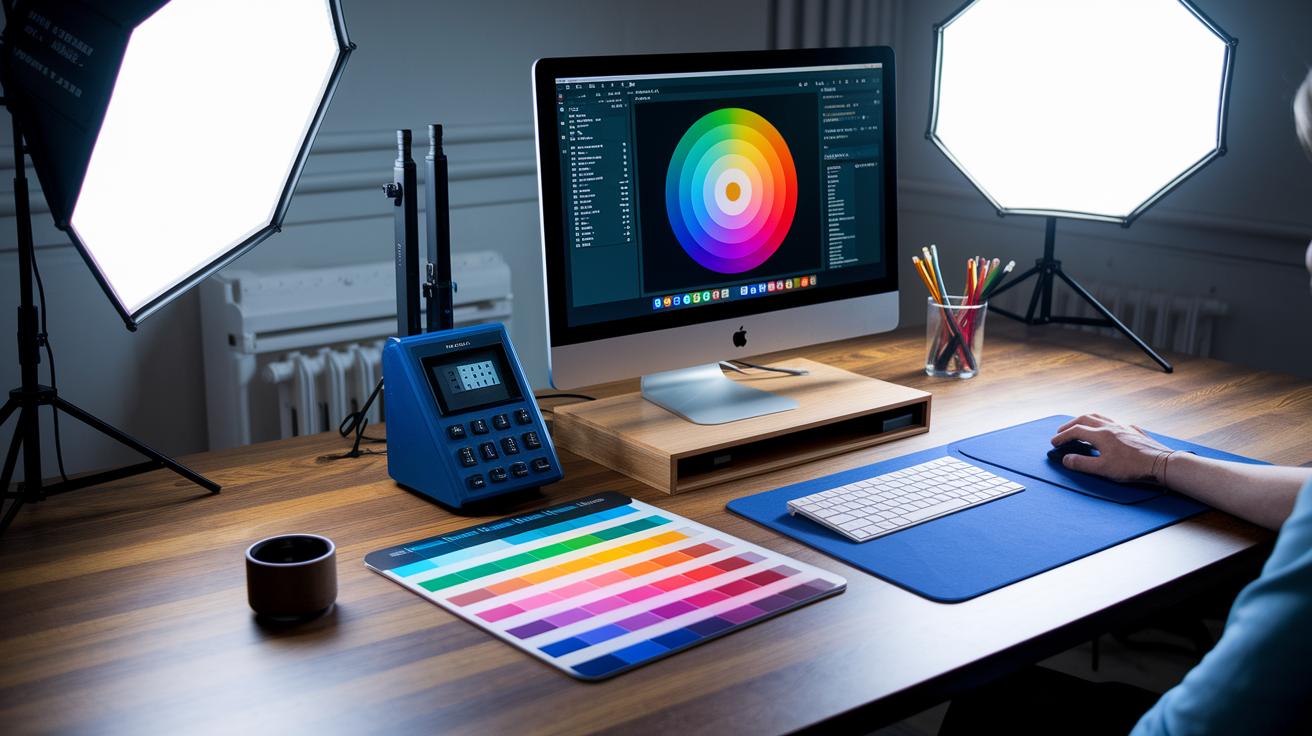
To get your monitor colors right, you need solid color measurement gear. The X-Rite i1Display Pro, now rebranded as ColorChecker Display Pro, delivers pro-level readings so every color is measured accurately. If you need a fast, automated setup, the Datacolor SpyderX offers quick tweaks and solid results. For those working in studios with multiple screens, a spectrophotometer (a device that measures color details) is a smart choice.
On the software side, Calibrite ccProfiler (formerly i1Profiler) is a top pick. It walks you through creating custom ICC profiles (files that define your display's color settings) and fine-tuning your monitor. Other options like CalMan, DisplayCal, and LG’s True Color Pro also let you adjust your display based on hardware data so the colors look real.
Each tool has its own strengths. High-end gear like ColorChecker Display Pro is best for pros and serious hobbyists who demand top accuracy. Meanwhile, the Datacolor SpyderX strikes a good balance between speed and precision at a friendlier price point. This variety helps you pick the tool that fits your budget and your need for reliable color performance.
Preparing Monitor and Workspace for Accurate Color
Place your monitor in a room with soft, neutral lighting. This helps cut down on glare and reflections that might change the color you see.
Make sure your room light stays the same. Avoid spots with direct sunlight or mixed light. A steady light keeps your screen's brightness accurate.
A monitor hood or an anti-glare filter can do wonders. These add-ons block stray light and help your screen stay even.
Let the monitor warm up for at least 30 minutes before you start calibration. This ensures the display reaches the right temperature for true measurements.
Wipe the screen clean to remove dust or oily smudges. A clean screen gives you the correct colors and brightness.
| Step | Action |
|---|---|
| 1 | Place monitor in soft, neutral light |
| 2 | Use a monitor hood or anti-glare filter |
| 3 | Keep room lighting steady |
| 4 | Warm up monitor for 30 minutes |
| 5 | Clean the screen thoroughly |
Adjusting Brightness, Contrast, and Gamma on Your Monitor
Before you work on brightness and contrast, follow the calibration steps we explained earlier. Use a greyscale chart so that dark areas still show detail, while the brightest parts remain clear. For photo editing, aim for a brightness level between 80 and 120 cd/m² (this is the light coming from your screen). A simple tip: adjust the brightness until you see smooth changes across the greyscale, almost like matching shadows with pure white.
Gamma adjustment
Once brightness and contrast are set, bring your gamma to a standard 2.2 value. Use test images with smooth gradients and clear shadow details to check your work. Adjust until the midtones blend naturally without looking flat or overly intense. Think of it like setting the volume on your stereo until every note is just right.
Applying and Verifying Color Profiles on a Calibrated Monitor
-
Begin by generating an ICC profile with your calibration tool. Instead of using the usual 118-color patch set, choose one that has 211 colors. This way, you can catch more subtle color differences, kind of like spotting extra shades in a sunset.
-
Save the ICC file in your system's color profiles folder. Then, set it as the default profile in your computer's display settings.
-
Next, check your calibration in one go. Use your built-in Display QA Reference tool or reliable online test images to look at how the colors blend, how skin tones appear, and overall color range. If you see any sudden color changes or off hues, your profile might need a tweak.
-
Finally, record your profile settings along with the creation date. This makes it easier to troubleshoot and track adjustments over time.
Maintaining and Troubleshooting Monitor Calibration
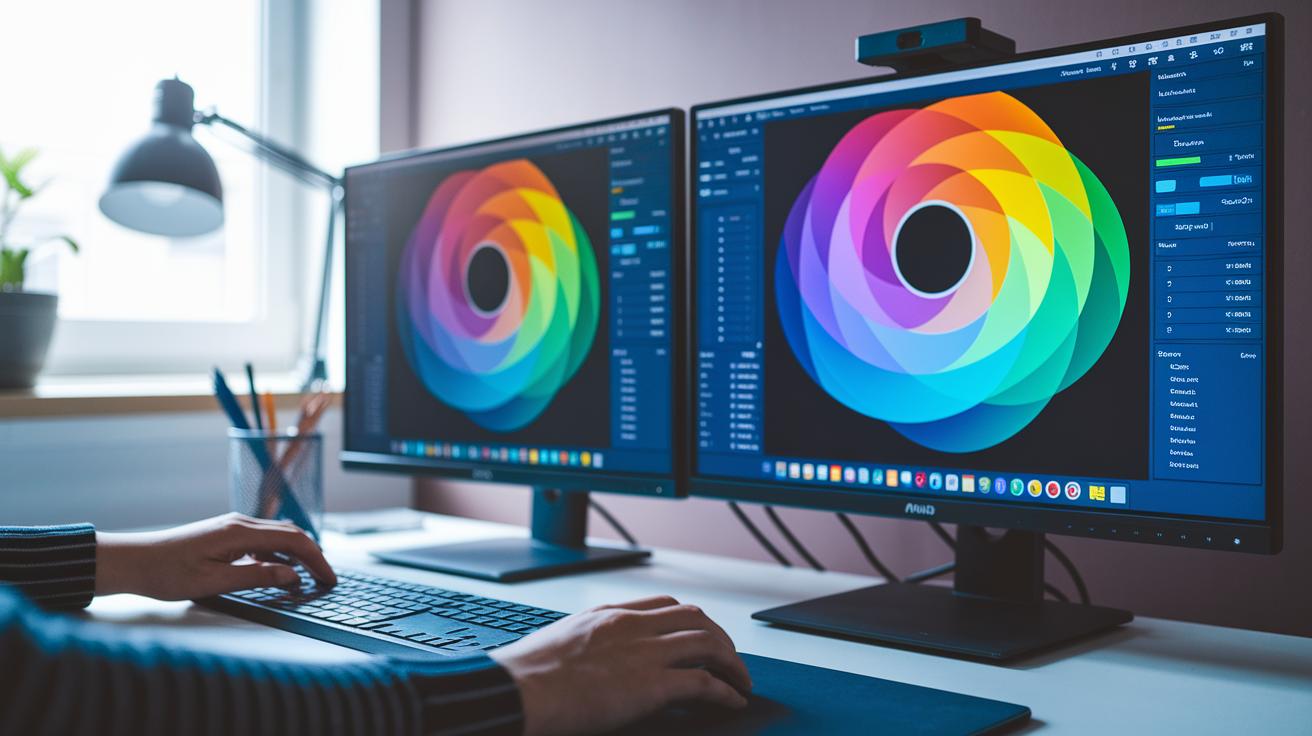
We suggest recalibrating your monitor about once a month. This small task keeps shifts from dust, heat, and long hours of use in check. If you use more than one screen, use the same settings and tool on each one so that all displays show similar colors. If you spot ghosting (when images smear) or color banding (uneven color steps), try adjusting the response time in your monitor’s on-screen settings. Keeping your room lighting neutral and dim – or using a monitor hood – also helps keep the calibration steady.
When colors suddenly change, hit the reset button to bring your monitor back to factory settings, then run through the full calibration process again. Regular checks help catch problems early, which is important for tasks that need accurate colors. It’s a good idea to note your calibration dates and settings too. This way, you can track changes over time and quickly spot any recurring issues.
Final Words
In the action, we broke down monitor calibration into clear, hands-on steps. We covered everything from warming up your display to verifying color profiles. Each section walked you through setting up your monitor and workspace, fine-tuning brightness and contrast, and applying the generated ICC profile to keep your colors true.
This guide shows exactly how to calibrate a monitor for color accuracy. Stick to these steps to enjoy consistent, reliable results and a more confident setup every time.
FAQ
How to calibrate a monitor for color accuracy without hardware?
The question asks how to fine-tune display colors using built-in methods. You can use OS calibration tools and software test patterns to adjust brightness, contrast, and gamma, though hardware tools deliver more precision.
How to calibrate a monitor for color accuracy on Reddit?
The question suggests using community-tested methods found on Reddit. Many users share guides that rely on a mix of built-in settings and free software, balancing adjustments for brightness, contrast, and color temperature.
How to calibrate a monitor for color accuracy on Samsung?
The question targets Samsung monitors and implies using model-specific tools. Adjust brightness, contrast, and color temperature (usually to 6500K) via Samsung’s calibration software or OSD menus to achieve accurate display colors.
What is a monitor color calibration tool?
The question defines a device or software that adjusts your display’s settings. It uses test images and measurements to tweak brightness, contrast, and color accuracy, ensuring the onscreen colors match real-world tones.
How to calibrate a monitor in Windows 11?
The question means using Windows 11’s built-in wizard. Launch the calibration utility, then adjust brightness, contrast, and gamma, and apply a custom ICC profile to fine-tune overall display color accuracy.
How to calibrate a monitor for gaming?
The question implies optimizing your display for gaming visuals. Adjust brightness, contrast, and color settings so that vibrant details and dark shadows are balanced, enhancing immersive gameplay while keeping response times low.
How to calibrate a laptop screen?
The question deals with tuning laptop displays. Use built-in OS calibration tools or third-party software to adjust brightness, contrast, and color temperature, then apply and test an ICC profile for accurate color output.
How do I make sure my monitor is color accurate?
The question seeks verification of true-to-life colors. Use a calibration process with a colorimeter or software, validate with test images for gradients and tones, and tweak settings until the display shows natural color balance.
How do you calibrate display color?
The question asks about the calibration process. Begin by warming up the monitor, then adjust brightness, contrast, gamma, and color temperature step-by-step before generating and applying an ICC profile for improved accuracy.
Can all monitors be color calibrated?
The question indicates that most displays can be calibrated. Nearly every monitor allows adjustments via internal settings or software, though some high-end models might offer advanced controls for even finer color tuning.
How to color calibrate a monitor for graphic design?
The question targets the needs of graphic designers. Use professional calibration devices like colorimeters, set the correct brightness, contrast, and a 6500K color temperature, then verify accuracy with test images to achieve reliable color reproduction.