

Ever wondered if a quick format is the easy way to prep your drive? It erases file links without touching your data, letting you get started in seconds. Our tests show that even a 500GB drive can be ready in under two minutes when it’s in good shape. In our article, we cover the real benefits and limits of quick format so you can decide if it fits your needs or if a full format might be better.
Quick Format Essentials: Benefits, Limitations, and Use Cases
A quick format resets a drive by wiping the file location records, not the actual data. Your files remain on the disk and can be recovered later with recovery tools. This method skips checking for bad disk sections, so it finishes in seconds or a few minutes based on drive size. For example, a 500GB drive might be ready in under 2 minutes, yet all previous files still sit on the disk until they are overwritten.
This fast method works well when speed is key and a deep scan is not needed. It is great for reusing drives that are already in good shape or when you simply want to refresh the file system without permanently deleting old data.
However, quick format has clear limits. It does not scan for bad sectors or mark faulty areas. If you are worried about drive health or need tight data security, a more thorough cleaning process is best.
Quick Format vs Full Format: Key Differences and Data Security Implications
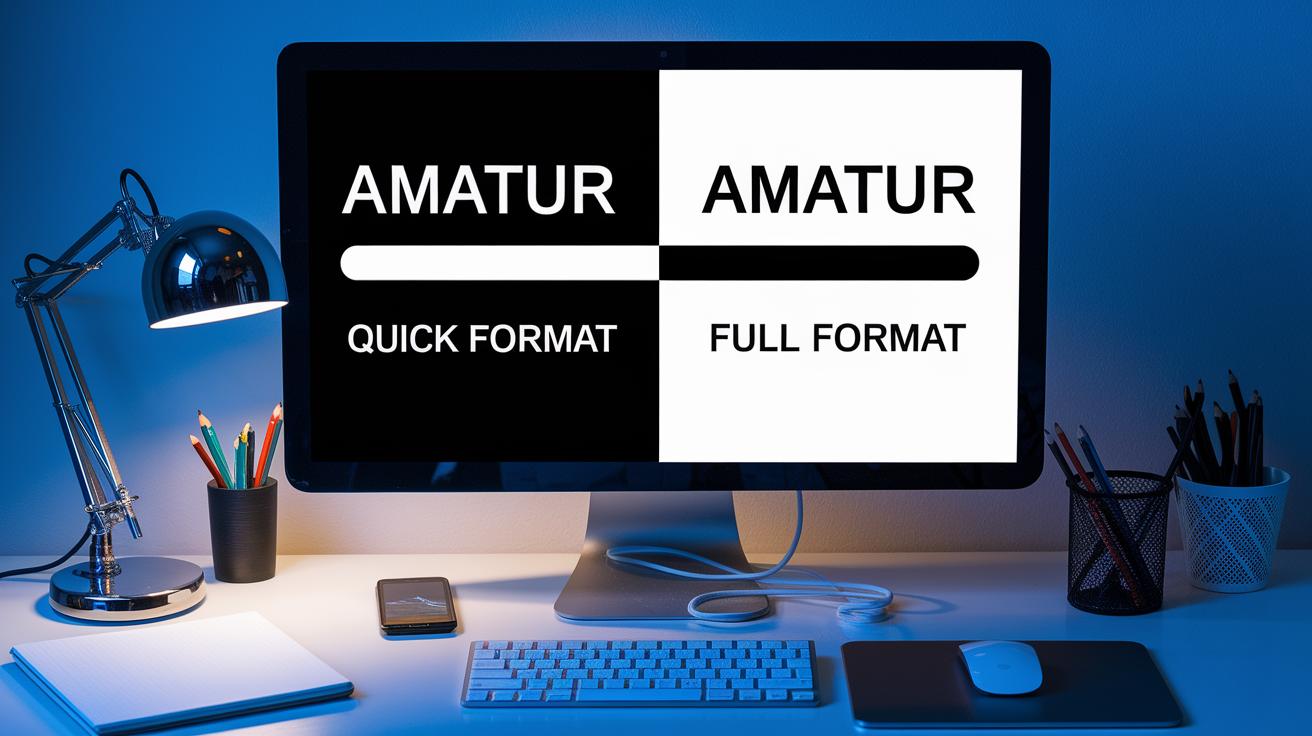
A quick format wipes out the file system records without erasing the actual data. It only removes the links to files, so your data is still there and can be recovered with special tools. This kind of format is fast, often done in seconds to minutes. For instance, a 256GB drive might finish in under two minutes if the drive is in good shape.
By contrast, a full format cleans the drive more deeply. It writes zeroes over every part of the disk (meaning any old data is gone) and checks for bad sectors. This thorough process can take anywhere from a few minutes to several hours, depending on the drive’s size and type of connection. On Windows Vista and later, a full format marks the drive to make data recovery nearly impossible. This extra security is useful when you need to get rid of sensitive information for safe disposal.
Another key difference is the disk check. A quick format skips looking for any damage, while a full format scans the drive and flags any bad areas. If you suspect there might be issues with the drive, a full format is a better choice.
In short, quick format is best when you need a fast reset of the drive, while a full format is recommended if you need extra security or want to check the drive’s health.
Quick Format in Windows: Step-by-Step Guide with File Explorer, Disk Management, and DiskPart
This guide shows you how to quickly format a drive using three built-in Windows tools. All methods need administrator rights and might look a little different depending on your Windows version.
-
File Explorer method
- Open File Explorer and find the drive you want to format.
- Right-click the drive and choose Format.
- In the window that opens, check the box labeled Quick Format.
- Click Start.
Example: "Right-click your USB drive, hit Format, tick Quick Format, and click Start."
This easy method works best if you're used to Windows Explorer.
-
Disk Management method
- Press Windows+R to open the Run dialog. Type diskmgmt.msc and press Enter.
- In Disk Management, right-click the volume you want to format.
- Choose Format from the menu.
- Check the box for Perform a quick format.
- Click OK to confirm.
Example: "Right-click your external drive in Disk Management and select Format with the quick option enabled."
Use this method if your drive has no assigned letter or needs reinitialization.
-
DiskPart command-line method
- Open Command Prompt or Windows Terminal as an administrator.
- Type diskpart and hit Enter.
- Then type the following commands one after another:
- list disk
- select disk
(replace with your drive number) - clean
- create partition primary
- format fs=ntfs quick
Example: "After typing diskpart, run 'list disk' then 'select disk 1', followed by clean, create partition primary, and finish with format fs=ntfs quick."
This method is ideal if you want more control or plan to script the process.
Any of these methods gives you a fast and efficient quick format, readying your drive for use while keeping data recovery options available if you need them.
Quick Format on SSDs and USB Drives: Best Practices and Precautions

A quick format resets a drive's file system swiftly without erasing every bit of data. On some systems, though, a quick format on an SSD might not trigger the TRIM command (which cleans up unused memory), so keeping the partitions properly aligned is key. If the alignment is off, the SSD may not perform well even if the formatting process takes just seconds.
Flash drives work a bit differently because they use wear leveling (a method to spread out data writes evenly). Frequent full formats on these drives can cause them to wear out faster. If the drive is in good shape, a quick format works well. However, if you notice signs of corruption or bad sectors, a full format, which rewrites data and marks defective parts, is the safer option.
Here are some practical tips:
- Verify that your SSD's partitions are aligned so TRIM can do its job.
- Use a quick format when the drive has no issues.
- Opt for a full format if you suspect disk problems.
For example, I aligned my SSD correctly and ran a quick format, then noticed no drop in performance.
Quick Format via Command Line: DiskPart and CMD Tips for Power Users
First, open Command Prompt as an administrator. Type "diskpart" to start the disk management tool. Then, you can run these commands one at a time:
- list disk
- select disk
- clean
- create partition primary
- format fs=ntfs quick label=MyDrive
This process wipes the disk, makes a new primary partition, and formats it quickly. Keep in mind that the "clean" command erases all data on the drive, so check the disk number carefully first.
For extra caution, verify you picked the right drive by checking the volumes. Run these commands after selecting your drive:
- list volume
- select volume
Using "list volume" shows you all active volumes, making it easier to avoid mistakes.
You can also automate the steps by saving these commands in a text file (for example, format_script.txt) and running the following command:
diskpart /s format_script.txt
| Step | Command |
|---|---|
| Show disks | list disk |
| Select disk | select disk <n> |
| Wipe disk | clean |
| Create partition | create partition primary |
| Quick format | format fs=ntfs quick label=MyDrive |
| Verify volumes | list volume |
Quick Format Risks and Troubleshooting: Recoverability, Errors, and Time Estimates

Quick formatting can finish very fast or take a bit longer depending on your drive. For example, a small USB drive might be done in under a minute, while a large hard drive can take several minutes. Even though it’s fast, the data is still there for recovery tools to pick up, so it’s good to know the risks.
Sometimes issues pop up when you do a quick format. You might see messages such as "Access denied" or "The volume is in use." This usually happens when an app or a background process is keeping the drive busy. To fix this, make sure all programs are closed and unmount the drive before you start. If the problem sticks, a quick restart of your computer can help clear any locks.
It’s also important to note that a quick format doesn’t check for bad sectors on your drive. It skips a detailed check for disk problems, so any hidden damage might go unnoticed. Running a tool like chkdsk (a Windows tool that scans and fixes disk issues) after formatting can catch these problems. If you suspect there’s corruption, opt for a full format instead.
Here’s a basic troubleshooting checklist:
- Ensure no programs are using the drive.
- Unmount the drive if you can.
- Restart your computer if errors continue.
- Use a disk checking tool to scan for bad sectors.
- Try a full format if you worry about disk health.
These steps should help you fix common quick format issues. They also give a realistic idea of how long the process might take based on your drive’s size.
Final Words
In the action, quick format streamlines drive setup by rebuilding the partition table without lengthy scans. It offers fast drive cleaning benefits for cases where data recovery isn't a major worry. Our guide showed step-by-step methods using File Explorer, Disk Management, and DiskPart, and discussed when a full format might be needed. We broke down challenges for SSDs and flash drives and covered troubleshooting tips. This clear breakdown helps you pick the right method and avoid costly errors. Enjoy making confident, data-driven choices with quick format.
FAQ
Frequently Asked Questions
Q: What is a quick format?
A: The quick format resets the partition table and file system records without overwriting actual data. It skips bad-sector checks, making it a fast method that completes in seconds to a few minutes.
Q: How does a quick format compare to a full format?
A: The quick format only deletes file-system records, while a full format overwrites all data with zeros and scans for bad sectors. This makes full format more secure but takes much longer.
Q: How does quick format work on Windows 10 and Windows 11?
A: The Windows quick format quickly resets the file-system records during the process. It runs efficiently in both Windows 10 and 11, offering a fast reinitialization without erasing underlying data.
Q: How do I perform a quick format using CMD or DiskPart?
A: The command-line quick format involves using commands like “format fs=ntfs quick” in CMD or DiskPart sequences such as “select disk” then “clean” followed by “format fs=ntfs quick”. Always run these commands as an administrator.
Q: Should I enable a quick format on my SSD or USB drive?
A: Quick format is typically safe for SSDs and USB drives for regular reuse. However, since it doesn’t fully erase data or invoke TRIM on some SSDs, consider a full format if disk corruption or secure erasure is a concern.
Q: Will quick format erase all my data?
A: Quick format does not fully erase your data; it simply deletes the file-system records. The data remains recoverable with specialized tools unless it is subsequently overwritten by new data.