

Setting up home security can feel overwhelming. Simplisafe keeps it simple so you can protect your home in just a few easy steps. This guide walks you through a quick and clear install process. First, unbox your kit and check that you have all the parts. Next, place each device where it works best in your home. Finally, use the app for simple tests to make sure everything is running right. Follow these steps and you'll have your home secure in minutes – no fuss, no hassle.
Simplisafe Setup: Quick Start Installation Guide
Start by opening the box and laying out all the parts on a clean table. Place the entry sensors, motion sensors, keypad, indoor camera, and smoke/CO detector where you can see them. If you bought the base station separately, note that it costs $129.99. Getting everything in order now saves you time later.
- Organize the components.
- Pick locations for each device (we recommend putting the base station in the center so the siren reaches every corner).
- Set up and power the base station.
- Connect each sensor and device by following the instructions.
- Run the keypad setup wizard.
Once the steps above are done, move on to activating your system. Check that every sensor is hooked up right by using the test mode. This helps ensure all parts work correctly. You might want to grab a drink and put on a favorite tune to keep things relaxed.
After finishing with the keypad, start pairing your other devices using the app’s guided settings. The prompts will also lead you through setting up professional monitoring if you decide to use it. This clear, simple process lets you move quickly into making your home secure.
Simplisafe Base Station and Keypad Setup
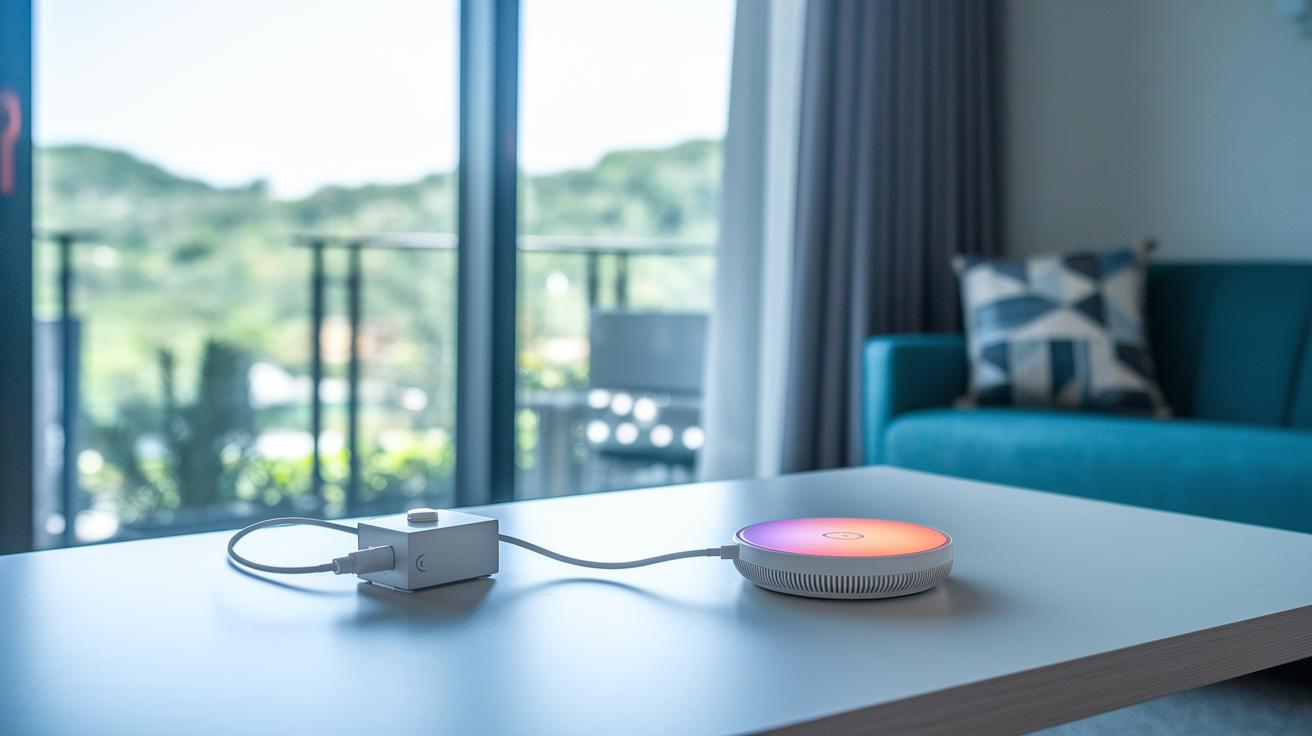
Base Station Installation
Place the base station in a spot near the center of your home. This helps the siren reach all rooms. Find a clear space without heavy obstacles and close to a power outlet. It also helps if the device is near your network to speed up firmware updates.
- Plug in the power adapter.
- Connect an Ethernet cable for quicker firmware updates.
- Run the LED and siren test to check that the device has power.
- Look at the LED indicator to see the network status.
Keypad Configuration
Turn on the keypad and follow the prompts on the screen. The wireless keypad is key to controlling your system securely. During setup, you’ll be asked to create a Master PIN (a main security code).
- Enter your desired Master PIN as guided.
- Confirm the PIN by typing it again.
- Pair the keypad by pressing the sync button in the battery compartment.
Once set up, test the keypad by trying to arm and disarm the system. A quick response means the pairing worked and your keypad is ready to manage all connected sensors and devices.
Simplisafe Sensor Placement and Pairing Tips
Getting your SimpliSafe system working right starts with where you put your sensors. Each sensor has a perfect spot that lowers false alarms and boosts alert accuracy. With a bit of planning and the right height, your sensors will quickly notice if something is off.
| Sensor Type | Recommended Placement |
|---|---|
| Entry Sensor | Less than 2 inches from the magnet |
| Motion Sensor | Mounted 4-5 feet off the floor, near light switches |
| Glass Break Sensor | 8-10 feet from glass and not touching it |
| Water Sensor | Under sinks or by appliances that may leak |
Here’s how to pair your sensors using the keypad or mobile app:
- Turn on the sensor and check that the batteries are new.
- Open the SimpliSafe app or use the keypad and choose “Add Sensor.”
- Bring the sensor close to the base station or keypad to start pairing.
- Follow the instructions on-screen or on the keypad until the sensor confirms it’s linked.
- Test the sensor by doing a small action (like opening a door for an entry sensor) to make sure it works.
After pairing, check each sensor’s signal. Testing the connection makes sure they cover the right spots and work when you need them.
Simplisafe Camera and Doorbell Setup
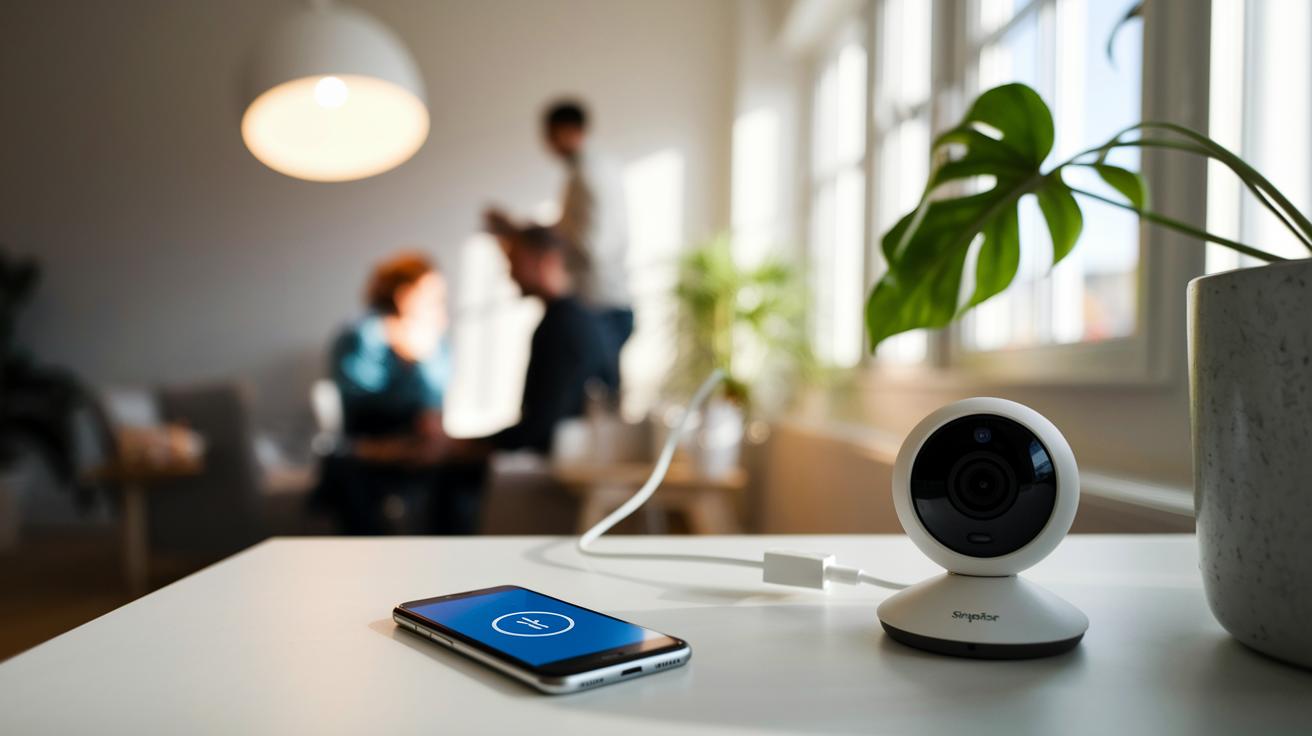
Indoor Camera
Setting up the indoor camera is a breeze. Find a steady spot like a table or shelf where it won't get knocked around. Plug it into a power outlet using the USB cable that comes with it. Open the SimpliSafe app and follow the clear prompts to join it with your overall system.
Required tools:
- USB cable
- Stable table or shelf
- Smartphone with the SimpliSafe app
- Nearby power outlet
Steps to power up:
- Connect the camera with the provided USB cable.
- Look for a steady light to show the camera has power.
- Use the app to finish the pairing process.
Outdoor Camera
The outdoor camera is built to handle any weather. Make sure you mount it firmly so it stands up to elements and keeps a clear view of your porch or entry areas. You can power it with a cable or opt for the rechargeable battery option.
Steps to install:
- Position the mount at about 5 to 7 feet high.
- Drill small pilot holes for the screws.
- Firmly secure the bracket with the screws provided.
- Attach the power cable or set up the rechargeable battery.
- Complete the pairing by following the step-by-step instructions in the SimpliSafe app.
Video Doorbell Pro
Installing the Video Doorbell Pro needs a little extra care. First, turn off the power at your breaker to stay safe. Then, remove the old doorbell and get the new one in place with the right tools. The SimpliSafe app will guide you so you know you did it right.
Installation steps:
- Switch off the circuit breaker that powers your doorbell.
- Detach your old doorbell from the wall.
- Mount the new doorbell using a Phillips head screwdriver.
- Connect the wires securely as instructed.
- Turn the circuit breaker back on.
- Complete the pairing using the SimpliSafe app.
Once you finish, check the live video feed in the app to make sure the doorbell is working clearly.
Simplisafe Mobile App Activation and Network Integration
Before you begin, keep your home Wi-Fi info (network name and password) handy. You also need a smartphone with the SimpliSafe app (available for iOS and Android) and make sure your keypad is powered up. Check your keypad’s Wi-Fi settings (System Settings > Wi-Fi) to connect your system properly. Even though cellular backup works by default, using Wi-Fi speeds up firmware updates and boosts performance.
- On your keypad, open System Settings and tap Wi-Fi.
- Pick your home network from the list.
- Type in your Wi-Fi password when asked.
- Get the SimpliSafe app from your device’s app store.
- Create an account or sign in if you already have one.
- Follow the in-app activation guide to register your system.
- Finish the setup to sync all parts with your mobile app.
If the app struggles to connect, try these tips:
- Restart your router and keypad. A quick power cycle can fix network glitches.
- Make sure your phone is on the same network as your SimpliSafe system.
- Recheck your keypad’s Wi-Fi settings for any firmware updates to keep it compatible.
Follow these steps and you’ll soon have your home network linked with your SimpliSafe system. This makes it easy to arm or disarm the system, check live camera views, and even run practice tests, all from your mobile app.
Simplisafe Troubleshooting and Base Station Reset Techniques
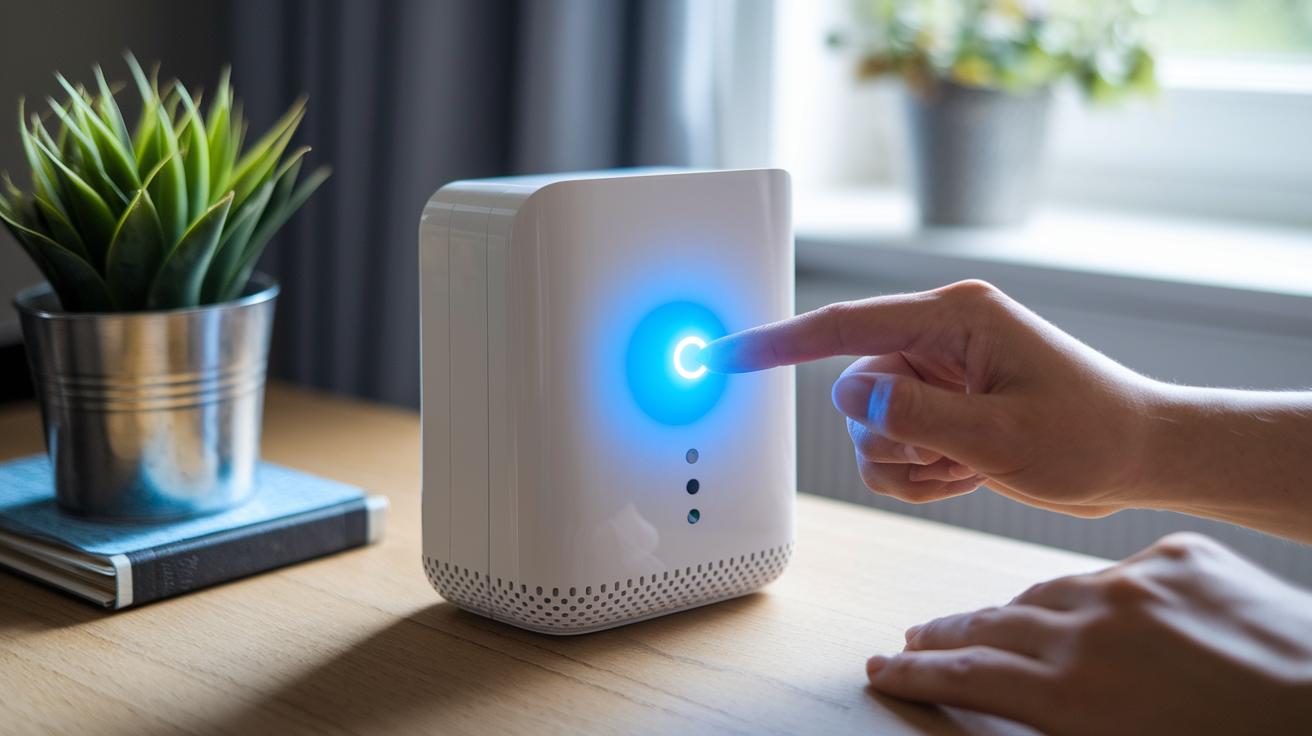
If your Simplisafe system isn't acting right, a simple reset might solve the problem. This guide helps clear setup hiccups, connection issues, or sensor dropouts in a few easy steps.
- Unplug the base station from the power outlet.
- Open the battery door to find the reset button.
- Press and hold the reset button for a few seconds.
- Plug the power adapter back in.
- Watch for a blue blinking LED, which tells you the reset worked.
- Test your sensors to make sure everything is back online.
If you see a solid red LED, it may mean the unit is offline or the backup battery is low. You might also notice sensors dropping out or failing to sync. Try these fixes:
- Replace the backup batteries if the red light stays on.
- Restart your router to improve network stability.
- Move the base station closer to your other devices to reduce interference.
- For sensor issues, press the sensor’s pair button and choose "Resync."
- Check for any firmware updates that might make the system more responsive.
If you still have problems after these steps, get in touch with support for more help.
Advanced Configuration and Best Practices for Simplisafe Setup
Tweak your system to match how you live. By refining settings, you control how your alarm acts and keep tabs on every sensor and camera. This extra effort makes sure your devices work in sync so your home stays safe.
• Set up Home and Away profiles in the app to match your daily routine.
• Give each device a clear name so you know which one triggered an alert.
• Look for firmware updates often in System Settings > Software Update to keep things current.
• Boost signal range with a Wi-Fi extender or a SimpliSafe range repeater.
• Run practice alarms every three months to check that all zones work fine.
• Hook up extra accessories, like a smart door lock, to extend your system without extra hassle.
Review these settings whenever needed, and keep your device labels clear. This way, you enjoy a smoother setup and reliable home protection.
Final Words
In the action, this guide broke down unpacking, organizing tools, and mapping out your device spots. We covered from base station and keypad installation to sensor pairing, camera mounting, mobile app activation, and troubleshooting reset steps.
Each section shows how to plan and execute your system in clear, simple steps. Follow these tips for a smooth simplisafe setup that gives you solid security and peace of mind every day. Enjoy your newfound control and confidence in your home setup!
FAQ
How do I set up SimpliSafe using the app?
The SimpliSafe app guides you through the install process by creating an account, registering devices, and walking you through each step. This setup makes keeping your system organized a breeze.
Where can I find the SimpliSafe manual and installation video?
The SimpliSafe manual is available as a PDF, and installation videos are offered on the official website. These resources provide straightforward, step-by-step instructions for your setup.
How do I set up the SimpliSafe base station?
Setting up the base station means placing it centrally, plugging in the power adapter, and following the keypad prompts. This process ensures the siren and sensors work together for proper system coverage.
What is OnTech SimpliSafe installation?
OnTech SimpliSafe installation refers to a guided process by expert technicians. It provides clear instructions and support to help you install and configure your system accurately.
What is the monthly fee for SimpliSafe?
The monthly fee for SimpliSafe changes based on the service plan you choose. You can opt for free self-monitoring or select a plan with professional monitoring for added security.
What is the cheapest home security system?
The cheapest system depends on your needs. SimpliSafe offers budget-friendly kits, some with no monthly fee options, providing a cost-effective solution without sacrificing essential features.
Where should a SimpliSafe base station be placed?
The SimpliSafe base station works best when placed in a central, open area. This location helps the siren reach all sensors quickly to keep your home secure.
How long does it take to set up SimpliSafe?
Most users can set up SimpliSafe in under an hour. Clear instructions and guided prompts make it a quick and manageable process, even for beginners.