
Ever wish you could make daily chores easier with just one tap? The GE Smart Appliances App brings together more than 450 devices into a single, simple platform. You can control things like your air conditioner and oven all in one place. It works with trusted names such as GE Profile, Monogram, Café, GE Appliances, and Haier. Plus, you can send remote commands or use voice control through Alexa and Google Assistant (tools that let you speak instead of tapping). This means you spend less time managing devices and more time on the moments that really count.
GE Smart Appliances App Overview and Benefits
The GE Smart Appliances App groups over 450 connected devices into one easy-to-use platform. With SmartHQ, you can control air conditioners, water heaters, kitchen tools, and laundry appliances from a single spot. It works with GE Profile, Monogram, Café, GE Appliances, and Haier products so every device in your home can sync together. Imagine adjusting your home’s temperature or preheating your oven with just a few taps on your phone, it really puts control in your hands.
The app lets you use remote controls, and it works with voice commands through Alexa and Google Assistant. You might even get a quick alert if your fridge needs a new water filter or when your oven is ready, all before you step in the kitchen. These updates and service alerts make keeping your appliances in top shape much easier, and you even get performance insights to see how efficiently each device runs.
Designed for real-world simplicity, the GE Smart Appliances App focuses on making your home smarter and your life simpler. It offers a unified way to manage many appliances, giving you peace of mind while freeing up more time for daily moments.
GE Smart Appliances App Download and Compatibility Essentials
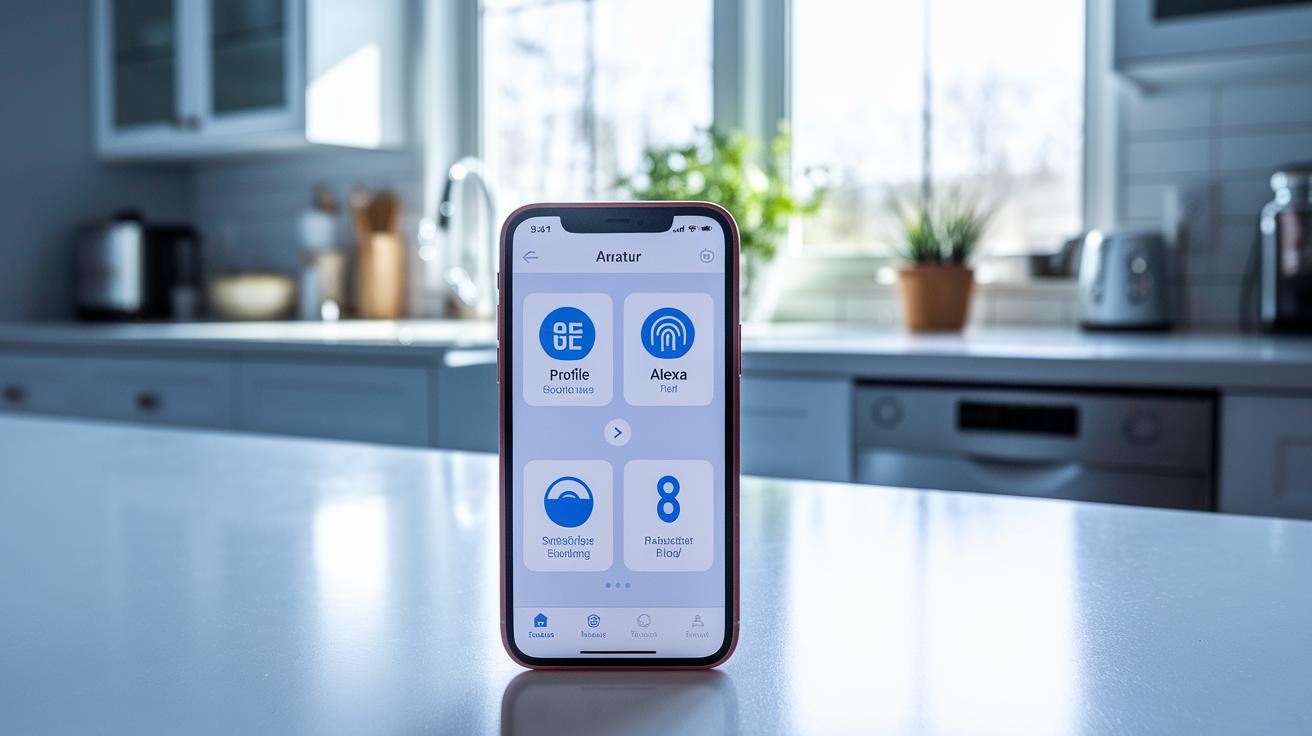
The GE Smart Appliances App is free and a breeze to get started with. You can download it from the Apple App Store or Google Play Store. Just use a device running iOS 10 or later, or Android 5.0 or newer. For the best experience, we suggest you use a stable Wi-Fi connection on a 2.4 GHz band.
This app works with GE Profile, Monogram, Café, GE Appliances, and Haier smart devices so you can keep all your home gadgets in one simple place. It also pairs with Amazon Alexa and Google Assistant to let you control your appliances with your voice. This really helps when you have a busy life and want things to run smoothly.
Steps to get started:
- Open the App Store or Google Play.
- Search for "SmartHQ."
- Tap “Install” if you’re on iOS or “Download” if you’re on Android.
- Launch the app and allow network access.
After you install the app, make sure your devices are compatible. The GE Smart Appliances App supports a wide range of smart gear, like advanced refrigerators, modern ovens, and reliable washing machines. Once you follow the simple steps, your devices will easily link up.
Plus, the voice control feature means you can manage your home even when you're on the move. With clear instructions and a smooth setup, keeping your smart home connected has never been easier.
GE Smart Appliances App Setup Guide: Pairing Your Appliances
Pairing your GE smart appliances is really easy if you follow the prompts in the app. Start by signing into SmartHQ and tapping on "Add Appliance." Next, choose the type of appliance you want to connect. For refrigerators, you'll see two icons, one for models with an LCD touchscreen and another for capacitive-touch controls, so match the icon with your appliance to pick the right setup method.
Once you decide on the method, follow the on-screen prompts to finish the pairing process. The steps are similar for dishwashers, espresso machines, and coffee makers. Just sign in, select your appliance type, and confirm the model or features as the app asks.
Each device uses your home Wi-Fi network during setup. That means you need a strong Wi-Fi signal and a router that works well with your device. Sometimes you might need to move the appliance or router to keep a steady connection.
The app’s clear design makes it simple to follow along. With just a few taps and a solid Wi-Fi connection, your GE smart appliances will be set up and ready to give you performance insights and remote control features.
| Appliance Type | Pairing Method | Setup Steps |
|---|---|---|
| Refrigerator | Wi-Fi | Sign in → Add Appliance → Select LCD or Cap Touch → Follow prompts |
| Dishwasher | Wi-Fi | Sign in → Add Appliance → Choose Dishwasher → Confirm model |
| Espresso Machine | Wi-Fi | Sign in → Add Appliance → Select Automatic or Semi-Auto |
| Coffee Maker | Wi-Fi | Sign in → Add Appliance → Choose Coffee Maker → Complete setup |
GE Smart Appliances App Interface: Navigating Controls and Features
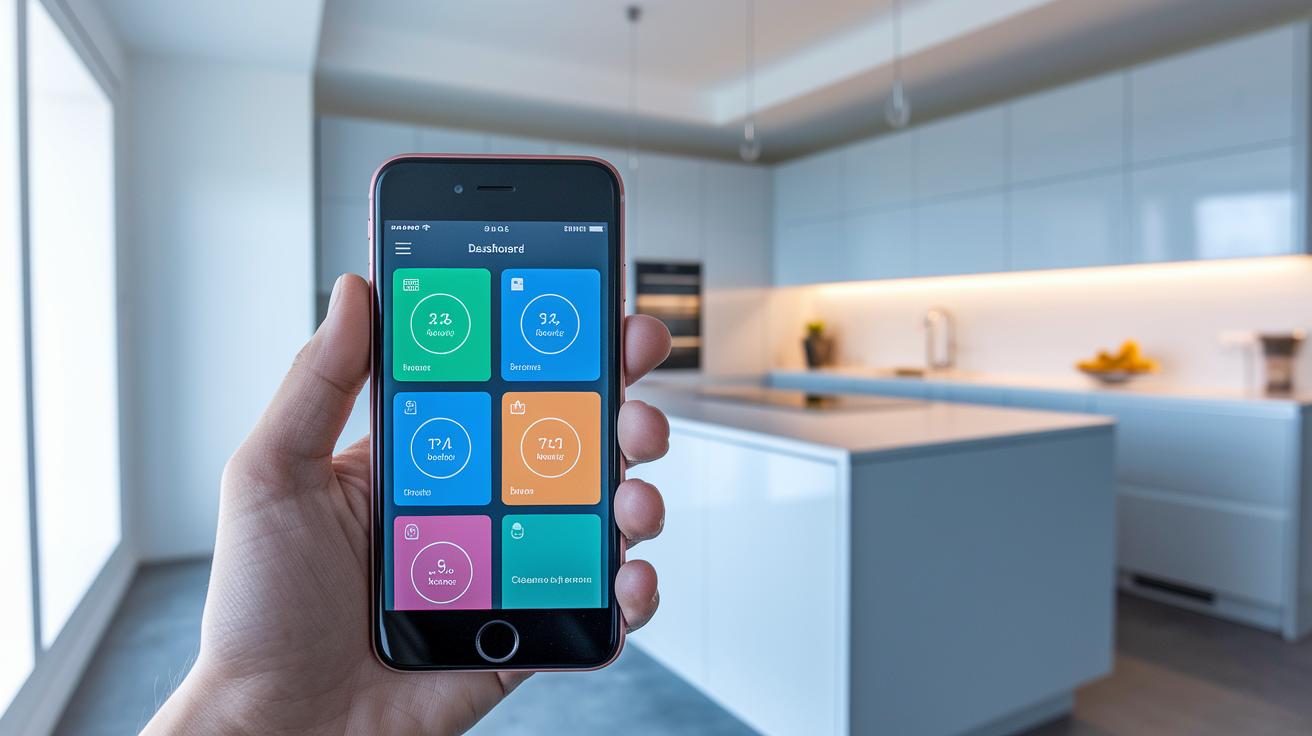
The GE Smart Appliances app starts with a clear dashboard. Each device appears as a tile that shows if it is on or off and gives quick status updates. It almost feels like having a remote in your hand, letting you see which appliances are active and in what mode. This layout makes it easy to spot if something needs your attention.
At the bottom, there is a simple menu with three options: Devices, Notifications, and Settings. These let you switch between sections quickly. Tapping on a device brings up its control panel, where you can adjust temperature, set timers, choose cleaning cycles, or check energy use. It serves as a digital control center that is straightforward and practical.
The app also offers quick-action buttons and options to group devices by room. Whether you are warming up the oven from another room or checking on your washer while you’re out, the design makes controlling your smart home easy and fast. Every control is laid out to keep things clear and simple.
GE Smart Appliances App Troubleshooting: Resolving Common Issues
Login issues can be a real hassle. You may find that you cannot log in if your username or password is wrong or out of date. Sometimes the app shows error codes like E-01, which point to firmware mismatches. Before worrying about a bigger issue, double-check your login info. More often than not, a quick review clears the way.
Pairing problems tend to arise when your Wi-Fi signal is weak or crowded. This can cause your appliance to struggle to connect, resulting in frustrating pairing loops. If your device has trouble joining the network, try moving it closer to your router or reducing the number of devices using the same band. Such a simple step can improve your connection and keep your appliance stable.
At times, the app may freeze or crash without warning, making it hard to control your device. Clearing your phone's cache or reinstalling the app often fixes these problems. These small tweaks usually get you back in control faster, so you can manage your smart appliances without long interruptions.
ge smart appliances app: advanced control tips
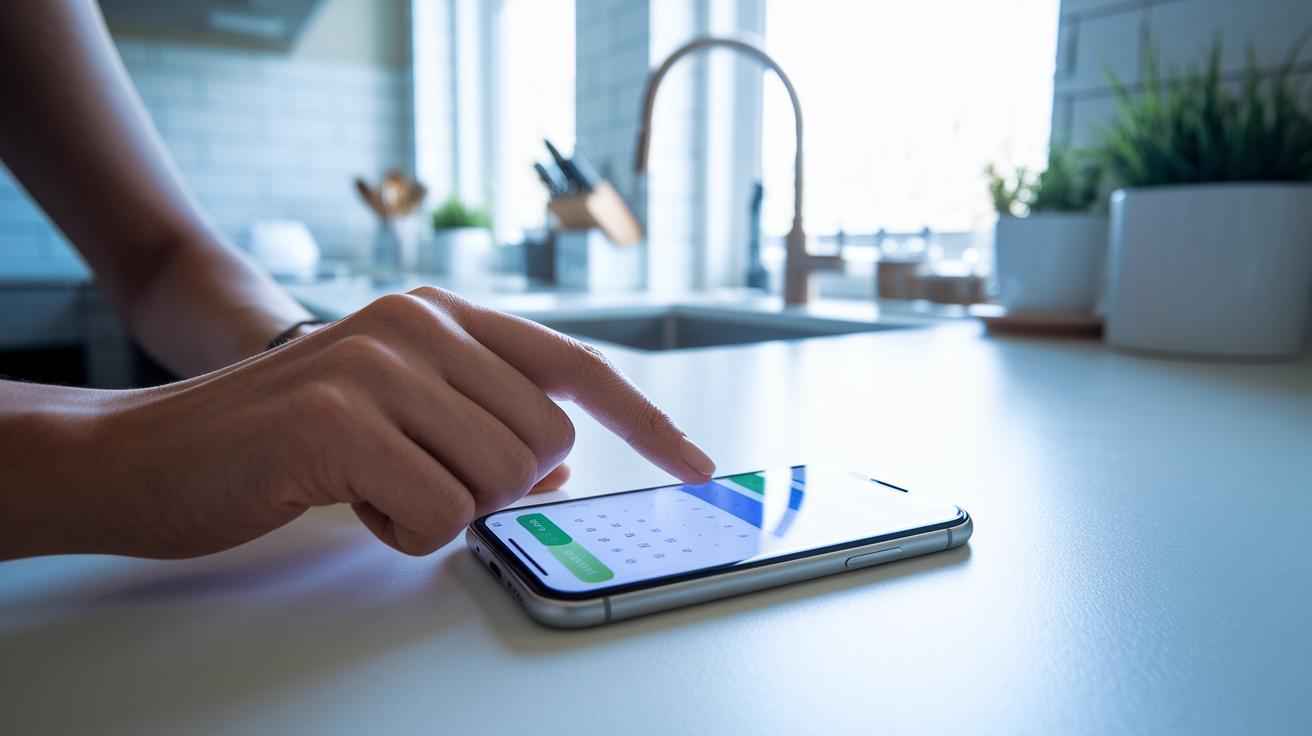
After our earlier discussions on remote monitoring and voice commands, the app now offers a custom scheduling tool that simplifies your daily routine. You can set up shortcuts for frequent tasks so you don't have to repeat the same setups again and again.
The app also includes improved energy tracking. It keeps an eye on your energy use and sends alerts when it's time to change filters or do maintenance. This clear data helps you fine-tune your settings and get the most out of your appliances.
Final Words
In the action, we walked through the GE Smart Appliances App overview, download steps, pairing process, and interface details. We also broke down troubleshooting methods and shared advanced tips to get the most out of your connected setup.
The guide showed how the ge smart appliances app can simplify daily tasks while keeping your appliances in check. With clear steps and practical advice, you can set up and manage your devices with confidence. Enjoy the smoother smart home experience!
FAQ
What is the GE smart appliances app?
The GE smart appliances app, known as SmartHQ, consolidates control over 450+ appliances including washers, dryers, refrigerators, and more. It offers remote control, real-time alerts, and voice commands.
How do I download the GE smart appliances app for iOS or iPhone?
The GE smart appliances app is available for free on the Apple App Store. It works with iOS 10 or later, supporting GE Profile, Monogram, Café, and other GE appliance models.
How do I connect a GE appliance to WiFi with the app?
The GE smart appliances app helps connect your appliance to WiFi by guiding you through signing in, adding the appliance, and following clear on-screen prompts for a stable connection.
Can I control my GE washer and dryer from my phone using this app?
The GE smart appliances app lets you remotely monitor and control washers and dryers from your phone. It provides cycle updates, remote control options, and handy notifications for managing laundry.
Is the SmartHQ app free to use?
Yes, the SmartHQ app is free to download and use. It offers remote monitoring, voice integration, and performance insights for your GE appliances at no extra cost.