

Is your new Android phone really safe right out of the box? It may feel like a clean slate, but without proper setup, your data might be at risk.
Think of it like locking your front door before you step out. This guide shows you how to secure your phone just like you would secure your home. We explain how to connect to trusted Wi-Fi, turn on encryption (a way to scramble your data so it stays private), and check your apps every day.
Take these steps now to protect your personal info and enjoy your new device with peace of mind.
Secure Setup Steps for Your New Android Phone
Your new Android phone starts protecting your data from the very first minute. It auto-locks with strong on-device encryption (256-bit AES protection) as soon as you set up a PIN, password, or pattern. Google Play Protect also runs regular checks on your apps for any malware. These features work behind the scenes to make your initial setup both easy and secure.
- Connect to Wi-Fi – Use a trusted network so your phone can download updates and sync your settings quickly.
- Sign in to Google – Enter your Google account info to turn on backups and tailor your settings.
- Verify encryption status – Open your settings to see a message like "Encryption active," which means your data is safe.
- Activate Play Protect – Check that Google Play Protect is enabled to scan your apps daily.
Before you finish, take a moment to double-check your security settings. Make sure your Wi-Fi is secure and that you used a strong Google password with two-factor verification if you can. Confirm that encryption is active and that Play Protect is scanning your apps. With these steps, your phone is ready to face common digital threats. Enjoy using your new Android device with peace of mind!
Lock Screen Customization and Biometric Protection on Android
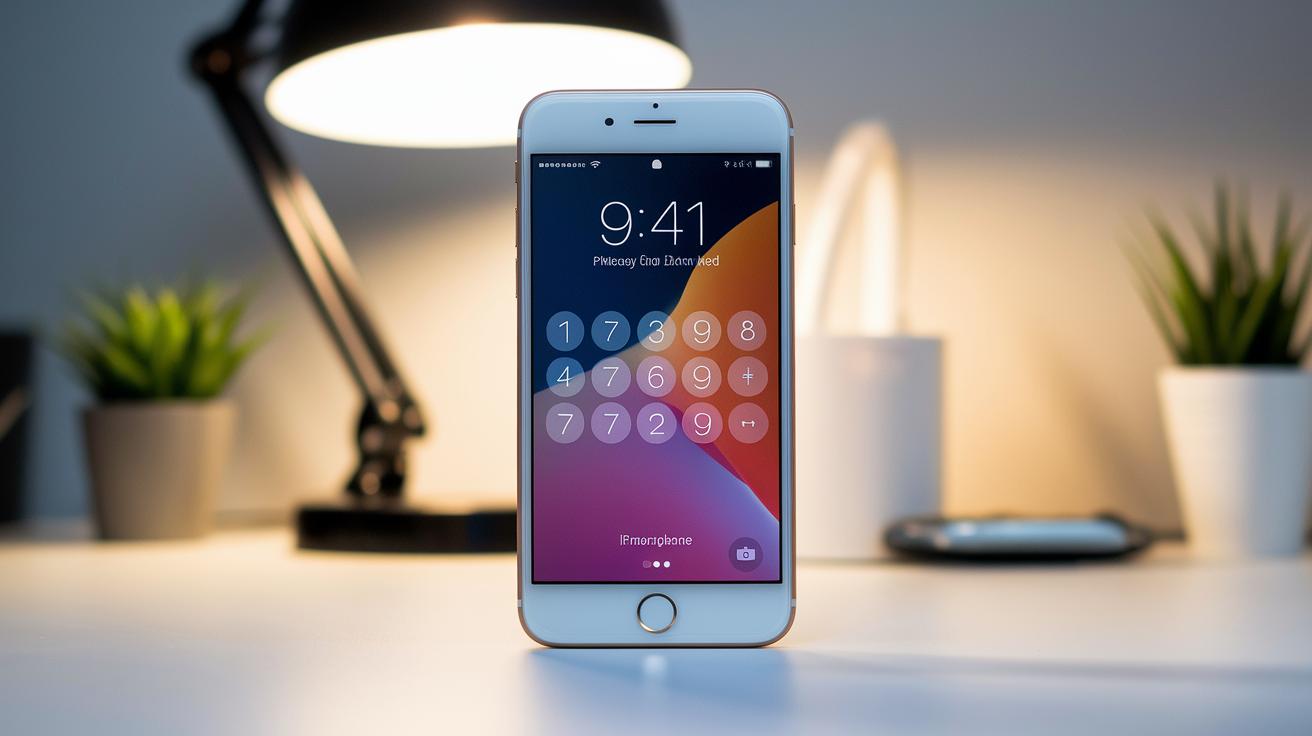
A strong screen lock is your device's first guard. A tough PIN or password stops strangers from getting in if your phone is lost or stolen. It also turns on encryption (making your data unreadable without a key) to keep your info safe. Spending a few minutes setting up a good lock now can save you trouble later.
- Choose a PIN or password that is hard to guess; steer clear of common patterns like 1234.
- If your phone allows it, mix letters and numbers in your password.
- If you prefer a pattern, use one that connects several dots.
- Set a short auto-lock time so your phone locks quickly when not in use.
- Change your PIN or password often to keep unwanted guesses at bay.
Adding biometric features makes unlocking both fast and secure. Fingerprint sensors are usually tougher than passwords. Facial recognition works fast too, but it can be less safe on phones with basic 2D cameras. Using both methods gives you flexibility and extra protection, keeping your phone locked and your data safe.
Managing App Permissions and Google Play Protect Scans on Android Phones
Your Android phone is built to keep you safe from bad apps right from the start. Google Play Protect checks your installed apps every day to spot threats like ransomware (software that locks your files), Trojans (apps that look safe but aren’t), spyware (apps that secretly collect info), keyloggers, and adware. It works quietly in the background to stop harmful apps before they cause trouble. To reduce your risk, use apps from the Play Store and read reviews before installing something new. This simple step helps keep your phone secure without any extra hassle.
- Check what access each app asks for.
- Remove extra permissions that let apps see personal data like your contacts or location.
- Update your app settings in the system privacy controls regularly to counter new risks.
- Use your phone’s built-in tools to lock down high-risk app permissions.
After you install your apps, take a few minutes to review their permissions. Open your settings, and look at what each app can access, such as your camera, microphone, or storage. Cutting out extra permissions stops apps from grabbing more data than they need. This hands-on step keeps your personal info more private and boosts your phone's defenses against malware. It might take a little time now, but it can save you lots of hassle later.
Keeping Android Updated with System Patches and Lockdown Mode
Your phone’s safety is more than just a strong password. Regular updates and patches stop known security holes. Keeping your system current lowers the risk of hacks and interference. We also recommend using advanced settings to block threats before they happen.
- Enable Lockdown Mode to temporarily turn off fingerprint sensors, Smart Lock, and other trusted features.
- Turn off Smart Lock and auto sign-in so your phone isn’t left open when you step away.
- Use a physical security key to add an extra layer of defense, even if someone cracks your password.
- Disable Bluetooth in public spots to block unauthorized connections.
- Turn off debug mode to prevent outsiders from accessing your phone during system tasks.
- Lock your bootloader (the part that loads your operating system) to keep your device secure and free from tampering.
It’s important to avoid rooting your device. Rooting removes the built-in security barriers that Android sets up, making it easier for harmful software to get through. By sticking with factory settings and approved updates from your manufacturer, you keep your device in a safe and controlled zone. These choices help your phone stay strong against new threats while giving you peace of mind every day.
Securing Wi-Fi Connections and VPN Safeguards on Android
Public Wi-Fi can be risky. These networks may lack proper protection, which makes it easier for bad actors to snatch your data. When a network doesn't use the latest security methods, strangers might intercept your personal details, such as banking or shopping info. If you use public Wi-Fi for work or banking, it pays to be extra careful.
Here are a few simple tips:
- Check the hotspot settings to ensure you're connecting to a trusted network.
- Use WPA3 (the latest safe network protocol) or a reliable VPN (a tool that creates a secure data tunnel).
- Turn off Bluetooth and NFC in crowded public areas to block unwanted connections.
- Confirm that the network uses strong encryption.
- Look at login pages (known as captive portals) for any hints of tampering.
A VPN is a smart pick when browsing on public Wi-Fi. It hides your internet actions by routing your data through a secure tunnel. This extra layer makes it much harder for outsiders to see or steal your information, keeping your mobile communications safer even on less secure networks.
Backup Strategy and Encrypted Cloud Sync for Android

Backing up your data is like having a safety net for your digital world. With a good backup routine, you can save your photos, contacts, and settings if something goes wrong. On Android, you can back up app data, contacts, and device settings through your Google account. Just go to Settings > System > Backup. This helps prevent data loss from accidental deletions or device glitches. Imagine updating your device and a bug wipes your settings. A backup lets you bring everything back in one go.
- Make a local backup on your device or SD card for quick access.
- Turn on Google cloud sync to keep your app data, contacts, and settings safe.
- Export your contacts to a file and store it securely.
- Check and update two-factor authentication on your important accounts.
It’s a good idea to test your backup restore regularly. This way, you can be sure that your recovery plan works and that you can quickly bring back your device in case of trouble.
Advanced Encryption and Pro-Level Security on Android Devices
This section is for power users who want more than Android’s basic security. Here, you can set up layered checks and smart backup codes to keep your phone safe from serious threats.
-
Advanced dual authentication: You can require two types of codes when you sign in. For example, pair a code from an authenticator app with an emergency backup code. Each code stays active for only 30 seconds, making it tough for attackers.
-
Smart backup code rules: Set your backup codes to work only once and to expire after use. This keeps them secure and stops anyone from reusing them during a login.
-
Custom power-user settings: Link hardware tokens with special apps for things like money transfers or private chats. For instance, assign a unique hardware key for high-risk actions.
-
Personalized risk triggers: Adjust how often you need to re-verify based on how risky an app is. You can make your phone ask for extra codes when you open a sensitive app.
-
Certificate-based authentication for businesses: Use certificates (digital IDs issued by your company’s IT team) to check both your device and the server during secure sessions.
It’s best to avoid changes that could mess up these settings. Stick with the default system options that support these advanced setups.
Final Words
In the action, we broke down the steps to protect your Android phone. We reviewed secure setup steps, customized lock screens, managed app permissions, and ensured system updates are in place. We also covered safe Wi-Fi practices, reliable backup strategies, and advanced encryption measures. Each section gives you clear tips on how to set up a new android phone securely. With these tested methods, you can feel confident that your device is well-defended. Enjoy exploring your enhanced security!
FAQ
Frequently Asked Questions
How do I set up my Android device and transfer data from my old phone?
Setting up your Android device starts with connecting to Wi‑Fi and signing into your Google account. Use built‑in transfer tools to move data from your old phone, either via cable or wirelessly.
What is the best way to secure a new Android phone?
Securing a new Android phone means checking that encryption is active and Google Play Protect is turned on. Set a strong lock screen and review app permissions to keep your data safe.
What should I do first when I get my new phone?
When you turn on your new phone, first verify that default safety features like encryption and Play Protect are enabled, then set up a robust lock screen to protect your personal data.