

Has your smart lock ever frozen when you needed it most? A malfunctioning lock can ruin your day and leave you worrying about your home’s safety. We list common problems, like lost signals, low battery warnings, and sensor glitches, so you know what to inspect first. Try these quick troubleshooting steps to see if it’s an easy fix or if you need extra help. Taking a close look at each symptom can spark fast fixes and help keep your home secure.
Diagnosing Common Smart Lock Issues
When your smart lock acts up, the first step is to figure out what is wrong. Look at how it behaves and note anything unusual. Catching the signs early helps you decide if it's a quick fix or something that needs more work.
Taking a close look at the problem lets you rule out some possible causes. This saves time and avoids costly repairs you might not need.
Here are some common issues you might see:
- A lost connection on Wi-Fi or Bluetooth
- A low battery alert or the lock shutting down unexpectedly
- A glitch in the software that makes the lock unresponsive until you restart it
- A sensor that doesn't line up correctly (it misreads the door's position)
- A mechanical jam that causes the bolt to stick
- Changes in performance due to temperature shifts
- Conflicts with mobile app permissions or issues with pairing
- Old firmware that locks you out of the device
Knowing exactly what is wrong helps you fix the lock faster. If it's a battery problem or a software bug, you can take swift action to stop any more hassle. When you understand each symptom, the repair feels more like a focused plan than a guesswork process.
Smart Lock Battery Issue Diagnosis and Replacement Solutions

Smart locks use different types of batteries. Some run on AA alkaline cells while others have rechargeable Li-ion packs (batteries you can recharge). Most makers suggest changing the batteries every six months to avoid problems and keep the lock working properly.
It’s easy to check battery levels with a mobile app alert or a built-in LED light. Many locks send a low battery message before they stop working. When you see a weak battery signal, it’s time to replace the cells. One user even mentioned, "I saw the alert and replaced the battery in just a few minutes, preventing any hassle."
To change the battery, unscrew the compartment with a standard screwdriver. Remove the old cells or battery pack carefully, then insert the new ones matching the positive and negative signs. This whole process usually takes under five minutes. Doing it on time helps reduce downtime and prevents accidental damage.
After you install the new batteries, test the lock right away. Make sure the app reconnects to the device and that the LED lights show normal activity. A quick lock and unlock check confirms everything works as expected.
Wireless Connectivity Troubleshooting for Smart Locks
Smart locks work best with a strong Wi-Fi signal. If your lock is more than 30 feet from the router or blocked by walls or even microwaves, the signal weakens. That drop can make the lock lose its connection or miss commands. Think of it as a narrow beam that needs a clear path to shine.
Bluetooth-only locks face similar challenges. They usually need your phone to be within 10 to 30 feet. If you stray too far, the pairing can stumble. One user mentioned, "My phone often drops from the lock when I stand too far back," which is a clear sign to get closer.
Sometimes simple network tweaks can fix the issue. Restarting the router or switching to a different Wi-Fi channel can clear up interference on crowded 2.4 GHz bands. This quick reboot often fixes glitches and improves the connection between your smart lock and your network.
If these steps don’t help, try boosting your signal with extenders or mesh nodes. Moving the smart lock bridge or adding a repeater spreads the Wi-Fi more evenly across your space. These tweaks help keep your smart lock connected whenever you need it.
Firmware Troubleshooting and Update Guidance for Smart Locks
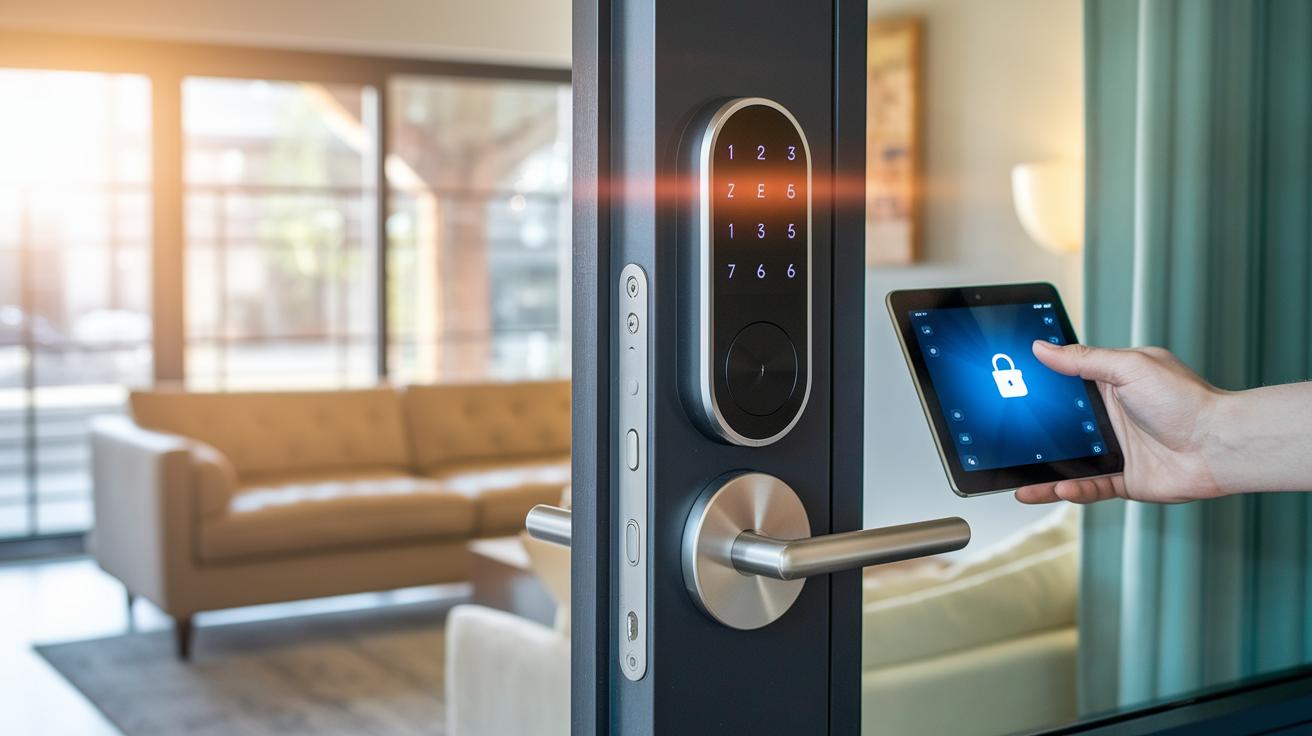
Regular firmware updates fix bugs that may cause your lock to relock randomly or stop working. These updates also plug security holes, making your lock safer. Many makers push these updates every few months, and they can boost your lock's response speed by up to 25%. Knowing your backup plan when an update stops can save you time and hassle.
| Issue | Remedy | Recommended Frequency |
|---|---|---|
| Stalled update | Restart the process or reboot manually | At the next scheduled update |
| Post-update reboot loop | Reset to factory settings and try updating again | If issues continue after an update |
| Patch rollback | Return to the previous stable firmware | When a new patch causes problems |
| Manual OTA application | Install the firmware using a desktop tool or alternate method | When auto-update fails |
After updating, it's smart to check the lock’s version number in the mobile app or on the device itself. This step confirms that the update worked and that the latest fixes are in place. Checking the version helps keep your lock reliable and makes sure any past issues are now solved.
Mechanical Calibration and Repair Steps for Smart Lock Mechanisms
Smart locks can develop issues like a misaligned strike plate, loose screws, or stripped gears. These problems can cause the lock to not engage properly or make it hard to use. Finding the exact fault helps you pick the right fix, which saves time and avoids more damage.
First, check for alignment problems. Look at the strike plate to see if it sits correctly against the deadbolt. Also, inspect the screws and other hardware to make sure they are tight. For example, one person found that tightening loose screws made the lock work smoothly again. Sometimes, a simple adjustment can solve a lot of problems.
Next, use the manual calibration mode. Many models let you adjust the latch using an on-screen wizard or through a mobile app. Follow the prompts to change the latch depth until the door sensor and lock line up well. If you are not sure how to do this, check your owner’s manual.
Finally, test the lock after making changes. Run several lock and unlock cycles to ensure the lock works smoothly and properly latches. This testing confirms that your adjustments have fixed the issue.
Advanced Diagnostics and Reset Procedures for Smart Locks
Running Built-in Diagnostic Mode
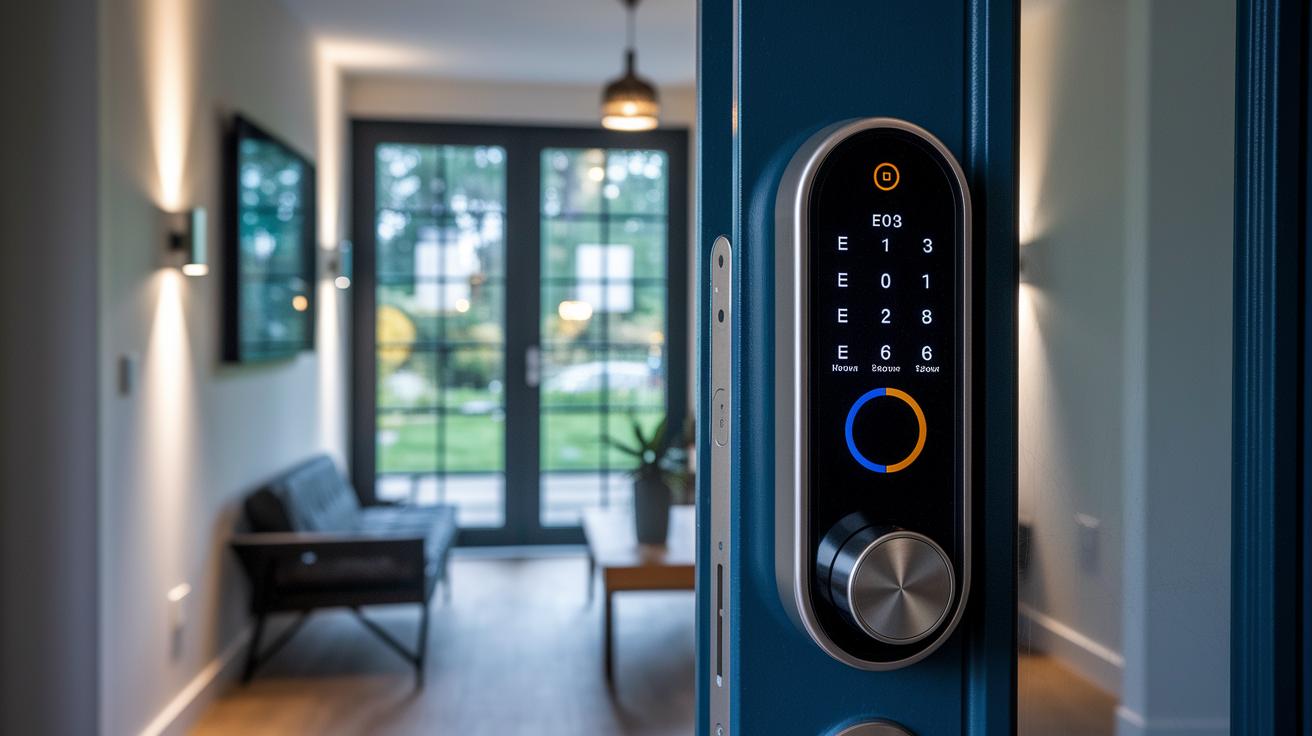
Most smart locks include a diagnostic mode that helps spot issues fast. You can get to the logs by opening the lock's settings in the mobile app or by pressing a special button on the device. In this mode, the lock shows error codes like E01 to E10. For instance, E03 means the Bluetooth pairing did not work, while E07 might point to a motor problem. One user mentioned that seeing the error code made it clear a simple reset was needed. Check your user manual for exact steps, as many manufacturers include a short guide with the error log. This feature comes in handy when the lock is unresponsive or acts strangely.
Factory Reset and Recovery
If problems keep happening or the lock stays unresponsive, a factory reset is a good next step. Hold down the reset button for about 10 seconds to erase any bad settings. Keep in mind that a reset wipes out all custom settings, so you'll have to reprogram your user codes and reconnect the lock to your network. Use the mobile app and follow the on-screen steps to set up new access credentials. It helps to jot down the error code before resetting, so you can compare it with your manual's advice. After setup, make sure the lock connects to your network and responds to commands. This full reset clears software glitches and gets your lock working securely again.
Preventive Maintenance Practices for Smart Locks
Keep your smart lock clean to ensure smooth operation. Every three months, wipe it down with a dry microfiber cloth and use canned air to remove dust and debris. One user noted that a quick clean kept their lock responsive, even with heavy use. Regular cleaning stops small issues from growing over time.
Lightly applying a graphite-based lubricant on the deadbolt seals helps prevent grime build-up. This simple step keeps the lock moving smoothly without attracting extra dust. Many users find that applying a little lubricant during cleaning stops sticking or jamming, so the mechanism works as it should.
It’s also important to check your mobile app and update firmware regularly. Verify app permissions every three months and install firmware updates as soon as they are available. One user mentioned that checking their lock’s settings saved them from a frustrating lockout. Staying on top of digital maintenance keeps your lock secure and functional.
Lastly, review your security logs every month to catch any unusual access attempts early. By monitoring these logs and replacing worn parts before they fail, you can reduce risks and make your lock last longer. Being proactive turns potential emergencies into simple routine tasks, ensuring your smart lock remains reliable.
Final Words
In the action, we broke down smart lock challenges and repairs. We covered issues from battery drains, connectivity drops, firmware bugs, mechanical misalignment, and even diagnostic resets. Each section laid out clear steps, from testing to preventive care, so you can fix problems quickly. We also offered ideas to avoid future issues by keeping locks clean and up to date.
Keep these smart lock troubleshooting tips in mind, and your smart lock setup will stay reliable and secure.
FAQ
What smart lock troubleshooting tips do Reddit and Schlage users share?
The smart lock troubleshooting tips shared on Reddit and by Schlage users suggest starting with battery checks, confirming firmware updates, and verifying proper connectivity and installation to resolve common issues.
Why is my push button code door lock not working?
The push button code door lock may not work if the buttons aren’t registering correctly, the battery is low, or sensors are misaligned. Check the power, clean the keypad, and refer to the manual for guidance.
How do I factory reset or reset my smart lock, including Eufy models?
The factory reset clears all user codes and settings from the smart lock. For Eufy models, hold the designated reset button as instructed, then reprogram codes and reconnect your device to the network.
How can I open an electronic door lock with a code when I have no key?
The electronic door lock designed for code entry lets you gain access without a physical key. Simply input the correct code to trigger the unlocking mechanism, provided the lock is functioning normally.
What steps can I take to troubleshoot a smart lock that won’t unlock?
Troubleshooting a smart lock involves checking battery levels, verifying network connectivity, inspecting firmware versions, and ensuring sensors and mechanical parts are aligned properly to restore proper unlocking.
Why might my Samsung smart lock not be working?
A Samsung smart lock may fail when the battery is nearly empty, connectivity drops occur, or software glitches interrupt operations. Checking power levels, network signals, and firmware versions can help resolve the issue.