

Ever wonder if your home is really safe? Smart locks are changing the way we keep our homes secure, and Schlage makes it simple. With models like the Arrive Smart WiFi Deadbolt and the Encode Smart WiFi Lever, you get easy, real-time control over your door. We tested these locks using everyday setups and clear data so you know what to expect. Switching to a smart lock can add a practical boost to your home security.
Schlage Smart Lock: Elevate Home Security Easily
The Schlage resource portal offers several smart lock options. You’ll find models like the Encode Plus Smart WiFi Deadbolt, the Encode Smart WiFi Deadbolt, and Latitude/Accent smart WiFi levers. One model stands out: the Schlage Arrive Smart WiFi Deadbolt. It installs easily and works intuitively. It’s built for strong security, though it does not include a tamper alarm or a door-status sensor. This means the lock might auto-engage even if the door stays open, something to keep in mind.
The Encode Smart WiFi Lever gives an old-fashioned doorknob a new life by turning it into a user-friendly lever. Setting it up on an iPhone via the Schlage Home App is smooth. However, if you like to control your devices through the Apple Home app, you might be let down because this model doesn’t work with it.
What ties these models together are the clear guides, solid performance, and handy security features. With remote control through the Schlage Home App, you can update access codes and check the lock’s status in real time. Many homeowners have been surprised at how quickly and easily the Arrive model boosted their security without messy wires or complicated setup.
In short, these features deliver smart home access that is both practical and secure.
Comparing Schlage Smart Lock with Competing Smart Deadbolts
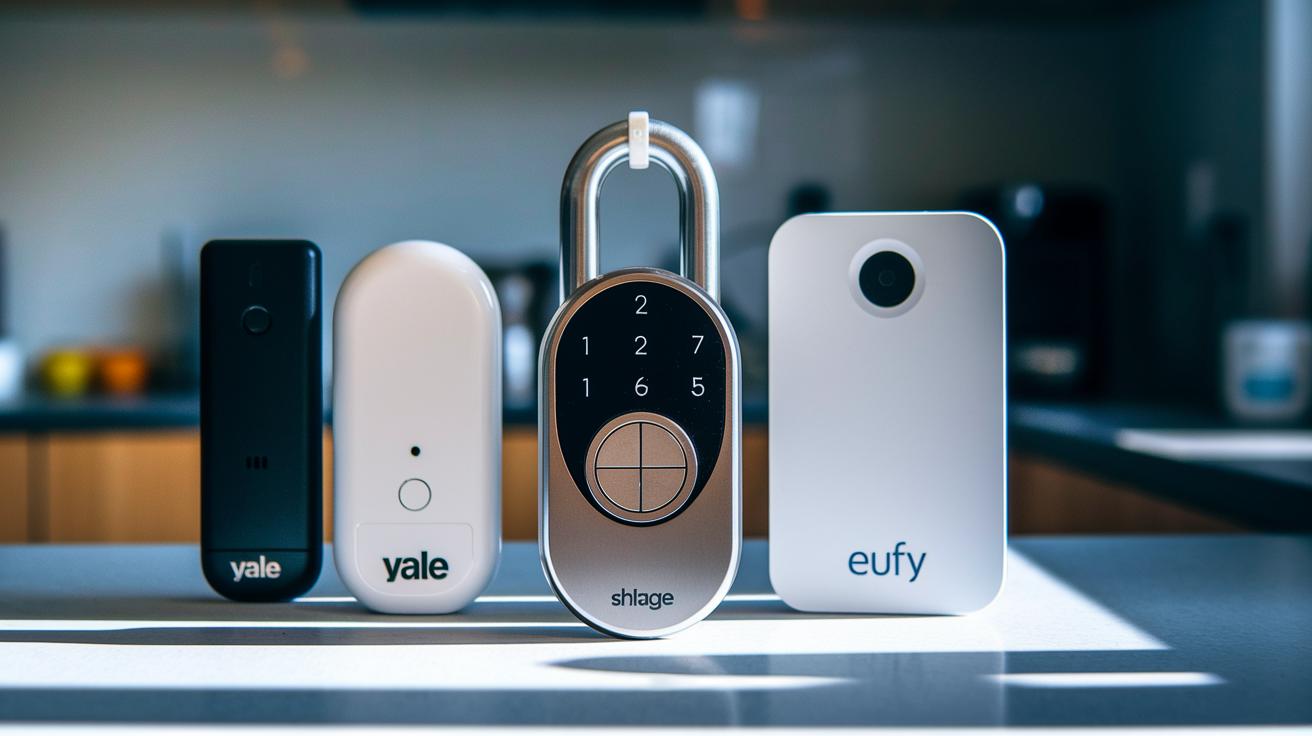
We tested several smart deadbolts side by side, and the Schlage Smart Lock proved to be a clear, reliable choice.
The Yale Assure Lock 2 sports a modern look, but its mounting plate can be misaligned during installation, which may slow you down if you need to set it up quickly.
The Aqara Smart Lock U100 works great if you're tied into Apple Home. Its fingerprint reader is both fast and quiet. Still, it uses a six-digit PIN instead of the four-digit code many know, adding an extra step to your daily routine.
For buyers on a tighter budget, the Eufy Smart Lock C34 offers Wi-Fi connectivity without needing a hub and packs plenty of smart features. However, its larger indoor unit can take over the look of your door, and its data practices might raise privacy concerns for some.
We measured each lock based on security, ease of use, installation, ecosystem connectivity, and privacy. Here’s a quick look at what we focused on:
- Security and remote access
- Installation time and potential alignment issues
- Ecosystem compatibility and privacy practices
In our tests, Schlage stood out with a simple setup and reliable performance, making it a practical and secure option in the smart deadbolt market.
Schlage Smart Lock: Elevate Home Security Easily
Schlage makes setting up your smart lock simple with easy-to-follow guides. Their online portal offers PDFs for door templates, video tutorials, and programming guides you can access with QR codes on the box. These resources walk you through every step, from lining up the drill spots to adjusting the lever and wiring the latch. Even if you’re new to this, the process is built so you can follow along without much hassle.
Start by getting your space ready. Gather your drill, screwdriver, and level so everything lines up right. Make sure your door is the proper thickness (1⅜" to 1¾"). The door-template PDFs show the exact drill points, which helps you avoid errors.
Follow these steps:
- Gather your tools (drill, screwdriver, level) and check your door thickness.
- Place the paper template on your door and mark the drill spots.
- Drill the holes and install the exterior assembly and latch, making sure the orientation fits your door.
- Attach the interior mounting plate and secure it with the provided screws.
- For lever models, adjust the lever handing as the guide explains.
- Insert four AA batteries into the battery pack and snap on the cover.
- Download the Schlage Home App and follow the prompts to pair using Wi-Fi or Bluetooth.
- Test the lock using the touchscreen and app to confirm the auto-lock timing.
Each of these steps is backed by detailed guides on Schlage’s portal. The door-template PDF not only points out where to drill but also covers adjustments like fitting the strike plate. The video tutorials show how to drill, mount, and adjust the lock, so you don’t skip any important steps. Pairing the lock with the Schlage Home App is straightforward, letting you connect via Wi-Fi or Bluetooth with ease.
You can count on these clear instructions for both the exterior and interior setups. Every part of the installation, from the physical setup to testing with the app, is explained well, so you can feel confident about securing your home.
Managing Access: Codes and Mobile App Controls on Schlage Smart Lock

The Schlage portal helps you set up and manage your lock codes easily. First, use the default code on the lock's touchpad to enter programming mode. Once you’re in, you can add up to 100 user codes from 4 to 8 digits. This means you can give regular users a permanent code and create temporary ones for guests. If you no longer need a code, just select it and tap delete. And if something goes wrong, you can do a factory reset right from the touchpad, which wipes all your custom settings and brings back the default codes.
Entering the correct default code can open the door to a host of smart functions like scheduling and monitoring access.
Touchpad Programming Procedures
Getting started is simple. Hold down the required button to enter programming mode, then type in the default code. The menu will show you options to add, delete, or reset codes. With a few keystrokes, you can add a new code or remove one that is no longer needed. When a full reset is required, just follow the on-screen instructions to clear all custom configurations. This step-by-step process makes it easy, even if you are using it for the first time.
Mobile App User Management
When you connect the lock to the Schlage Home App, managing access becomes even easier. After pairing your lock with the app, you can quickly create permanent, temporary, or scheduled codes. For example, you can set time-based access for a service provider. The app sends alerts in real-time when the lock is engaged or disengaged, so you always know when someone is at your door. It also shows a log of all code entries, which helps you keep track. And if you need to revoke access, you can do that remotely too. With both the touchpad and the app, you get a secure and user-friendly way to control who enters your home.
Setting Up Connectivity and Smart Home Integration for Schlage Smart Lock
Connect your Schlage Smart Lock to your home network in just a few simple steps. The Encode series has built-in Wi-Fi, while the Arrive and Encode Plus models use Z-Wave or Bluetooth. First, make sure you use a 2.4 GHz Wi-Fi network because these locks only work with that frequency. Most routers offer 2.4 GHz and 5 GHz, but the lock will only talk to 2.4 GHz.
Next, check that your network has WPA2 security turned on. This extra layer of safety stops unwanted access and ensures smoother work with the Schlage Home App. Once you have confirmed these settings, follow these easy steps:
- Open the Schlage Home App and see if your network name (SSID) appears.
- Carefully type in your Wi-Fi password. Even a small error can block pairing.
- Select the right pairing mode for your lock. It might use its built-in Wi-Fi or a Bluetooth module.
- Stay close to the lock to keep the connection steady during setup.
After setting up, your lock can join smart-home systems like Alexa and Google Assistant. Some models even work with Apple Home, but many do not. Once paired, try sending a lock or unlock command from the app. This quick test makes sure your network and lock are working well together for everyday use.
Power Management and Battery Maintenance for Schlage Smart Lock
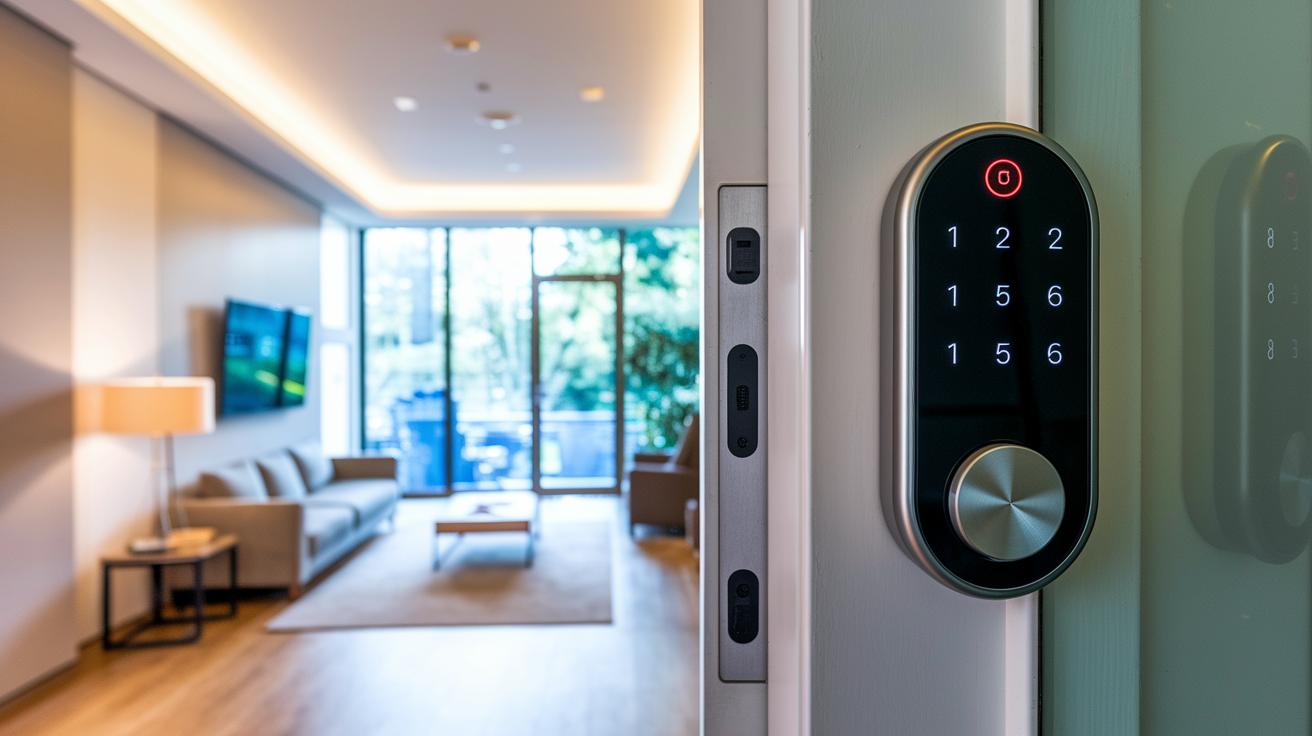
Schlage locks use four AA batteries (lithium or alkaline) to keep running. The lock shows a low battery warning on its screen and sends a message via the Schlage Home App, so you'll know when it’s time to replace them.
We recommend keeping an eye on your battery levels through the app. Setting a reminder, say every three months, can help you catch low batteries early, much like scheduling a car’s oil change.
When it’s time for a battery swap, check out the step-by-step video on the Schlage portal. This video walks you through the process, including how to reset the low-battery alert, making sure every battery is properly in place for smooth lock performance.
Key steps include:
- Monitor the battery status on both the touchscreen and the app.
- Set up reminders in the app for regular battery checks.
- Follow the official video for clear battery replacement instructions.
- Reset the low-battery alert once new batteries are installed.
Using these simple tips helps keep your lock working reliably, ensuring your home stays secure without surprises.
Troubleshooting Common Issues with Schlage Smart Lock
Schlage Smart Locks can hit a few bumps along the road. You might find that the lock struggles to join your Wi-Fi, the touchpad acts frozen, the mobile app won’t sync, or a firmware update stops halfway. We checked these issues so you can try a few fixes at home. The Schlage support portal even offers a checklist with error codes, reset steps, and detailed firmware guides. It also helps with door sensor interference problems.
One issue is when the lock cannot join your Wi-Fi. In these cases, removing the batteries for about 30 seconds (a power-cycle reset) might fix the connection. If your touchpad seems stuck, re-entering your user codes can refresh its function. And if a firmware update gets interrupted, simply following the on-screen steps and referring to the update guide should set it right.
Try these steps to clear common issues:
- Remove the batteries, wait 30 seconds, then reinsert them.
- Make sure your Wi-Fi network is 2.4 GHz with WPA2 security turned on.
- Re-sync your user codes by re-entering them as described in the factory-reset guide.
- Use the troubleshooting checklist to find error codes and scan the QR-code links for diagnostic PDFs.
- If your mobile app won’t sync, close it completely, then reopen it and check that your phone’s software is up to date.
If glitches linger, you might need to reprogram your lock settings completely. The portal offers full reprogramming tutorials, which also cover adjustments for door sensor issues. Even a small sensor misalignment can trigger false readings or stop the auto-lock feature from working. By following the detailed firmware-update guide, you can solve these problems for good.
Support Resources, Warranty, and Documentation for Schlage Smart Lock
Schlage makes it easy to get the help you need. They offer a Document Library packed with multilingual PDF manuals, quick-start checklists, style guides, and DIY tips that show you how to install, program, and troubleshoot your lock. The site is set up by product type, so whether you own a smart deadbolt or a lever switch, you'll find a clear guide for every step.
If you need warranty info or technical support, the portal gives you direct contact details. This means you can quickly sort out issues or file a warranty claim without hunting around. Video tutorials also walk you through each process, cutting out any guesswork and helping you use your smart lock with confidence.
| Resource Type | Description | Access Method |
|---|---|---|
| PDF Manuals & Guides | Installation, programming, troubleshooting | Document Library by product line |
| Video Tutorials | Step-by-step installation and code programming | Portal video section or QR code links |
| Warranty & Support | Warranty details and tech support contacts | Schlage Home App & official website |
These resources help you handle every step easily, from setting up your lock to fixing any issues that come up. With simple, clear videos and guides, you can resolve problems fast and enjoy your smart lock's security benefits without a hitch.
Final Words
In the action, we've covered key features and benefits, compared leading smart deadbolts, and walked through a step-by-step installation guide. We broke down managing access, connectivity, power upkeep, and troubleshooting so you know what to expect. Each section offers hands-on insight and clear instructions, helping you choose with confidence. Our hands-on look at the schlage smart lock shows its real-world performance, so you can enjoy a secure and straightforward setup. Happy upgrading and enjoy your new level of smart security!
FAQ
What are the key functionalities and maintenance tips for a Schlage smart lock, including battery care, manual instructions, and smart set-up?
The Schlage smart lock runs on four AA batteries with built-in low-battery alerts. Its manual details installation, code resets, and app pairing, helping you manage and maintain secure access easily.
How do I reset my Schlage smart lock code and manage access with the mobile app?
Resetting your Schlage code is done via the programming menu using default settings. The Schlage Home App lets you add, delete, or schedule user codes and receive notifications for streamlined access control.
How can I lock, unlock, and troubleshoot issues with my Schlage smart lock?
You can use the physical keypad or Schlage Home App to lock and unlock your door securely. If the lock stops working, verify battery power, reconnect Wi-Fi, and consult the manual’s troubleshooting steps.
How does Schlage compare to Kwikset and other smart door locks?
Schlage models deliver robust build quality and advanced digital features, while Kwikset offers easier installation and code programming. Your choice depends on whether you value higher security features or a simpler user interface.
What are the differences among Schlage models like Encode, Connect Camelot, and Sense Century?
Schlage models vary by features: Encode offers Wi-Fi connectivity and remote app control, Connect Camelot integrates alarm functions, and Sense Century features a sleek design with advanced control, allowing for tailored home security.
What drawbacks should I know about smart door locks, and is a Schlage lock a good choice?
Smart door locks can face connectivity issues and battery drain. Schlage locks counter these with strong security, reliable operation, and comprehensive support, making them a dependable option for many homeowners.