

Ever wonder why your smart speaker sometimes doesn't respond? It can be really annoying when it stops working just when you need it most. In this guide, we break things down into simple steps, covering everything from checking the power to updating the firmware (the software that runs your device). You'll also find tips on restarting your speaker and adjusting your network settings. With just a few small fixes, you can boost your speaker's performance and feel confident every time you use it.
Comprehensive Smart Speaker Troubleshooting Guide
This guide offers simple, step-by-step tips to fix common smart speaker issues. Each tip tackles a specific part of your device's performance, making it easier to find and fix problems.
- Confirm the power connection. Check that the LED is on. If the screen stays dark, make sure the power cable is firmly plugged in.
- Reboot the device. Unplug your speaker for about 30 seconds so it can restart properly.
- Check your network settings. Make sure your speaker is connected to the right Wi-Fi (2.4 GHz or 5 GHz). Using the wrong band can slow things down.
- Look at the microphone mute LED. If this light is on, it means your speaker might not pick up your voice commands.
- Update the firmware using the companion app. Open the app, go to the update section, and install any new firmware to fix bugs.
- Factory-reset the device if needed. Hold down the Action button for 15 seconds to revert to the original settings when other fixes fail.
- Re-register your speaker in the app. Log out and then log back in to ensure your device syncs correctly with your account.
By following these steps, you can quickly spot the issue and get your smart speaker back to working smoothly.
Diagnosing Network and Connection Errors in Smart Speaker Troubleshooting
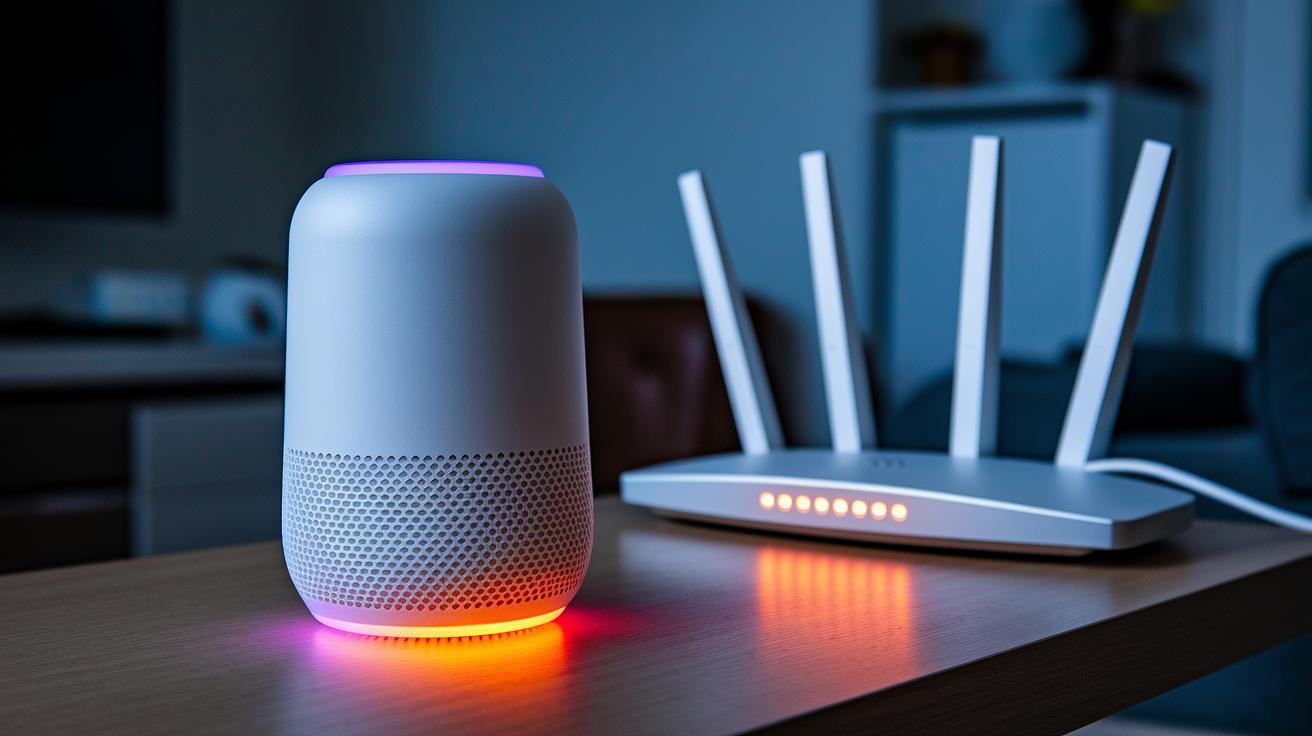
When you see spinning orange or violet lights, your speaker is having trouble connecting. This usually means the pairing failed or the signal is lost.
Wi-Fi problems can slow down your speaker or drop the connection. First, check your router's signal strength. Make sure your speaker is on the right SSID (that is, the network name). Also, look for overlapping channels on the 2.4 GHz band. Often, a poor router spot or interference from other devices causes these issues. For more help, see these router installation tips.
Bluetooth can also trip things up. If your speaker struggles to connect over Bluetooth, a stale device cache or too many devices connecting at once might be the cause. Clearing the cache and keeping devices nearby often fixes the problem. In multi-room setups, uneven network throughput (how data moves around) can lead to sound delays.
By checking your Wi-Fi settings and resetting your Bluetooth connections, you can keep your smart speaker running smoothly.
Fixing Audio Distortions and Voice Recognition in Smart Speaker Troubleshooting
Room noise and nearby electronics can mess with your speaker's sound. Even the little parts inside and a dirty sensor can slow down how well your smart speaker works.
If you hear static or crackling, it might be because of nearby Bluetooth devices or a microwave working hard. Try moving your speaker away from other wireless gadgets or any running microwave. This simple move can clear up the noise.
Sometimes your speaker’s Whisper Mode stays loud no matter how softly you speak. A clogged noise sensor can trick it into turning up the volume. Also, a glitch in the microphone can mix up your voice commands. In these cases, head into the app and retrain the voice model. It takes less than two minutes and often fixes the problem.
When you use several speakers in different rooms, you might notice echoes. This happens because each speaker processes the sound at its own pace, causing delays between them.
A quick check of the audio path and updating the voice model via the app usually gets things running smoothly again. Spending just a few minutes on upkeep can help your smart speaker send clear sounds and understand you better.
Performing Firmware and Software Updates for Smart Speaker Troubleshooting
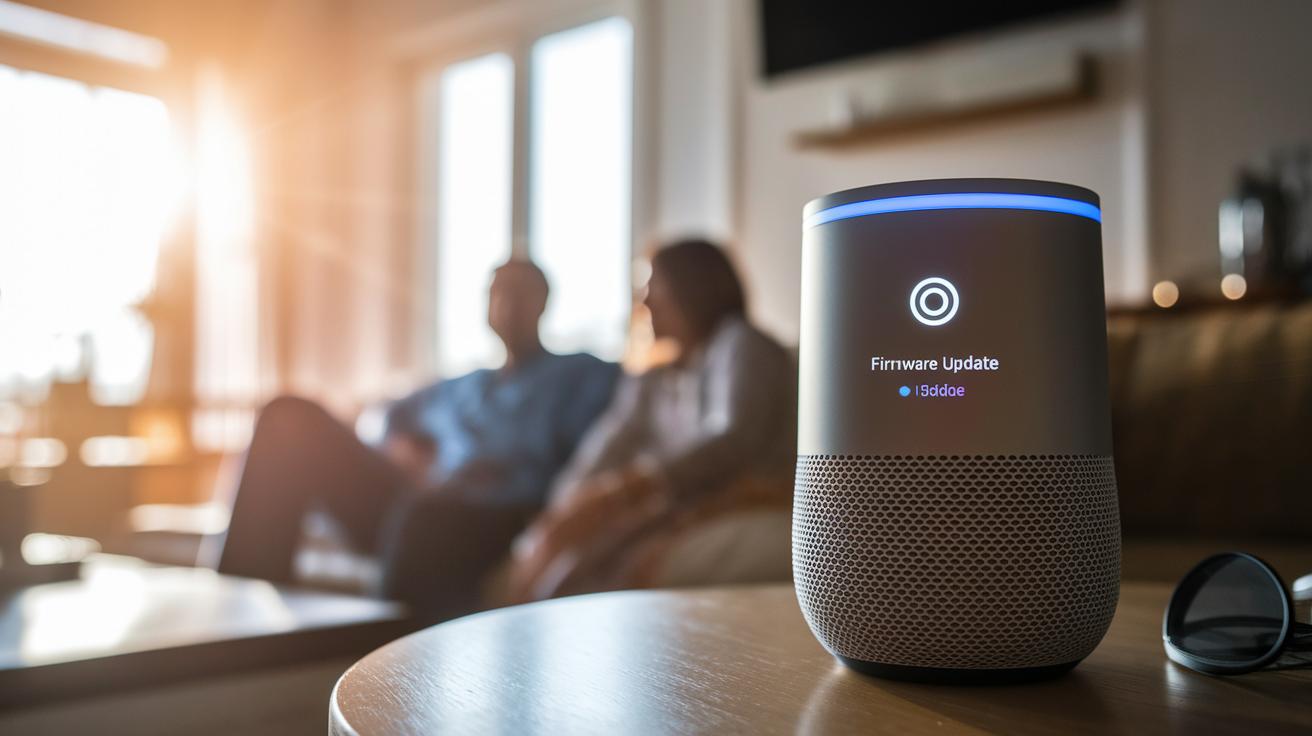
Keeping your smart speaker updated is a key step in fixing bugs and smoothing out performance. New updates can fix glitches and even add small tweaks to make your device work better.
To update an Amazon Echo, open the Alexa app and go to Devices > [Your Speaker] > Firmware Version. The update takes about 2 to 5 minutes. For Google Nest, open the Nest app and tap on Technical Info to see if there are updates waiting. Make sure your speaker is plugged in and connected to a solid Wi-Fi network while updating. The steps are simple so you can quickly clear up any issues.
After the update, check the firmware version again in your app. This confirms that the update went through and your smart speaker is running the latest software.
Smart speaker troubleshooting: Feel Confident & Fix Issues
Before you open up your smart speaker, unplug it and check your warranty. Opening it up without care can void that warranty. We recommend using anti-static gear and following the maker's instructions closely.
Start by checking the power supply and the thermal sensor lights. If you see a dark LED, it might mean the power adapter is bad. Also, if the speaker shuts down after about 60 minutes, it could be overheating. For models like Sonos, you might need to reset the thermal sensor by holding down the Mute and Volume buttons for 10 seconds. These tests help you see if the issue is due to power problems or heat.
Next, look at the speaker drivers and internal wiring. Sound problems can happen if the driver cone is damaged. Carefully check each driver for any visible wear or harm. Make sure all wiring inside is secure since loose wires can cause issues. In portable speakers, battery problems from old cells can look like wiring faults. Taking photos or notes of every connection can help you figure out what is wrong.
For repairs, always use genuine parts from the manufacturer. This keeps your speaker working as it should and avoids future issues.
Smart Speaker Troubleshooting FAQs and Error Code Reference
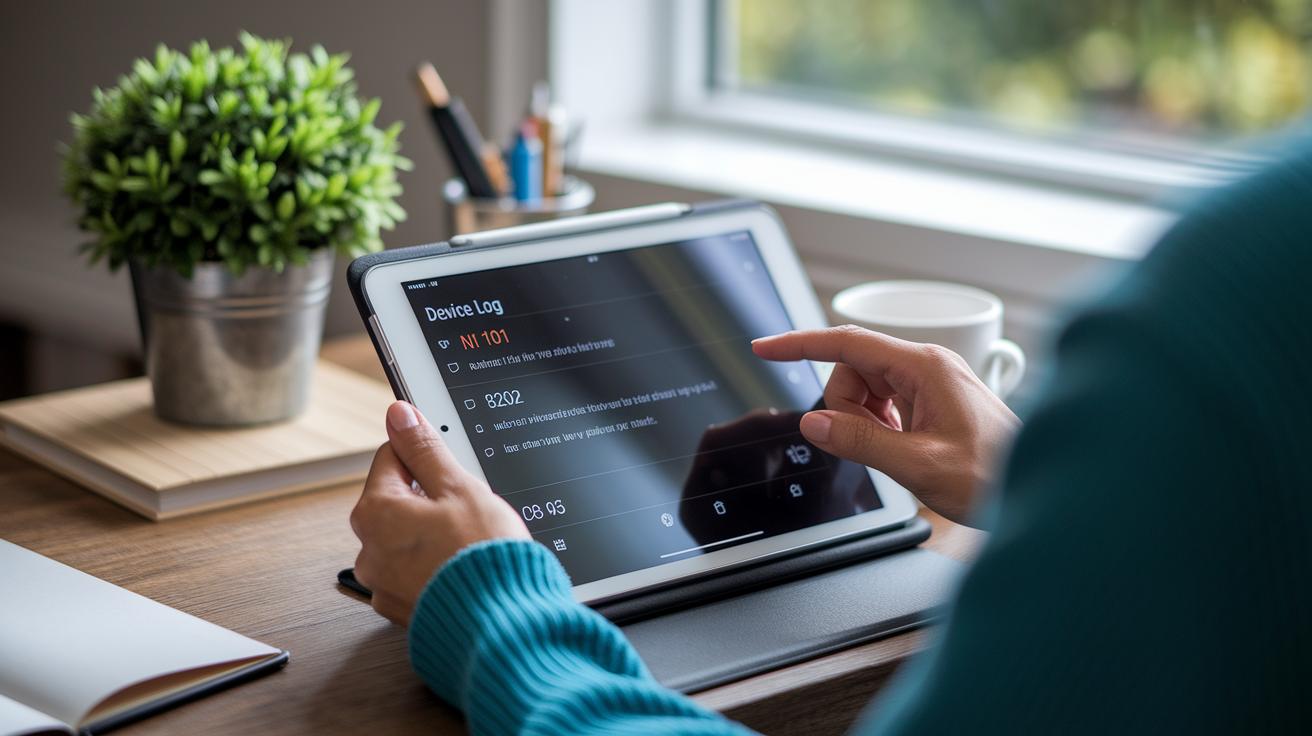
When you see an error code in your companion app's logs, it tells you what is wrong. Check the log for clear details and follow the steps shown. Often, a quick fix will do, but sometimes you might need to reset the device or get in touch with support.
Use the table below to match common error codes with what they mean and how to fix them.
| Error Code | Symptom | Quick Fix |
|---|---|---|
| N101 | Cannot connect to network | Restart network settings |
| B202 | Bluetooth pairing failed | Clear stale connections |
| M310 | Microphone disabled | Check mute settings |
| U403 | Update failed | Retry firmware update |
| P520 | Power-cycle required | Unplug and replug device |
Look out for these signs:
- The error continues even after following the directions.
- You see physical damage on the device.
- You use complex setups with a smart home hub.
Before you call technical support, gather your diagnostic logs. Open the companion app to review your error history. Write down the exact error codes and any patterns you see. This clear record helps support teams see what went wrong and may save you time. Have you ever noticed how good logs can speed up a fix?
Final Words
In the action, we tackled step-by-step checks from power and reboot to voice diagnostics and firmware updates. We broke down network tweaks and hardware inspections, plus answered FAQs and error code meanings.
Each section provided a clear guide to solve issues, maintain connections, and improve audio output. Follow these steps closely for smart speaker troubleshooting success. Keep testing and fine-tuning, and enjoy the improved performance of your device.
FAQ
How do I troubleshoot my Bluetooth smart speaker?
The Bluetooth smart speaker troubleshooting involves checking power connections, ensuring the device isn’t muted, verifying Bluetooth pairing settings, and clearing any stale device caches to resolve pairing issues.
How do I fix my unresponsive Google Home or smart speaker?
The unresponsive Google smart speaker troubleshooting involves verifying the power connection, restarting the device, and updating firmware via its companion app to address command response issues.
How do I perform a factory reset on a Google smart speaker?
The factory reset for a Google smart speaker means holding the Action button for 15 seconds and then re-registering the device using its companion app to clear settings and resolve persistent errors.
How do I connect or reconnect my Google smart speaker to WiFi?
The WiFi connection for a Google smart speaker involves confirming your network details, selecting the appropriate frequency band, and using the companion app to enter the network credentials accurately.
How do I diagnose common smart speaker problems?
The diagnosis of smart speaker issues involves reviewing error codes via the companion app, checking power and WiFi connections, and inspecting for physical damage or interference from nearby devices.