

Have you ever been annoyed by digging through menus for settings? Quick Panel brings your key controls right to you. It works on Android and desktop systems so you can quickly change Wi-Fi, brightness, or notifications. Picture swiping down and having your settings update immediately without extra taps. Quick Panel makes using your device easier and saves you time in our busy tech world.
Quick Panel Overview and Core Functionality
Quick Panel is a simple but effective tool that puts your most used settings right at hand. On Android, you simply swipe down from the status bar to see options like Wi-Fi, Bluetooth, brightness, and more. And it's not just for phones, desktops have similar features. For example, Windows Action Center and KDE Plasma’s Quick Settings work in much the same way, letting you control your system faster.
On Android, speed really matters. You can tap or press and hold on the toggles to make changes quickly. For instance, a $350 CDN TCL phone running Android 16 uses a Quick Panel that refreshes at 120 Hz (a measure of how fast it updates) thanks to its MediaTek Dimensity 6100+ and 6 GB of RAM. In other words, switching settings is nearly as fast as going back to your home screen. Samsung’s Edge Panel works the same way by offering quick app shortcuts and keeps your home screen neat, you just turn it on in the display settings.
On desktop systems, Quick Panels are equally handy. They let you manage notifications or adjust settings on the fly, saving time and cutting clutter. This cross-device design keeps things smooth whether you're on a mobile or a desktop.
Setting Up Quick Panel on Android Devices
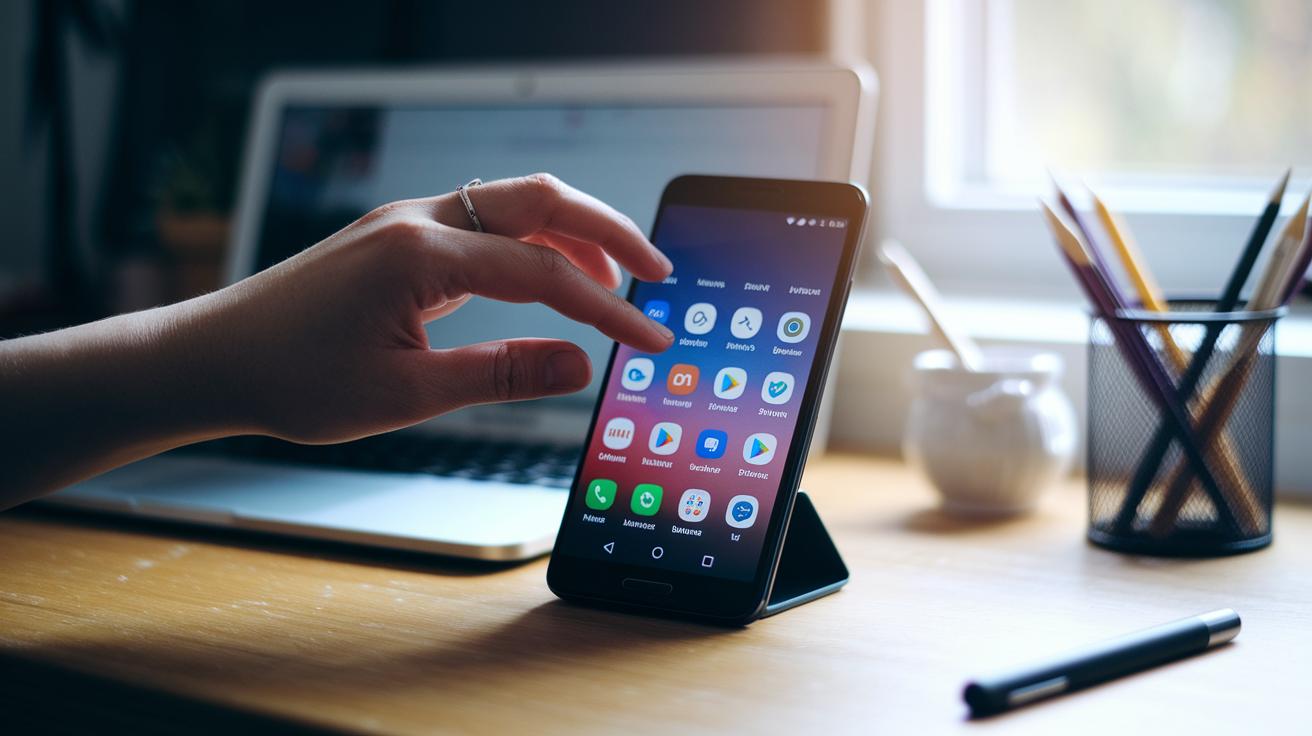
Android phones use different skins so the way you turn on the Quick Panel might change from phone to phone. Whether you're using Samsung’s One UI with its Edge Panel or a regular version of Android, the steps are much the same.
First, open your Settings. Look for Display or Notifications. Next, tap on Quick Settings or Edge Panel. Turn on the Quick Panel feature. Then, pick which toggles or panels you want to use. Set up your activation gesture (a tap or long press) based on what feels right for you. Finally, save your changes and swipe down to test the panel.
Once these steps are done, your Quick Panel is ready. It lets you reach key controls fast, cutting down on extra taps. Many midrange devices, like those with the MediaTek Dimensity 6100+ and 6 GB of RAM, handle these features very well. With this simple setup, you get a responsive and customizable quick-access interface to match your daily needs.
Quick Panel: Accelerate UI Efficiency
Customizing your Quick Panel makes everyday tasks faster and gives you a tool that feels truly personalized. You can rearrange toggles and choose icon themes that match your style, turning your panel into a hub for the settings you use most. Whether you use Samsung’s Good Lock modules or the stock Android editor with drag-and-drop features, you can set up your panel to make controls quicker to access. Third-party launchers even add animated icons and widget features so that the panel really feels like your own.
| Custom Action | Configuration Method | Use Case |
|---|---|---|
| Rearranging Tiles | Drag & drop in Quick Settings editor | Keep your favorite toggles front and center |
| Changing Icon Themes | Use Good Lock Theme Park | Match the panel with your system style |
| Adding Custom Buttons | Install Quick Panel apps | Add tools like a flashlight or recorder |
| Adjusting Edge Handle Size | Edge Screen settings | Avoid accidental pulls |
Changing the layout by reorganizing tiles, picking icon themes, or adding extra buttons means every swipe or tap brings you to a familiar action. This hands-on tweaking not only makes your phone faster to use but also builds an intuitive control center that fits your daily routine. A well-set-up panel adapts to the way you work, saving you time and reducing the hassle of digging through menus. When your most-used features are right at hand, you get more done with ease.
Implementing Quick Panel in Web and Desktop Environments
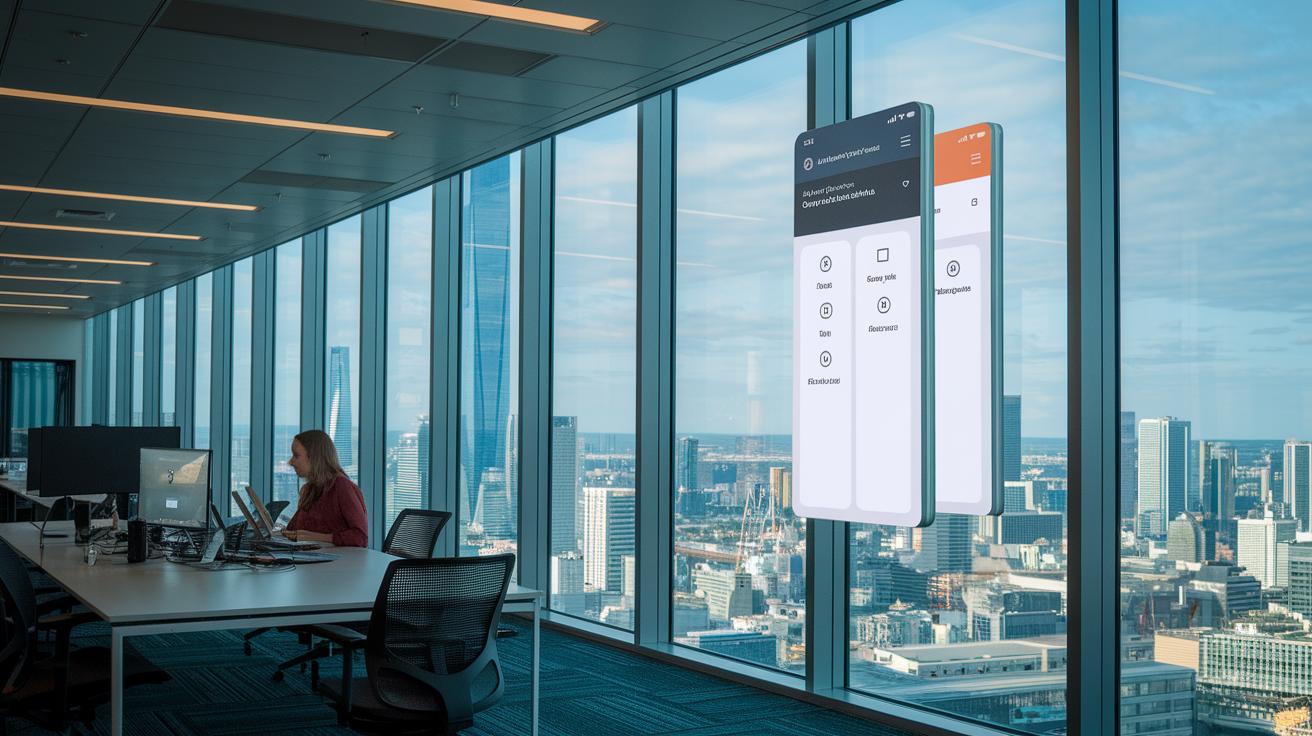
Web and desktop apps use Quick Panels to give users fast access to settings and controls. Developers add these panels to places like dashboards and admin screens so users can toggle notifications, change system settings, or adjust app options quickly. This setup cuts down on extra clicks and page loads, making work faster for both personal and business tools.
To create a slide-out panel in a web app, developers typically use HTML to build the structure and CSS to set its position. They often use a div element as the panel container and hide it off-screen until it’s needed. For example, a panel may be fixed to the right side of the screen; when activated, it covers the page content smoothly thanks to CSS animations.
A small piece of JavaScript can easily control whether the panel is shown or hidden. One common method is to attach an event listener to a menu icon. When you click the icon, the script toggles a class on the panel element. Here’s a sample code snippet:
var panel = document.getElementById('quickPanel');
document.getElementById('menuBtn').addEventListener('click', function() {
panel.classList.toggle('visible');
});
This simple setup lets you show or hide the panel with a single click, making the interface feel lively and responsive.
Good practice means also making sure the panel is accessible and works on all devices. Developers should add keyboard navigation, ARIA labels (which help screen readers), and manage focus properly. Using a responsive design framework keeps the animations smooth and ensures quick access on desktops, tablets, and mobile phones alike.
Troubleshooting Quick Panel Issues
Quick Panel problems can pop up without warning. You might find that the panel is missing or some switches don't work right. Often, these glitches stem from pending OS updates or small software bugs. When your Quick Panel isn't working as it should, it can slow down your access to key settings. Here are some steps to fix it:
- Restart your device and check the panel again.
- Update to the latest OS or launcher version.
- Clear the System UI cache (a temporary storage that helps run the interface).
- Reset the panel settings back to default.
- Reinstall any third-party panel modules.
If these simple fixes don't work, you might need a deeper cleanup. Clearing the cache for System UI or your launcher can often bring back missing tiles and apply changes from past custom setups. On Samsung devices, reinstalling the Edge Panel via Good Lock has helped fix errors on that specific system. These steps are useful not just for minor glitches but also for more stubborn display issues.
If the panel still won't work, consider reaching out for help. Contact your device's support team since ongoing issues can point to deeper software bugs or compatibility concerns that need professional attention.
Quick Panel Optimization Tips for Efficiency

Tuning your quick panel makes your device feel fast and useful. When every tap matters, a smooth interface saves you time and cuts frustration. Fast access means you don't waste time hunting for settings. By adjusting the panel carefully, each tap does its job, turning the panel into a handy tool you rely on every day.
Group similar toggles to keep things neat. Placing controls in folders or on separate pages lets you find settings without extra swipes. Keeping fewer than eight active tiles also cuts swipe lag and keeps the screen clear. Fewer options mean each action is faster and you avoid accidental taps in busy menus.
Small system tweaks can speed up your panel even more. For example, lowering animation scales in developer options cuts down transition time. Using a simpler theme or lighter design also helps. These changes make the panel react quickly to your touches, giving you a smooth and efficient experience every time.
Future Trends for Quick Panel Interfaces
Soon, Quick Panels may use AI to guess what settings you'll want next. The panel will learn from your habits, bringing up toggles for brightness, sound, or network changes just when you need them. It’s like having a tool that shows the right controls before you even ask.
Coming updates will link your phone and computer into a single control hub. With voice commands and gesture controls, you can change volume or Wi-Fi settings with just a tap or a swipe. This will make your devices work together seamlessly, keeping things simple and connected.
Final Words
In the action, we covered the quick panel's core functionality, showing how it works on mobile and desktop environments. We broke down setup steps, layout tweaks, troubleshooting fixes, and performance tips, making it easier to get the most from your device.
Our guide helps you get hands-on results with your quick panel. Each section laid out the facts and real-world benefits to help you make a confident, low-risk purchase decision. Enjoy the control and speed it brings to your everyday tech use.
FAQ
What is a quick panel?
The quick panel is a built-in menu that gives instant access to functions like Wi-Fi, brightness, and Bluetooth by swiping down from your device’s top bar.
Where is the quick panel on my phone?
The quick panel is typically found by swiping down from the status bar on your Android phone, offering fast access to key settings and toggles.
How do I enable or restore the quick panel on my Samsung phone?
Enabling or restoring the quick panel on a Samsung device involves going to Settings, selecting Display then Edge Panel, and toggling it on, or restarting your device to fix a missing panel.
How do I add a screenshot button in the Samsung quick panel?
Adding a screenshot button in the Samsung quick panel is done through the panel’s customization options, where you can add or remove tiles to include a screenshot shortcut.
What do Samsung quick panel icons and settings do?
Samsung quick panel icons let you quickly toggle essential features like Wi-Fi or Bluetooth, while the settings allow you to rearrange and customize these icons to suit your routine.
How is the quick panel layout organized with its buttons?
The quick panel layout groups buttons and toggles in an easy-to-reach format, so you can quickly adjust system settings with simple taps or long presses for additional options.