

Ever had your iPhone Quick Start refuse to connect? It can feel just like when a friend suddenly drops the call. This guide walks you through the most common issues that stop your data from moving over Wi-Fi and Bluetooth. We share six simple fixes to help your devices reconnect. Check your settings, keep your phones close, and be sure they’re charged. With these hands-on tips, you can move your data without the usual head-scratching troubles. Let’s get you back to enjoying your new iPhone fast.
iPhone Quick Start Not Working? Get Speedy Fix!
Quick Start uses Bluetooth and Wi-Fi to move your data between iPhones running iOS 11 or later. It links your old and new phone wirelessly. A strong signal with active Bluetooth and Wi-Fi is key. Weak signals, turned-off radios, or devices that are too far apart can cause issues.
We have six quick fixes that sort out most transfer problems. They tackle common causes like old iOS versions, low battery, or random glitches. They even show you how to start the setup manually if a management profile gets in the way.
- Enable Bluetooth and Wi-Fi on both devices
- Keep devices within 3 feet of each other
- Plug both iPhones into a power source
- Update to the latest iOS (go to Settings > General > Software Update)
- Force-restart both devices (methods vary by model)
- Use Authenticate Manually if the animation scan fails
Enable Bluetooth and Wi-Fi
Start by turning on Bluetooth and Wi-Fi. Open the Control Center, swipe down from the top right on Face ID models or swipe up from the bottom on Home button models. Then, go to Settings and confirm that both are active. Make sure no network restrictions are blocking them.
Confirm Proximity and Power
Keep your iPhones about 3 feet apart. This distance helps reduce interference. Also, plug them into a charger or power source, especially if the battery is low. Steady power helps maintain a stable connection.
Update iOS on Both Devices
Go to Settings > General > Software Update on each phone. If an update is available, install it. Running the latest iOS fixes bugs and improves the connection for Quick Start.
Force Restart Both iPhones
A force restart clears small errors and resets the connection modules. For phones with a Home button, hold the Home and Power buttons until the device restarts. For Face ID models, quickly press and release Volume Up, then Volume Down, and finally hold the Side button until the Apple logo shows. This step often clears glitches that block pairing.
Use Authenticate Manually Option
If the camera scan doesn’t work, try a manual setup. On your old iPhone, go to Settings > General > Transfer or Reset iPhone > Get Started. This bypasses the automatic scan by directly connecting the devices.
Remove Management Profile
Sometimes a management profile (a set of controls set by an organization) can block the transfer. Check under Settings > General > VPN & Device Management. If you see a profile, remove it. Clearing this profile often lets Quick Start work as intended.
Follow these steps to fix most Quick Start issues. They address problems with wireless signals, power, and software glitches so that your data transfer is smooth and automatic.
iPhone Quick Start Not Working Prerequisites and Compatibility
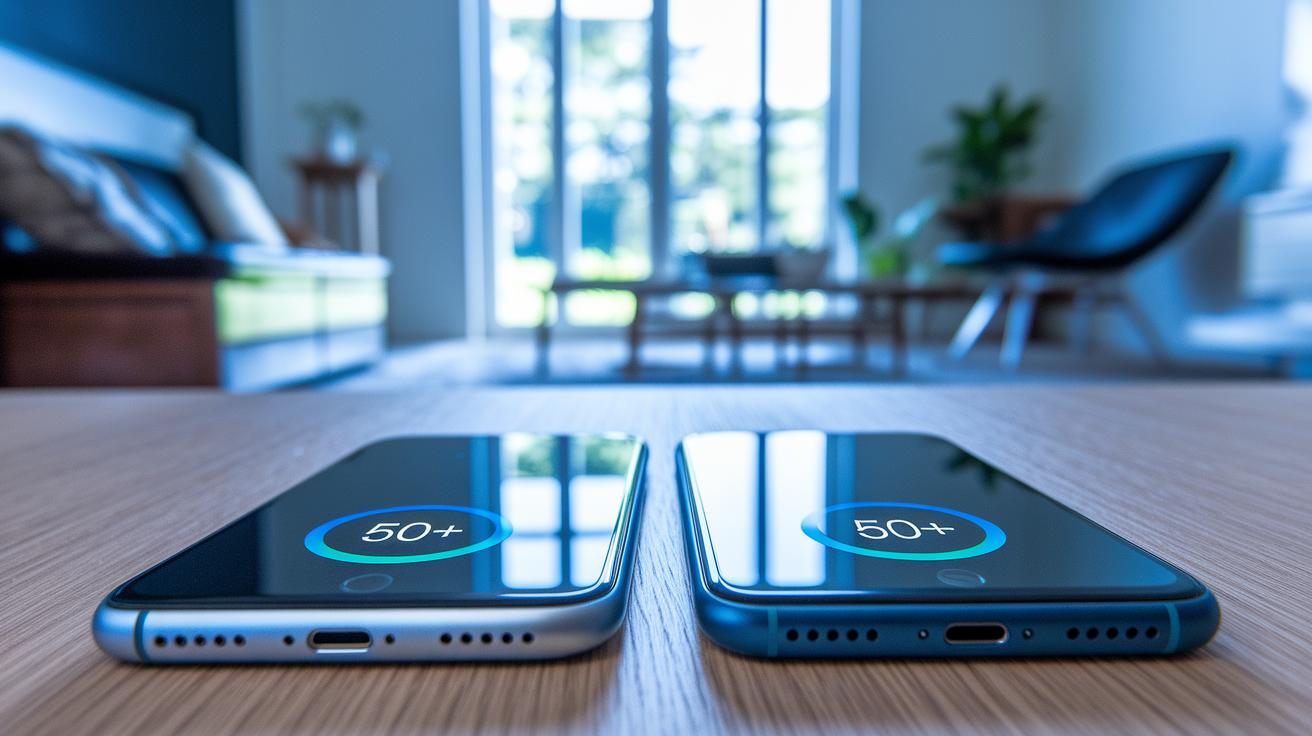
To use Quick Start, your iPhone needs to run iOS 11 or later. Phones like the iPhone 5s and newer support the new peer-to-peer connection methods (direct device communication). If you're running an older system, you might see an error called an iOS transition error.
Make sure both devices have at least a 50% battery or are connected to power. Keep them within about 3 feet of each other for a steady Bluetooth and Wi-Fi connection. It’s like tuning two radios close by for a clear signal.
Some management profiles or company settings can block mobile pairing. If you run into issues, head to Settings > General > VPN & Device Management and remove any profiles that might be interfering.
Keep in mind that even if your phone seems capable, older hardware may prevent Quick Start from working as expected.
Alternative Transfers When Quick Start Fails on iPhone
If Quick Start gives you trouble, you can use iCloud Backup to restore your data. First, go to Settings > [Your Name] > iCloud > Backup on your old phone to make sure you have a recent backup. You need a steady Wi-Fi signal during this process. This method works well if the automatic pairing doesn't work as expected.
Another option is to restore with Finder or iTunes on your computer. Plug your phone into your Mac or PC with a USB cable. This wired method skips the pairing step and is usually faster and more reliable, especially when your Wi-Fi signal is weak.
In short, iCloud restores need a solid Wi-Fi network and might take a bit longer to download, but they're convenient when you don't want to use cables. USB transfers, however, tend to be quicker and more consistent, although you'll need a computer and a cable. Both methods give you a practical way to move your data when Quick Start isn't cooperating.
Advanced Diagnostics for Persistent iPhone Quick Start Not Working
If your iPhone’s Quick Start keeps failing, interference might be the culprit. A good test is to enable Airplane Mode while leaving Bluetooth on. This stops Wi-Fi and cellular signals so you can check if nearby networks are causing trouble. If your iPhone works fine in this mode, busy networks or overlapping signals might be the issue.
| Issue | Test | Solution |
|---|---|---|
| Weak signal | Move to an open area | Keep devices closer |
| Network interference | Turn on Airplane Mode (Bluetooth on) | Check Bluetooth performance |
| Old radio modules | Force-restart the iPhone | Clear temporary cache |
| Data relay issues | Watch connection stability | Adjust wireless settings |
If problems still persist, you might try third-party tools. For example, iOS Repair Tuner can spot hidden system conflicts and clear data transfer delays. This extra step could help when standard checks fall short.
Preventing Future iPhone Quick Start Not Working Problems
Keep your iOS updated. With auto-updates on, your phone always gets the newest fixes and improvements for a steady data connection. This simple step helps avoid errors and glitches when transferring data.
Turn off Auto-Lock during data transfers. Go to Settings > Display & Brightness > Auto-Lock and choose Never until your data move is complete. If your phone goes to sleep, the transfer might get interrupted. This quick change keeps your connection steady.
It also helps to check your Bluetooth and Wi-Fi every month. A short test can spot small issues early and keep your connections in top shape when you use Quick Start.
Final Words
In the action, this post broke down how iPhone Quick Start depends on wireless signals and shared six simple fixes, from toggling Bluetooth and Wi-Fi to manually authenticating when the connection stalls. We tackled pairing issues, software updates, and even MDM profile removal for smoother transfers.
Our goal was to simplify tracking down why iphone quick start not working gets in your way and offer hands-on fixes. These practical steps should help you transfer your data stress-free and get your device up and running again.
FAQ
Q: Why is Quick Start not working on my iPhone (including iPhone 15, 16, or 17, or after a reset)?
A: The iPhone Quick Start not working on various models or after a reset indicates issues with Bluetooth/Wi-Fi settings, outdated software, increased device distance, or cache errors. Checking these factors usually resolves the problem.
Q: How do I manually start Quick Start on my iPhone?
A: The manual activation of Quick Start is done by navigating to Settings > General > Transfer or Reset iPhone > Get Started. This option helps when the automatic pairing fails.
Q: Why won’t Quick Start find my iPhone or transfer my data?
A: The Quick Start not finding your iPhone or transferring data implies that connectivity issues, such as disabled Bluetooth/Wi-Fi or interference, are causing the problem. Keeping devices close and updated often fixes it.
Q: What steps can I take to fix iPhone Quick Start issues?
A: The steps to fix iPhone Quick Start problems include enabling Bluetooth and Wi-Fi, keeping devices within 3 feet, plugging them into power, updating iOS, force restarting both devices, and using manual authentication if needed.
Q: How do I resolve Quick Start issues after resetting my iPhone?
A: The Quick Start issue after a reset means the device might have residual cache or radio settings errors. A force restart and checking that Bluetooth and Wi-Fi are enabled usually clears the problem.